

In this blog post, you will learn why the ResourceMoveValidationFailed error occurs when attempting to move an Azure Arc-enabled SCVMM environment to another subscription, and what the only supported approach is to successfully complete this migration.
As your Azure Arc environment grows, or when you need to consolidate Arc resources across subscriptions, you may want to move components such as the SCVMM management server and its associated resources, including the custom location and resource bridge, to a different subscription.
While this may seem like a natural next step, it comes with a hard limitation that is easy to overlook when working with Azure Arc-enabled SCVMM.
The most logical approach would be to first place them in the same resource group, and then use either the Move option in the Azure Portal or Azure Resource Mover to relocate them to a new or existing subscription.
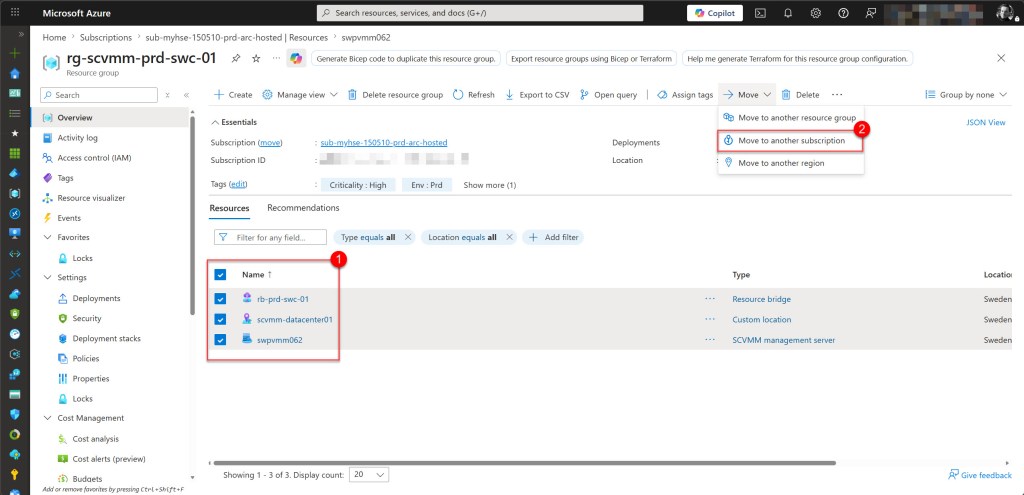
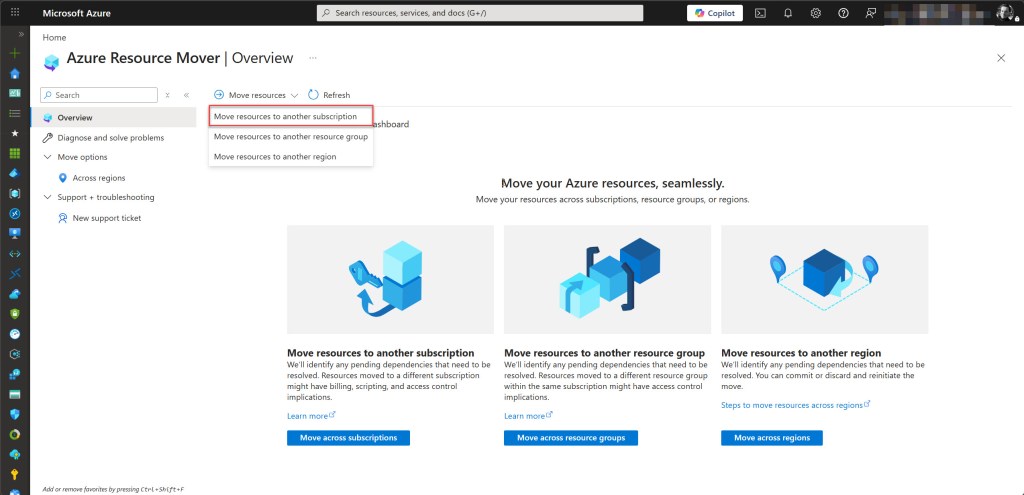
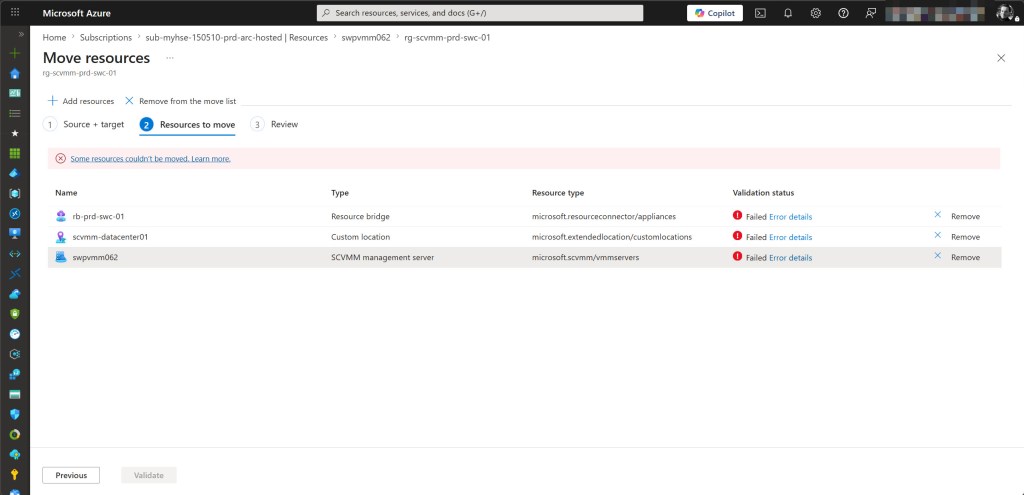
However, this is exactly where you will run into the ResourceMoveValidationFailed error, as Azure blocks the move operation for these specific resource types.
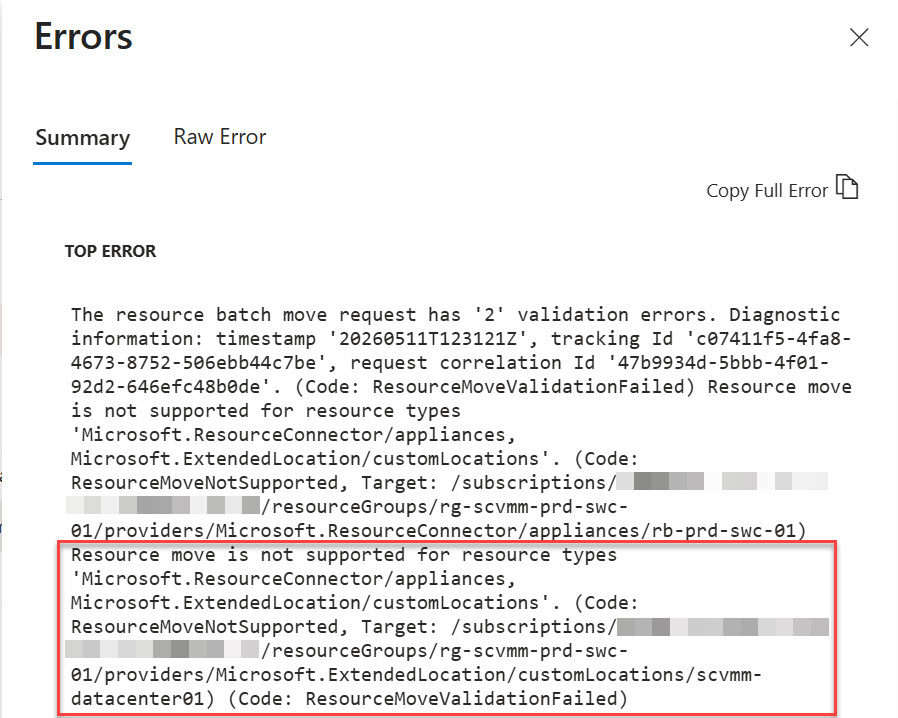
Why moving Arc-enabled SCVMM resources to another Subscription fails
When attempting to move an Arc-enabled SCVMM environment to a different resource group or subscription, you will encounter the following error:
“The resource batch move request has validation errors. Resource move is not supported for resource types Microsoft.ResourceConnector/appliances and Microsoft.ExtendedLocation/customLocations.”
The ResourceMoveValidationFailed error clearly indicates that Azure is explicitly blocking the move. This is not related to permissions or configuration mistakes. These resource types simply do not support move operations, neither across resource groups nor across subscriptions.
The Two Blocking Resources
The root cause comes down to two foundational components in any Arc-enabled SCVMM deployment.
The Arc resource bridge which represents the on-premises appliance registration in Azure. It acts as the bridge between your on-premises VMM environment and the Azure control plane, and it cannot be moved. It can only be deleted and redeployed.
The custom location which is built on top of the Resource Bridge and depends directly on it. As a result, it inherits the same limitation and also cannot be moved.
The Cascading Impact
Because these two core resources cannot be moved, everything built on top of them is also effectively bound to the same scope.
This includes the SCVMM management server registration, Azure clouds, virtual networks, VM templates, and any Arc-enabled virtual machines. All of these dependencies rely on the Arc Resource Bridge and Custom Location as their foundation.
As soon as Azure detects these unsupported resource types in a move operation, it validates the entire request and blocks it. Even if the other resources in the batch are movable, the presence of these two components causes the full operation to fail.
The only supported solution
The only supported path forward is to fully offboard the existing Arc-enabled SCVMM environment, redeploy the Arc resource bridge in the target subscription and resource group, and then re-onboard the SCVMM management server.
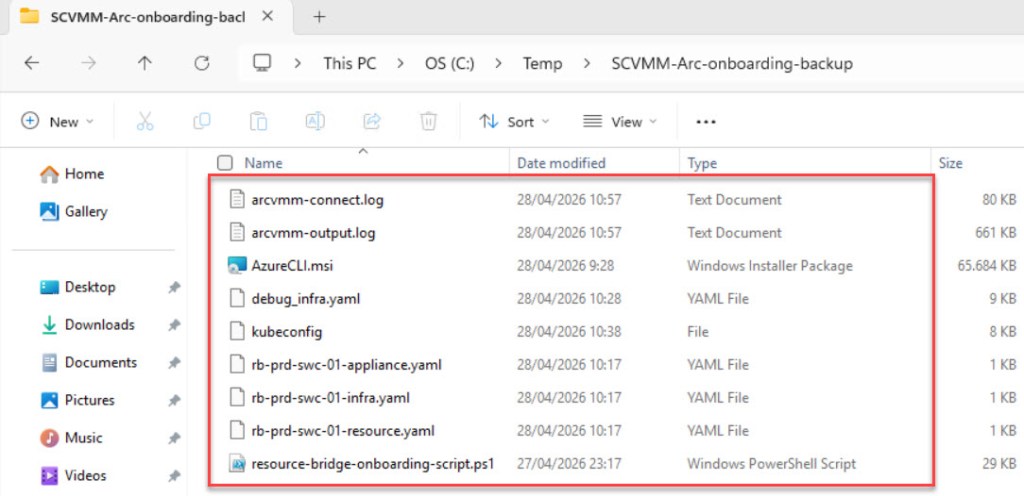
If you still have a backup of the original deployment files, the re-onboarding process becomes significantly easier. In most cases, it mainly involves updating the target subscription and resource group references, then re-running the commands below, since the majority of the original configuration work has already been completed.
💡 Make a backup copy of all YAML files before making any changes to them.
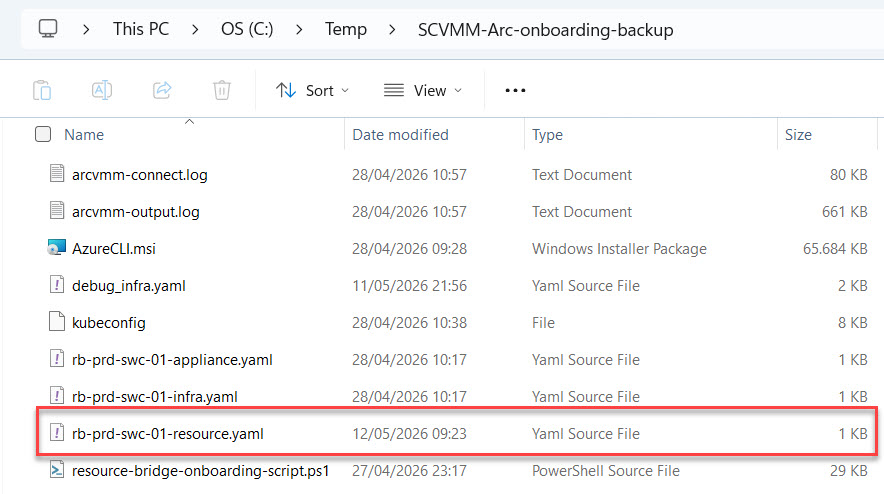
The files required are the following:
💡 The naming used below is based on my environment, where rb-prd-swc-01 represents the resource bridge name in this specific deployment. In your environment, this prefix will differ depending on the name you assigned during deployment.
- rb-prd-swc-01-appliance.yaml – Appliance configuration that defines the Resource Bridge
- rb-prd-swc-01-infra.yaml – Infrastructure configuration, including VMM, network, and vSphere settings
- rb-prd-swc-01-resource.yaml – Azure resource definitions for the bridge
- debug_infra.yaml – Debug and diagnostic configuration from the original deployment
- kubeconfig – Kubernetes configuration file for the appliance cluster
- arcvmm-output.log / arcvmm-connect.log – Logs from the original deployment, useful for reference and troubleshooting
Step 1 – Offboard the existing environment
The easiest approach is to use the Azure CLI, while keeping the Azure Portal open for quick reference of used resources, resource names, and cleanup actions. So make sure to log in with a user who has the necessary rights in both.
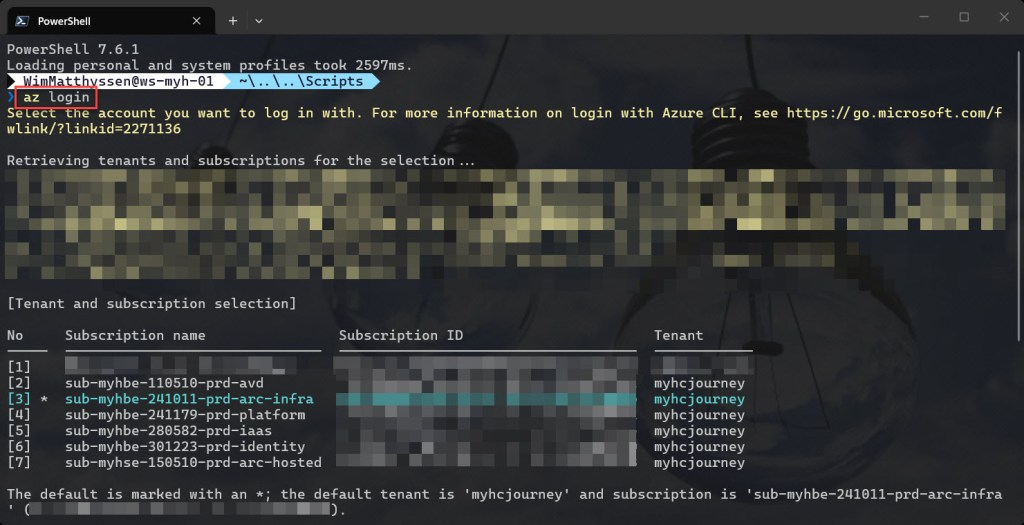
The next step is to remove the SCVMM VM projections, which are the Microsoft.ScVmm/virtualMachines resources that link Azure to the VMs managed by SCVMM.
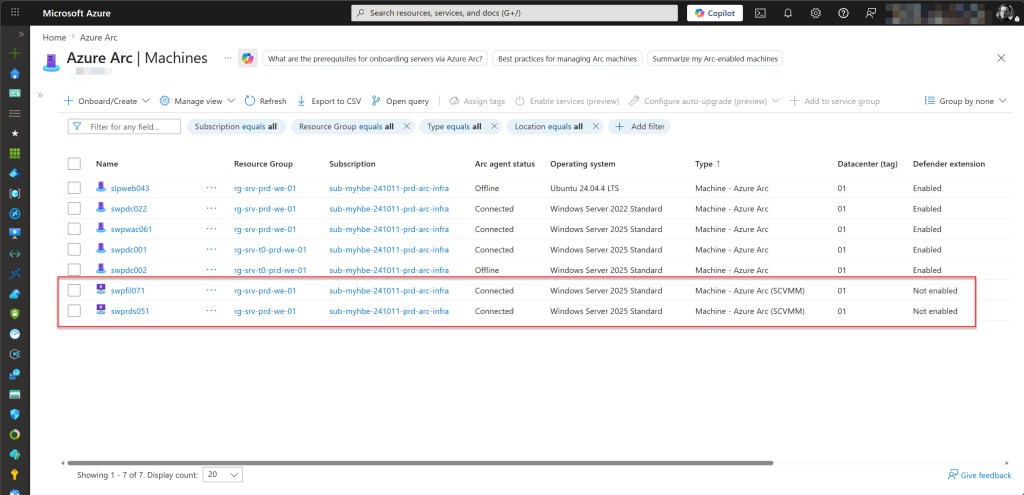
💡 These are different from the Microsoft.HybridCompute/machines resources (type “Machine – Azure Arc (SCVMM)”) visible under Azure Arc > Machines. Those Arc agent resources do not need to be removed for this migration, as they are independent and will simply show as Offline or Disconnected once the resource bridge is offboarded. You can clean them up later as housekeeping.
These SCVMM VM projections are visible in the Azure portal under Azure Arc > SCVMM management servers > [your server] > Virtual machines, where they show as “Enabled” in the Virtual hardware management column.
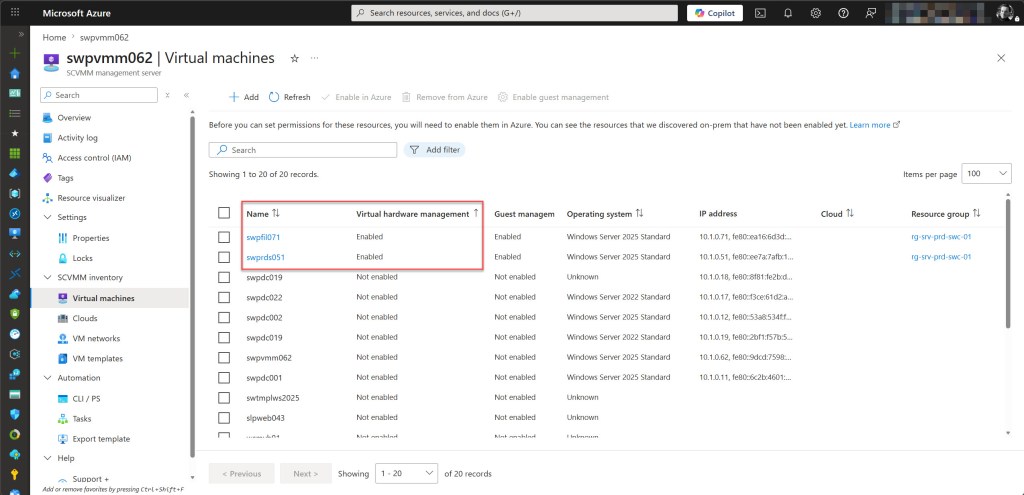
💡The –retain parameter has been deprecated and will be removed in a future release, but make sure to still use it, as it ensures the actual VM on-premises is kept and only the SCVMM VM projection is removed, which is exactly what you want.
# Remove any Arc-enabled VMs registered under SCVMM

az scvmm vm delete --name <vm-name> --resource-group <old-rg> --subscription <old-sub> --retain --yes
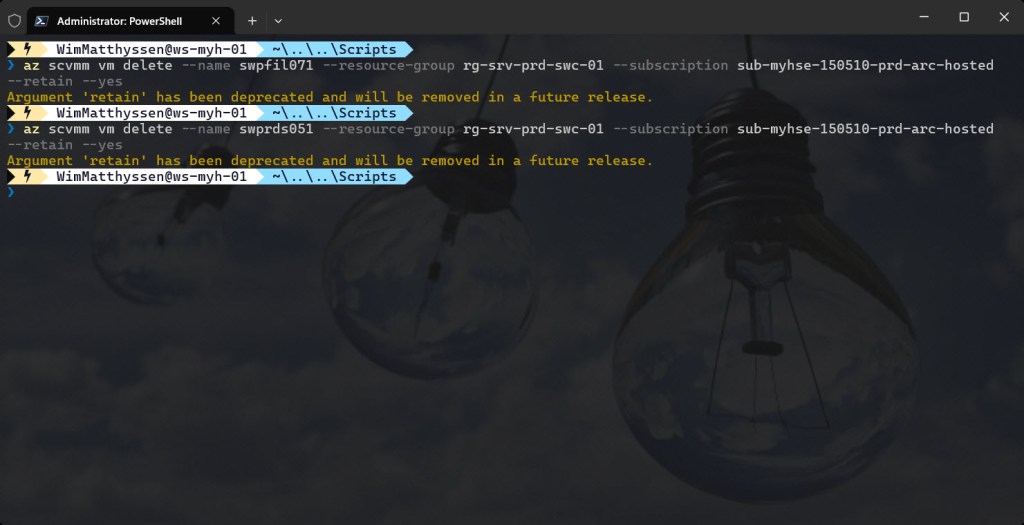
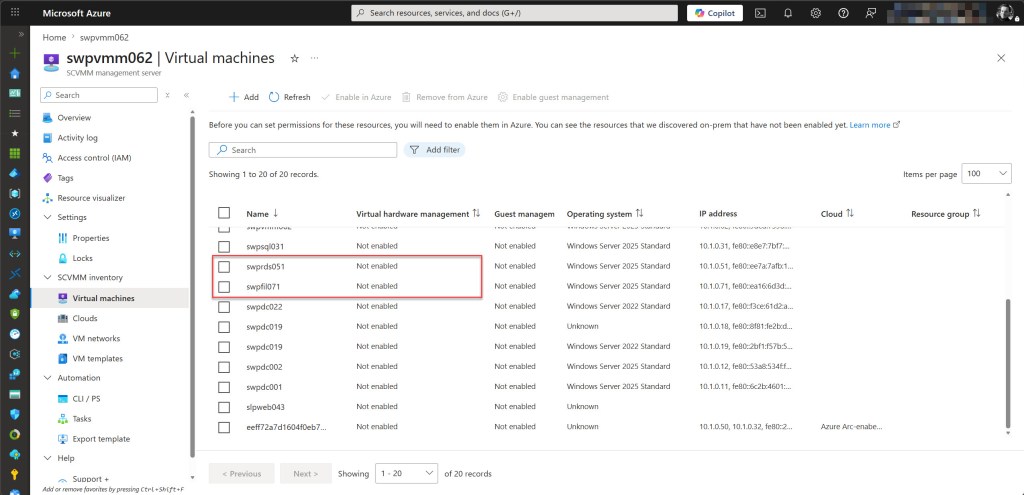
After removing all SCVMM VM projections and validating that they have been successfully removed, the next step is to remove the SCVMM server registration using the following Azure CLI command:
# Remove the SCVMM server registration

az scvmm vmmserver delete --name <vmmserver-name> --resource-group <old-rg> --subscription <old-sub> --force
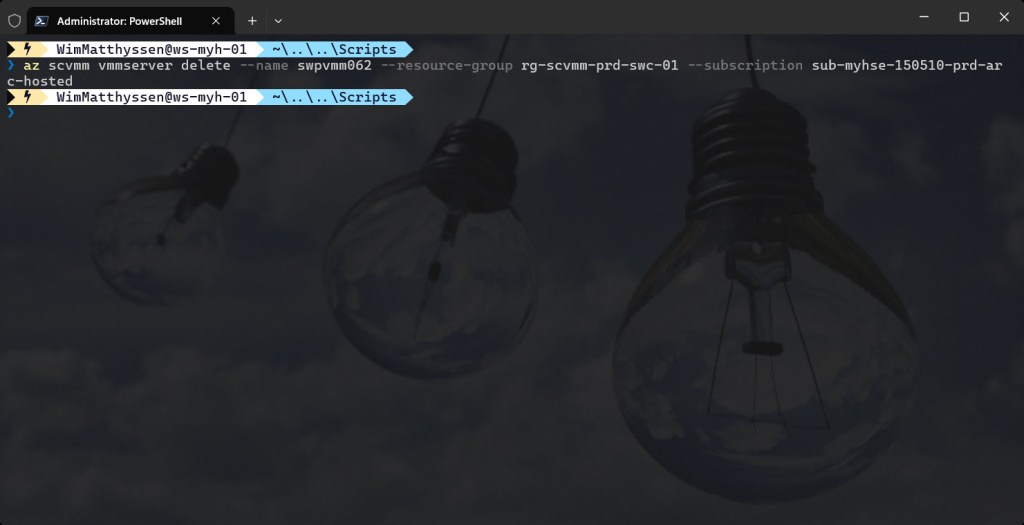
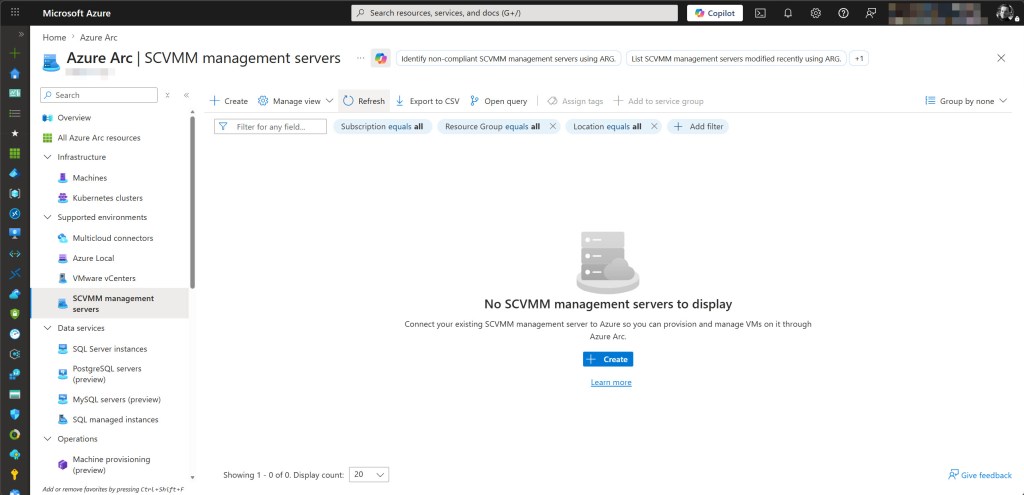
With the SCVMM server registration removed, the next step is to delete the custom location. The custom location (scvmm-datacenter01 in my environment) is an Azure resource that maps the Resource Bridge to a specific namespace, allowing SCVMM inventory to be projected into Azure.
Removing it from the old subscription is required before the resource bridge itself can be offboarded, which you can do by running the following Azure CLI command:
# Remove the custom location

az customlocation delete --name <custom-location-name> --resource-group <old-rg> --subscription <old-sub> --yes
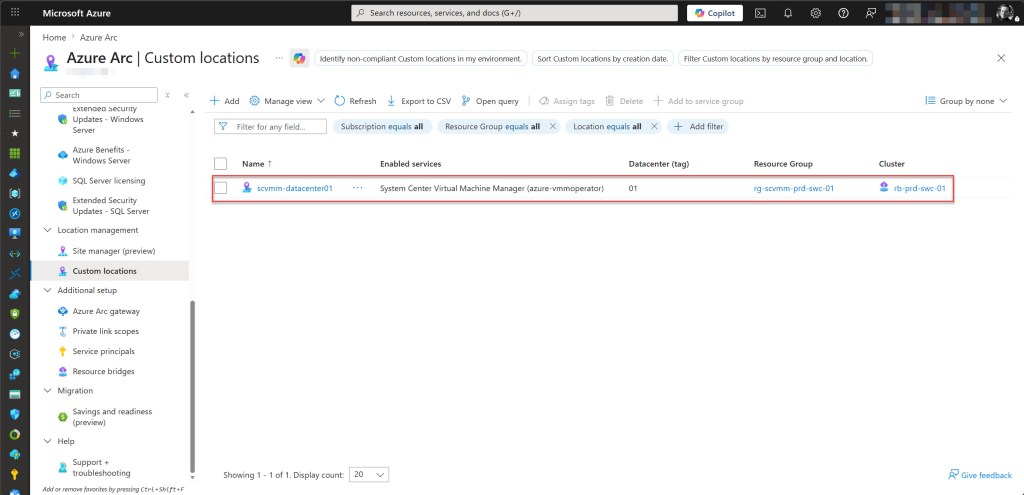
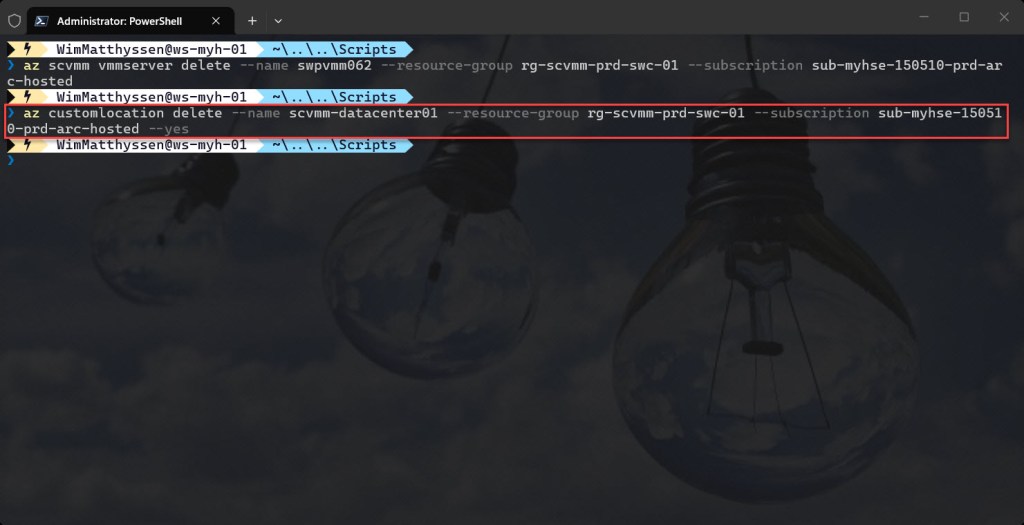
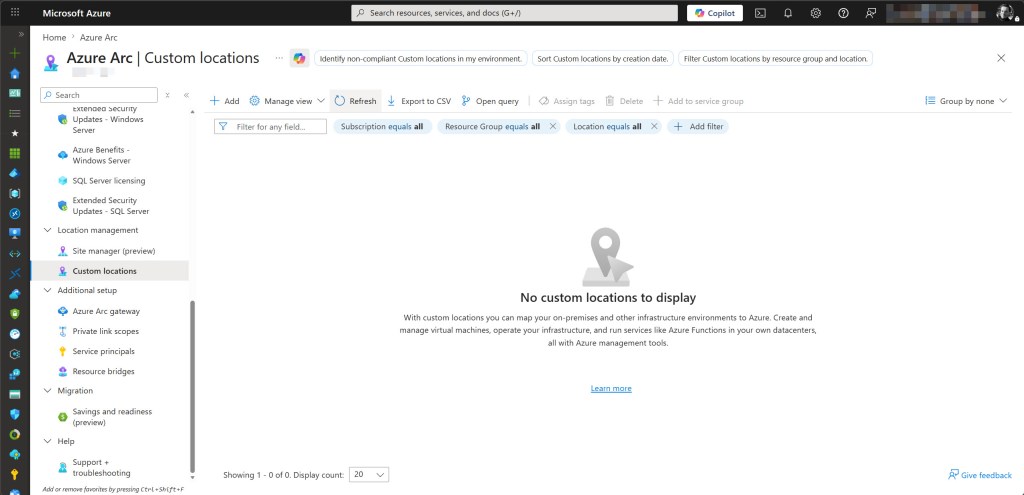
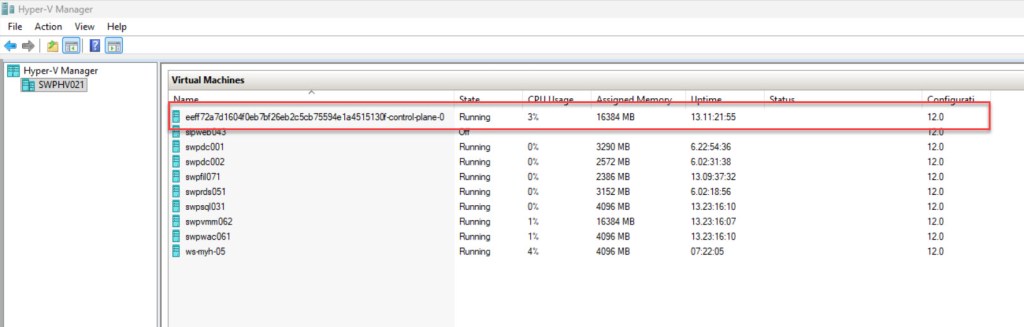
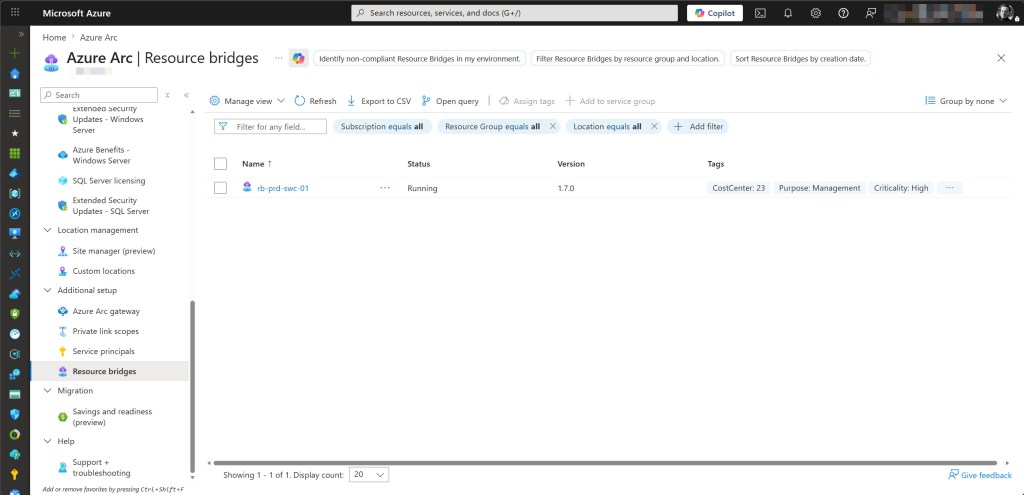
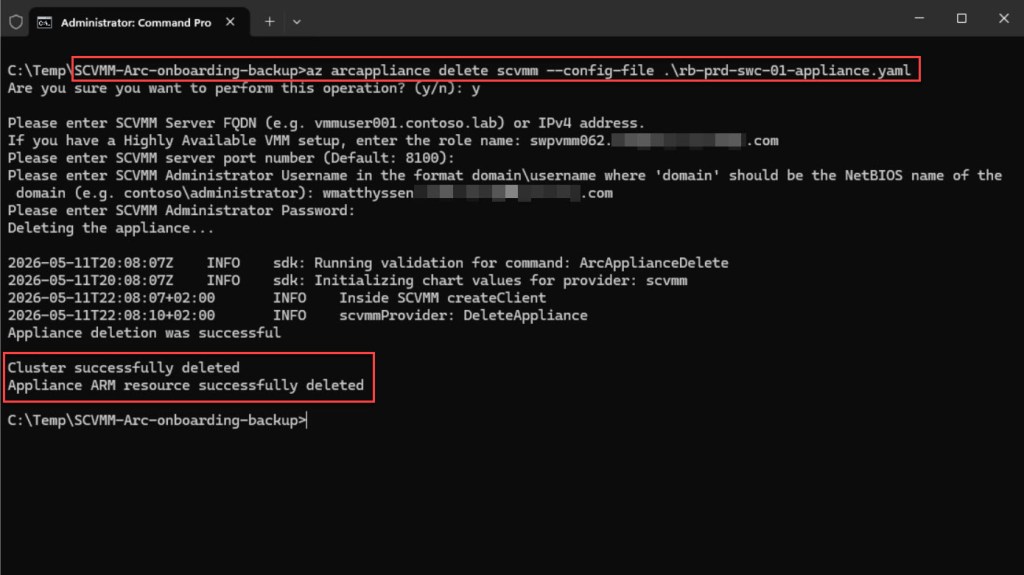
The final step in cleaning up the old subscription is to offboard the Azure Arc resource bridge. This removes the Microsoft.ResourceConnector/appliances resource from Azure and deletes the underlying appliance VM from your on-premises SCVMM environment.
Run the following command from the folder containing your resource bridge configuration files:
# Remove the resource bridge

az arcappliance delete scvmm --config-file .\<appliance-config-file>.yaml --yes
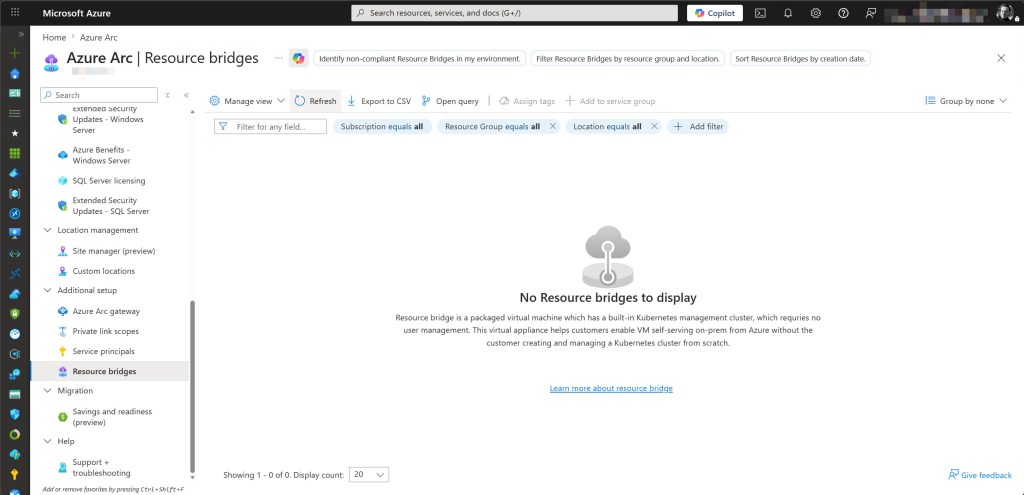
Step 2 – Update the resource bridge configuration file
With the old environment fully cleaned up, the next step is to update the resource bridge configuration file so it targets the new subscription.
During the original resource bridge deployment, three YAML files were generated. Only one of these files, <appliance-config-file>-resource.yaml, contains Azure-specific references that must be updated before redeployment.
The other two files, -infra.yaml and -appliance.yaml, contain only on-premises infrastructure settings and therefore do not require any changes.
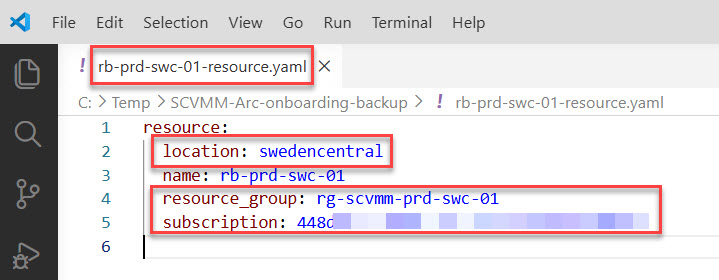
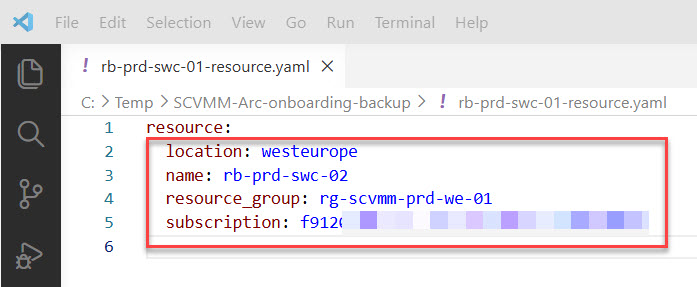
Locate your backed-up <appliance-config-file>-resource.yaml file and update the following values:
- location – Only change this if you are deploying to a different Azure region.
- name – Replace this with a new unique name for the resource bridge. Reusing the old name can cause conflicts if any Azure resources still reference it. Using a new name ensures a clean deployment.
- resource_group – Replace this with the resource group in the new subscription.
- subscription – Replace this with the new subscription ID.
The screenshot below shows the original rb-prd-swc-01-resource.yaml with the old values highlighted. Update the required fields to match your new subscription, resource bridge name, and resource group, and optionally the Azure region if you are deploying to a different one.
The screenshot below shows the updated rb-prd-swc-01-resource.yaml file with the new values applied.
Step 3 – Redeploy the Arc resource bridge appliance
The next part, which takes the most time, is redeploying the resource bridge. Before running any commands, make sure you are working from a domain-joined machine that can reach your SCVMM server (in my case, swpvmm62).
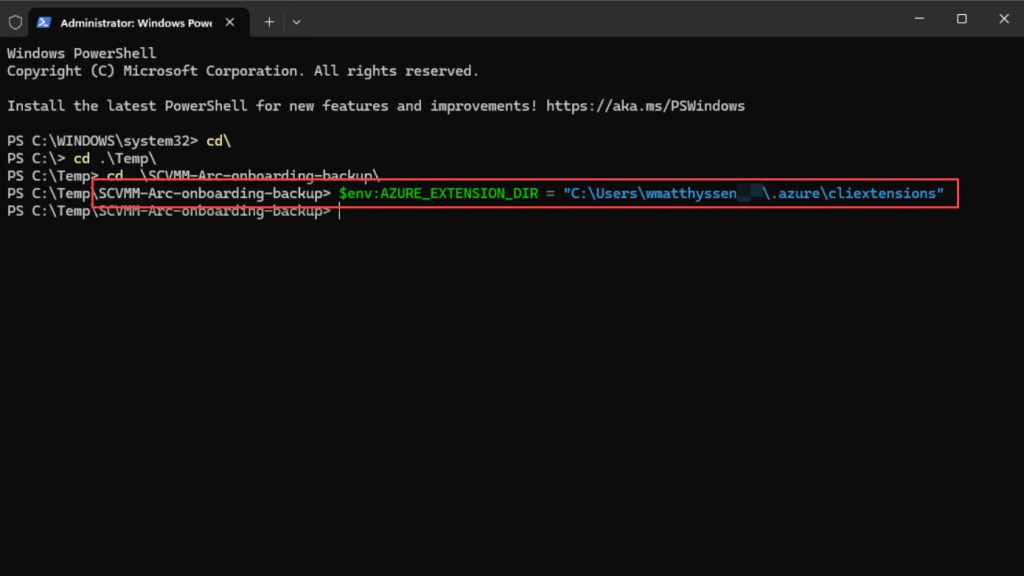
Before running the commands, navigate in PowerShell to the folder where the YAML files are stored, and then set the AZURE_EXTENSION_DIR environment variable to the folder containing your CLI extensions. This must be done in every new terminal session.
$env:AZURE_EXTENSION_DIR = "C:\Users\<your-username>\.azure\cliextensions"
Then log in with Azure CLI to the new subscription.
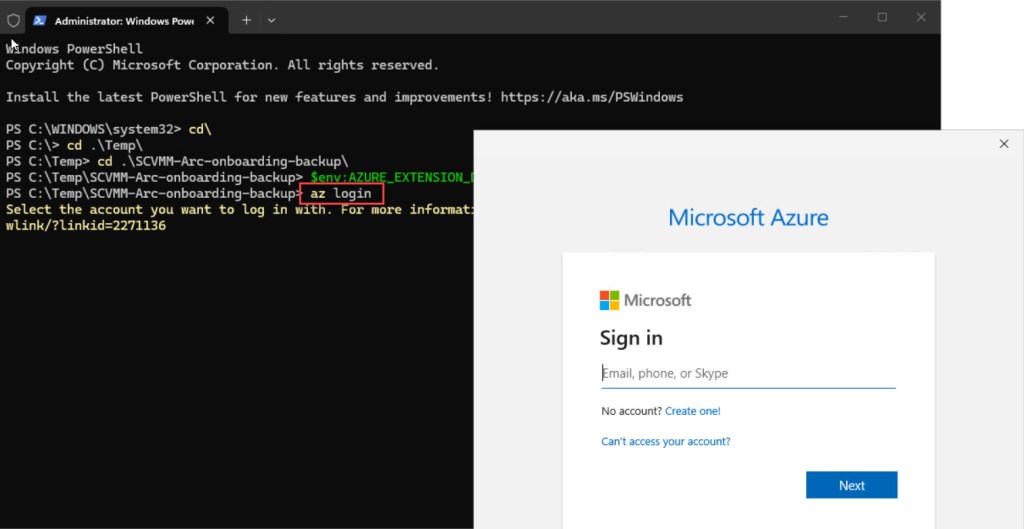
Once logged in, the first stage of the redeployment downloads the Azure Arc resource bridge appliance image to your SCVMM library share. This image will be used in the next step to deploy the appliance VM on-premises.
This step can take several minutes depending on your internet connection and library share location, as it downloads the appliance VM image. The command must be run from a machine that can reach the SCVMM server. When prompted for credentials, enter the username in NetBIOS format: DOMAIN\username.
Run the following command from the folder containing your configuration files:
# Download the appliance image to the SCVMM library

az arcappliance prepare scvmm --config-file .\<appliance-config-file>-appliance.yaml
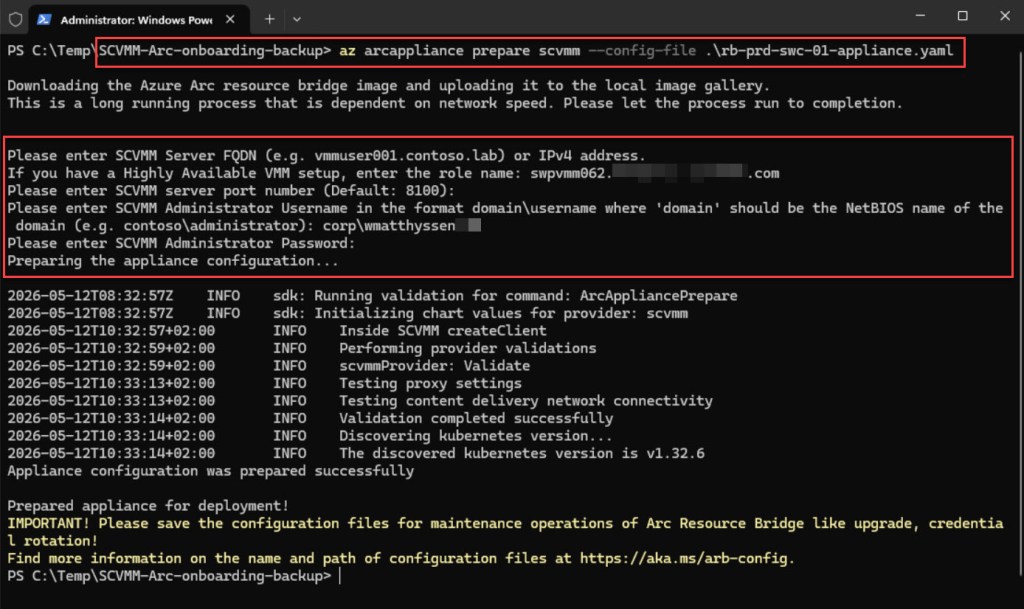
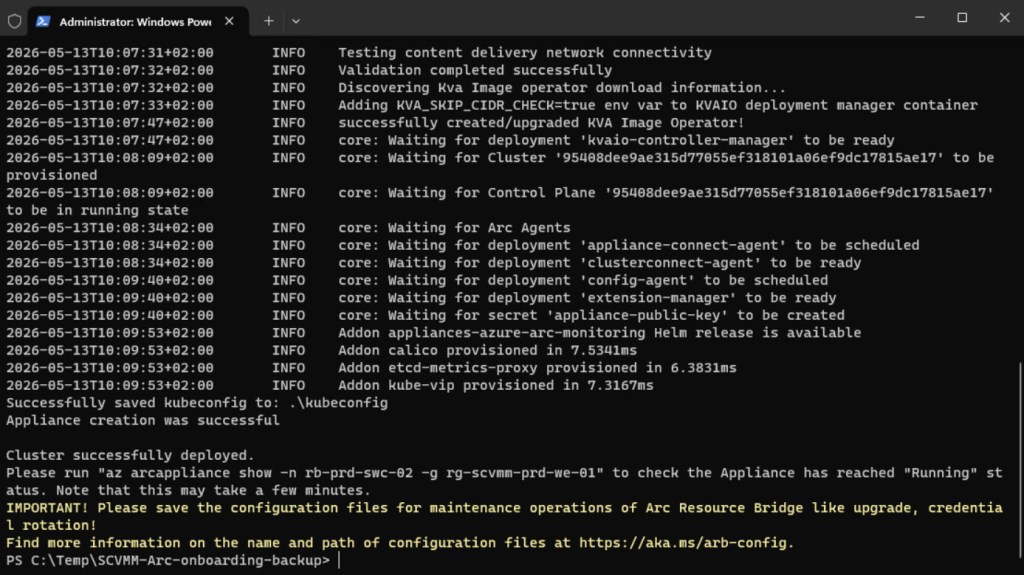
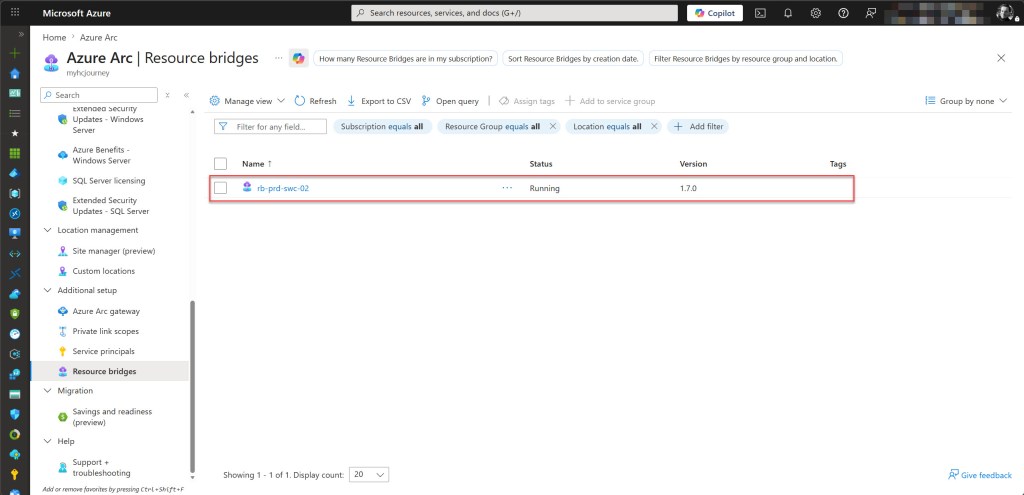
Once prepare completes successfully, the next step is to deploy the appliance VM on-premises. To do so, run the following command and fill in all the required parameters once again:
# Deploy the Arc resource bridge appliance VM directly with SCVMM credentials

az arcappliance deploy scvmm --config-file .\rb-prd-swc-01-appliance.yaml --outfile .\kubeconfig --username "<domain\username>" --password "<your-password>" --address "<scvmm-fqdn-or-ip>" --port <port>
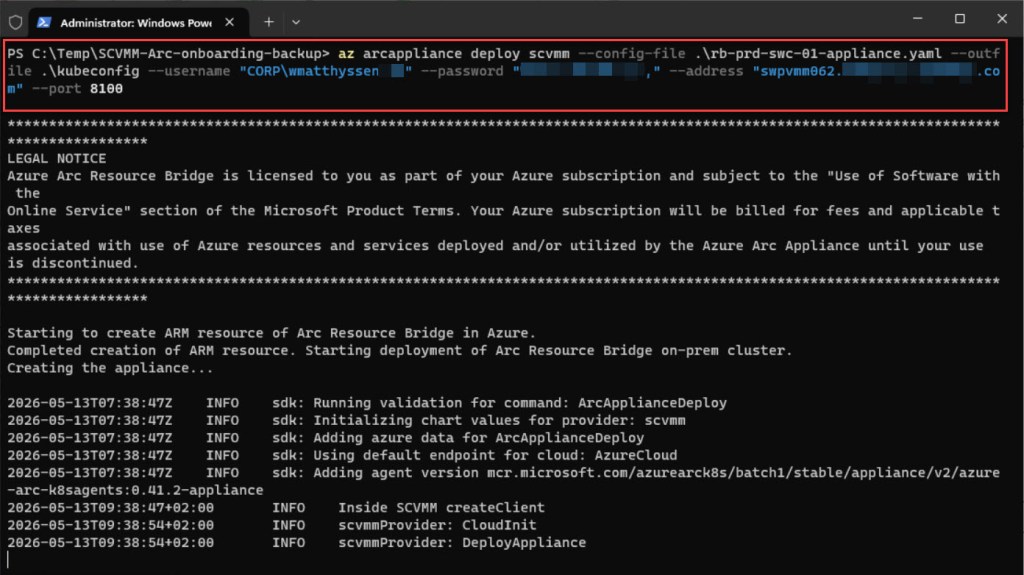

Step 4 – Install the SCVMM cluster extension on the Arc resource bridge
With the resource bridge successfully deployed, the next step is to install the SCVMM cluster extension. This extension enables the resource bridge to communicate with and manage your SCVMM environment.
Without this extension, the Custom Location and SCVMM server registration steps that follow cannot be completed.
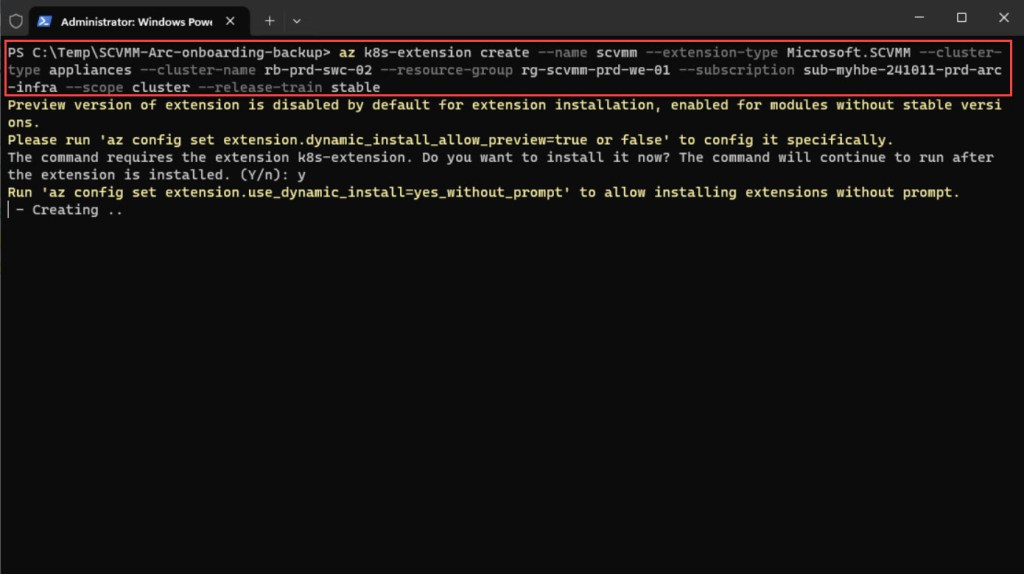
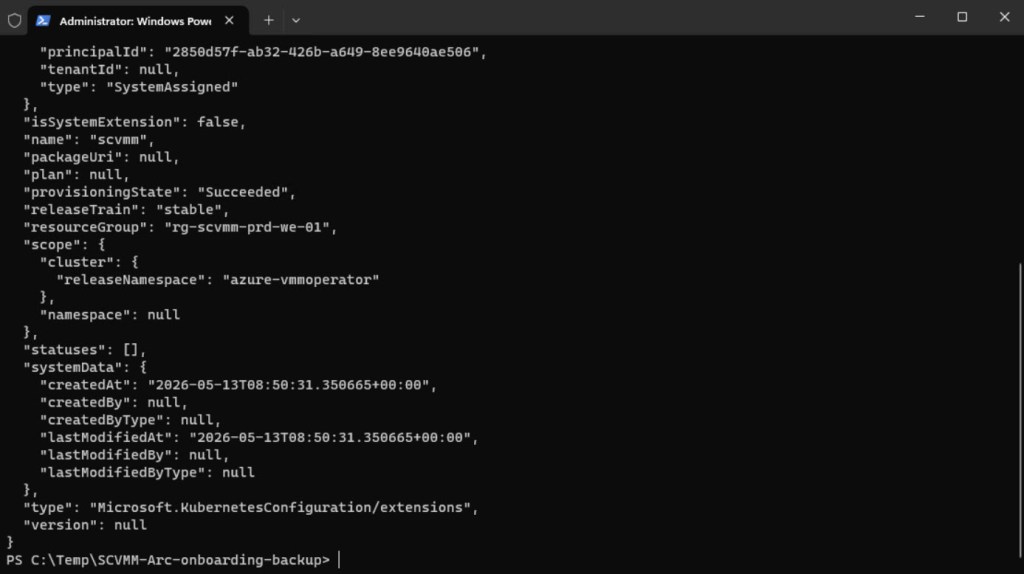
Run the following command to install the SCVMM cluster extension on the Arc resource bridge:
# Install the SCVMM cluster extension on the Arc resource bridge appliance

az k8s-extension create --name scvmm --extension-type Microsoft.SCVMM --cluster-type appliances --cluster-name <appliance-name> --resource-group <resource-group> --subscription <subscription-name-or-id> --scope cluster --release-train stable
Step 5 – Create the custom location
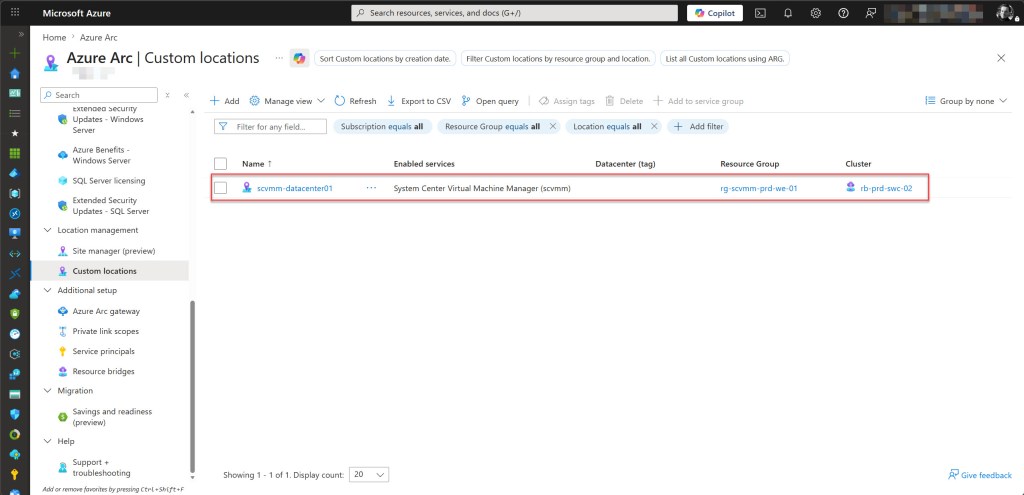
With the SCVMM cluster extension successfully installed, you can now recreate the custom location. A custom location acts as a logical target in Azure that maps to your on-premises SCVMM environment. It ties together the Arc resource bridge and the SCVMM extension, and is required before you can re-register your SCVMM server in the next step.
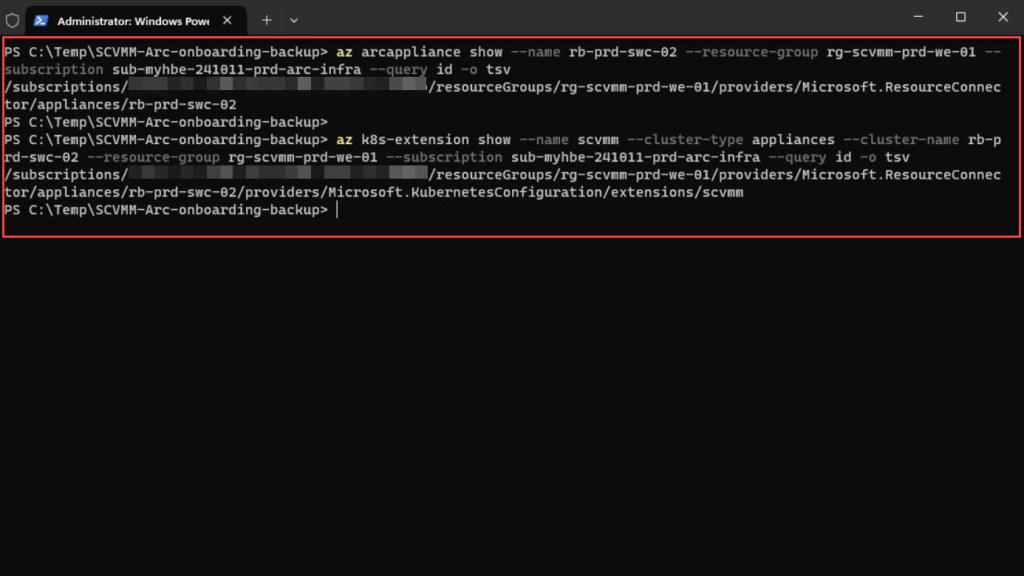
To create the custom location, you first need two resource IDs: the appliance ID and the extension ID.
Run the following two commands to retrieve them:
# Retrieve the resource IDs for the appliance and extension, which will be needed for onboarding Arc-enabled servers to the appliance

az arcappliance show --name <appliance-name> --resource-group <resource-group> --subscription <subscription-name-or-id> --query id -o tsv

az k8s-extension show --name scvmm --cluster-type appliances --cluster-name <appliance-name> --resource-group <resource-group> --subscription <subscription-name-or-id> --query id -o tsv
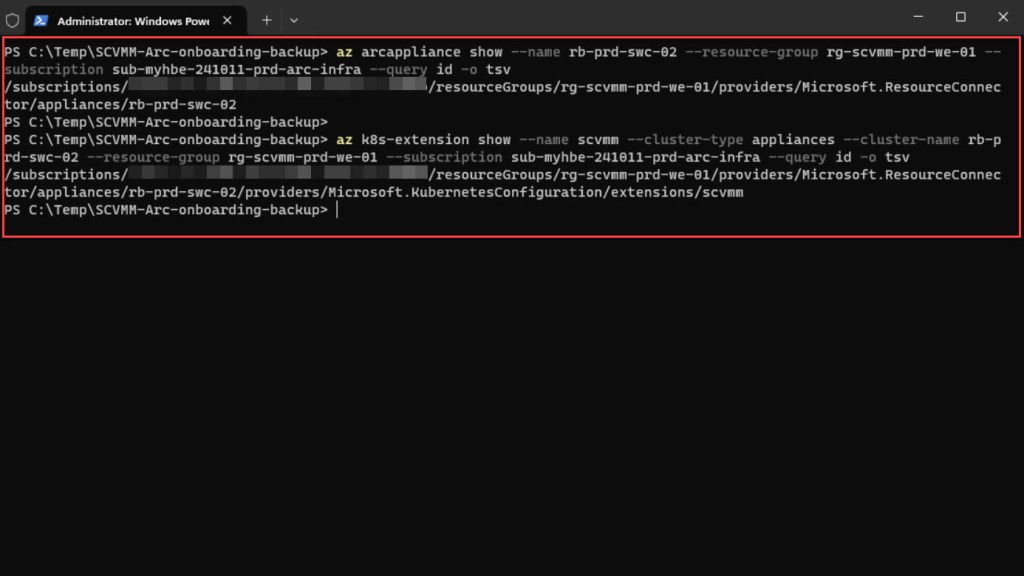
Then create the custom location:
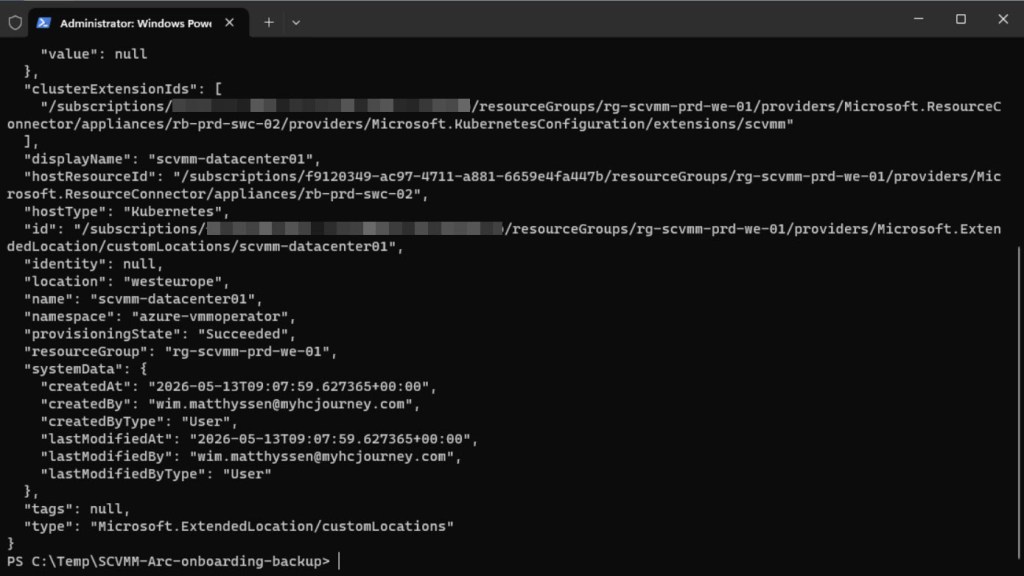
# Create the custom location

az customlocation create --name <custom-location-name> --resource-group <resource-group> --subscription <subscription-name-or-id> --namespace azure-vmmoperator --host-resource-id <appliance-resource-id> --cluster-extension-ids <extension-resource-id>
Step 6 – Re-register the SCVMM server
With the custom location in place, you can now re-register your SCVMM server in Azure. This is the final step that restores full Arc-enabled SCVMM functionality and allows your virtual machines to be managed again through Azure.
Before running the command below, make sure the scvmm Azure CLI extension is installed:
# Add the SCVMM extension to the Azure CLI, which is needed to register the SCVMM server as a resource in Azure

az extension add --name scvmm
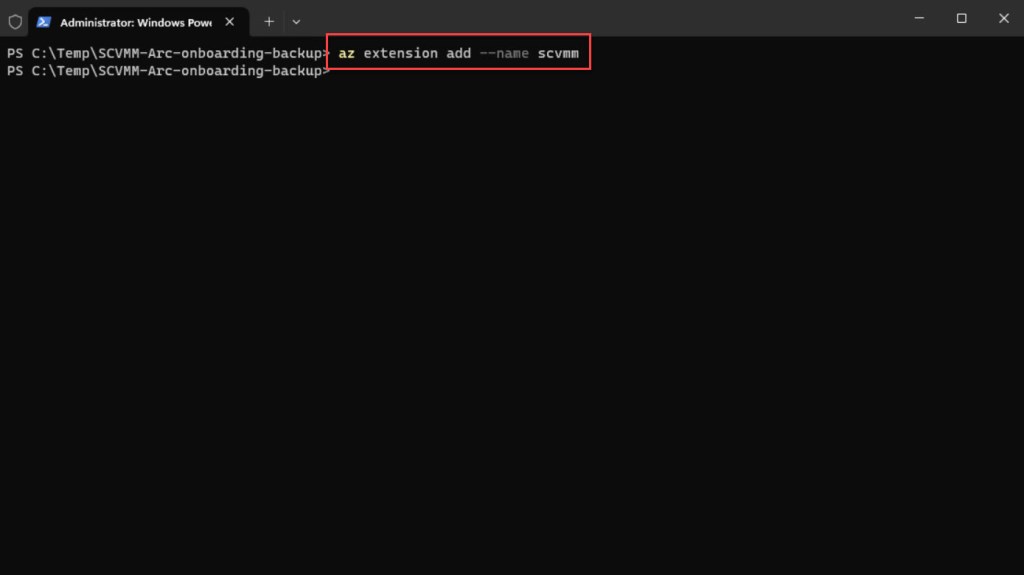
Once the extension is installed, use az scvmm vmmserver connect to register the SCVMM server. Note that the correct subcommand is connect not create. You also need to provide –location with the Azure region where the resource should be created:
# Register the SCVMM server as a resource in Azure using the custom location

az scvmm vmmserver connect --name <vmmserver-name> --resource-group <resource-group> --subscription <subscription-name-or-id> --location <azure-region> --custom-location <custom-location-name> --fqdn <scvmm-fqdn> --port <port> --username "<domain\username>" --password "<your-password>"
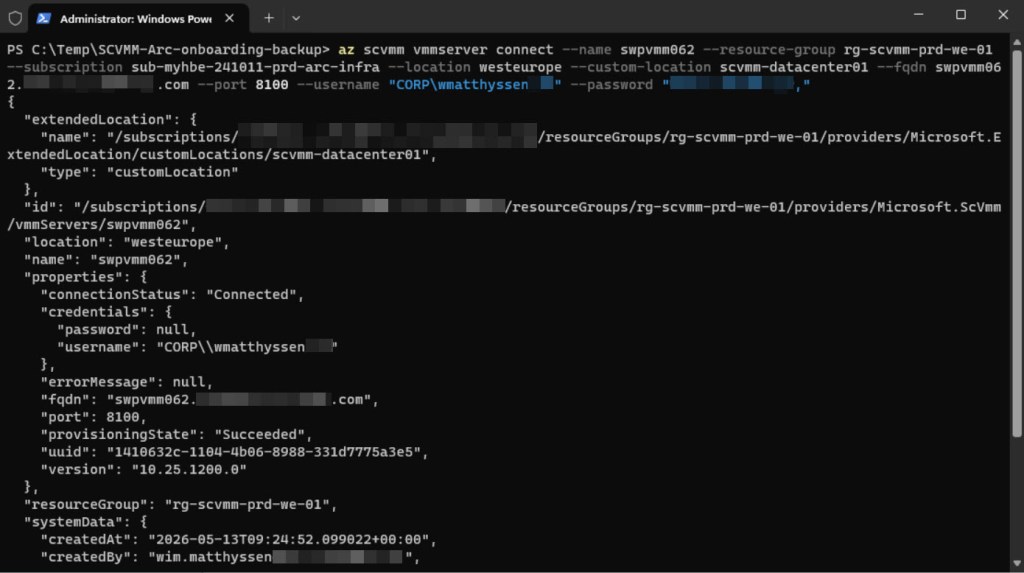
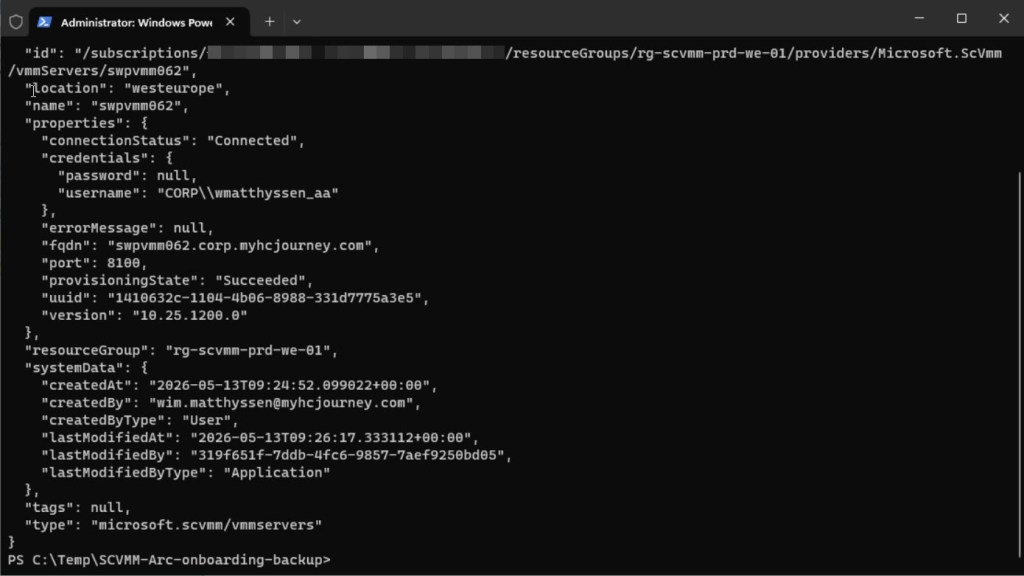
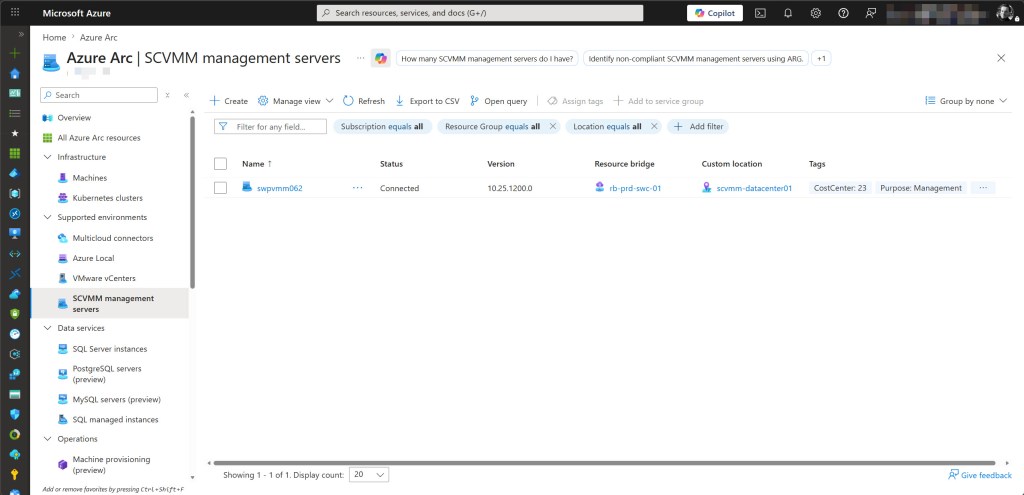
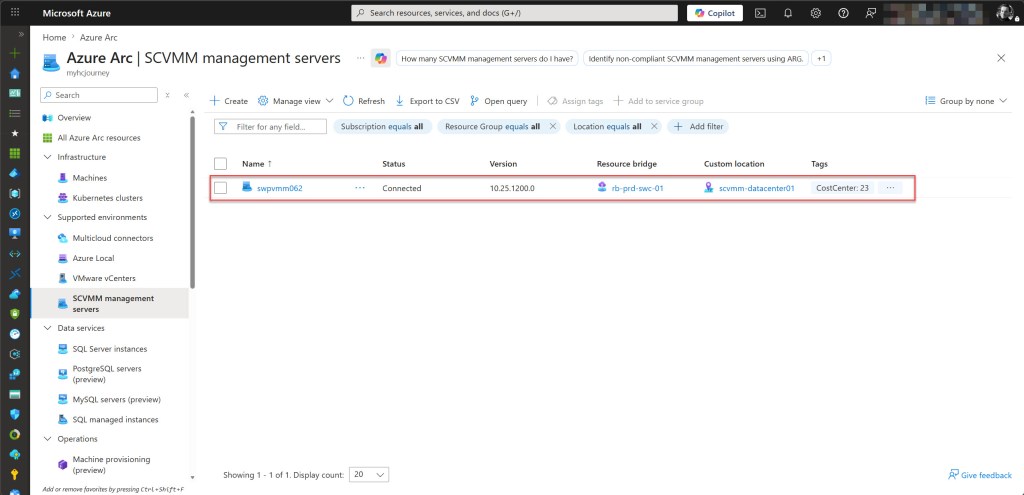
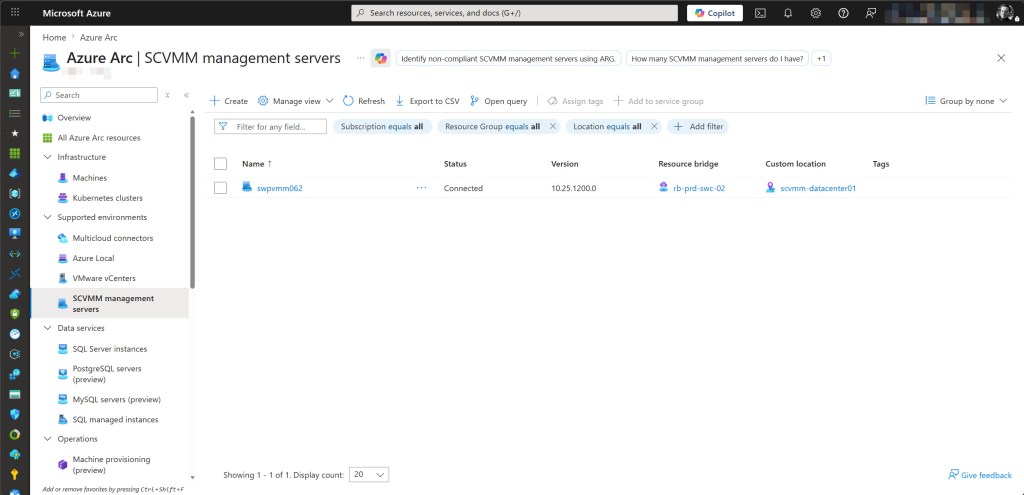
When the command completes, navigate to Azure Arc → SCVMM management servers in the portal. The server should appear with a status of Connected, linked to the correct resource bridge and custom location confirming the migration is complete.
Clean up stale Arc machine resources and re-enable Azure management on the VMs
With the SCVMM server connected, Azure Arc automatically discovers all virtual machines in the SCVMM inventory.
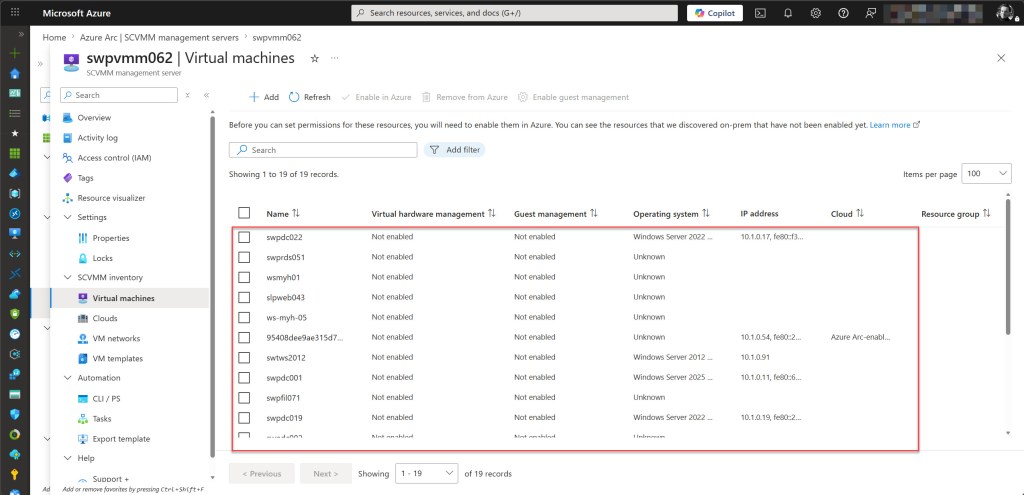
However, before re-enabling Azure management on the VMs, you need to clean up any stale Microsoft.HybridCompute/machines resources that may still exist in the old subscription.
These can appear as either Offline or Disconnected under Azure Arc → Machines and must be removed first; otherwise, the re-enable operation will conflict with the existing resources.
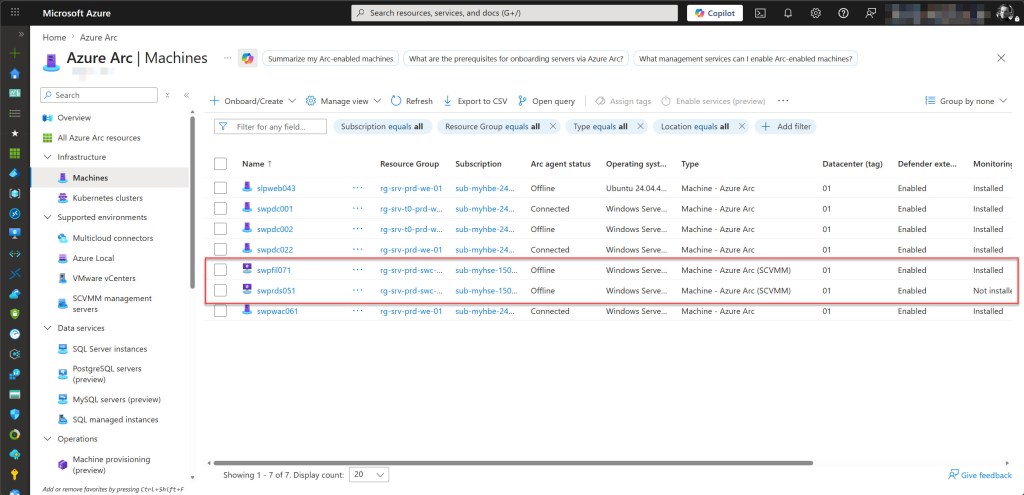
# Remove stale machines

az connectedmachine delete --name <vm-name> --resource-group <resource-group> --subscription <subscription-name-or-id> --yes
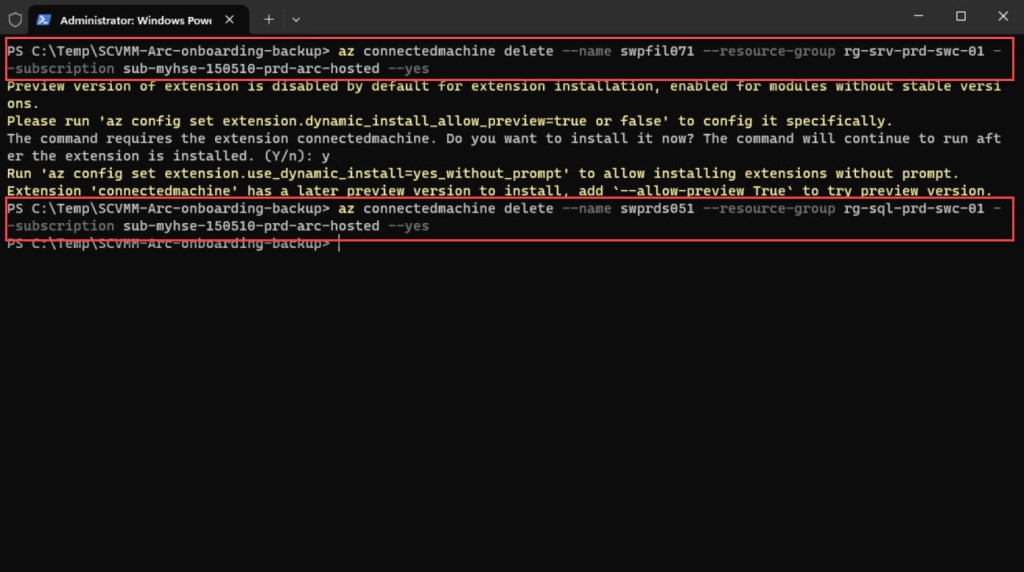
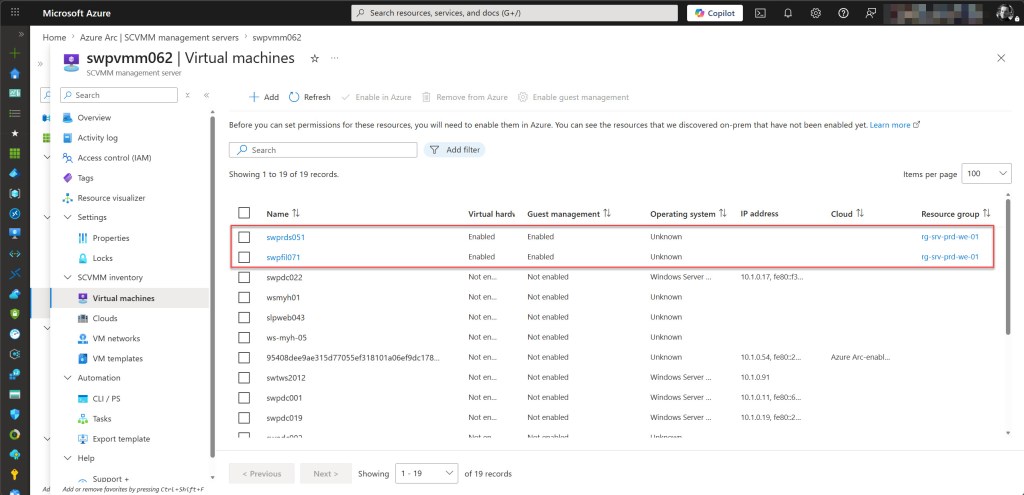
Once the stale resources have been removed, re-enable Azure management on each VM, including virtual hardware management and guest management. This process reinstalls the Azure Connected Machine agent inside the VM for all machines where it is required.
After the operation completes, the VMs should reappear in Azure Arc → Machines with a status of Connected, confirming that the migration has been fully completed and that all resources are operational under the new subscription.
Conclusion
Moving Azure Arc-enabled SCVMM resources across subscriptions is not supported, and the “ResourceMoveValidationFailed” error makes that limitation clear. The Arc Resource Bridge and Custom Location are the two blocking components, and because the rest of the Arc-enabled SCVMM stack depends on them, the only supported path forward is a full offboard and redeployment.
While this may sound like a significant effort, having a backup of your original deployment files makes the process much more manageable. The YAML files contain everything required to redeploy the Resource Bridge, and re-registering the SCVMM server is straightforward once the foundation is back in place.
The most time-consuming step is the Resource Bridge redeployment itself, but once that is completed, the remaining steps can be executed relatively quickly, as demonstrated throughout this blog post.
I hope this guide helps if you ever need to perform this migration for any reason. If you have any questions or suggestions regarding this blog post or any of the steps described, feel free to reach out to me on X (@wmatthyssen) or leave a comment. I’ll be happy to help.


0 comments on “Azure Arc-enabled SCVMM: Why “ResourceMoveValidationFailed” blocks subscription moves and how to migrate”