

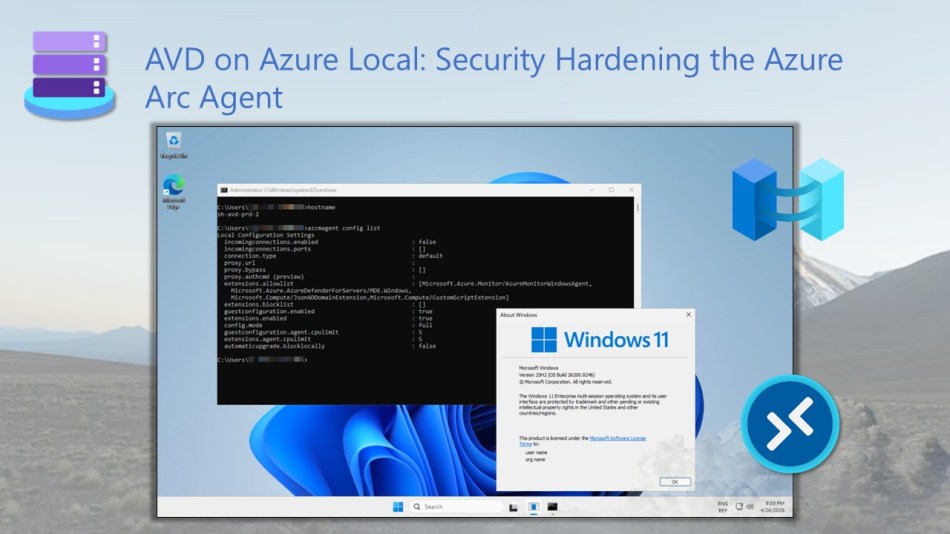
In this blog post, I tackle one of the often overlooked aspects of AVD on Azure Local, which is security hardening your Azure Arc agent (Azure Connected Machine agent) settings on your Session Hosts to reduce your attack surface and stay in control.
Default Azure Arc configurations are often left unchanged, regardless of deployment method. These defaults frequently grant broader permissions and enable more telemetry than necessary, potentially introducing security gaps in your virtual desktop infrastructure.
I’ll walk you through which settings to adjust, which extensions to allow or restrict, and which configurations should remain enabled or be disabled. You’ll also learn how to validate your hardened setup while preserving the hybrid management capabilities you need.
Default Azure Connected Machine agent configuration
When you deploy Session Hosts via the Azure Portal on Azure Local, or through infrastructure as code (IaC) without explicitly configuring the Azure Arc agent, it defaults to Full Mode with unrestricted settings. In this default configuration, the agent is granted broad capabilities across extension management, monitoring, and remote access.
By default, Full Mode enables automatic installation and updates of VM extensions, along with Azure Policy guest configuration. It also allows you to deploy monitoring, security, and custom extensions as needed.
In addition, the agent collects extensive telemetry, including detailed machine metadata and guest OS performance metrics. It also unlocks management capabilities such as remote PowerShell, SSH access, Run Command, Azure Update Manager, and integration with Microsoft Defender for Cloud.
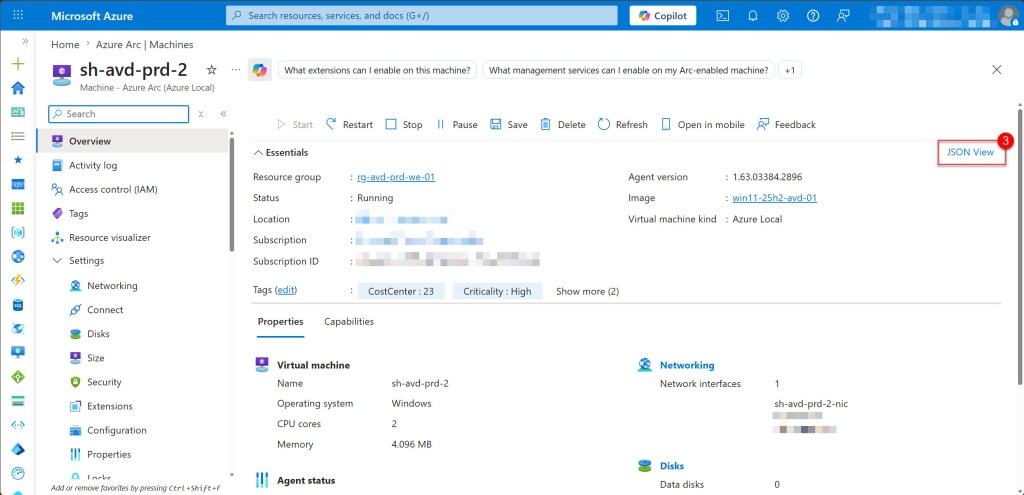
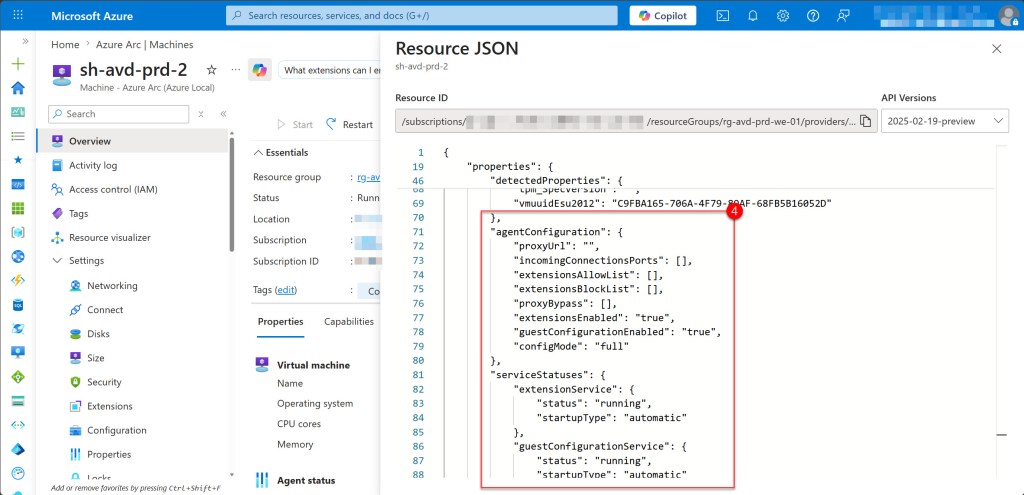
The screenshot below shows the default Full Mode configuration applied when deploying a Session Host to Azure Local through the Azure Portal.
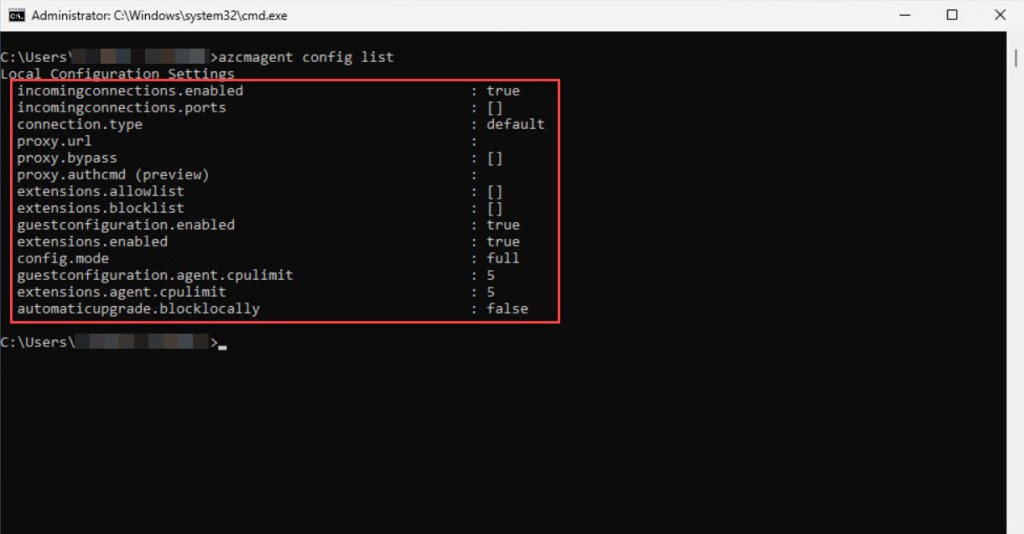
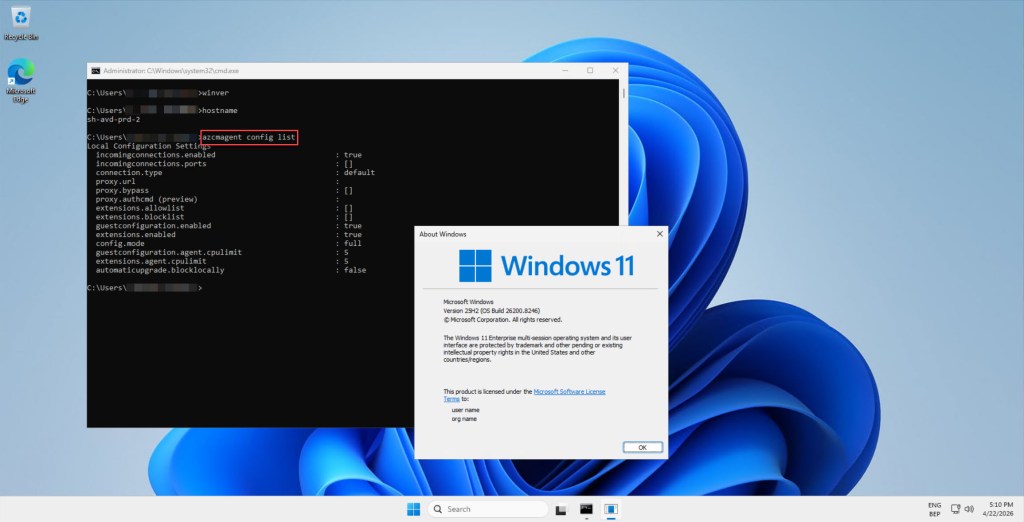
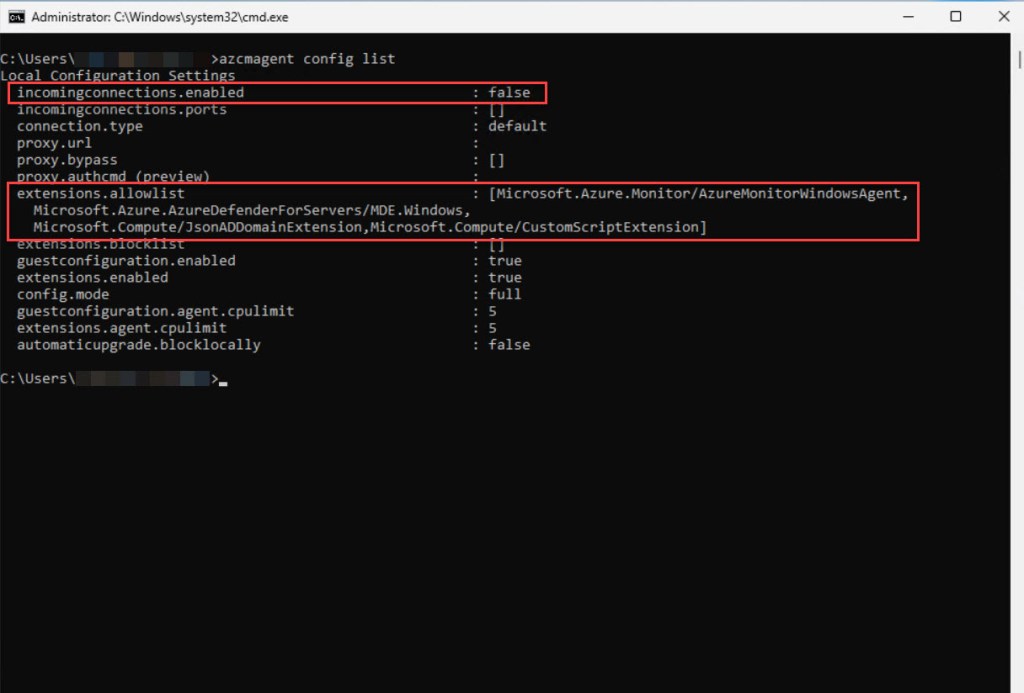
To verify the agent mode and which settings are applied, open an elevated Command Prompt or PowerShell session on a Session Host and run:
azcmagent config list
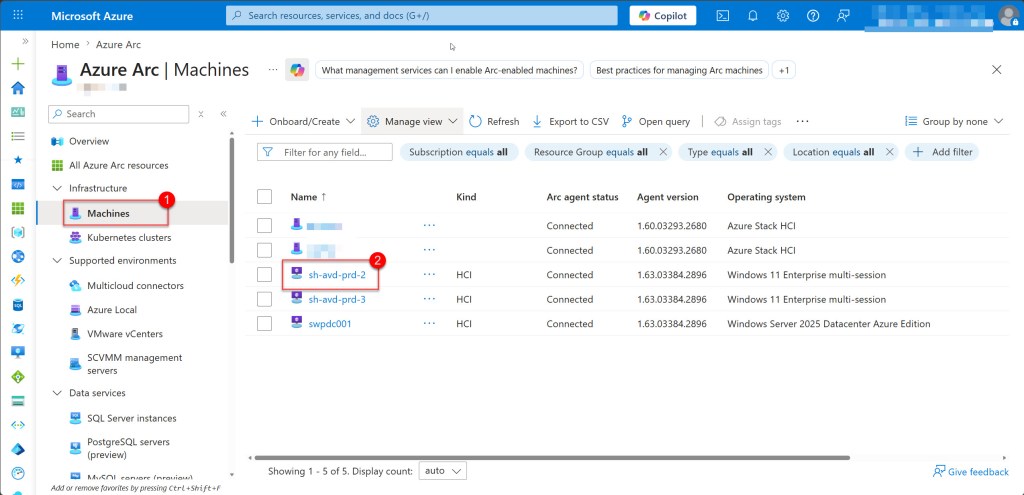
Alternatively, you can verify this directly in the Azure Portal by navigating to Azure Arc, selecting Machines, choosing your Session Host, and then opening the JSON View to validate the agent mode and the rest of the Arc agent configuration.
Hardening the Azure Connected Machine agent configuration for Session Hosts
Now that you have reviewed the default Full Mode configuration and understand its impact, we can move on to implementing security hardening to reduce the attack surface while maintaining the management capabilities required for your Session Hosts.
The goal is to apply the principle of least privilege by enabling only the extensions and capabilities required for your specific AVD environment, and disabling or restricting everything else.
For most AVD deployments on Azure Local, remaining in Full Mode while applying targeted restrictions offers the best balance between security and functionality. This approach allows you to:
- Disable incoming connections if remote management is not required
- Configure an extension allowlist to control which extensions can be installed
- Maintain compatibility with Azure services such as Microsoft Defender for Cloud
Disabling incoming connections
If remote PowerShell, SSH, or Run Command access is not required on your Session Hosts, disable incoming connections to reduce this attack vector using the following CLI command:
azcmagent config set incomingconnections.enabled false
💡 Do not disable this if, for example, you use Azure Automation runbooks that target your Session Hosts.
Implementing extension allowlists
One of the most effective hardening steps you can take is configuring an extension allowlist. This helps prevent unauthorized or unnecessary extensions from being installed and ensures that only what your environment actually needs is permitted.
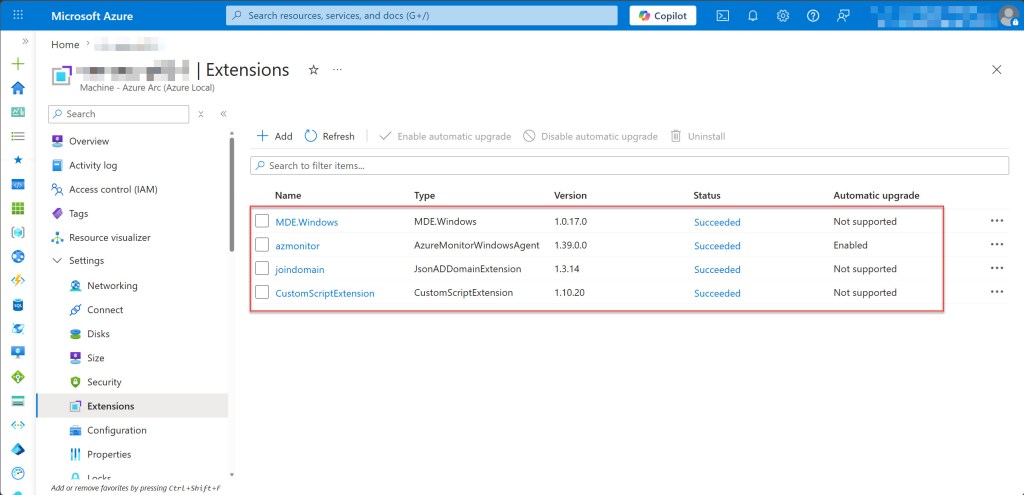
In most Azure Virtual Desktop (AVD) session host deployments, only a small set of extensions is required. Typically, this includes Azure Monitor Agent for observability, Microsoft Defender for Endpoint for security, and deployment-time extensions like JsonADDomainExtension and CustomScriptExtension.
It is also important to note that the WindowsOsUpdateExtension and WindowsPatchExtension used by Azure Update Manager should be excluded for Windows 10 and Windows 11 session hosts, as Azure Update Manager does not support these client operating systems. Excluding these unnecessary extensions helps reduce the attack surface.
In addition, patch management for AVD session hosts can be handled in different ways depending on the scenario. If your session hosts are Microsoft Entra ID–joined or Hybrid Microsoft Entra ID–joined, you can use Microsoft Intune for update management without requiring Azure Arc or Azure Update Manager extensions.
For Arc-enabled session hosts running Windows Server (whether in Azure or Azure Local), Azure Update Manager is supported. In this case, both the WindowsOsUpdateExtension and WindowsPatchExtension can be included in your allowlist if you choose to manage updates this way.
However, for AVD session hosts on Azure Local, regardless of operating system, the recommended approach is image-based patching. Instead of updating live hosts, you use a CI/CD pipeline to build a new hardened golden image and redeploy your session hosts. This eliminates the need for Azure Update Manager extensions entirely and results in a more consistent and reliable update process.
I mostly foresee only the following extensions for AVD session hosts:
- Microsoft.Azure.Monitor/AzureMonitorWindowsAgent – Azure Monitor Agent
- Microsoft.Azure.AzureDefenderForServers/MDE.Windows – Microsoft Defender for Endpoint
- Microsoft.Compute/JsonADDomainExtension – JsonADDomainExtension (only required during deployment/configuration time)
- Microsoft.Compute/CustomScriptExtension – CustomScriptExtension (only required during deployment/configuration time)
- Microsoft.AdminCenter/AdminCenter – Windows Admin Center (optional based on your needs)
For the full list, including deployment-time extensions, you can use the following CLI command:
azcmagent config set extensions.allowlist "Microsoft.Azure.Monitor/AzureMonitorWindowsAgent,Microsoft.Azure.AzureDefenderForServers/MDE.Windows,Microsoft.Compute/JsonADDomainExtension,Microsoft.Compute/CustomScriptExtension,Microsoft.AdminCenter/AdminCenter"
Disabling guest configuration (optional)
Guest configuration enables Azure Policy enforcement and compliance assessment inside your session hosts. Whether to disable it depends on how your organization handles configuration management and compliance reporting.
If you manage configuration through Group Policy, Intune, or Configuration Manager and do not rely on Azure Policy for in-guest assessment or compliance reporting, disabling guest configuration reduces the agent’s footprint and attack surface.
If your organization uses Azure Policy to enforce security baselines, requires compliance reporting through Azure, or relies on automated configuration drift detection, it should remain enabled.
In my experience, most organizations leave guest configuration enabled, but as with most hardening decisions, it depends on your specific environment and requirements.
To disable guest configuration, run the following command:
azcmagent config set guestconfiguration.enabled false
In most cases, I configure and harden the Arc agent on session hosts running on Azure Local with the following settings, either by running them via CLI on existing hosts or, preferably, by incorporating them into the golden image build and CI/CD pipeline.
# Apply all hardening settings

azcmagent config set extensions.allowlist "Microsoft.Azure.Monitor/AzureMonitorWindowsAgent,Microsoft.Azure.AzureDefenderForServers/MDE.Windows,Microsoft.Compute/JsonADDomainExtension,Microsoft.Compute/CustomScriptExtension"

azcmagent config set incomingconnections.enabled false
Implementing hardening at scale
Now that you know which settings to apply, the next step is implementing them consistently across your AVD environment.
Option 1: Apply directly to existing session hosts
For session hosts that are already deployed, you can apply hardening settings directly using remote PowerShell or by logging into each host individually. While this approach can work for smaller environments, it quickly becomes inefficient and difficult to maintain at scale.
Option 2: Automate via Azure Policy or Configuration Management
For greater consistency and scalability, consider using Azure Policy Guest Configuration, Group Policy, or a configuration management tool such as Intune, SCCM, or Ansible. These solutions allow you to enforce hardening settings automatically across all session hosts.
Option 3: Bake into your golden image (recommended)
For AVD on Azure Local, the most reliable approach is to include Arc hardening in your golden image build process. This ensures that every newly deployed session host starts with the correct hardened configuration from the outset.
💡Combine option 3 (golden image) with option 2 (Azure Policy) for defense in depth. The image provides the baseline, and Azure Policy ensures compliance over time.
Conclusion
In this blog post, you learned how to harden the Azure Connected Machine agent on AVD session hosts running on Azure Local, reducing your attack surface while maintaining the essential management capabilities your environment depends on. This included disabling incoming connections, configuring an extension allowlist, and deciding whether to disable guest configuration based on your organization’s needs.
If you have any questions or suggestions about this blog post or any of the steps described, please feel free to reach out to me on X (@wmatthyssen) or leave a comment. I’ll be happy to assist you.


0 comments on “AVD on Azure Local: Security Hardening the Azure Arc Agent”