

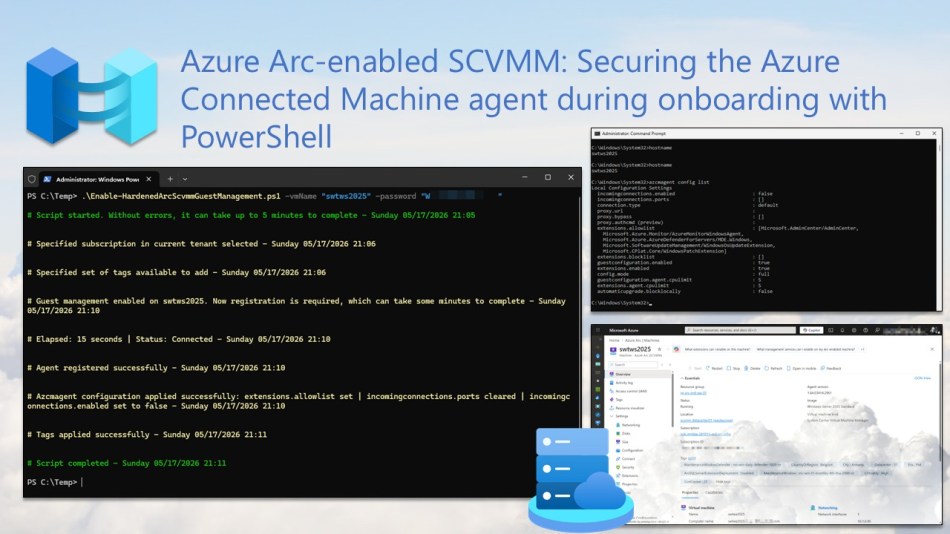
In this blog post, I’ll cover one of the more overlooked aspects of deploying Azure Arc-enabled SCVMM, which is hardening the Azure Connected Machine agent during onboarding. Whether the deployment is configured through the SCVMM management server blade in the Azure portal or by using the default Azure PowerShell or Azure CLI commands, several important management and security controls are left unconfigured out of the box.
Most documentation focuses on getting the resource bridge deployed, connecting the VMM server, and enabling guest management. Very little attention is given to hardening the agent as part of the onboarding process itself.
That is exactly the gap this blog post aims to address. Neither the Azure portal nor the default Azure CLI or Azure PowerShell commands apply any hardening by default. To close that gap, the PowerShell script covered here combines guest management enablement with the required azcmagent configuration steps, allowing the Azure Connected Machine agent to be hardened as part of the deployment process itself.
Table of Contents
- Prerequisites
- Default guest management onboarding behavior: Azure Portal, Azure PowerShell, and Azure CLI
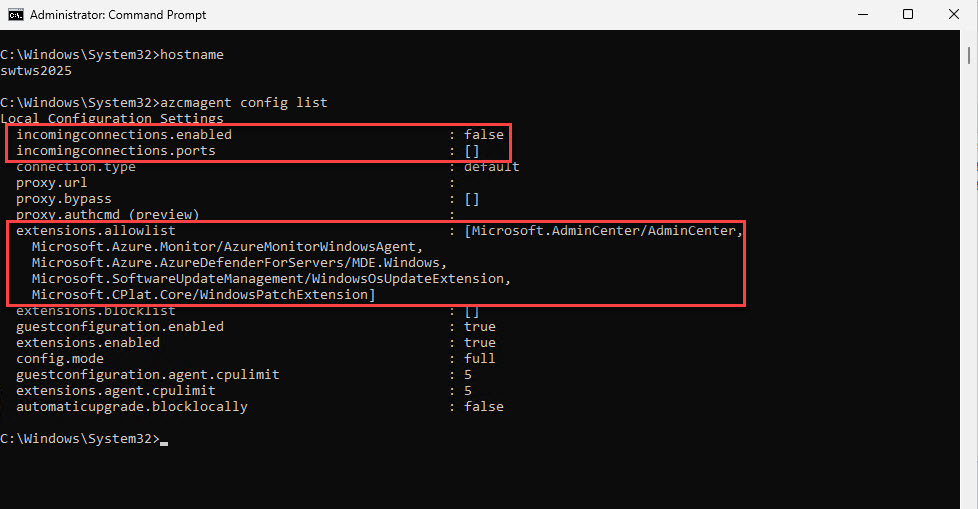
- What gets hardened and why
- Implementing the Azure PowerShell hardening script
- Conclusion
Prerequisites
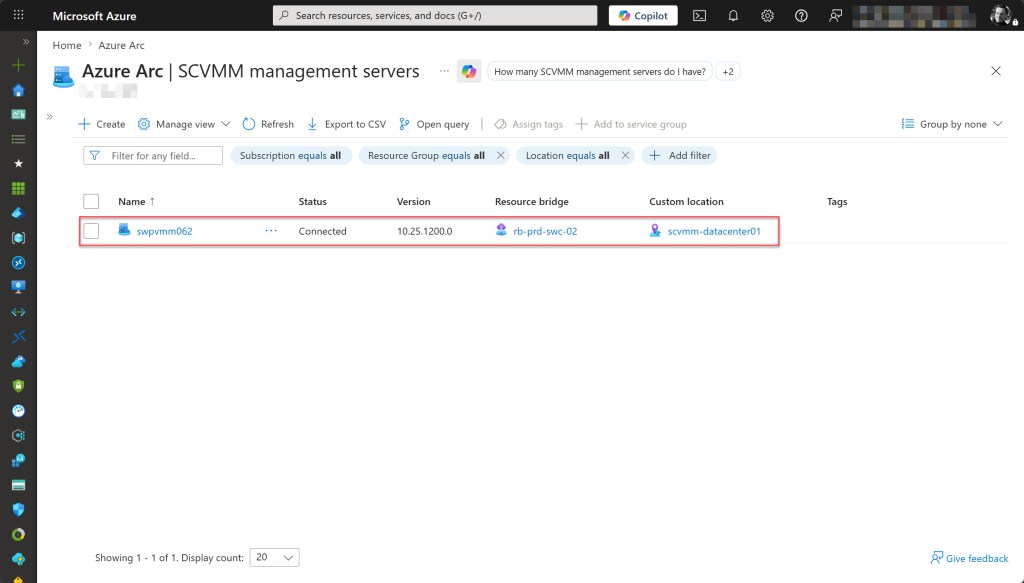
- An Azure subscription with an Arc-enabled SCVMM environment already deployed, including the resource bridge and VMM server connected.
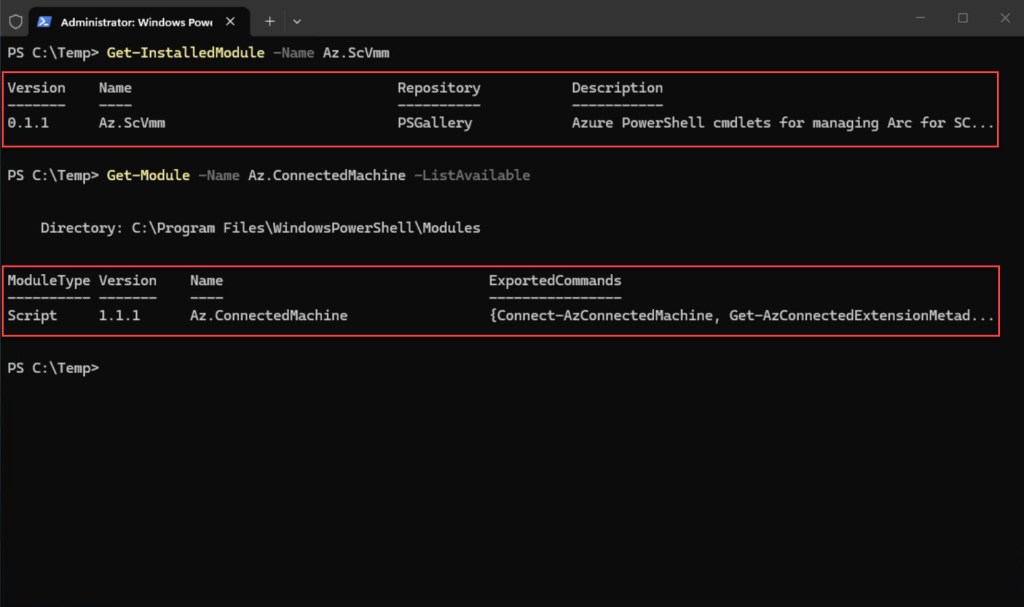
- The Az.ScVmm PowerShell module installed (Install-Module Az.ScVmm), required for the New-AzScVmmVMGuestAgent cmdlet.
- The Az.ConnectedMachine PowerShell module installed (Install-Module Az.ConnectedMachine), required for the Get-AzConnectedMachine cmdlet.
- Sufficient Azure RBAC permissions on the resource group, at minimum Contributor, or a combination of Azure Arc ScVMM VM Contributor and Tag Contributor.
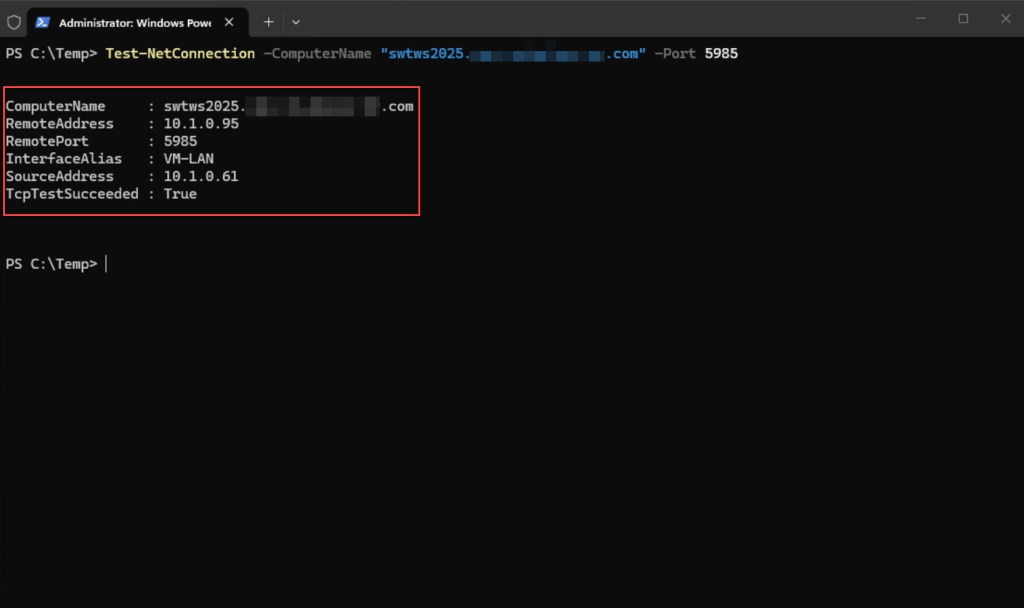
- WinRM enabled and reachable on the target VM, required for the azcmagent hardening step.
- A VM admin account with sufficient permissions to connect via WinRM, in DOMAIN\username or UPN format.
- Before running the script, update the variables in the ## Variables section to match your own environment.
Default guest management onboarding behavior: Azure Portal, Azure PowerShell, and Azure CLI
Azure portal
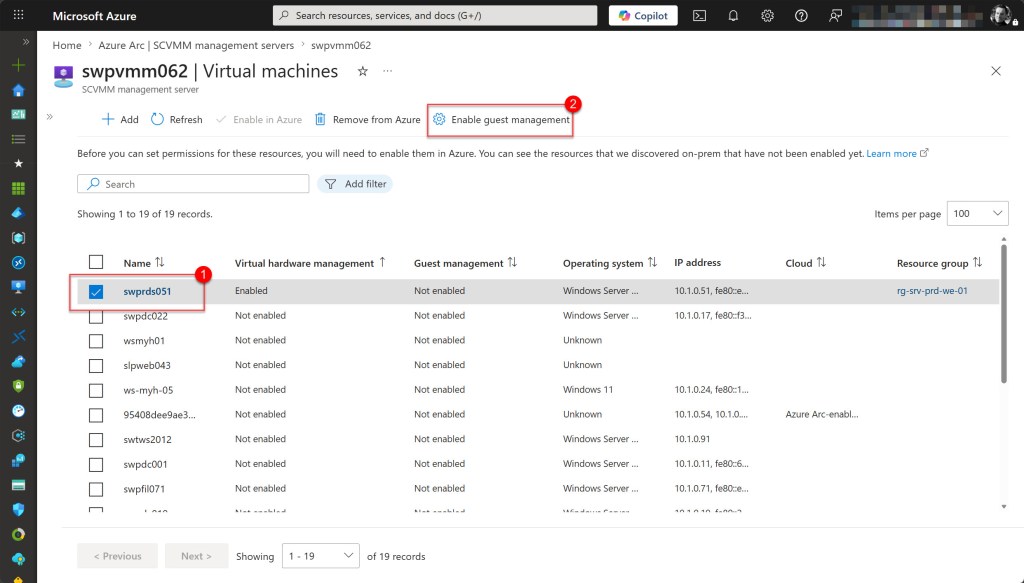
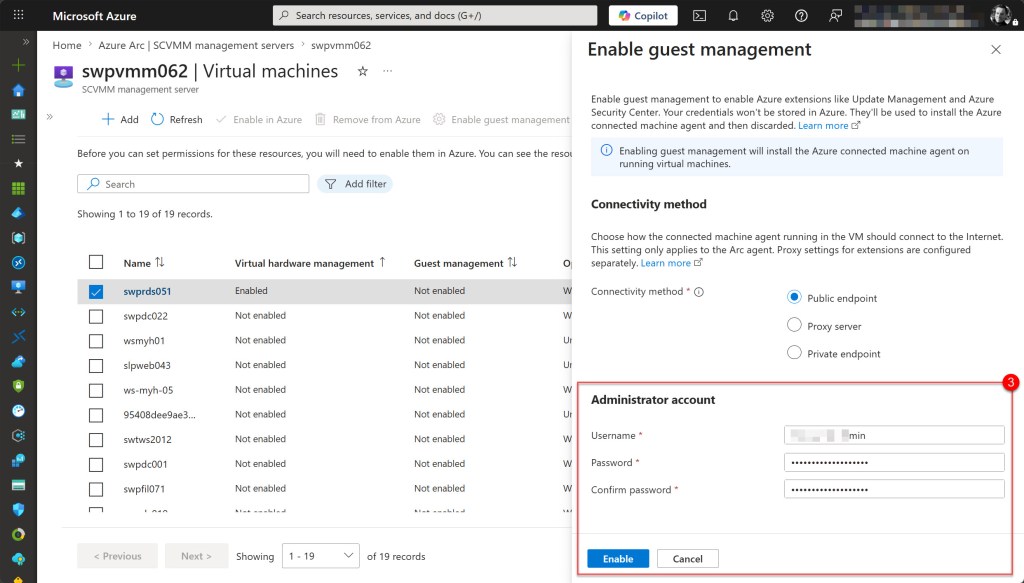
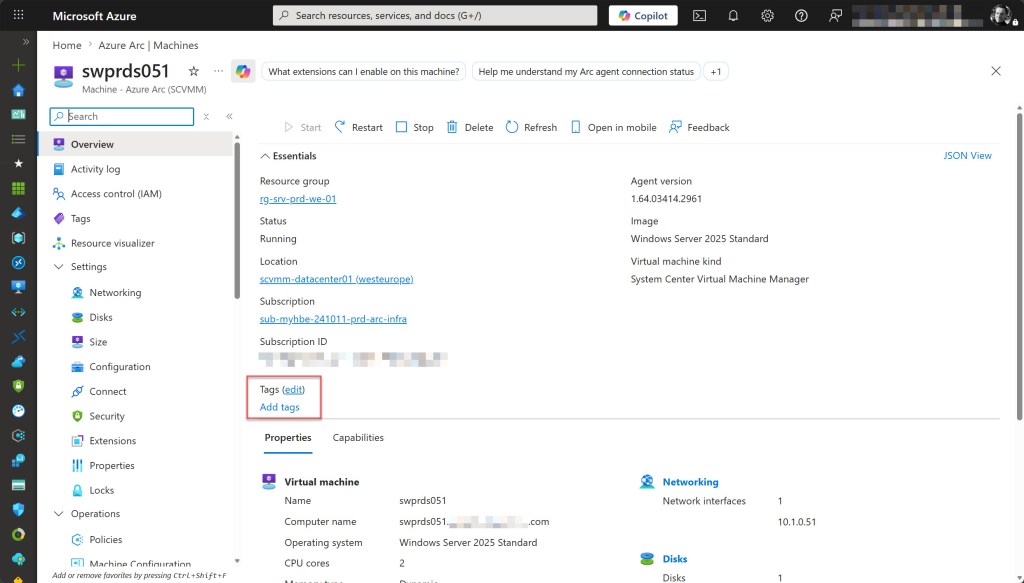
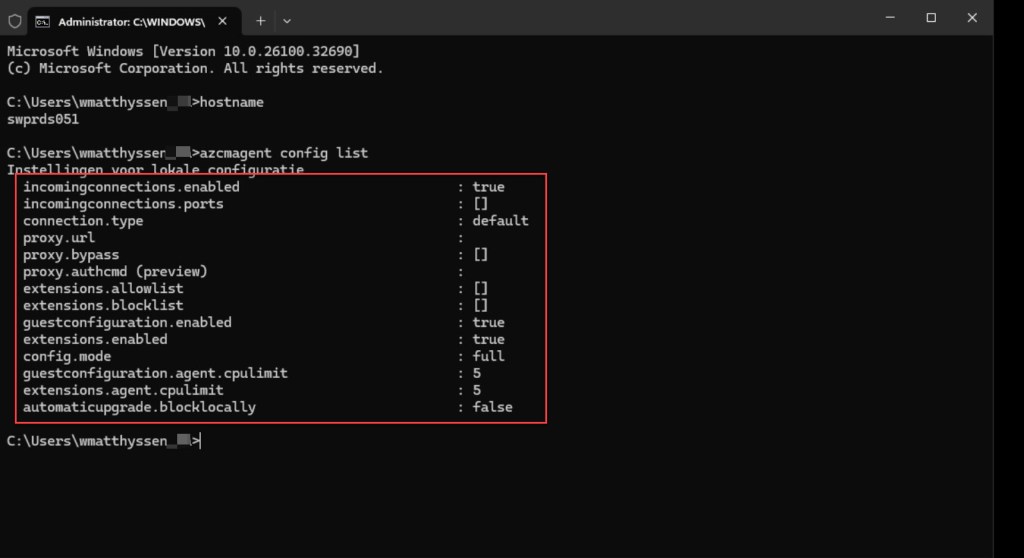
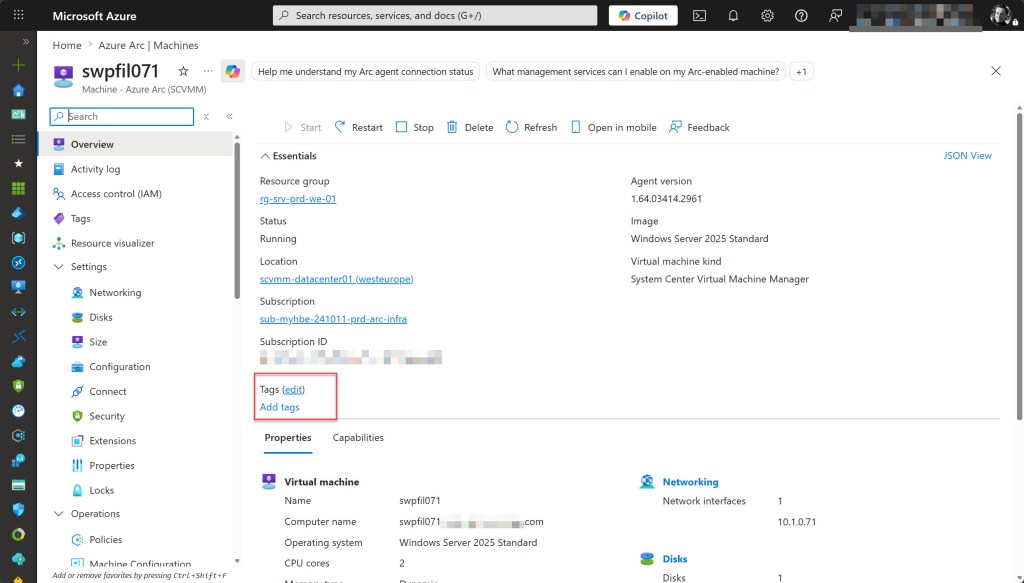
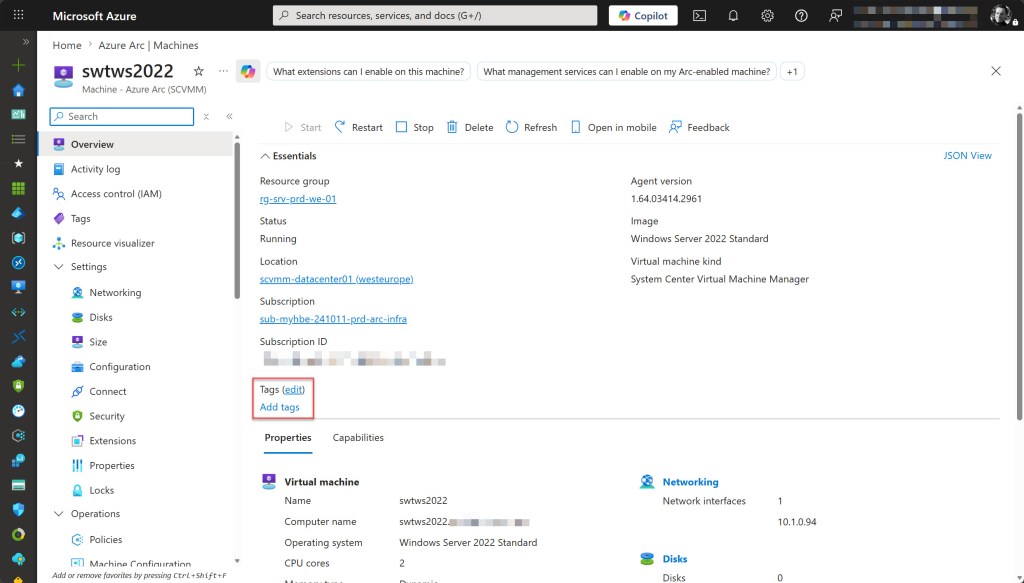
Selecting Enable guest management in the SCVMM management server blade opens a wizard that prompts for credentials and installs the Azure Connected Machine agent. Management controls such as tags are not applied, and security controls such as extension allowlisting and inbound connection restrictions are left unconfigured.
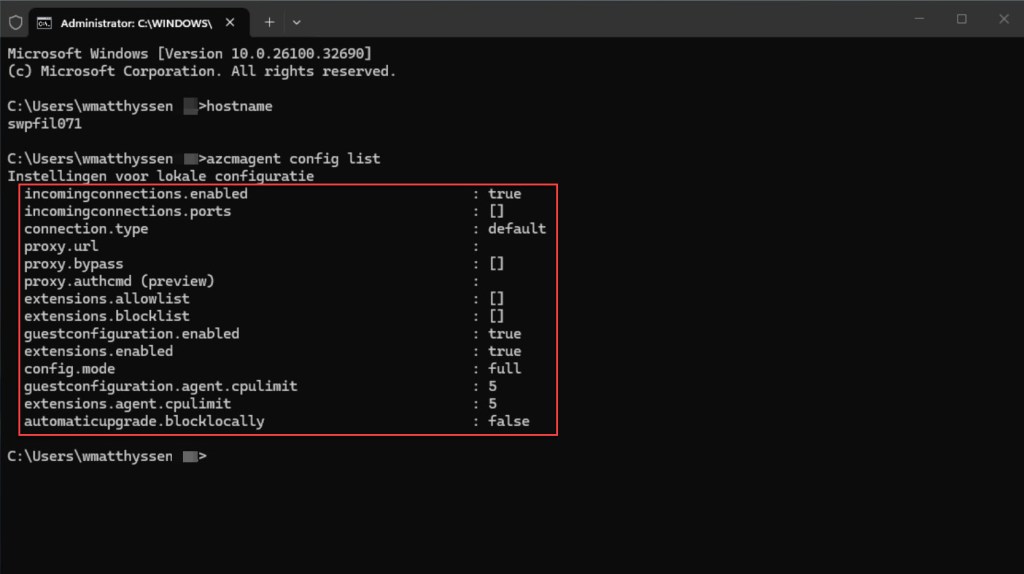
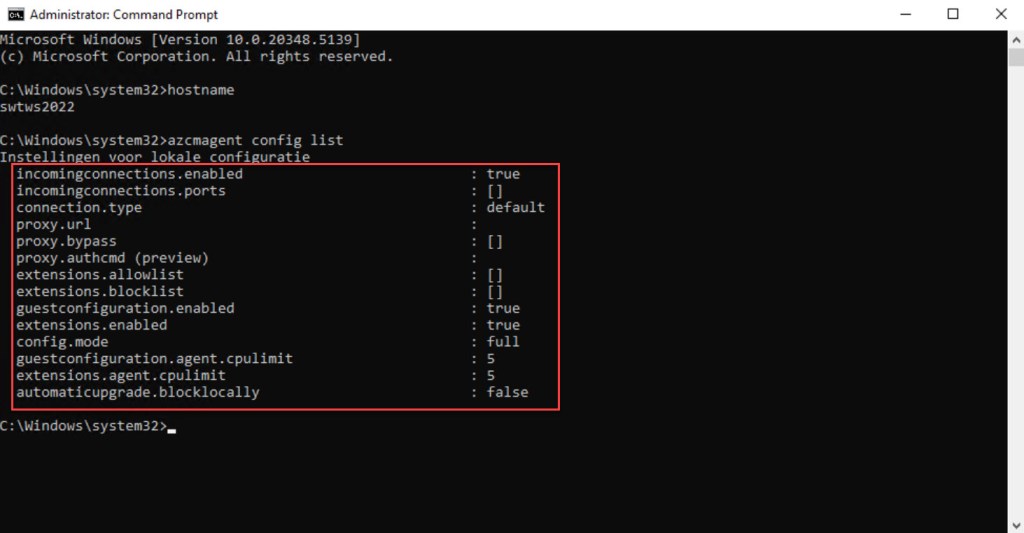
As a result, the agent is deployed running in Full Mode with no restrictions applied.
Azure PowerShell
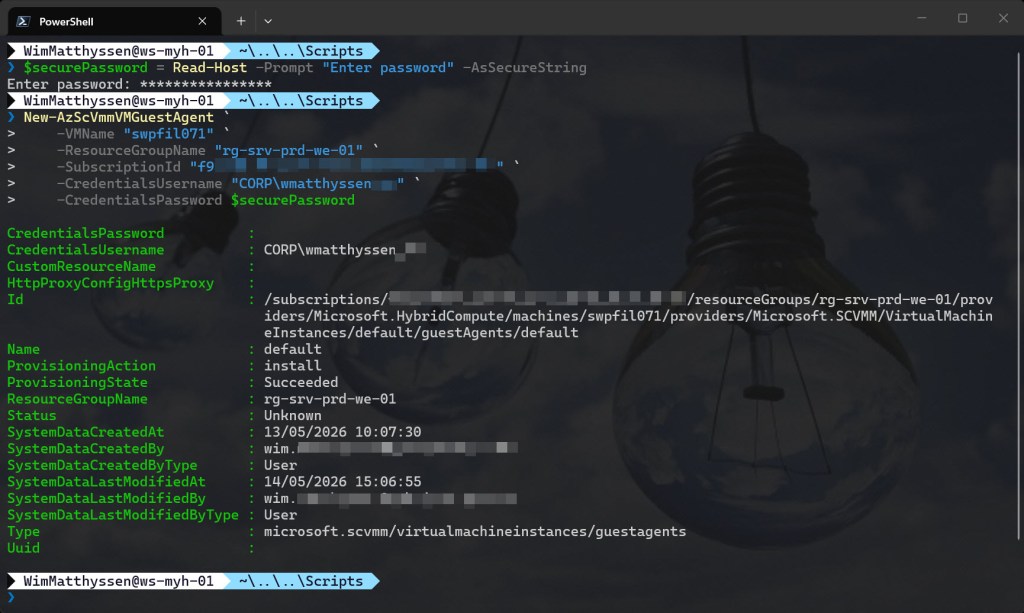
The New-AzScVmmVMGuestAgent cmdlet installs the Azure Connected Machine agent on the target VM using the provided credentials. However, no management or hardening parameters are available in this cmdlet.
As a result, the agent is deployed running in Full Mode with no restrictions applied.
💡 The New-AzScVmmVMGuestAgent cmdlet is part of the Az.ScVmm Azure PowerShell module. If the module is not yet installed, run Install-Module Az.ScVmm before proceeding.
## Enables guest management on an Arc-enabled SCVMM VM

$securePassword = Read-Host -Prompt "Enter password" -AsSecureString

New-AzScVmmVMGuestAgent `
    -VMName "your server name" `
    -ResourceGroupName "your resource group name" `
    -SubscriptionId "<your subscription id>" `
    -CredentialsUsername "your username" `
    -CredentialsPassword $securePassword
Azure CLI
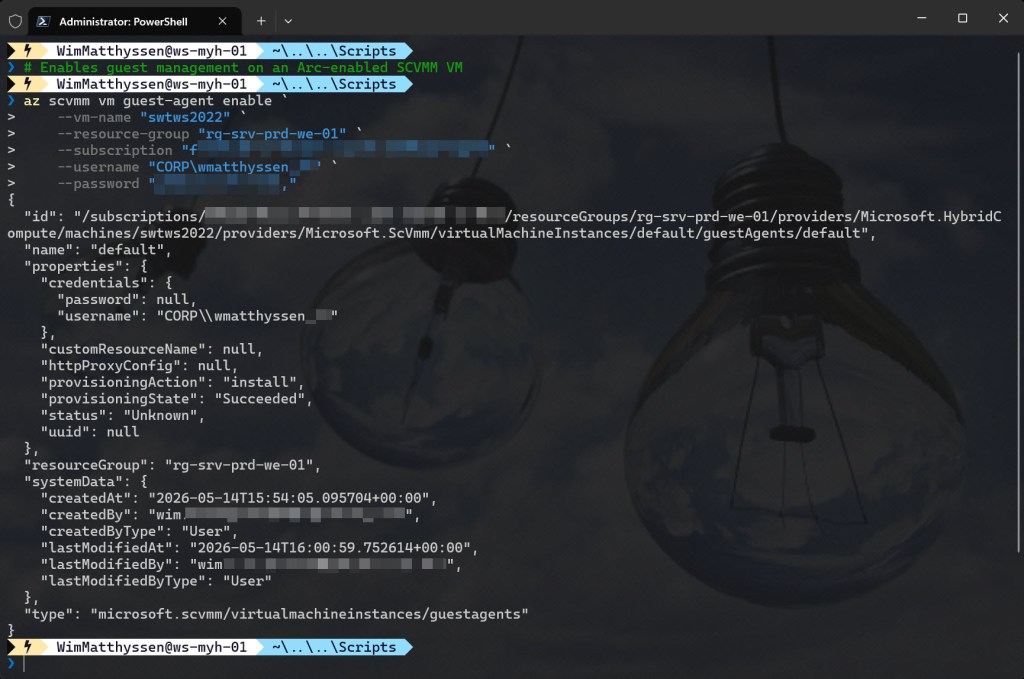
The Azure CLI equivalent, az scvmm vm guest-agent enable, produces the same result. No management or hardening parameters are available in this command either.
As a result, the agent is deployed running in Full Mode with no restrictions applied.
💡 The az scvmm vm guest-agent enable command requires the scvmm Azure CLI extension. If not yet installed, the CLI will prompt you to install it automatically. To configure extension installation behavior explicitly, run az config set extension.dynamic_install_allow_preview=true before proceeding.
# Enables guest management on an Arc-enabled SCVMM VM

az scvmm vm guest-agent enable `
    --vm-name "your server name" `
    --resource-group "your resource group name" `
    --subscription "<your subscription id>" `
    --username "your username" `
    --password "<your-password>"
What gets hardened and why
Before walking through the script, it is important to understand which controls are configured, why they are necessary, and where each one is applied. Notably, these settings are not applied by the default onboarding methods covered in the previous section; this script addresses those security and governance gaps.
| Control | Why it matters | Where applied |
|---|---|---|
| extensions.allowlist | Prevents unauthorized or malicious extensions from being installed on the VM | Guest OS via azcmagent config set |
| incomingconnections.ports | Restricts which ports accept inbound Arc connectivity | Guest OS via azcmagent config set |
| incomingconnections.enabled | Disables inbound connections to the agent entirely if set to false | Guest OS via |
| config.mode | Defines the agent’s operational scope. This script uses Full mode but pairs it with extensions.allowlist, incomingconnections.ports and incomingconnections.enabled to restrict what the agent allows. | Guest OS via azcmagent config set |
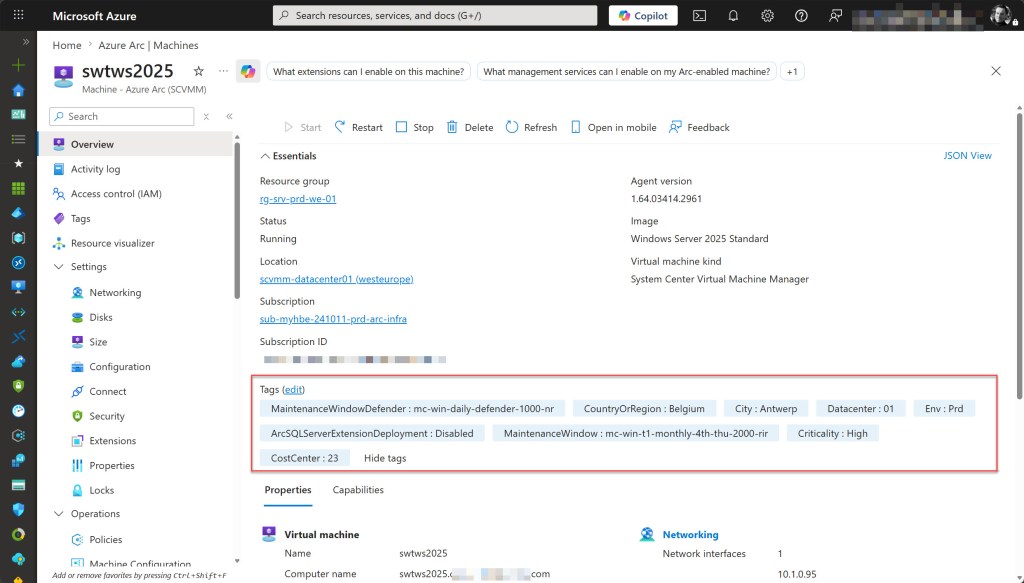
| Tags | Ensures the Arc machine resource is identifiable and governed | Azure control plane via Azure PowerShell |
Implementing the Azure PowerShell hardening script
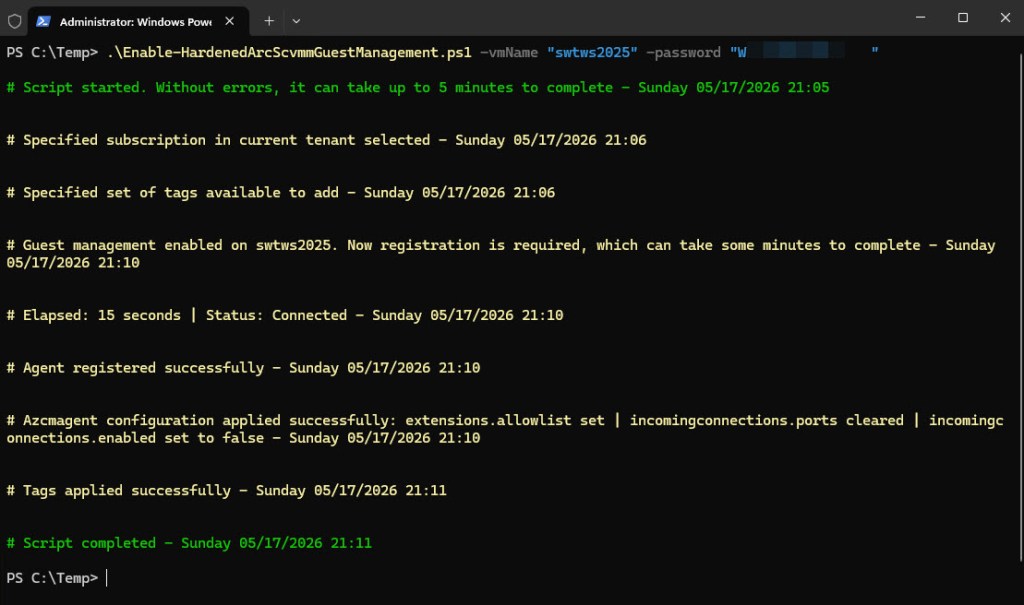
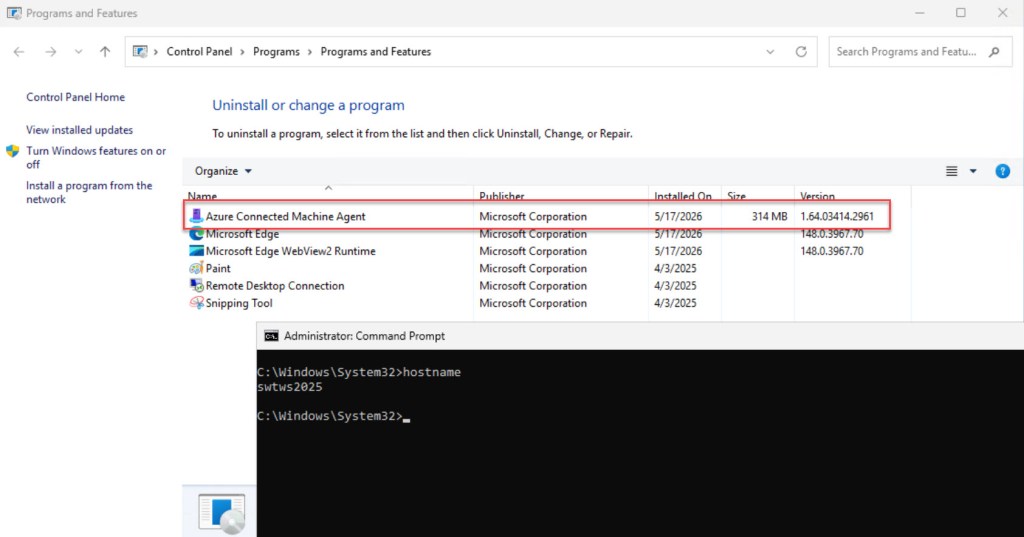
With the controls defined, we can now move to the implementation. The script below is structured in four phases: enabling guest management, waiting for the agent to register, hardening the guest OS through WinRM, and tagging the resulting Arc machine resource.
Together, these steps help ensure that every onboarded machine is properly secured and organized from the moment it connects to Azure.
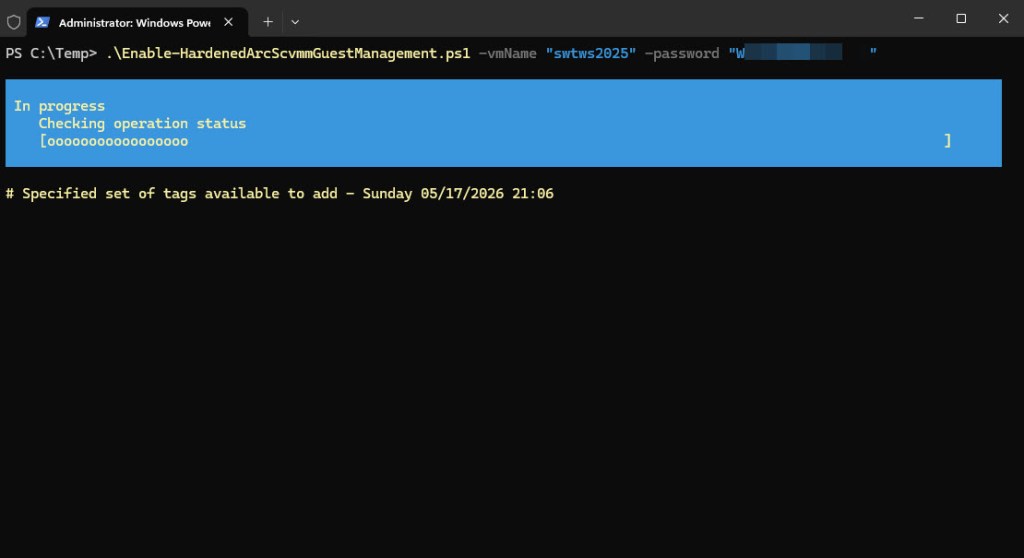
To get started, either copy and save the script as Enable-HardenedArcScvmmGuestManagement.ps1 or download it directly from GitHub. Before running it, update the variables in the ## Variables section to match your own environment. The script can be executed using Windows Terminal, Visual Studio Code, or Windows PowerShell.
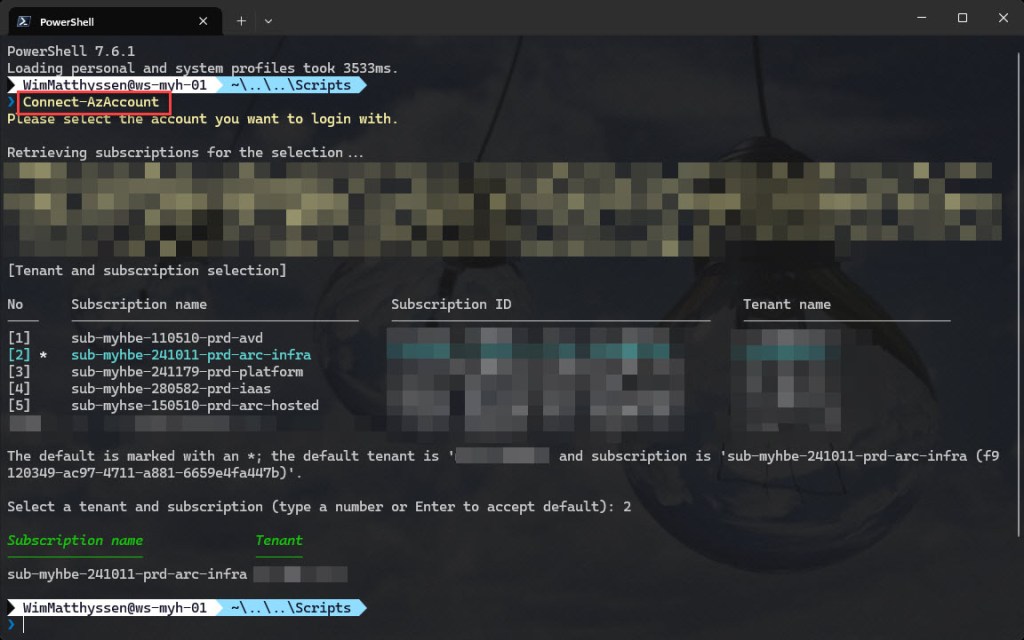
If you are not using Azure Cloud Shell to run the script,remember to sign in using the Connect-AzAccount cmdlet to authenticate with your Azure account.
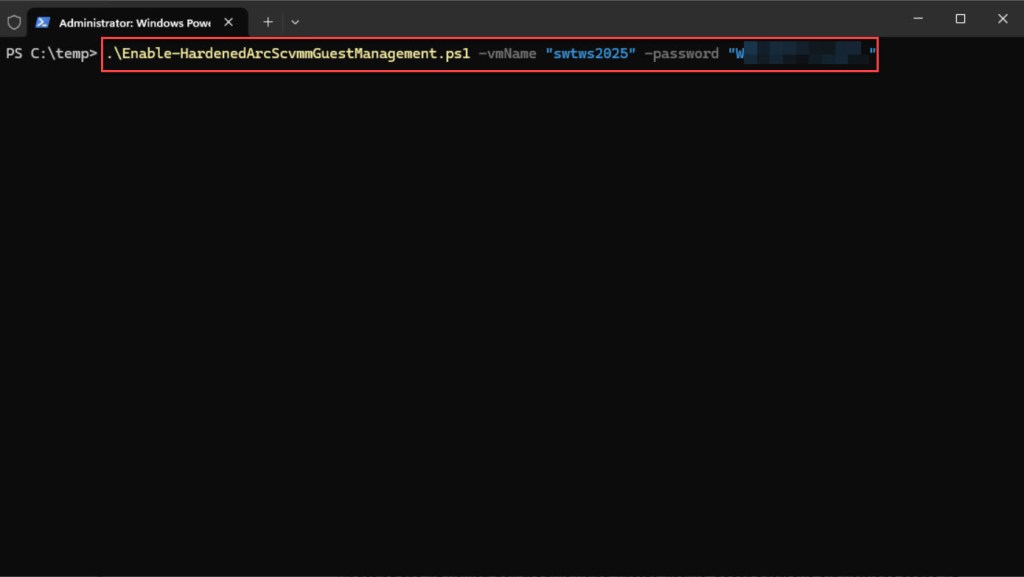
You can then run the script with the required parameters to initiate the process.
.\Enable-HardenedArcScvmmGuestManagement.ps1 -vmName "vmName" -password "yourPassword"
<#
.SYNOPSIS

A script used to enable guest management on an Arc-enabled SCVMM VM and harden the Azure Connected Machine agent during onboarding.

.DESCRIPTION

A script used to enable guest management on an Arc-enabled SCVMM VM and harden the Azure Connected Machine agent during onboarding.
The script will do all of the following:

Remove the breaking change warning messages.
Change the current context to the specified subscription.
Store the specified set of tags in a hash table.
Enable guest management on the target VM.
Wait for the Azure Connected Machine agent to register in Azure.
Apply azcmagent hardening configuration inside the guest OS via WinRM.
Apply tags to the resulting Arc machine resource.

.NOTES

Filename:       Enable-HardenedArcScvmmGuestManagement.ps1
Created:        14/05/2026
Last modified:  14/05/2026
Author:         Wim Matthyssen
Version:        1.0
PowerShell:     Azure PowerShell
Requires:       PowerShell Az.ScVmm, Az.ConnectedMachine
Action:         Change variables where needed to fit your needs.
Disclaimer:     This script is provided "As Is" with no warranties.

.EXAMPLE

Connect-AzAccount
.\Enable-HardenedArcScvmmGuestManagement.ps1 -vmName "vmName" -password "yourPassword"

Example .\Enable-HardenedArcScvmmGuestManagement.ps1 -vmName "swpvm023" -password "SuperSecretPassword!123,"

.LINK

https://wmatthyssen.com/2026/05/18/azure-arc-enabled-scvmm-securing-the-azure-connected-machine-agent-during-onboarding-with-powershell/
#>

## ---------------------------------------------------------------------------------------------------------------------------------------------------------------------------------------------------

## Parameters

param(
    # $VMName -> Name of the VM
    [parameter(Mandatory =$true)][ValidateNotNullOrEmpty()] [string] $vmName,
    # $password -> Password for the VM admin account (plain text, converted to SecureString inside the script)
    [parameter(Mandatory =$true)][ValidateNotNullOrEmpty()] [string] $password
)

## ---------------------------------------------------------------------------------------------------------------------------------------------------------------------------------------------------

## Variables

$environment = "xxx" # Used for tagging purposes, e.g. Dev, Test, Acceptance, Prod - Example: "prd"
$subscriptionName = "sub-yourcompany-xxxxxx-xxx" # Name of the subscription where the Arc machine resource is provisioned - Example: "sub-myhbe-241011-prd-arc-infra"
$resourceGroup = "rg-xxx-xxx-xx-01" # Name of the resource group where the Arc machine resource is provisioned - Example: "rg-srv-prd-we-01"

$username = "domain\admin_account" # Username of the VM admin account, in UPN or DOMAIN\username format - Example: "corp\wmatthyssen-admin"
$domainName = "corp.yourcompany.com" # Domain name used to construct the FQDN for WinRM connection - Example: "corp.wimmatthyssen.com"
$vmFqdn = "$vmName.$domainName"
$securePassword = ConvertTo-SecureString $password -AsPlainText -Force

$tagEnvironmentName = "Env" # Name of the environment tag - Example: "Env"
$tagEnvironmentValue = (Get-Culture).TextInfo.ToTitleCase($environment.ToLower()) # Value of the environment tag, converted to title case - Example: "Prd"
$tagCostCenterName  = "CostCenter" # Name of the cost center tag - Example: "CostCenter"
$tagCostCenterValue = "23" # Value of the cost center tag - Example: "23"
$tagCriticalityName = "Criticality" # Name of the criticality tag - Example: "Criticality"
$tagCriticalityValue = "High" # Value of the criticality tag - Example: "High"
$tagArcSQLName = "ArcSQLServerExtensionDeployment" # Name of the Arc SQL Server extension deployment tag - Example: "ArcSQLServerExtensionDeployment"
$tagArcSQLValue = "Disabled" # Value of the Arc SQL Server extension deployment tag, used to exclude the VM from auto-deployment via Azure Policy - Example: "Disabled"
$tagDatacenterName  = "Datacenter" # Name of the datacenter tag - Example: "Datacenter"
$tagDatacenterValue = "01" # Value of the datacenter tag - Example: "01"
$tagCityName = "City" # Name of the city tag - Example: "City"
$tagCityValue = "Antwerp" # Value of the city tag - Example: "Antwerp"
$tagCountryName = "CountryOrRegion" # Name of the country/region tag - Example: "CountryOrRegion"
$tagCountryValue = "Belgium" # Value of the country/region tag - Example: "Belgium"
$tagMaintenanceWindowName = "MaintenanceWindow" # Name of the maintenance window tag, used for scheduling updates and reboots via Azure Update Management
$tagMaintenanceWindowValue = "mc-win-t1-monthly-4th-thu-2000-rir" # Value of the maintenance window tag, used for scheduling updates and reboots via Azure Update Management - Example: "mc-win-t1-monthly-4th-thu-2000-rir" (which stands for "Maintenance Calendar - Windows - Tier 1 - Monthly on the 4th Thursday at 20:00 - Reboot If Required")
$tagMaintenanceWindowDefenderName = "MaintenanceWindowDefender" # Name of the maintenance window tag specifically for Microsoft Defender for Endpoint updates, used for scheduling Defender updates via Azure Update Management
$tagMaintenanceWindowDefenderValue = "mc-win-daily-defender-1000-nr" # Value of the maintenance window tag specifically for Microsoft Defender for Endpoint updates, used for scheduling Defender updates via Azure Update Management - Example: "mc-win-daily-defender-1000-nr" (which stands for "Maintenance Calendar - Windows - Daily at 10:00 - No Reboot")

$allowedExtensions = "Microsoft.AdminCenter/AdminCenter," +
                     "Microsoft.Azure.Monitor/AzureMonitorWindowsAgent," +
                     "Microsoft.Azure.AzureDefenderForServers/MDE.Windows," +
                     "Microsoft.SoftwareUpdateManagement/WindowsOsUpdateExtension," +
                     "Microsoft.CPlat.Core/WindowsPatchExtension"

Set-PSBreakpoint -Variable currenttime -Mode Read -Action {$global:currenttime = Get-Date -Format "dddd MM/dd/yyyy HH:mm"} | Out-Null
$foregroundColor1 = "Green"
$foregroundColor2 = "Yellow"
$foregroundColor3 = "Red"
$writeEmptyLine = "`n"
$writeSeperatorSpaces = " - "

## ---------------------------------------------------------------------------------------------------------------------------------------------------------------------------------------------------

## Remove the breaking change warning messages

Set-Item -Path Env:\SuppressAzurePowerShellBreakingChangeWarnings -Value $true | Out-Null
Update-AzConfig -DisplayBreakingChangeWarning $false | Out-Null
$warningPreference = "SilentlyContinue"

## ---------------------------------------------------------------------------------------------------------------------------------------------------------------------------------------------------

## Write script started

Write-Host ($writeEmptyLine + "# Script started. Without errors, it can take up to 5 minutes to complete" + $writeSeperatorSpaces + $currentTime)`
-foregroundcolor $foregroundColor1 $writeEmptyLine

## ---------------------------------------------------------------------------------------------------------------------------------------------------------------------------------------------------

## Change the current context to the specified subscription

$subName = Get-AzSubscription | Where-Object {$_.Name -like $subscriptionName}

Set-AzContext -SubscriptionId $subName.SubscriptionId | Out-Null

Write-Host ($writeEmptyLine + "# Specified subscription in current tenant selected" + $writeSeperatorSpaces + $currentTime)`
-foregroundcolor $foregroundColor2 $writeEmptyLine

## ---------------------------------------------------------------------------------------------------------------------------------------------------------------------------------------------

## Store the specified set of tags in a hash table

$tags = @{
    $tagEnvironmentName=$tagEnvironmentValue
    $tagCostCenterName=$tagCostCenterValue
    $tagCriticalityName=$tagCriticalityValue
    $tagArcSQLName=$tagArcSQLValue
    $tagDatacenterName=$tagDatacenterValue
    $tagCityName=$tagCityValue
    $tagCountryName=$tagCountryValue
    $tagMaintenanceWindowName=$tagMaintenanceWindowValue
    $tagMaintenanceWindowDefenderName=$tagMaintenanceWindowDefenderValue
}

Write-Host ($writeEmptyLine + "# Specified set of tags available to add" + $writeSeperatorSpaces + $currentTime)`
-foregroundcolor $foregroundColor2 $writeEmptyLine

## ---------------------------------------------------------------------------------------------------------------------------------------------------------------------------------------------

## Enable guest management on the target VM

try {
    New-AzScVmmVMGuestAgent `
        -VMName $vmName `
        -ResourceGroupName $resourceGroup `
        -SubscriptionId $subName.SubscriptionId `
        -CredentialsUsername $username `
        -CredentialsPassword $securePassword `
        -ErrorAction Stop | Out-Null
} catch {
    Write-Host ($writeEmptyLine + "# Failed to enable guest management on $vmName. Error: $($_.Exception.Message)" + $writeSeperatorSpaces + $currentTime)`
    -foregroundcolor Red $writeEmptyLine
    exit 1
}

Write-Host ($writeEmptyLine + "# Guest management enabled on $vmName. Now registration is required, which can take some minutes to complete" + $writeSeperatorSpaces + $currentTime)`
-foregroundcolor $foregroundColor2 $writeEmptyLine

## ---------------------------------------------------------------------------------------------------------------------------------------------------------------------------------------------------

## Wait for the Azure Connected Machine agent to register in Azure

$timeout  = 300
$interval = 15
$elapsed  = 0

do {
    Start-Sleep -Seconds $interval
    $elapsed += $interval
    $machine = Get-AzConnectedMachine `
        -Name $vmName `
        -ResourceGroupName $resourceGroup `
        -SubscriptionId $subName.SubscriptionId `
        -ErrorAction SilentlyContinue
    Write-Host ($writeEmptyLine + "# Elapsed: $elapsed seconds | Status: $($machine.Status)" + $writeSeperatorSpaces + $currentTime)`
    -foregroundcolor $foregroundColor2 $writeEmptyLine
} until ($machine.Status -eq "Connected" -or $elapsed -ge $timeout)

if ($machine.Status -ne "Connected") {
    Write-Host ($writeEmptyLine + "# Agent did not register within $timeout seconds. Exiting." + $writeSeperatorSpaces + $currentTime)`
    -foregroundcolor $foregroundColor3 $writeEmptyLine
    exit 1
}

Write-Host ($writeEmptyLine + "# Agent registered successfully" + $writeSeperatorSpaces + $currentTime)`
-foregroundcolor $foregroundColor2 $writeEmptyLine

## ---------------------------------------------------------------------------------------------------------------------------------------------------------------------------------------------------

## Apply azcmagent hardening configuration inside the guest OS via WinRM

$credential = New-Object System.Management.Automation.PSCredential($username, $securePassword)

try {
    Invoke-Command -ComputerName $vmFqdn -Credential $credential -ErrorAction Stop -ScriptBlock {

        $azcmagent = "C:\Program Files\AzureConnectedMachineAgent\azcmagent.exe"

        # Restrict extensions to approved list only
        & $azcmagent config set extensions.allowlist $using:allowedExtensions *>$null

        # Disable inbound connection ports
        & $azcmagent config clear incomingconnections.ports *>$null

        # Disable inbound connections
        & $azcmagent config set incomingconnections.enabled false *>$null

    }
} catch {
    Write-Host ($writeEmptyLine + "# WinRM connection to $vmFqdn failed. Azcmagent hardening was NOT applied. Error: $($_.Exception.Message)" + $writeSeperatorSpaces + $currentTime)`
    -foregroundcolor $foregroundColor3 $writeEmptyLine
    exit 1
}

Write-Host ($writeEmptyLine + "# Azcmagent configuration applied successfully: extensions.allowlist set | incomingconnections.ports cleared | incomingconnections.enabled set to false" + $writeSeperatorSpaces + $currentTime)`
-foregroundcolor $foregroundColor2 $writeEmptyLine

## ---------------------------------------------------------------------------------------------------------------------------------------------------------------------------------------------------

## Apply tags to the resulting Arc machine resource

Update-AzTag -ResourceId $machine.Id -Tag $tags -Operation Merge | Out-Null

Write-Host ($writeEmptyLine + "# Tags applied successfully" + $writeSeperatorSpaces + $currentTime)`
-foregroundcolor $foregroundColor2 $writeEmptyLine

## ---------------------------------------------------------------------------------------------------------------------------------------------------------------------------------------------------

## Write script completed

Write-Host ($writeEmptyLine + "# Script completed" + $writeSeperatorSpaces + $currentTime)`
-foregroundcolor $foregroundColor1 $writeEmptyLine

## ---------------------------------------------------------------------------------------------------------------------------------------------------------------------------------------------------
Conclusion
I hope the Azure PowerShell script shared in this blog post helps simplify and streamline the onboarding and hardening process for Azure Arc-enabled SCVMM virtual machines. By combining guest management enablement with the required azcmagent configuration steps, the Azure Connected Machine agent can be hardened as part of the deployment process itself. This closes the security and governance gaps left open by the default onboarding methods available through the Azure portal, Azure PowerShell, and Azure CLI.
Whether you are onboarding a handful of VMs or managing a larger SCVMM environment, having a consistent and repeatable process helps ensure that every machine is properly secured and tagged from the moment it connects to Azure. The script is intentionally structured to be adaptable to your own environment, allowing you to expand the extension allowlist or adjust the tag set to match your organization’s specific requirements.
If you have any questions or suggestions about this blog post or script, feel free to reach out to me on X (@wmatthyssen) or leave a comment. I’ll be happy to help.


0 comments on “Azure Arc-enabled SCVMM: Securing the Azure Connected Machine agent during onboarding with PowerShell”