

Extended Security Updates (ESUs) for Windows Server 2012 and 2012 R2 ended on October 13, 2026. If you still have these servers running, including those enrolled through Azure Arc, they no longer receive cirtical or security updates through the ESU program, leaving newly discovered vulnerabilities unpatched.
In this blog post, I’ll explain how to identify and clean up your Azure Arc-enabled servers that are still associated with Windows Server 2012 and 2012 R2 ESUs, including removing outdated ESU configurations and ensuring your Azure environment is properly maintained.
Table of Contents
- Deactivated ESU Licenses and the End-of-Support Email
- Identify Azure Arc-Enabled Servers Linked to ESU Licenses
- Unlink ESU Licenses from Azure Arc-Enabled Servers with Azure PowerShell
- Delete the Deactivated ESU Licenses
- Conclusion
Deactivated ESU Licenses and the End-of-Support Email
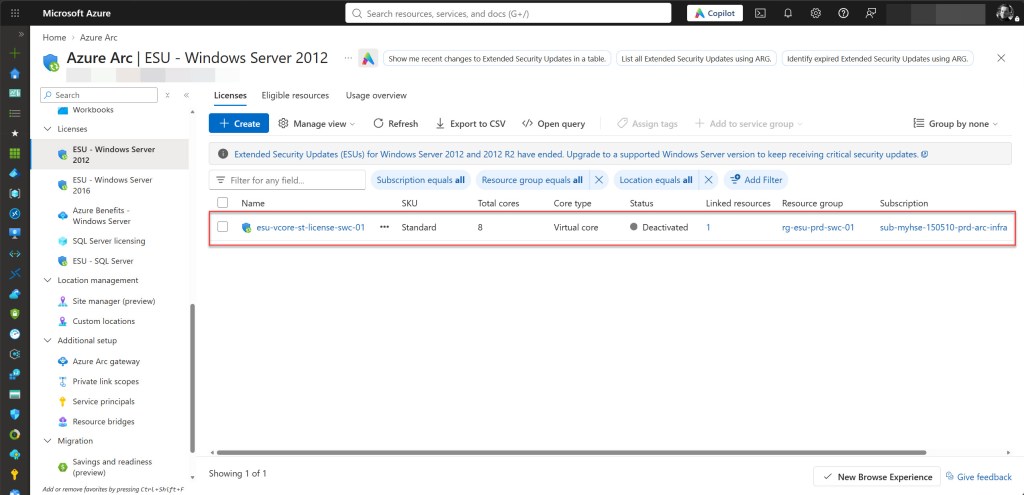
After October 13, 2026, you may notice that your Windows Server 2012 and Windows Server 2012 R2 Extended Security Update (ESU) licenses are still visible in the Azure portal, but their status has changed to Deactivated.
The following screenshot shows an example of the ESU licenses and their current status in the Azure portal.
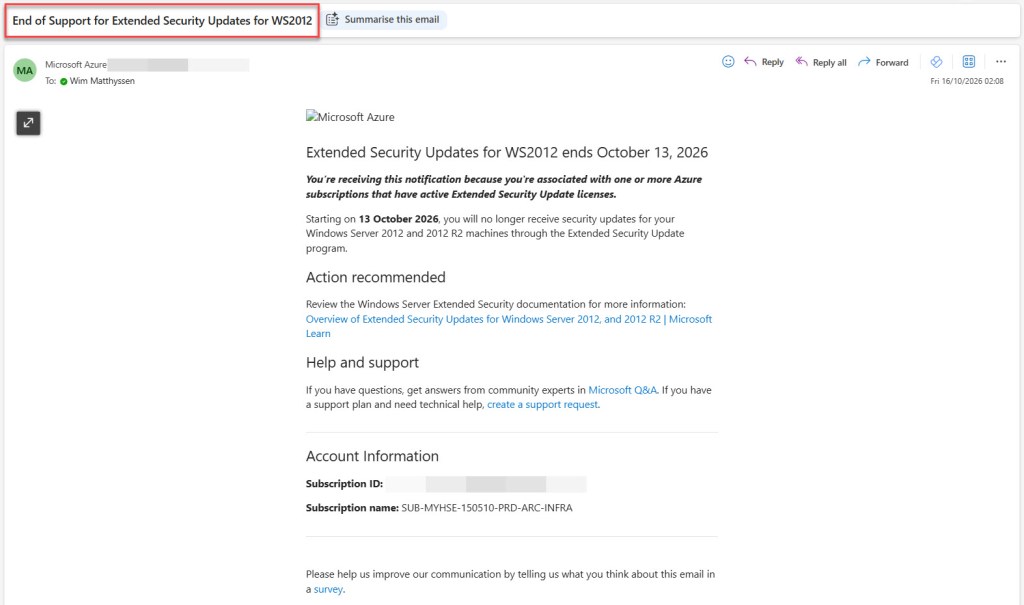
If one or more of your subscriptions contained active ESU licenses, you may also have received an email from Microsoft Azure titled “End of Support for Extended Security Updates for WS2012.”
The email confirms that, as of October 13, 2026, Windows Server 2012 and Windows Server 2012 R2 machines no longer receive security updates through the ESU program. The Account Information section lists the subscription covered by the notification. If your ESU licenses are spread across multiple subscriptions, you may receive a separate email for each subscription.
Microsoft recommends reviewing the ESU documentation on Microsoft Learn for further information.
In the next sections, we’ll look at how to identify these remaining ESU resources and clean them up from your Azure environment.
Identify Azure Arc-Enabled Servers Linked to ESU Licenses
Before cleaning up your Azure environment, it is important to identify which Azure Arc-enabled servers are still linked to a deactivated Extended Security Updates (ESU) license. Without this overview, it is difficult to clean up in a controlled way, and you could overlook servers enrolled in a subscription you rarely work with.
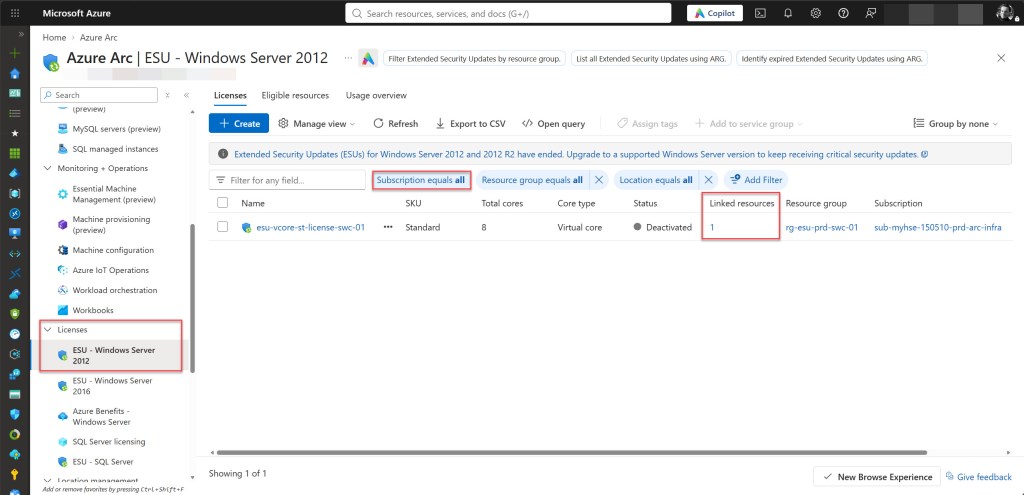
You can do this directly in the Azure portal by reviewing your existing ESU licenses and checking their linked resources. To get started, navigate to Azure Arc, select Licenses from the left-hand menu, and open ESU – Windows Server 2012. Make sure the Subscription filter is set to all, so licenses from every subscription are listed.
Then check the Linked resources column for each ESU license. A value of 1 or higher means that one or more Azure Arc-enabled servers are still linked to the license, while 0 means none are.
The Azure portal works well when you only have a few ESU licenses to review. However, if your Azure Arc-enabled servers are spread across multiple subscriptions, Azure Resource Graph provides a faster way to get an overview of your environment.
To get started, search for Resource Graph Explorer in the Azure portal and open it. Make sure the query scope includes all the subscriptions you want to check. Otherwise, the results will be limited to the selected scope.
Next, run the following query to identify Azure Arc-enabled servers with an ESU license assigned:
resources
| where type =~ "microsoft.hybridcompute/machines/licenseprofiles"
| extend assignedLicense = tostring(properties.esuProfile.assignedLicense)
| where isnotempty(assignedLicense)
| extend machineName = tostring(split(id, "/")[8])
| project machineName, resourceGroup, subscriptionId, location, assignedLicense
| order by subscriptionId asc, machineName asc
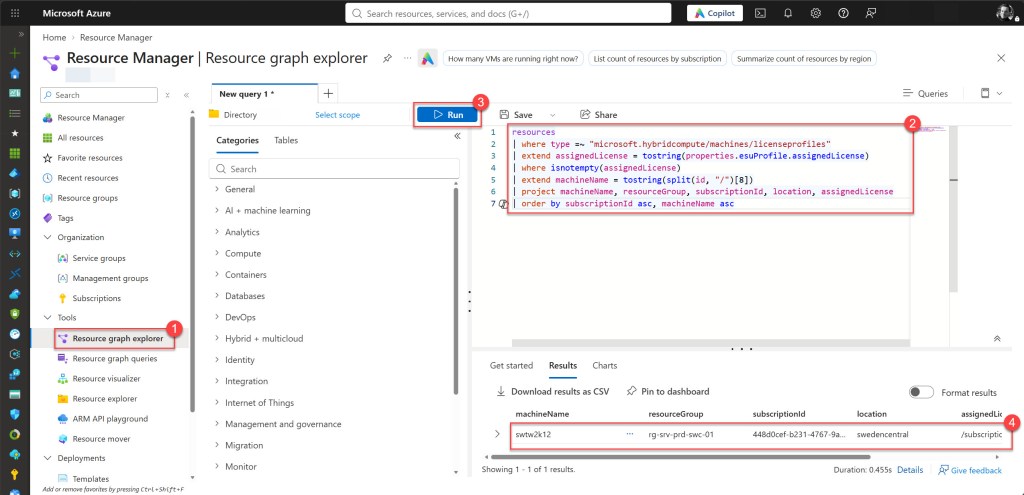
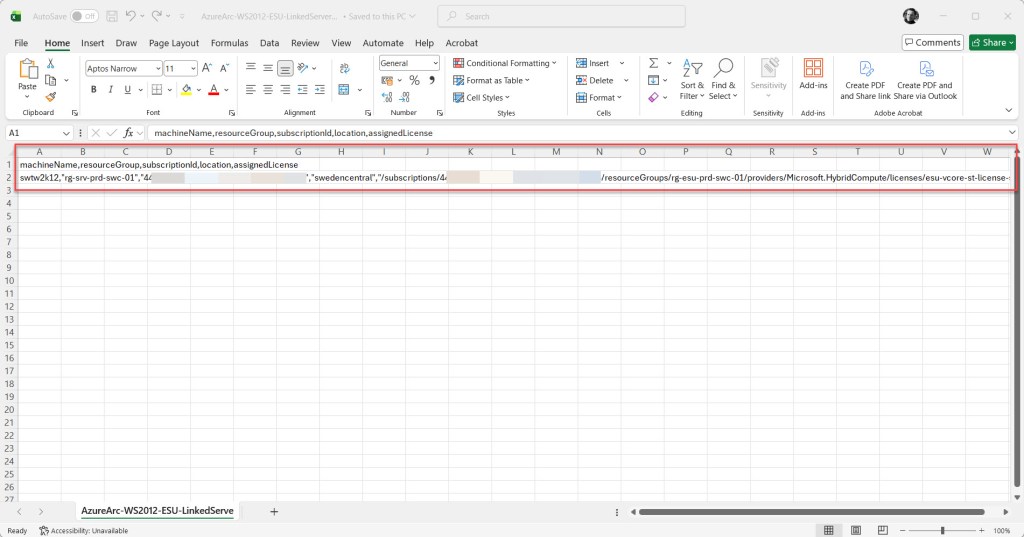
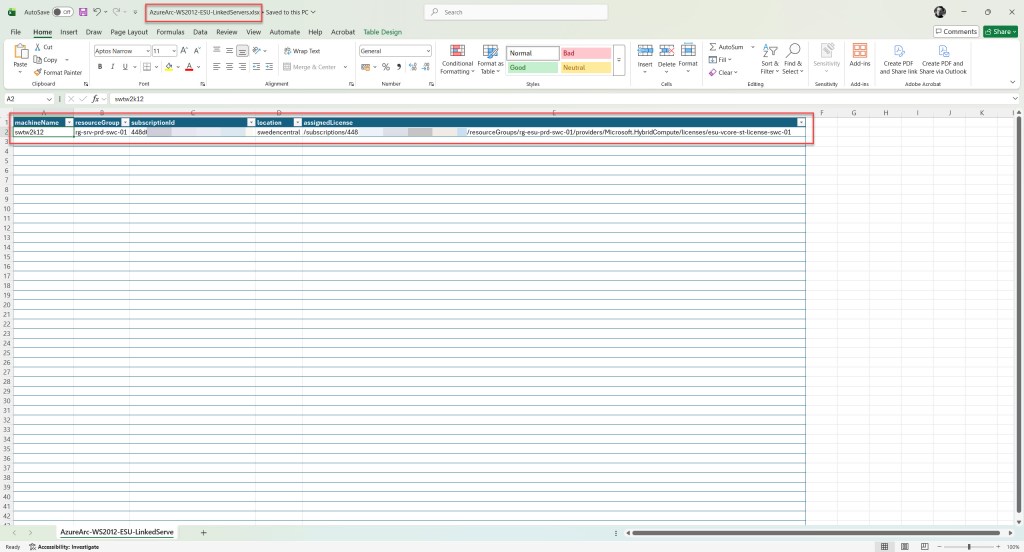
The query checks the license profile of each Azure Arc-enabled server and returns only those with an ESU license assigned. The assignedLicense column contains the resource ID of the associated ESU license, allowing you to identify exactly which license each server is linked to.
To keep this overview for later use, select Download as CSV and save the results. You will need this CSV file later to unlink the servers from their ESU licenses, so keep it as it is.
For easier reading, you can also open the CSV file in Excel, adjust the formatting, and save a copy as a workbook, such as AzureArc-WS2012-ESU-LinkedServers.xlsx. This copy works well as a checklist while you unlink the servers.
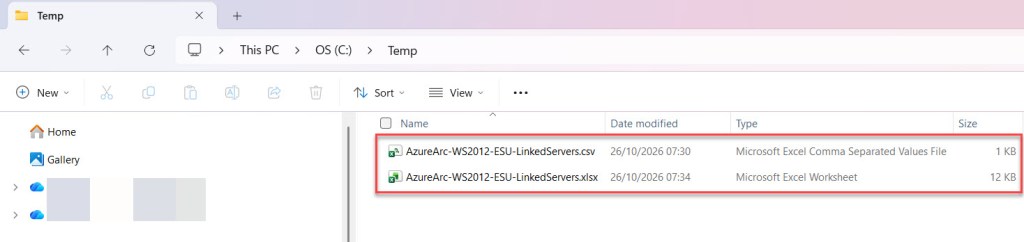
💡 Note: Some ESU licenses may no longer have any Azure Arc-enabled servers linked to them. These licenses remain visible on the ESU – Windows Server 2012 page, but show 0 in the Linked resources column. Because the Azure Resource Graph query only returns servers that have an ESU license assigned, these licenses don’t appear in the query results. You don’t need to unlink anything for them, so you can handle them when you delete the licenses.
Unlink ESU Licenses from Azure Arc-Enabled Servers with Azure PowerShell
Now that you know which Azure Arc-enabled servers are still linked to an ESU license, the next step is to unlink them. Each server has a license profile that references the ESU license through the assignedLicense property. Unlinking the license removes this reference from the server’s license profile.
The unlink operation is performed on the license profile of each server rather than on the ESU license itself. Microsoft documents this in the Azure Arc ESU ARM API. To unlink a license, you send a PUT request to the machine’s licenseProfiles/default resource with an empty esuProfile object.
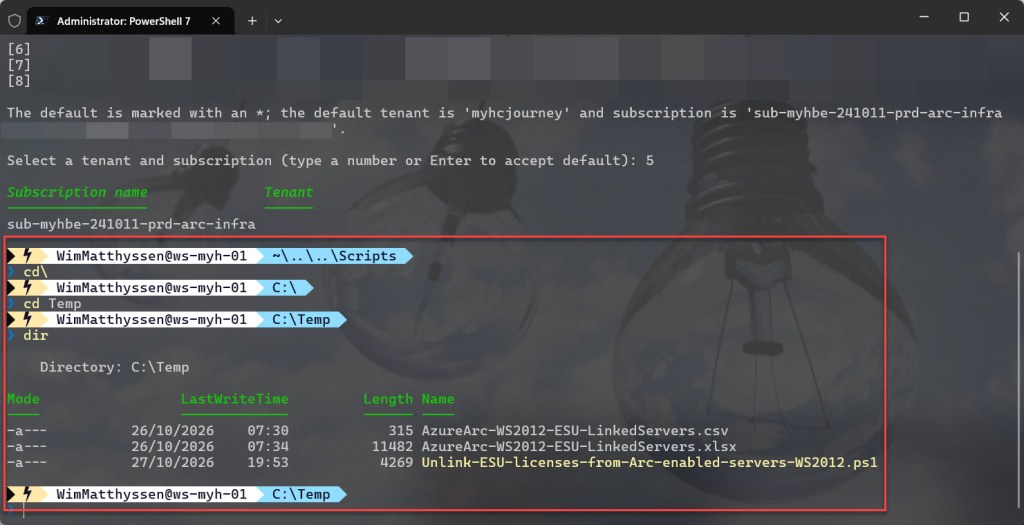
The Azure PowerShell script below uses the list you exported earlier. It reads each server from the CSV file and sends the unlink request for it.
To use the script, start by either copying and saving it as Unlink-ESU-license-using-Azure-Arc-WS2012-ESU-ARM-APIs.ps1 or downloading it directly from GitHub.
Then open the script and set the $csvPath variable to the full path of the CSV file you exported earlier, for example C:\Temp\AzureArc-WS2012-ESU-LinkedServers.csv.
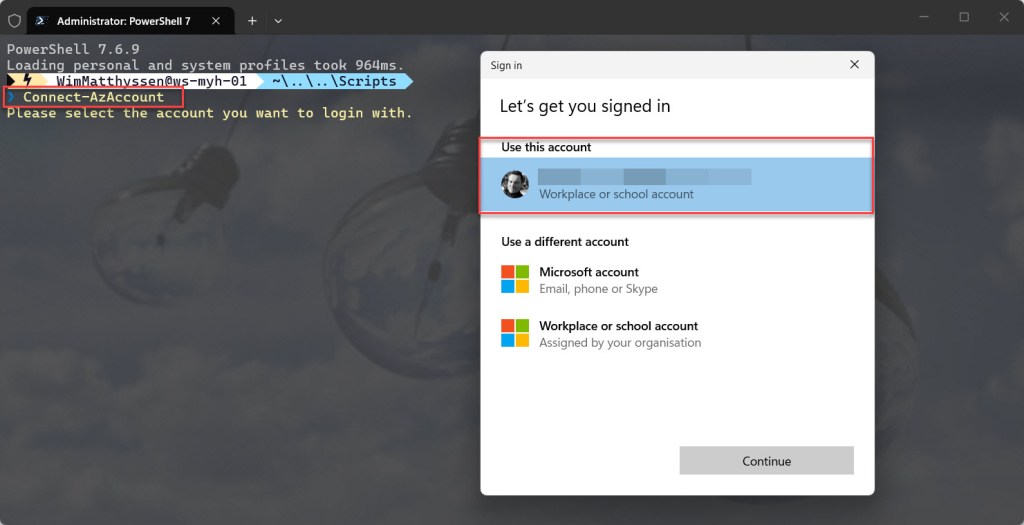
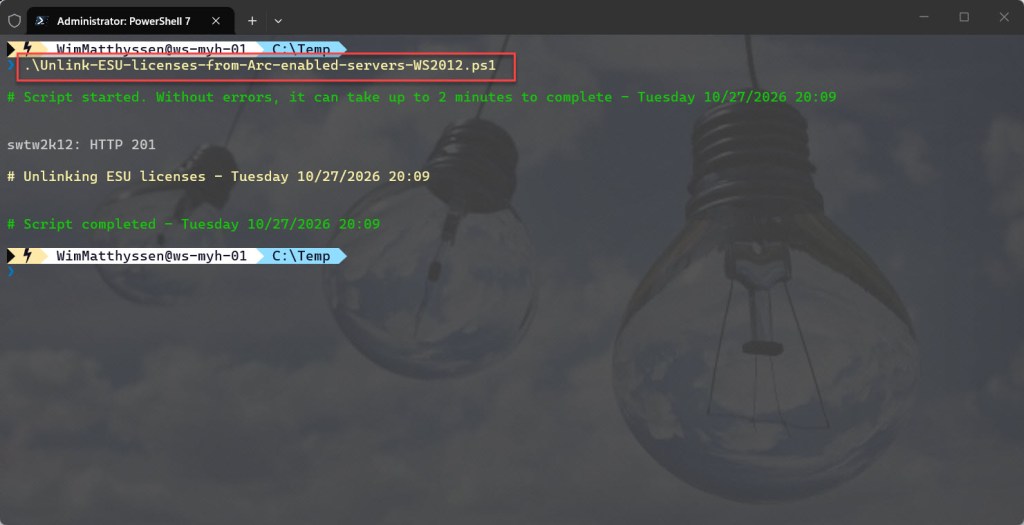
You can run the script using Windows Terminal, Visual Studio Code, or Windows PowerShell, after signing in to Azure with Connect-AzAccount. Alternatively, it can be executed directly from Azure Cloud Shell, where you are already signed in. In that case, upload the CSV file to Cloud Shell first and point $csvPath to the uploaded file.
The script reads each server from the CSV file and sends the unlink request to Azure. For every server, it shows the machine name and the status code returned by the request.
<#
.SYNOPSIS

A script used to unlink the ESU licenses for Azure Arc connected servers listed in a CSV file.

.DESCRIPTION

A script used to unlink the ESU licenses for Azure Arc connected servers listed in a CSV file.
The script will do all of the following:

Unlink the ESU licenses for each Azure Arc connected server listed in the CSV file.

.NOTES

Filename:       Unlink-ESU-licenses-from-Arc-enabled-servers-WS2012.ps1
Created:        14/10/2026
Last modified:  14/10/2026
Author:         Wim Matthyssen
Version:        1.0
PowerShell:     Azure PowerShell
Requires:       PowerShell Az (v14.6.0)
Action:         Change variables were needed to fit your needs.
Disclaimer:     This script is provided "As Is" with no warranties.

.EXAMPLE

Connect-AzAccount
.\Unlink-ESU-licenses-from-Arc-enabled-servers-WS2012.ps1

Example: .\Unlink-ESU-licenses-from-Arc-enabled-servers-WS2012.ps1

.LINK

https://wmatthyssen.com/2026/10/14/azure-arc-windows-server-2012-esus-have-ended-what-to-do-next/
#>

## ---------------------------------------------------------------------------------------------------------------------------------------------------------------------------------------------------

## Variables

$csvPath = ".\AzureArc-WS2012-ESU-LinkedServers.csv" # Path to the exported Azure Resource Graph results (CSV)
$apiVersion = "2023-06-20-preview"

Set-PSBreakpoint -Variable currenttime -Mode Read -Action {$global:currenttime = Get-Date -Format "dddd MM/dd/yyyy HH:mm"} | Out-Null
$foregroundColor1 = "Green"
$foregroundColor2 = "Yellow"
$foregroundColor3 = "Red"
$writeEmptyLine = "`n"
$writeSeperatorSpaces = " - "

## ---------------------------------------------------------------------------------------------------------------------------------------------------------------------------------------------------

## Remove the breaking change warning messages

Set-Item -Path Env:\SuppressAzurePowerShellBreakingChangeWarnings -Value $true | Out-Null
Update-AzConfig -DisplayBreakingChangeWarning $false | Out-Null
$warningPreference = "SilentlyContinue"

## ---------------------------------------------------------------------------------------------------------------------------------------------------------------------------------------------------

## Write script started

-Write-Host ($writeEmptyLine + "# Script started. Without errors, it can take up to 2 minutes to complete" + $writeSeperatorSpaces + $currentTime + $writeEmptyLine)`
-foregroundcolor $foregroundColor1 $writeEmptyLine

## ---------------------------------------------------------------------------------------------------------------------------------------------------------------------------------------------------

## Unlink ESU licenses for each server in the CSV file

$servers = Import-Csv -Path $csvPath

foreach ($server in $servers) {
    $path = "/subscriptions/$($server.subscriptionId)/resourceGroups/$($server.resourceGroup)" +
            "/providers/Microsoft.HybridCompute/machines/$($server.machineName)" +
            "/licenseProfiles/default?api-version=$apiVersion"

    $payload = @{
        location   = $server.location
        properties = @{
            esuProfile = @{}
        }
    } | ConvertTo-Json -Depth 5

    $result = Invoke-AzRestMethod -Method PUT -Path $path -Payload $payload

    Write-Host "$($server.machineName): HTTP $($result.StatusCode)"
}

Write-Host ($writeEmptyLine + "# Unlinking ESU licenses" + $writeSeperatorSpaces + $currentTime)`
-foregroundcolor $foregroundColor2 $writeEmptyLine

## ---------------------------------------------------------------------------------------------------------------------------------------------------------------------------------------------------

## Write script completed

Write-Host ($writeEmptyLine + "# Script completed" + $writeSeperatorSpaces + $currentTime)`
-foregroundcolor $foregroundColor1 $writeEmptyLine

## ---------------------------------------------------------------------------------------------------------------------------------------------------------------------------------------------------
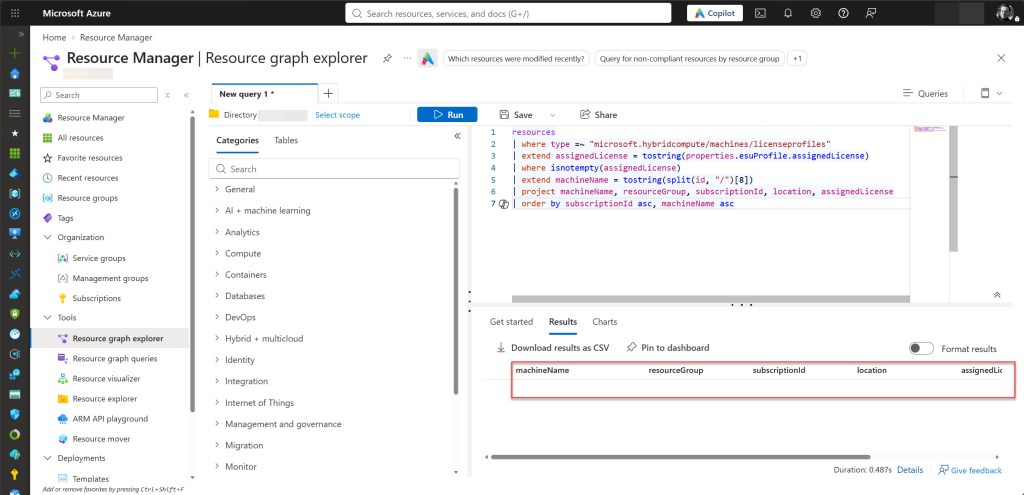
To verify the result, run the Azure Resource Graph query from the Identify Azure Arc-Enabled Servers Linked to ESU Licenses section again. The servers you unlinked should no longer appear in the results.
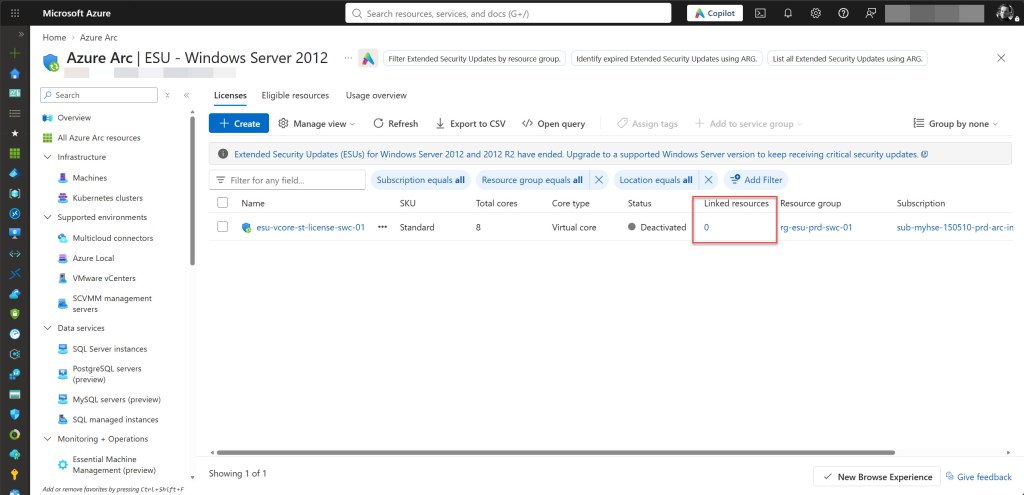
Alternatively, check the Linked resources column on the ESU – Windows Server 2012 page in the Azure portal, which should now show 0.
Delete the Deactivated ESU Licenses
After unlinking the servers, the deactivated ESU licenses are still present in your subscriptions. The last step is to delete them. This includes the licenses you just unlinked, as well as the licenses that already showed 0 in the Linked resources column.
Only delete a license when its Linked resources value is 0. If a license still has linked servers, go back to the previous section and unlink them first.
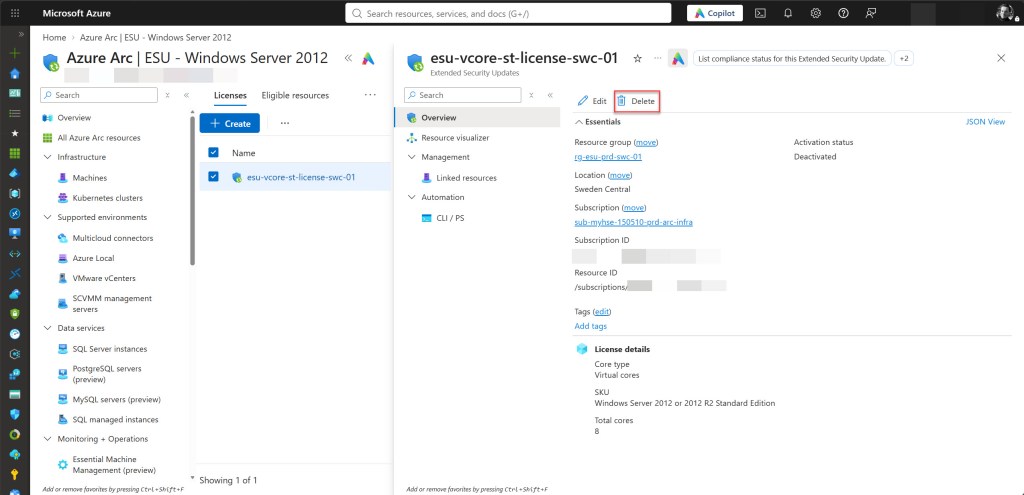
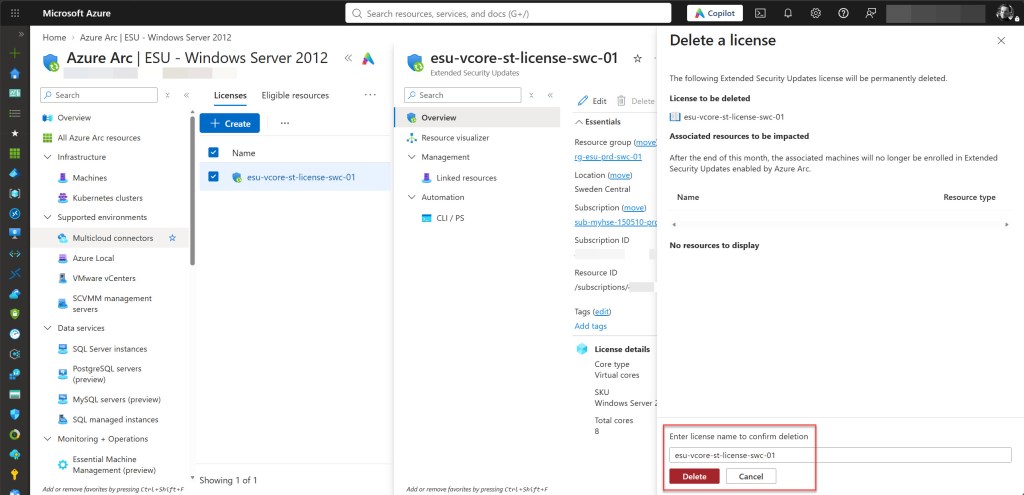
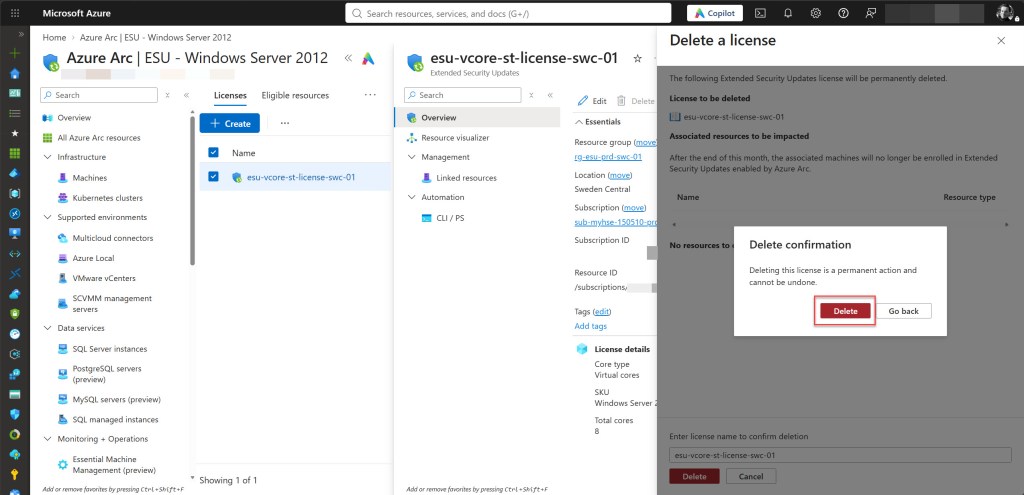
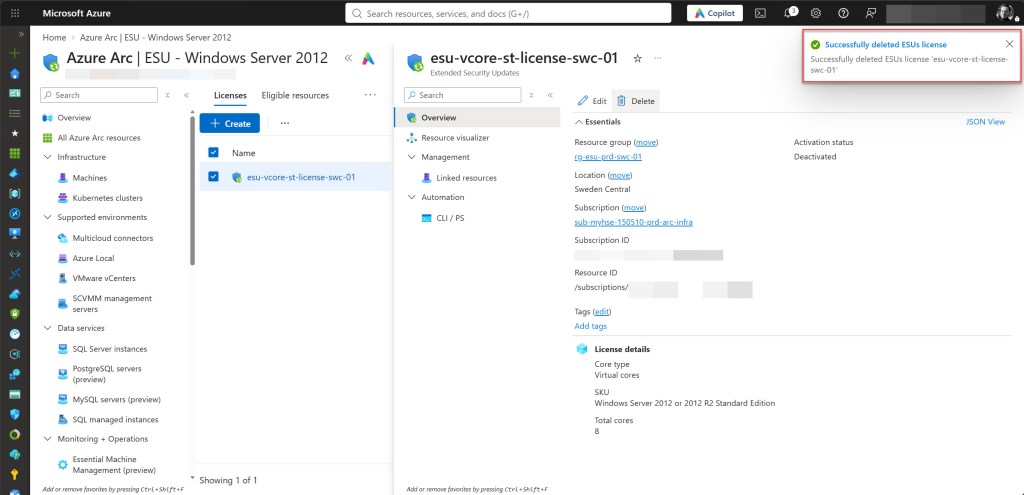
To do this via the Azure portal, go to Azure Arc, select Licenses, and open ESU – Windows Server 2012. Open the ESU license with 0 linked resources, choose Delete in the top menu, and confirm the deletion. Repeat these steps for every license you want to remove.
💡 Note: If you have many licenses to delete, you can use the PowerShell script from my earlier post, Azure Arc: Remove an Extended Security License with an Azure PowerShell script, to remove them in bulk.
Conclusion
You have now identified the Azure Arc-enabled servers that were still linked to an ESU license, unlinked them, and deleted the deactivated licenses. Your Azure environment is now free of leftover ESU license resources for Windows Server 2012 and 2012 R2.
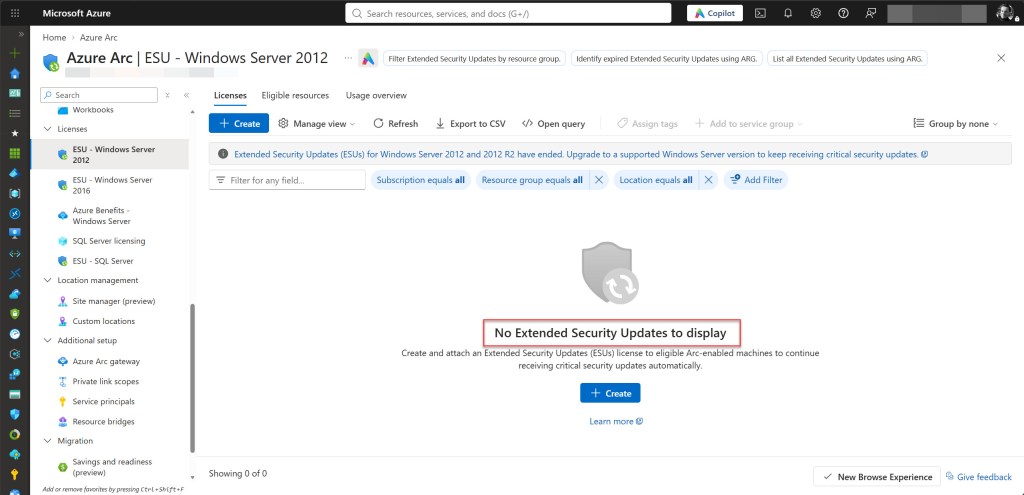
Keep in mind that this cleanup does not change the security status of the servers themselves. Since October 13, 2026, Windows Server 2012 and 2012 R2 are no longer covered by the ESU program. Any newly discovered vulnerabilities will therefore remain unpatched through this program. As the banner in the Azure portal also indicates, the recommended action is to upgrade to a supported Windows Server version.
If you still have these servers running, make migrating or upgrading them your next priority. Until then, reduce the risk by limiting their network exposure and isolating them from sensitive systems wherever possible.
If a server is being decommissioned or you no longer need to manage it through Azure Arc, make sure to clean up its Azure Arc resources as well. Remove any VM extensions, disconnect the Azure Connected Machine agent by running azcmagent disconnect, and uninstall the agent from the server. Disconnecting the agent also removes the Azure Arc-enabled server resource from Azure, helping you avoid stale resources for servers that are no longer connected or in use.
I hope this blog post helps you clean up your Azure environment following the end of the Windows Server 2012 and 2012 R2 ESU program. If you have any questions or suggestions about this blog post or script, feel free to reach out to me on X (@wmatthyssen) or leave a comment. I’ll be happy to help.


0 comments on “Azure Arc: Windows Server 2012 ESUs Have Ended (What to Do Next)”