

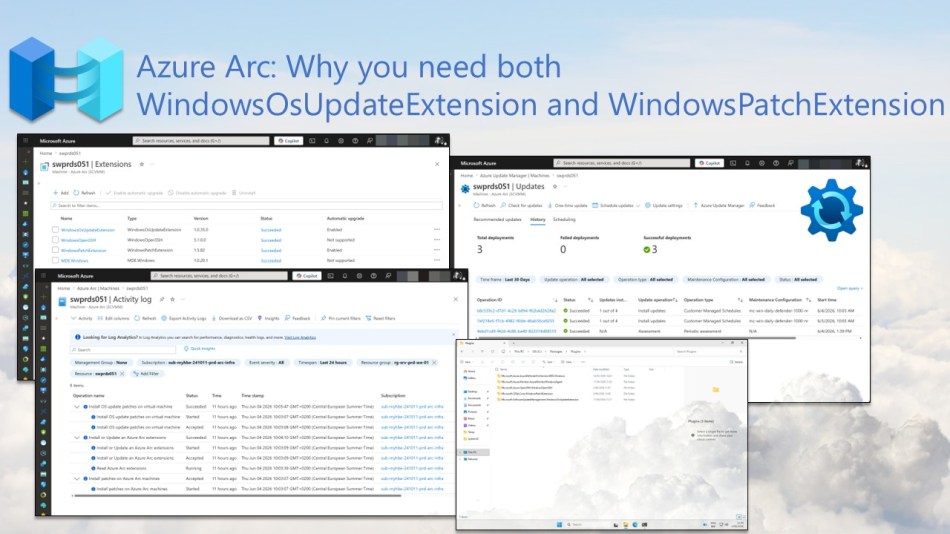
If you have noticed both WindowsOsUpdateExtension and WindowsPatchExtension installed on an Azure Arc-enabled server, you might wonder whether something is misconfigured.
In this blog post, you’ll learn why both extensions can appear in Azure Update Manager, how this differs from native Azure VMs, and how to determine whether the configuration is healthy or requires attention.
Azure Update Manager extension behavior on native Azure VMs
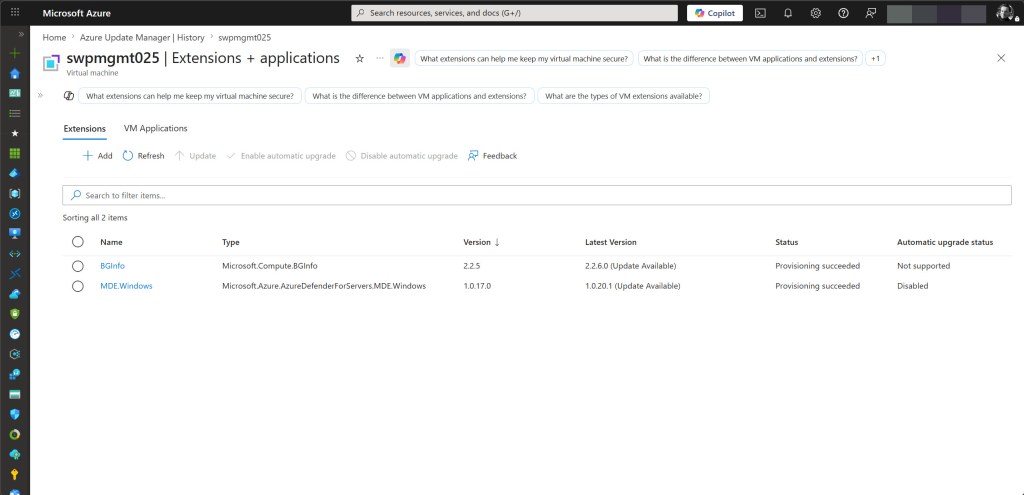
Azure Update Manager (AUM) on native Azure Windows VMs uses the Microsoft.CPlat.Core.WindowsPatchExtension to perform assessment and patch operations.
If you don’t see this extension listed under Extensions + applications in the Azure Portal, that can be expected. The portal blade is not always the best source of truth for platform-managed patching behavior, as shown in the screenshot below.
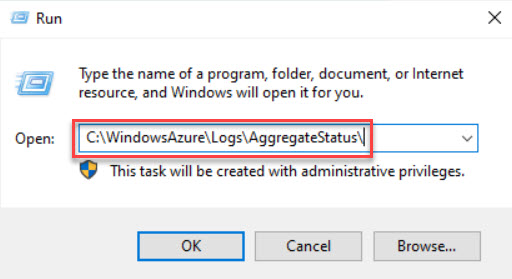
To verify that the extension is functioning correctly, review the following locations on the VM:
- AggregateStatus log: C:\WindowsAzure\Logs\AggregateStatus\
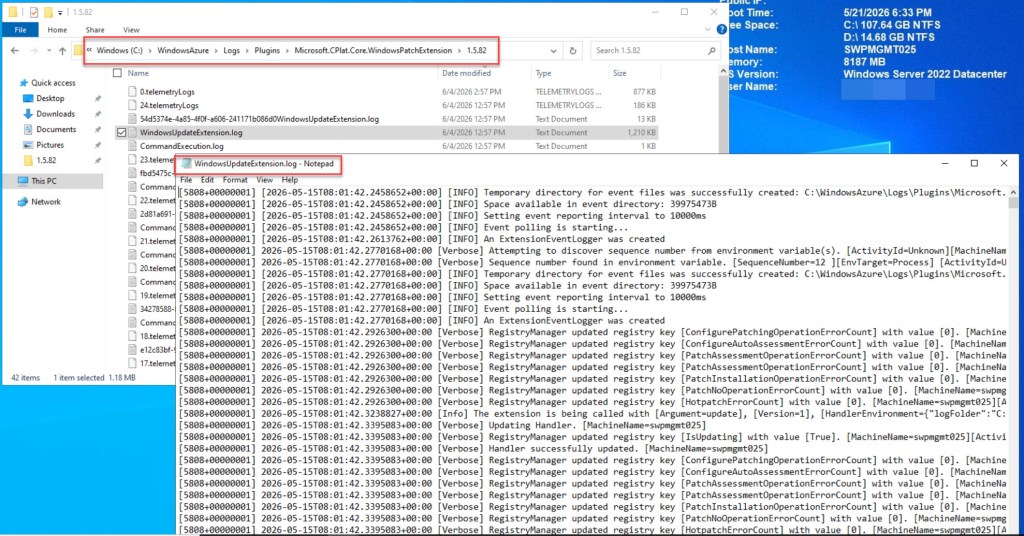
- Patch extension log folders: C:\WindowsAzure\Logs\Plugins\Microsoft.CPlat.Core.WindowsPatchExtension-<version>\
💡 Note: The patch extension folder includes a version suffix (for example: …\Microsoft.CPlat.Core.WindowsPatchExtension-1.5.82), so the exact folder name can change over time as newer handler versions are applied.
These logs are maintained by the Azure Guest Agent and contain status information for extension operations. During or after Azure Update Manager assessments and patch deployments, they can be used to verify that the Microsoft.CPlat.Core.WindowsPatchExtension executed successfully.

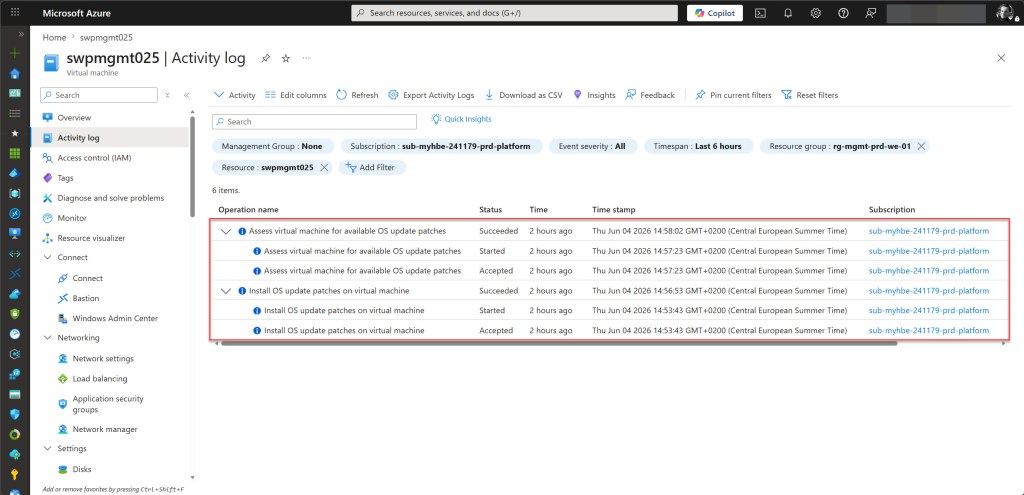
To find the exact time of an assessment or patch operation, navigate to the Activity Log of the VM in the Azure Portal and filter by one of the following operation names:
- Install OS update patches on virtual machine — for patch deployments
- Assess virtual machine for available OS update patches — for assessments
Each operation will show a Started, Accepted, and Succeeded entry, allowing you to pinpoint the exact timestamp and cross-reference it with the logs on the VM.
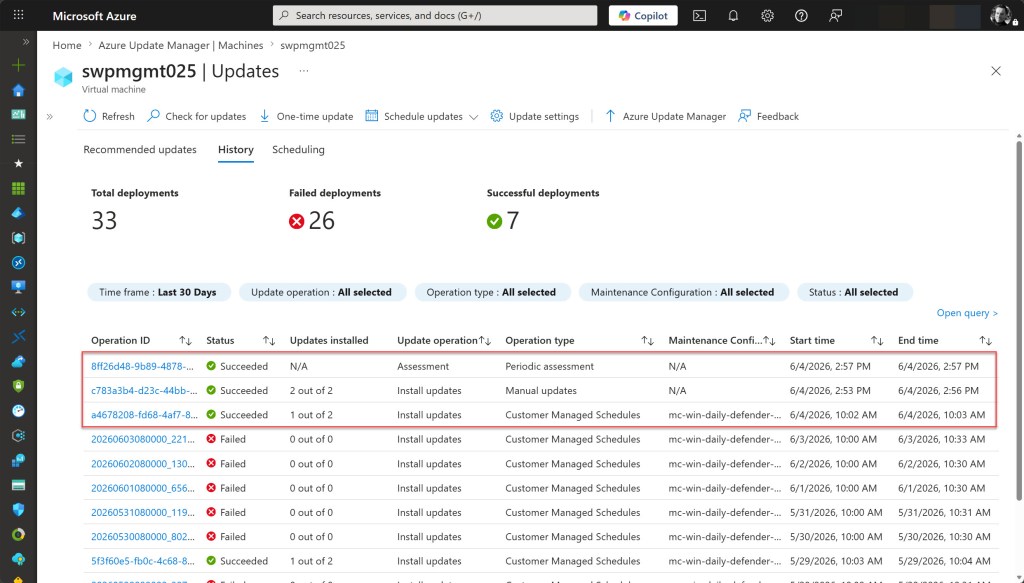
If you want to confirm that AUM is functioning correctly on the VM without checking the VM logs, the most reliable place in the portal is Azure Update Manager > History > [your VM], also accessible via Azure Update Manager > Machines > [your VM] > History. This confirms that AUM operations completed successfully, but it does not directly prove the presence or execution of the patch extension itself
Azure Update Manager extension behavior on Arc-enabled servers
If you are shifting from native Azure infrastructure to hybrid environments, one of the first differences you may notice is the extension footprint: native Azure VMs typically use a single patch handler for Update Manager workflows, while Azure Arc-enabled servers can show two update-related extensions.
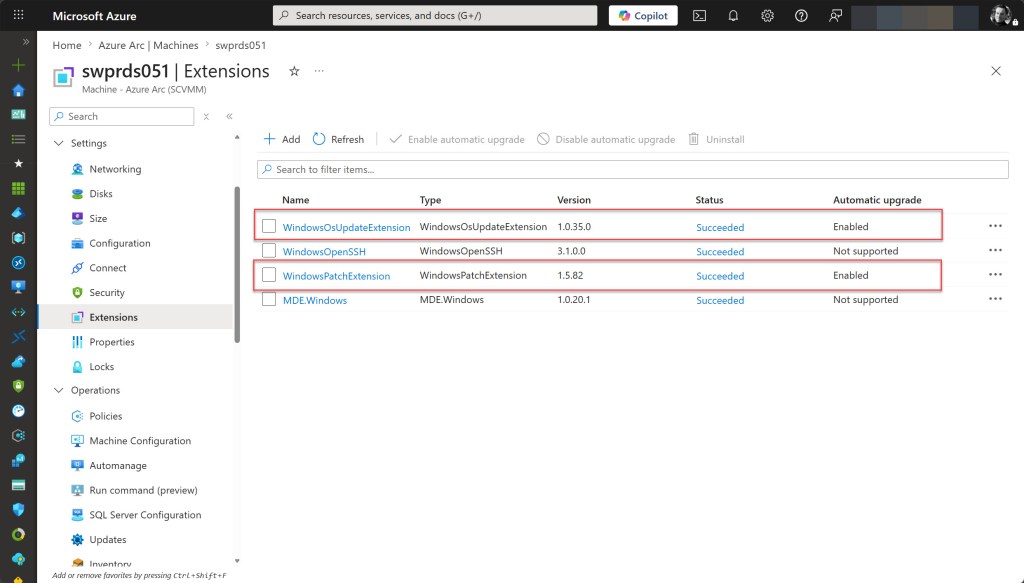
On an Azure Arc-enabled machine, Azure Update Manager (AUM) can automatically provision a dual-extension setup when Update Manager operations are triggered:
- Microsoft.CPlat.Core / WindowsPatchExtension
- Microsoft.SoftwareUpdateManagement / WindowsOsUpdateExtension
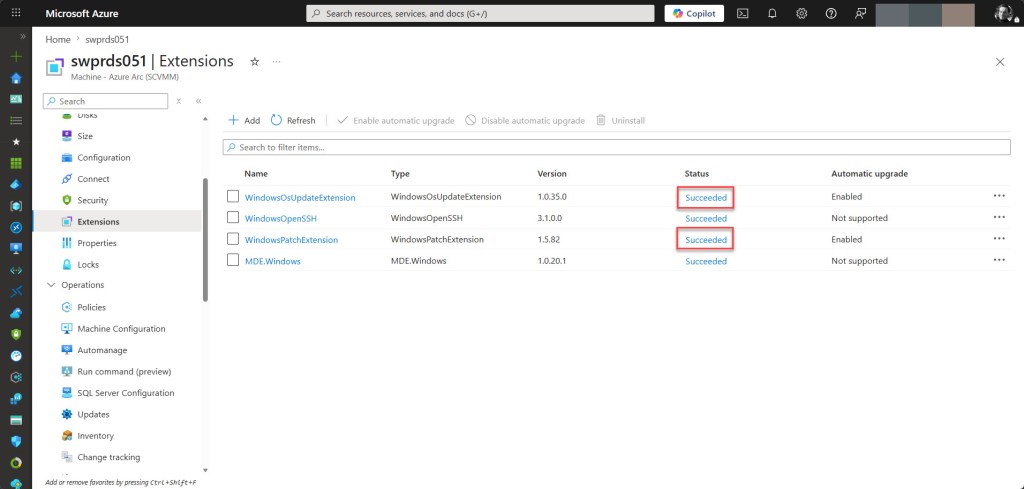
If you check your portal and spot both of these running side-by-side, that is expected behavior under the Arc architecture. It is not a duplicate deployment or a misconfiguration.
Unlike native Azure VMs, where patch-handler visibility in the portal can be less explicit, Arc-enabled servers surface both update-related items directly in the Extensions blade.
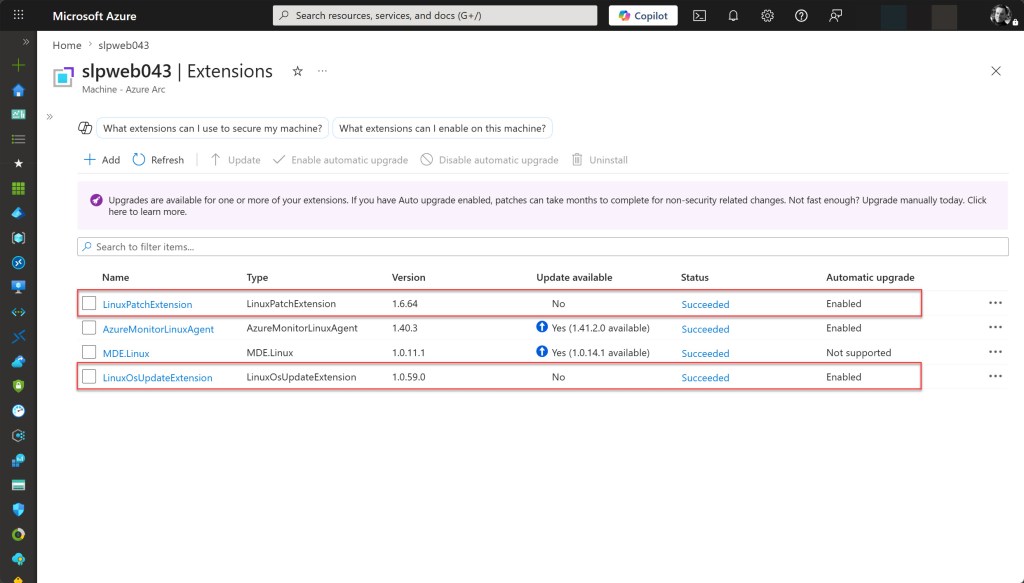
If you are managing Linux Arc-enabled servers, the architecture is identical, but the equivalent extensions are named LinuxPatchExtension and LinuxOsUpdateExtension.
💡 Note: On Azure Arc-enabled servers, extension troubleshooting requires looking at different local paths than native Azure VMs. For deep-dive Windows troubleshooting, the relevant agent and extension logs can be found under %ProgramData%\AzureConnectedMachineAgent\Log, %ProgramData%\GuestConfig\ext_mgr_logs, and %ProgramData%\GuestConfig\extension_logs.
Why both extensions can appear on Azure Arc
The logic behind this dual-extension setup comes down to how hybrid machines talk to the cloud.
On a native Azure VM, patch orchestration is deeply integrated with the underlying Azure Compute fabric and the Azure VM Agent. On an Azure Arc-enabled server, however, the machine can run outside of Azure infrastructure and is managed through the Azure Connected Machine Agent. Because of that architecture, update operations on Arc are surfaced through explicit Arc extension resources.
At a practical level, this results in two visible update-related extensions on many Arc Windows servers: one handles patch assessment and compliance state, the other handles update operation execution.
WindowsPatchExtension (Assessment/patch state handler)
- Publisher/Type: Microsoft.CPlat.Core / WindowsPatchExtension
- Core function: Patch state and assessment-related processing.
- Operational impact: Feeds the compliance and assessment signals used by Azure Update Manager and its related reporting experiences.
WindowsOsUpdateExtension (Update operation handler)
- Publisher/Type: Microsoft.SoftwareUpdateManagement / WindowsOsUpdateExtension
- Core function: Handles update actions, such as install workflows initiated by one-time deployments or scheduled maintenance runs.
- Operational impact: Enables the execution of update deployments on Arc machines.
Extension health is not the same as update-source health
On Azure Arc-enabled Windows servers, Azure Update Manager depends on the native Windows Update client and local policy configuration, including WSUS targeting and Group Policy settings. It does not rely on extension presence alone.
Both update-related extensions can show Succeeded while assessment and patching still fail. This usually happens when WSUS targeting is misconfigured, GPO update settings are incorrect, or the server cannot reach its configured update source.
Before treating this as an extension problem, check Windows Update client policy, WSUS/GPO configuration, and network connectivity to the update source.
Use the steps below to verify the full update pipeline, not just extension status.
How to validate extension health
To confirm everything is working smoothly, use all three of these checks:
1) Check the Extension blade
First, navigate to your Arc machine and open the Extensions blade. You want to ensure that both update-related extensions are present and displaying a healthy status of Succeeded.
If WindowsOsUpdateExtension or WindowsPatchExtension shows Failed, treat it as an extension execution issue first. Do not jump straight to update-source or policy troubleshooting.
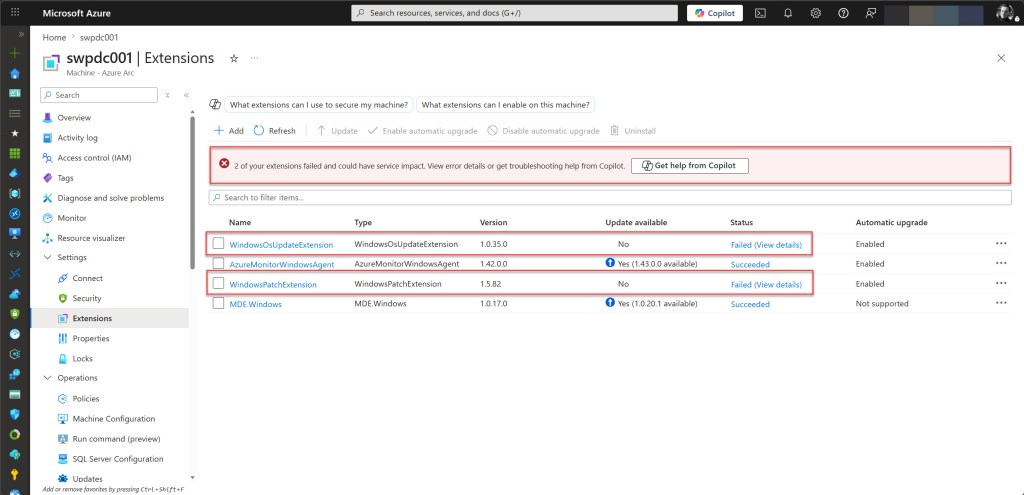
Check in this order:
- View error details in the Extensions blade.
- Arc and extension logs on the server.
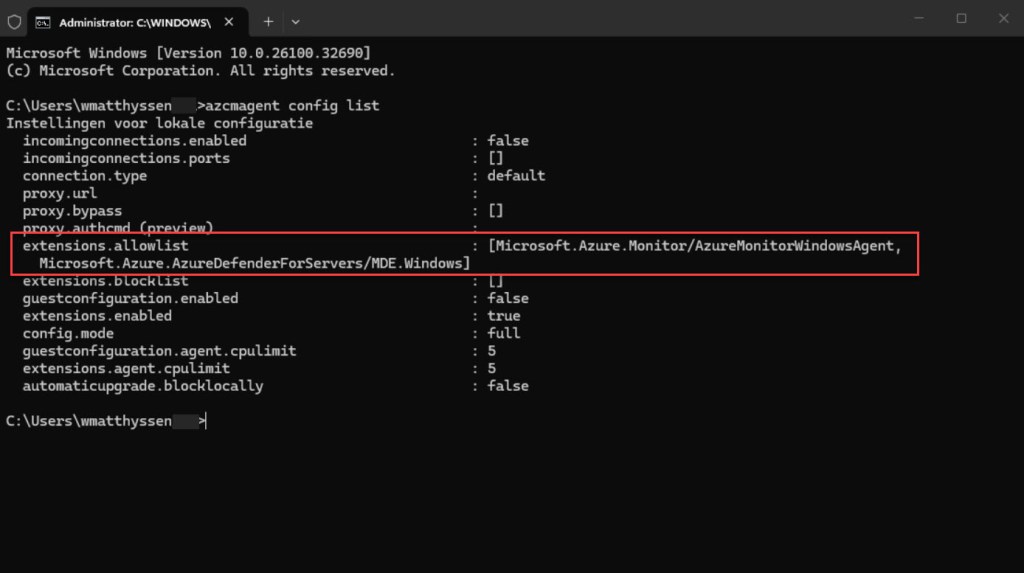
- Arc agent local configuration, including extension allowlist and blocklist settings.
- Arc agent connectivity and proxy configuration.
- WSUS, GPO, and update-source policy, once extension health is confirmed.
The screenshot below shows an allowlist configuration that does not permit both extensions. In this state, assessments and patch operations will fail even when Azure Update Manager is configured correctly.
2) Check Azure Update Manager History
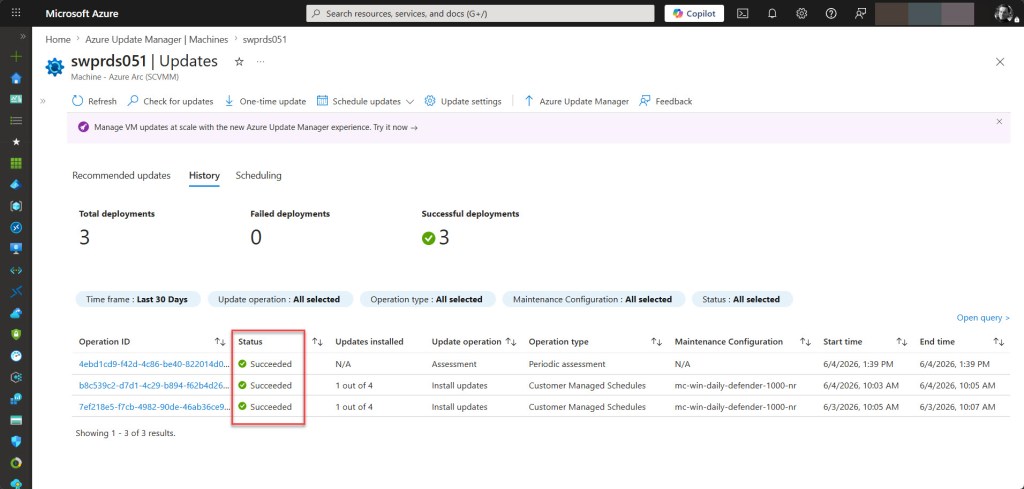
Open Azure Update Manager, select your machine, and check the History dashboard. This confirms that background compliance assessments and patch installation operations completed successfully.
3) Check the Activity Log
Finally, you can verify exact execution timing in the Activity Log. Look for the Install OS update patches on virtual machine event to trace patch deployments. For compliance assessments, use Azure Update Manager History as the primary source, and correlate with Activity Log entries when assessment events are present.
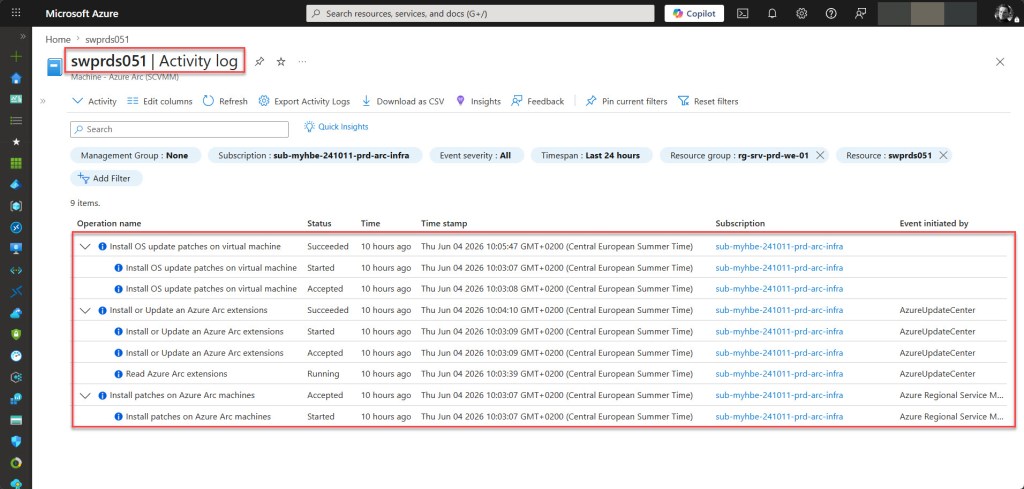
If all three of these areas align, your Arc update configuration is healthy from an Update Manager extension and operation perspective and is functioning as expected.
Conclusion
I hope this blog post helped clarify why extension behavior can look different between native Azure VMs and Azure Arc-enabled servers in Azure Update Manager. Knowing that Microsoft.CPlat.Core.WindowsPatchExtension is platform-managed on native Azure VMs, while a dual-extension setup is expected on Arc-enabled servers, can save significant troubleshooting time when the portal view looks unfamiliar.
Whether you manage a small hybrid footprint or operate at scale across native Azure and Arc-enabled infrastructure, understanding where to validate Update Manager health is key to maintaining patch compliance. In practice, Activity Log, AggregateStatus logs, and Azure Update Manager History are often the most useful validation points when the Extensions blade does not show the full picture.
If you have any questions or suggestions about this blog post, feel free to reach out on X (@wmatthyssen) or leave a comment. I’ll be happy to help.


0 comments on “Azure Arc: Why you need both WindowsOsUpdateExtension and WindowsPatchExtension”