


In this blog post, you’ll learn several ways to check the version of the Azure Connected Machine agent on your Azure Arc-enabled servers.
As many of you using Azure Arc know, Microsoft regularly updates the Azure Connected Machine Agent to fix bugs, enhance stability, and introduce new features.
So, knowing the exact version and updating* each Connected Machine agent in your hybrid environment is crucial for ensuring the optimal performance and security of your Azure Arc-enabled servers.
*You can check the latest version of the Azure Connected Machine agent at the next Microsoft Learn link: https://learn.microsoft.com/en-us/azure/azure-arc/servers/agent-release-notes
In this post, I’ll guide you through the process of checking the Connected Machine Agent version using several ways, including the command line on your Arc-enabled servers and the Azure portal. This will help you stay current with the latest updates and improvements.
Table of Contents
- Verify on Azure Arc-enabled server
- Verify from on-premises management server
- Verify in the Azure Portal
- Verify with Azure Advisor
- Verify with Azure Resource Graph Explorer
- Conclusion
Verify on Azure Arc-enabled server
To check the version of the Azure Connected Machine agent directly on the server using Windows PowerShell, simply log in to the server with an administrator account, open a Windows PowerShell window, and enter the following command:
azcmagent version

Alternatively, you can use the azcmagent show command, which displays the current state of the Azure Connected Machine Agent, including a row that describes the agent version.
azcmagent show

If you don’t want to use Windows PowerShell, you can open Run, type “appwiz.cpl” to open Programs and Features, and find the version of the currently installed Azure Connected Machine agent there.
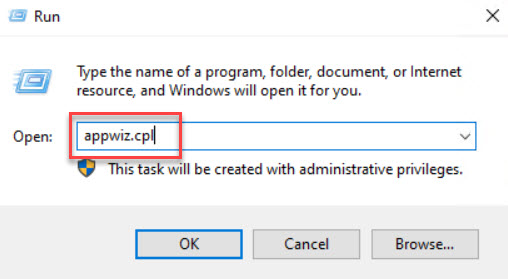

In addition to the options described above, you can also use the Registry Editor to check the version. Open Run, type regedit, and click OK. Then navigate HKEY_LOCAL_MACHINE > SOFTWARE > Microsoft > Azure Connected Machine Agent, where you can find the current version of the agent.

Verify from on-premises management server
You can also use Windows PowerShell remoting to check the Azure Connected Machine Agent version from a management server.
To do this, log in to a management server with an administrator account, open a Windows PowerShell window, and enter the following commands, replacing <servername> with the name of your Arc-enabled server where you want to check the agent version:
## ----------------------------------------------------------------------------------------------------------------------------------------------------------------------------------

# Check from management server

Enter-PSSession <servername>

azcmagent version

## ----------------------------------------------------------------------------------------------------------------------------------------------------------------------------------
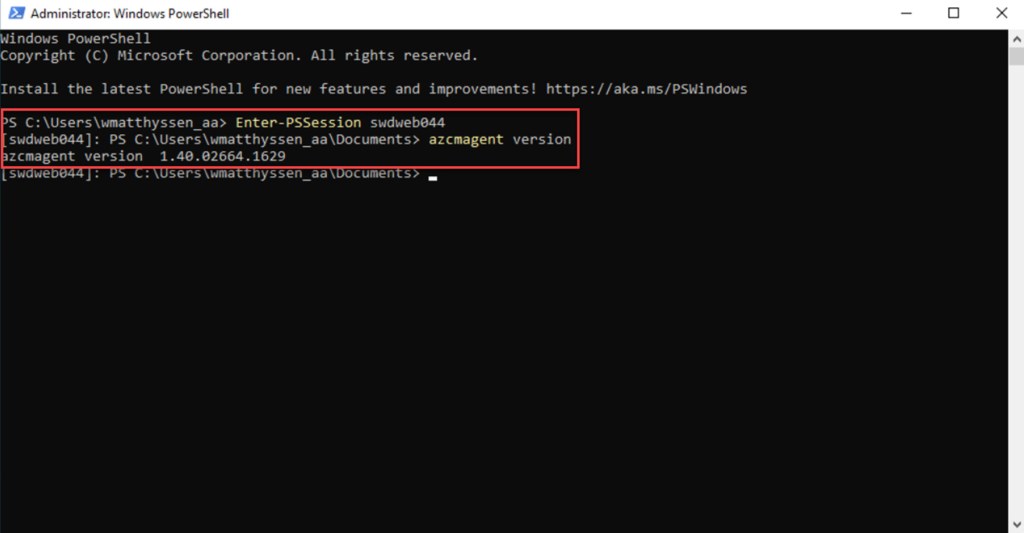
You can end the interactive session by typing:
Exit-PSSession

In addition to Windows PowerShell remoting, you can also verify the agent version using the remote registry.
To proceed, open the Registry Editor on your management server by accessing Run, typing “regedit,” and pressing “Enter” or selecting “OK.” If prompted by User Account Control, click “Yes” to confirm.
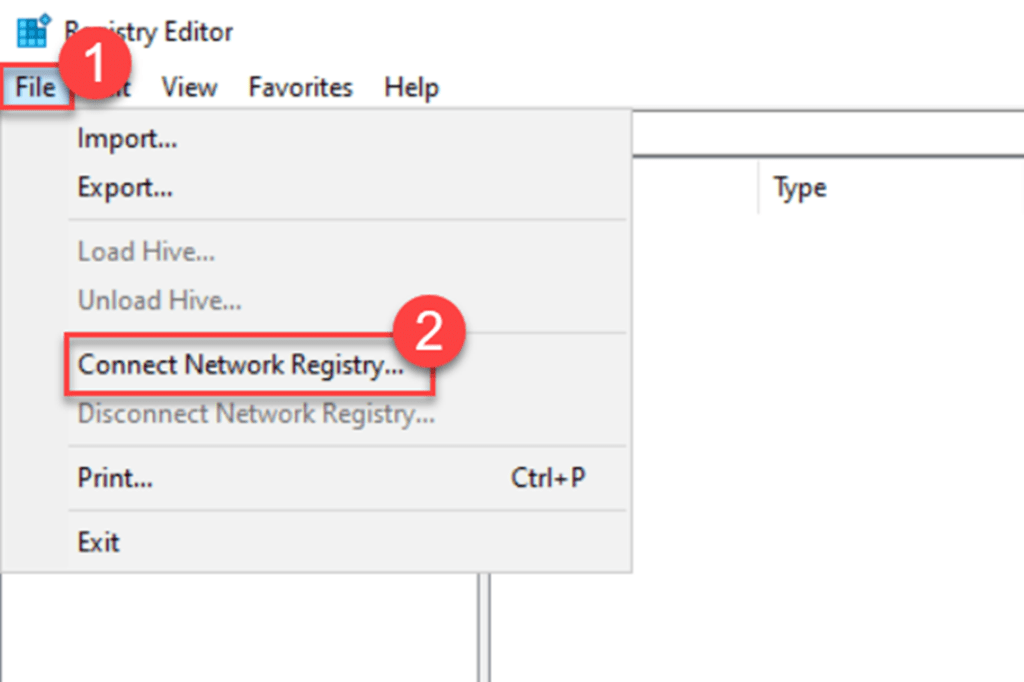
Once the registry editor is open, navigate to File and choose Connect Network Registry.
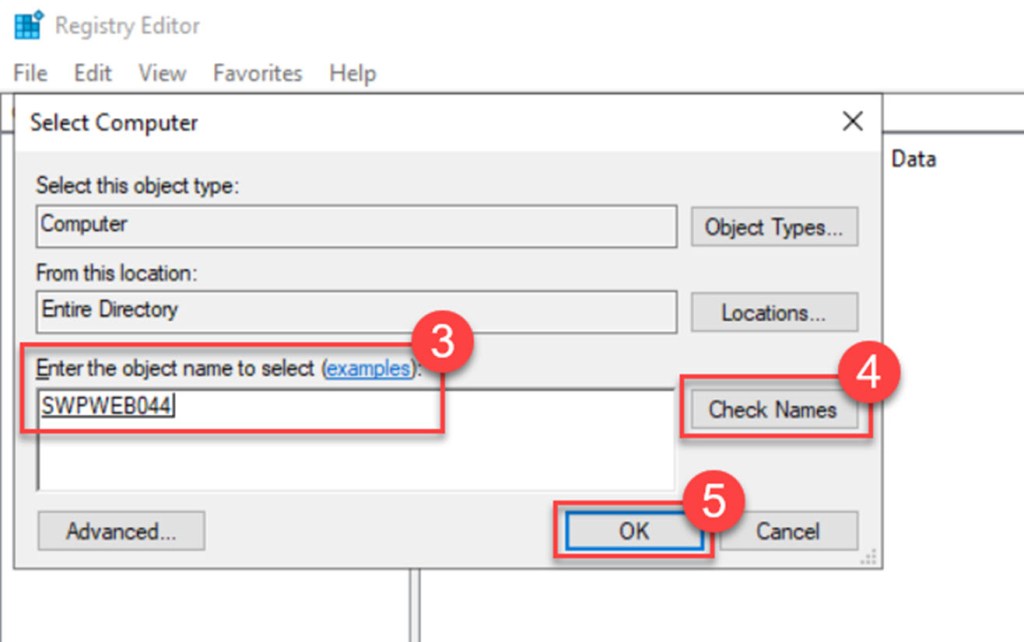
In the “Enter the object name to select” field, input the name of the server you want to remotely access the registry for, then click “Check Names“, followed by “OK“.
Once the remote registry is accessible*, locate the following registry key, where you can find the Version registry key value:
[HKEY_LOCAL_MACHINE\SOFTWARE\Microsoft\Azure Connected Machine Agent]

*If you encounter an error while connecting to the remote registry, ensure that the Remote Registry service is enabled and “Running” on both servers. Additionally, if necessary, configure the required ports in the Windows Firewall.
Verify in the Azure Portal
You can also easily verify the agent version for every Arc-enabled server in the Azure Portal.
To do this, first log in to the Azure Portal, then navigate to the Azure Arc page by typing “arc” in the global search bar and selecting Azure Arc from the results.
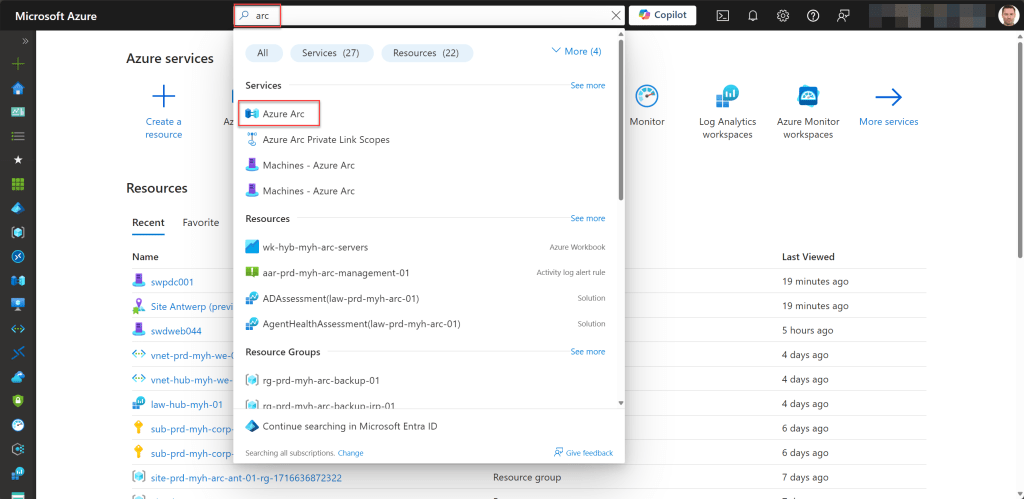
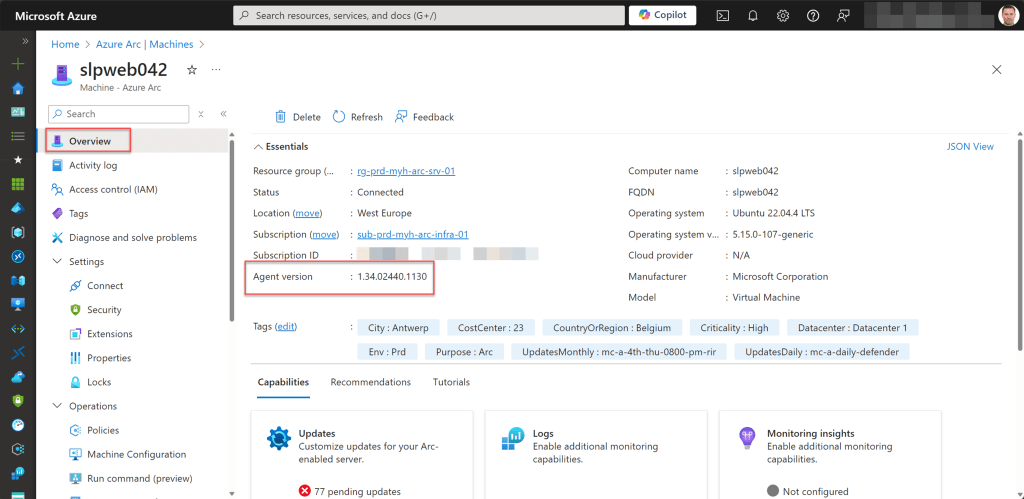
Then go to Machines and select your Arc-enabled server.

On the Overview page, you can find the current agent version.
Verify with Azure Advisor
Another way to verify the version of the Azure Arc Connected Machine agents across all Azure Arc-enabled servers, or at least for all Azure subscriptions configured to process Advisor recommendations, is by using the Azure Portal and checking Azure Advisor.
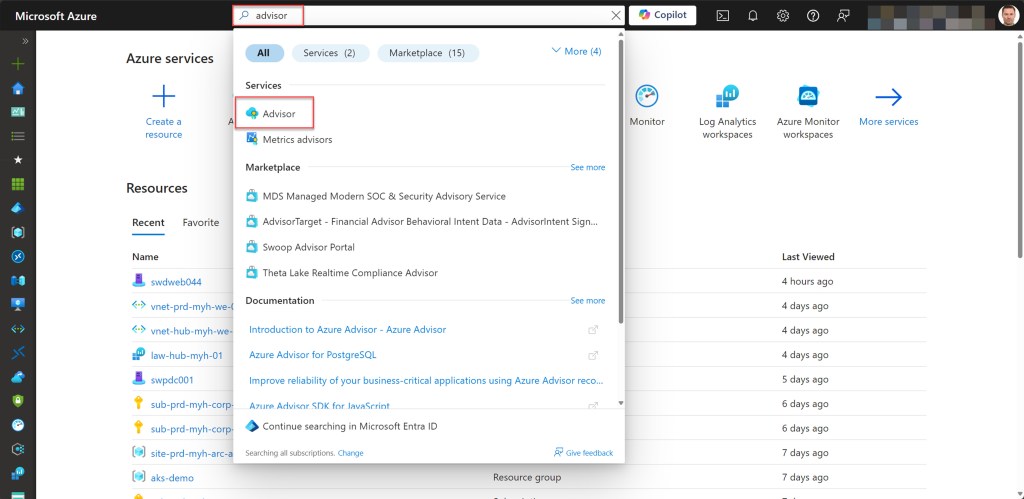
Log in to the Azure Portal with a user who has the appropriate RBAC privileges, type “advisor” in the global search bar, and then click on Advisor.
Then go to Reliability under Recommendations and look for a medium recommendation named “Upgrade to the latest version of the Azure Connected Machine agent.”
If this recommendation is not available, your agents are all up to date. If it is available, click on it to see which Arc-enabled servers are running an older version of the agent.
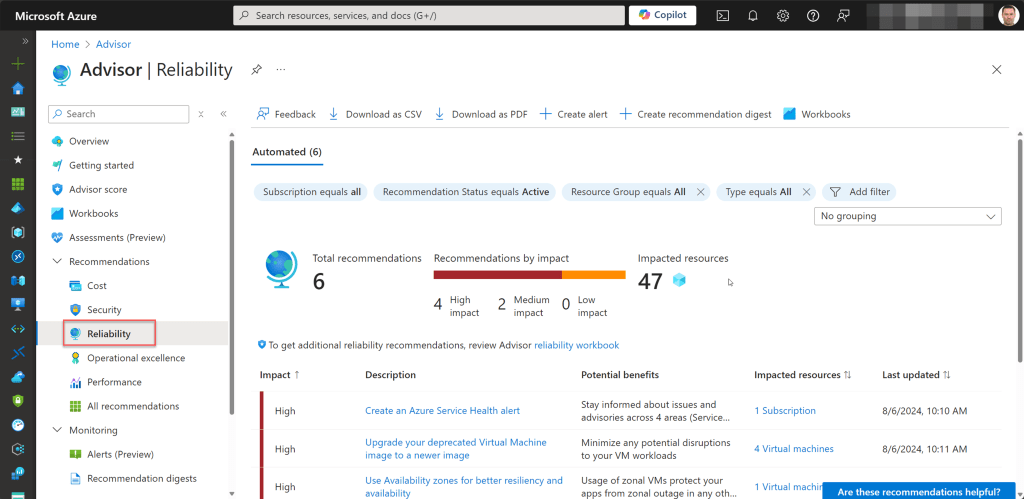

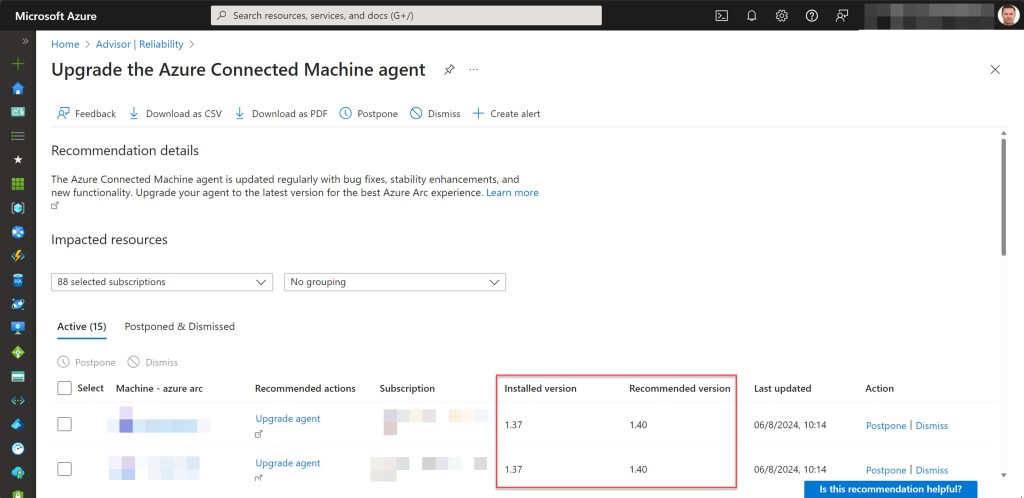
If you want, you can also download this list as a CSV or PDF by selecting “Download as CSV” or “Download as PDF” on the same page. This is useful if you need to contact others in your organization or team to update the agents, especially if you are not permitted to perform local maintenance on these Arc-enabled servers.
Verify with Azure Resource Graph Explorer
Another way to verify the installed Azure Connected Machine agent version for all your Arc-enabled servers at once is by using Azure Resource Graph and running a specific query in Azure Resource Graph Explorer.
To do this, type “graph” in the global search bar of the Azure Portal and select Resource Graph Explorer.
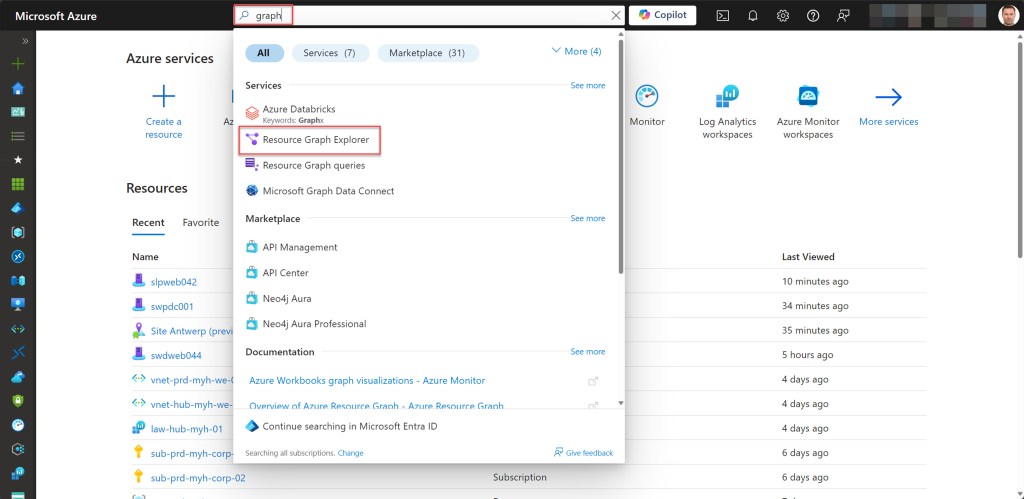
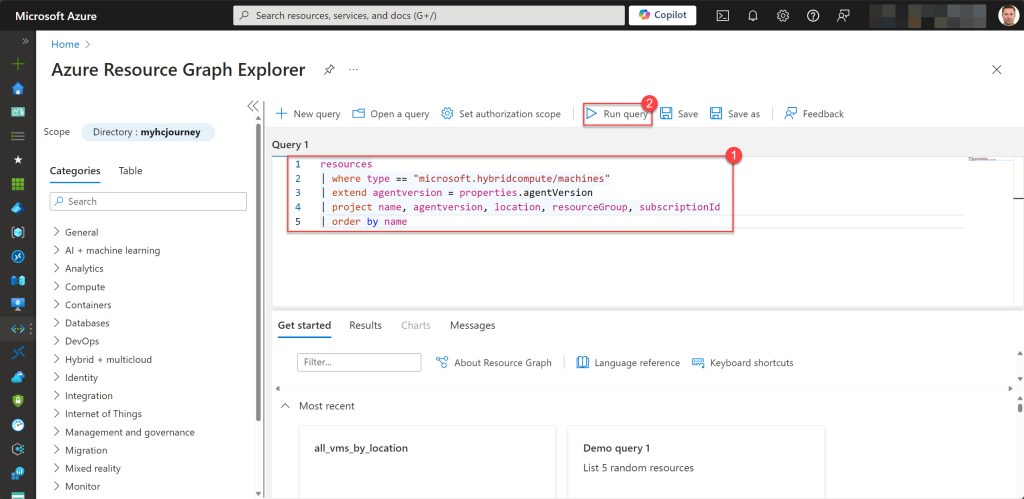
Then run the following query:
resources
| where type == "microsoft.hybridcompute/machines"
| extend agentversion = properties.agentVersion
| project name, agentversion, location, resourceGroup, subscriptionId
| order by name
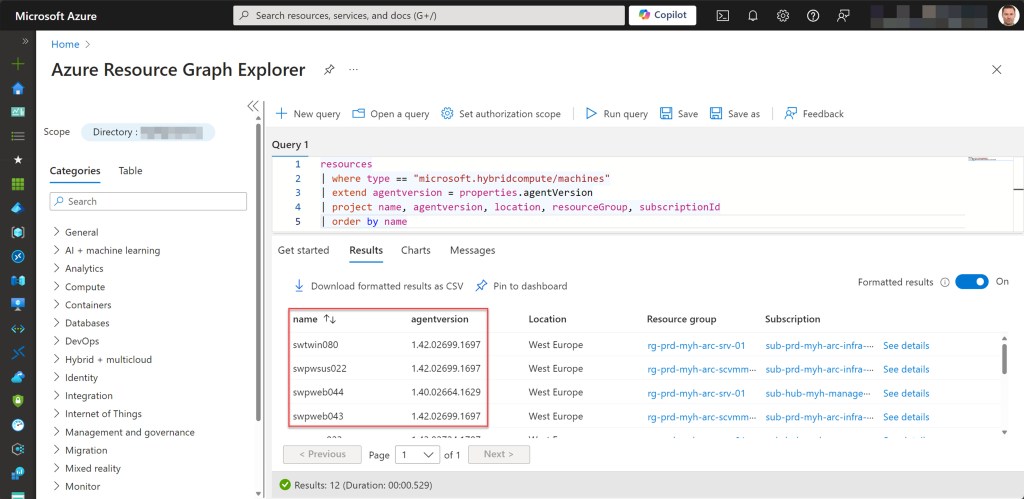
If you want, you can also save this query for later use or download the formatted results as a CSV file.


Conclusion
Keeping your Azure Connected Machine Agent up to date is an important management and security task that helps protect your systems and enables you to use the latest features and capabilities on your Azure Arc-enabled servers.
I hope the steps explained in this blog post help you keep your agents current.
If you have any questions or suggestions regarding this blog post or need assistance with any of the steps, please contact me via my X handle (@wmatthyssen) or leave a comment. I’ll be more than happy to assist you.
 Wim Matthyssen
Thanks for the extending info.
LikeLike
Thank you for the simple explanation of the Azure Resource Graph Explorer !
I was able to link the tables up to a Power BI Dashboard and we can now monitor the versions outside Azure (for the Management team)
LikeLike