
In this blog post, I will delve into various methods of utilizing Azure Policy to ensure consistent governance across your hybrid and multi-cloud resources via Azure Arc.
As you look outside, you’ll notice that spring has arrived once more! Continuing their tradition, Joe Carlyle and Thomas Thornton are leading Azure Spring Clean, a community-driven initiative promoting well-managed Azure tenants.
You can check out all the other blog posts or videos that can guide you with best practices, lessons learned, or help you with some of the more difficult Azure Management topics at https://www.azurespringclean.com.
You can also stay updated on X by following the hashtag #AzureSpringClean to catch all the latest Azure “spring” cleaning tips.
These days, many organizations mostly run their workloads in a hybrid cloud scenario, yet managing such diversity can present challenges, especially in enforcing security standards and policies. Luckily, Microsoft’s Azure Arc extends Azure policy and management beyond Azure’s boundaries, offering a solution.
That’s why this year I’ll be focusing on showcasing how Azure Policy can maintain consistency, security, and compliance across your hybrid and multi-cloud environments, including Azure Arc-enabled servers.
So, let’s start “governing,” “optimizing,” and “cleaning.” 💻🧹
Table of Contents
- Prerequisites
- Azure Management Group structure
- Microsoft cloud security benchmark
- Azure Policy Compliance
- Azure Arc-related Azure Policy definitions and initiatives
- Conclusion
Prerequisites
- An Azure subscription, preferably more than one if you plan to follow the Cloud Adoption Framework (CAF) enterprise-scale architecture. This includes a connectivity and/or management subscription, with at least one ARC subscription (landing zone) for deploying your Arc-related resources.
- An Azure Administrator account with the necessary RBAC roles.
- Some machines, whether physical or virtual, running at least Windows Server 2016 or any Arc supported Linux distribution within your hybrid environment and have already been onboarded into Azure Arc.
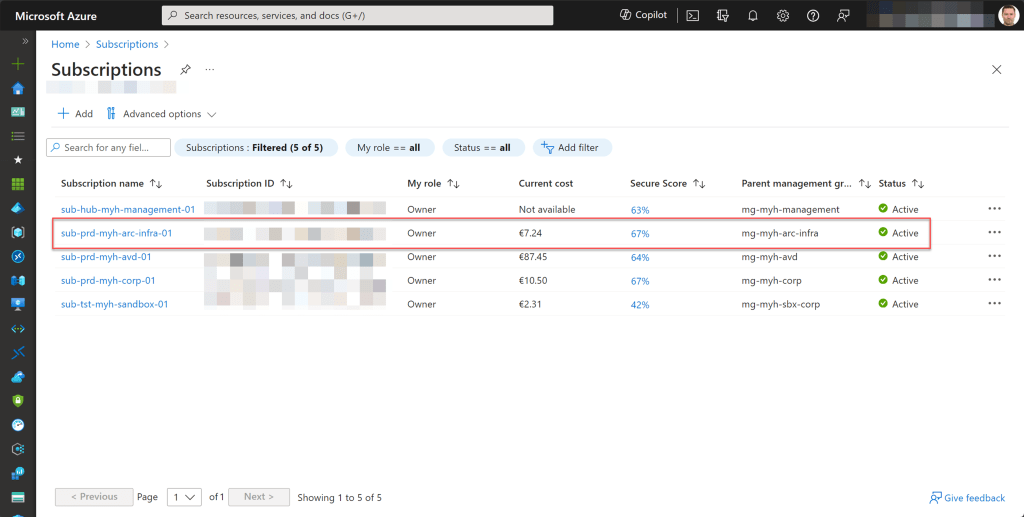
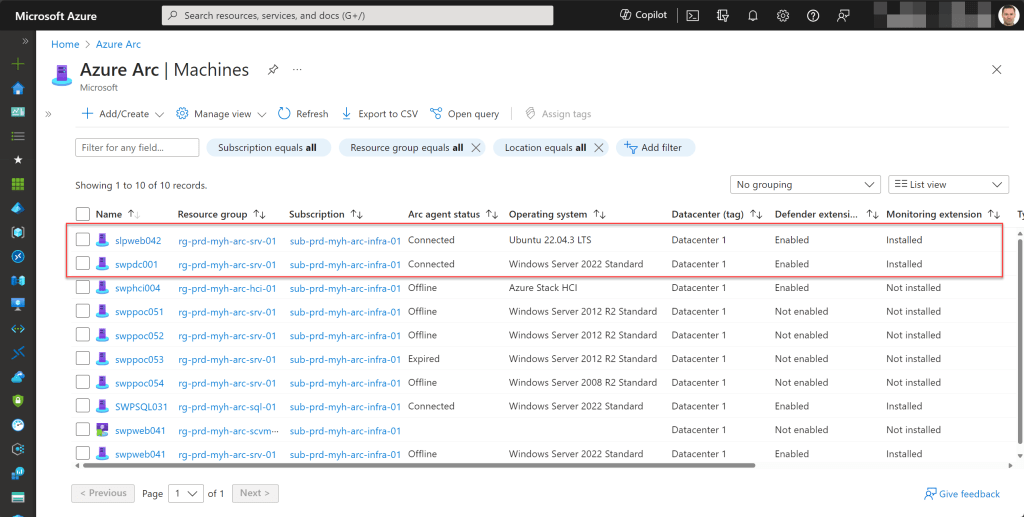
Azure Management Group structure
Implementing Azure Policy involves defining and enforcing rules to ensure compliance, security, and governance throughout your Azure resources within a designated scope, such as a management group, subscription, or optionally a resource group.
Typically, I designate a management group for this purpose; when policies are applied at this level, they automatically extend downward to encompass lower levels, including the subscriptions within that management group, as well as all associated resource groups and resources.
Regarding Azure Arc, I typically create three management groups beneath the “landingzones” management group, tailored to the type of Arc resource utilized within the environment. This approach simplifies the process of applying specific Azure Policy built-in policies to relevant types of Arc subscriptions and resources.
I commonly categorize them as “arc-data,” “arc-infra,” and “arc-k8s,” although you’re free to use your own structure as desired or ones that follow your naming convention.
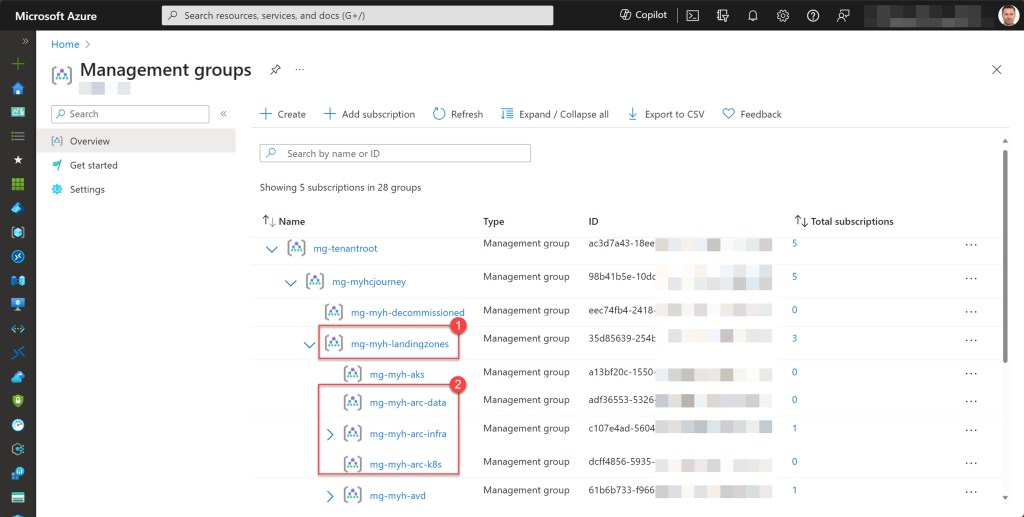
Furthermore, I consistently avoid defining production (Prd), development (Dev), acceptance (Acc), test (Tst), or similar management groups below these core management groups.
From my standpoint, if there’s a requirement for separate policies or access management criteria between the Prd and Dev/Tst environments, I consistently suggest placing those Dev/Tst subscriptions under the Sandbox management group.
Given the Sandbox’s less controlled nature, it provides users with the freedom to experiment with Azure resources, test configurations, and explore new features with fewer constraints and policies. Moreover, it serves as a secure environment for testing configurations without impacting critical workloads.
Recently, I’ve been encouraging customers to develop a more elaborate management group hierarchy extending beyond the top-level Sandbox group. This ensures even better and more logical organization of all Azure subscriptions under it.
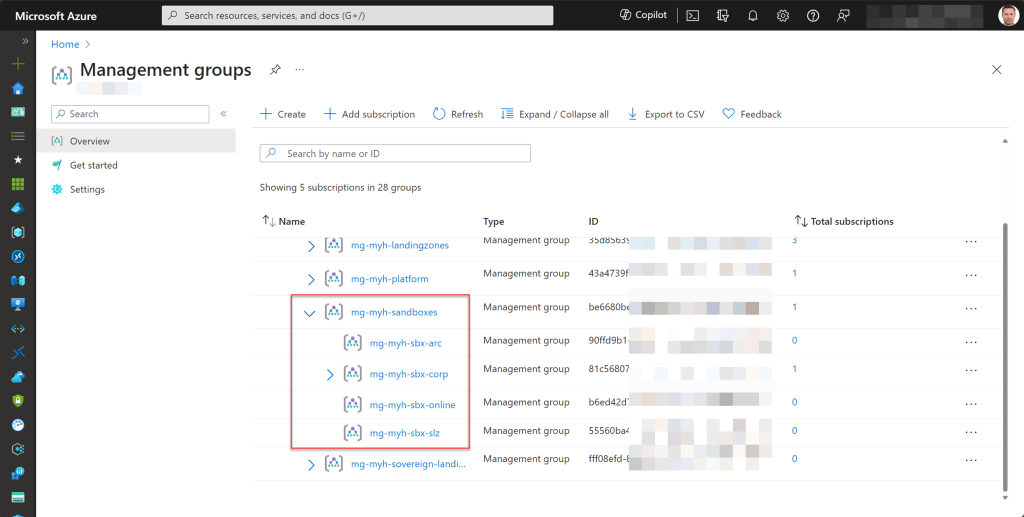
If you’re looking for an easy way to create and deploy your own management group tree hierarchy, you can always utilize and customize the Azure PowerShell script I’ve shared previously.
Microsoft cloud security benchmark
For those unfamiliar with the Microsoft Cloud Security Benchmark (MCSB), it provides prescriptive best practices and recommendations to enhance the security of workloads, data, and services within Azure and multi-cloud environments.
These insights and recommendations come from a combination of Microsoft’s own security guidance and industry standards, including the Cloud Adoption Framework (CAF), the Azure Well-Architected Framework (WAF), and the CISO Workshop.
You can implement and utilize the MCSB in your own environment by assigning the Microsoft Cloud Security Benchmark built-in initiative, which represents the policies and controls for implementing security recommendations outlined in the MCSB.
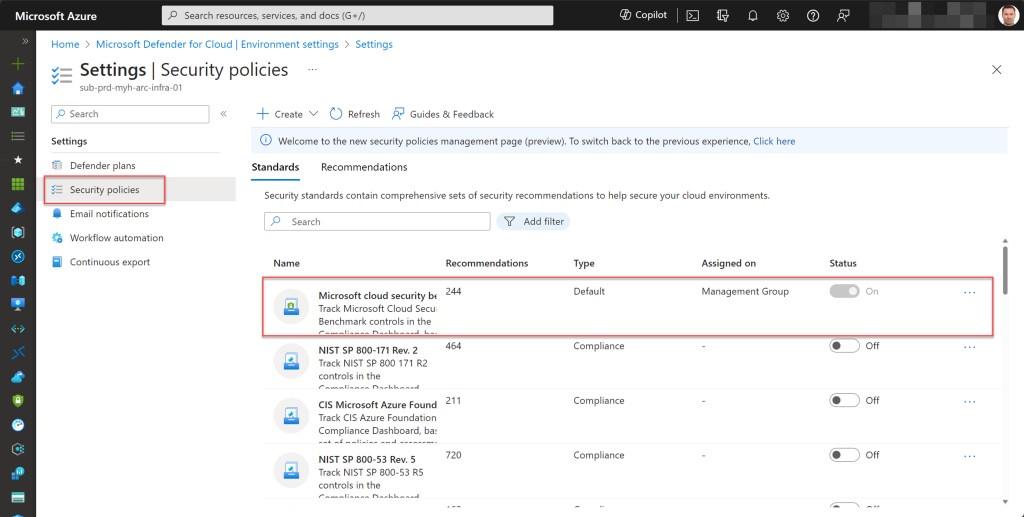
Additionally, this initiative also serves as the default policy initiative for Microsoft Defender for Cloud. So, you have the option to directly assign this initiative or manage its policies and compliance results within Microsoft Defender for Cloud*.
*Please know that activating Microsoft Defender for Cloud on a subscription automatically assigns the Microsoft Cloud Security Benchmark policy initiative to that subscription, in the event that the initiative hasn’t already been assigned to the subscription or to a higher management group in the hierarchy.
I typically assign this initiative from within Azure Policy to the company’s top-level management group. By doing so, all management groups underneath automatically inherit this initiative assignment.
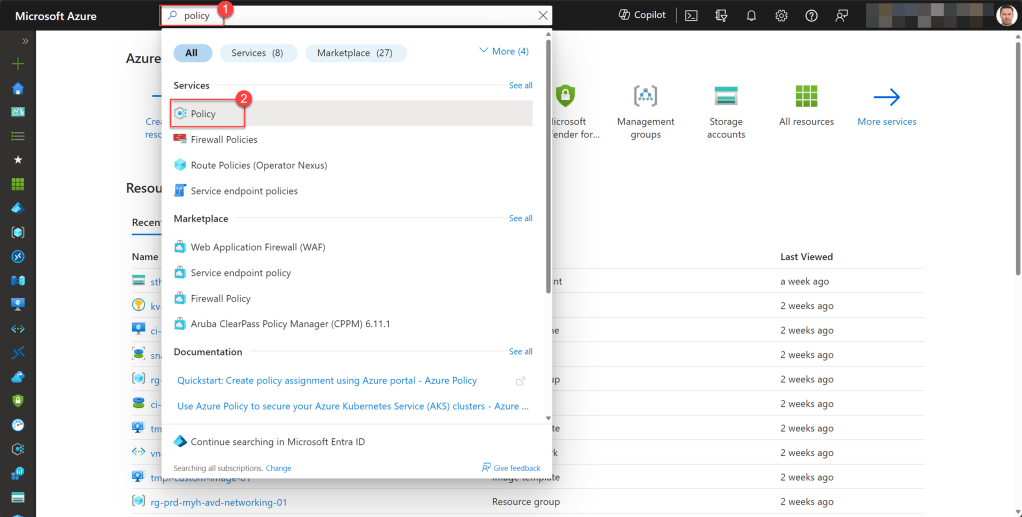
To do this, open Azure Policy from the sidebar or simply type “policy” into the global search box at the top bar, and then select “Policy” from the options.
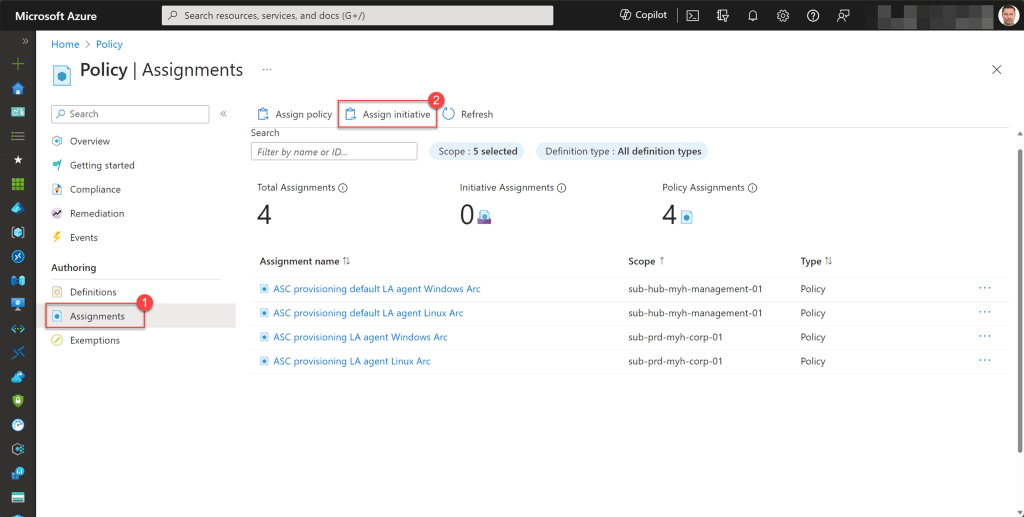
Next, click on “Assignments” and choose “Assign initiative.”
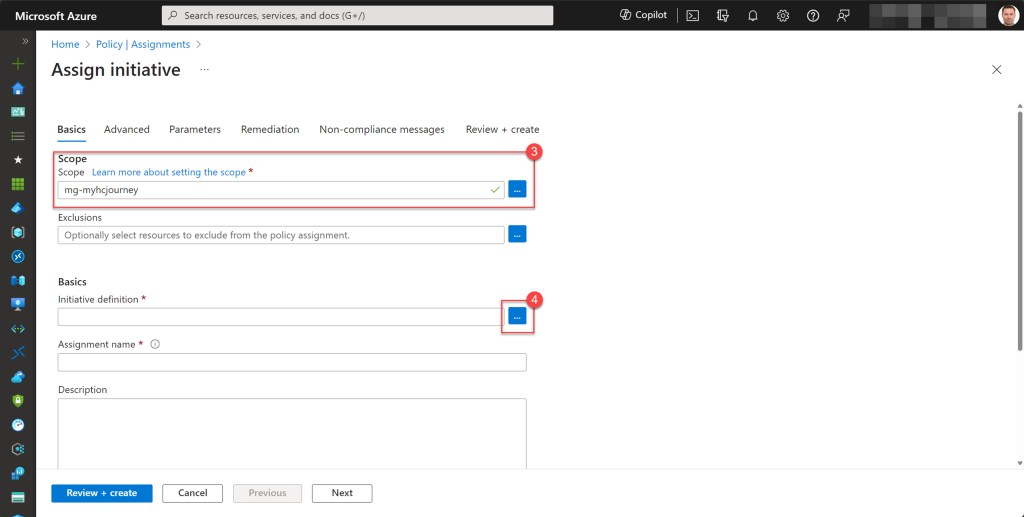
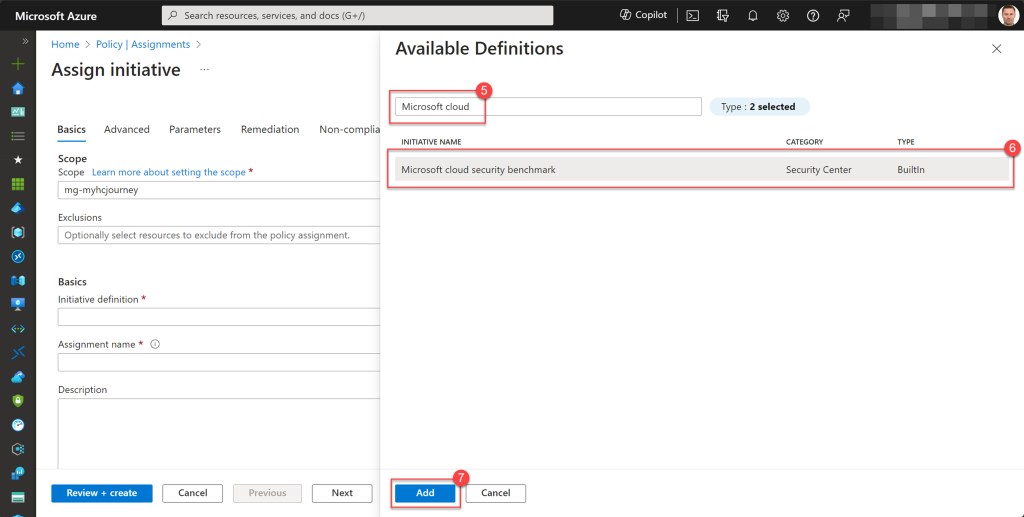
Afterwards, select the Scope, which will typically be the top-level company management group, and then click on the three dots to access the “Available Definitions” page.
Here, type “Microsoft cloud” into the search bar and select the Microsoft Cloud Security Benchmark initiative. Click “Add” to apply.
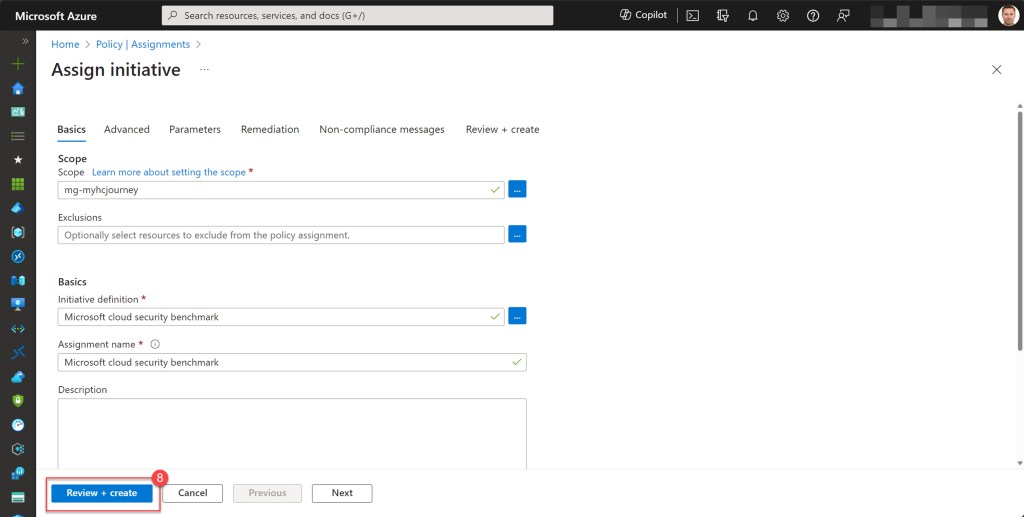
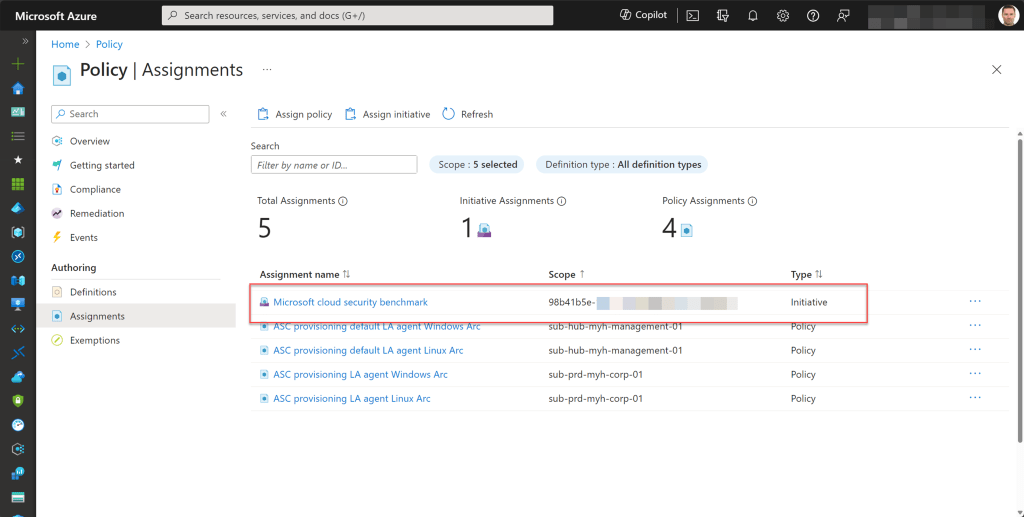
If desired, you can specify specific parameters, configure remediation steps, and adjust non-compliance messages, but I typically leave these at the default settings. If you do too, simply press the “Review + create” button, followed by “Create” to proceed*.
*Please note that it may take approximately 5-15 minutes for the assignment itself to take effect.
Azure Policy Compliance
When initiatives or policy definitions are assigned, Azure Policy identifies applicable resources and evaluates them, excluding any that have been exempted. This evaluation determines compliance states based on the conditions specified in the policy rules and the resources’ adherence to those requirements.
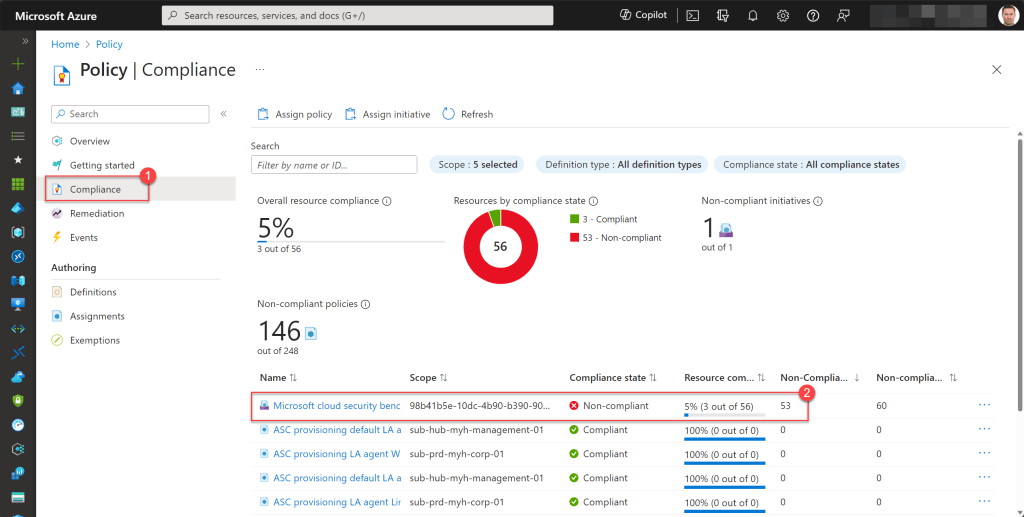
Once an initiative, such as the MCBS initiative, is assigned, you can also monitor its compliance status and identify non-compliant resources, such as your Azure Arc-enabled servers.
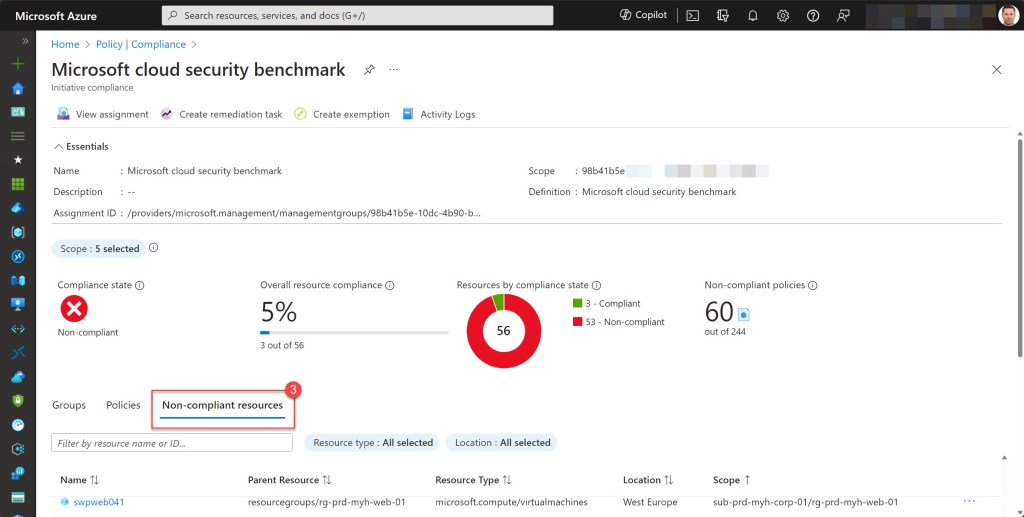
To do this, navigate to the Compliance section on the Policy page and select the Microsoft cloud Security Benchmark.
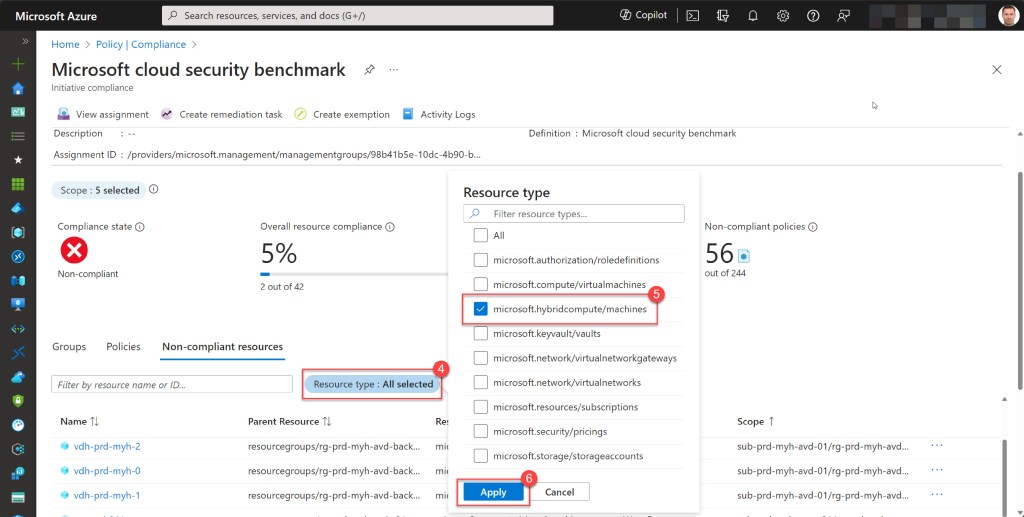
Next, choose “Non-compliant resources” and apply a filter for “Resource type: microsoft.hybridcompute/machines.” Then, click on “Apply.”
This action will display a list of all Arc-enabled machines that are in a non-compliant state and which need remediation.
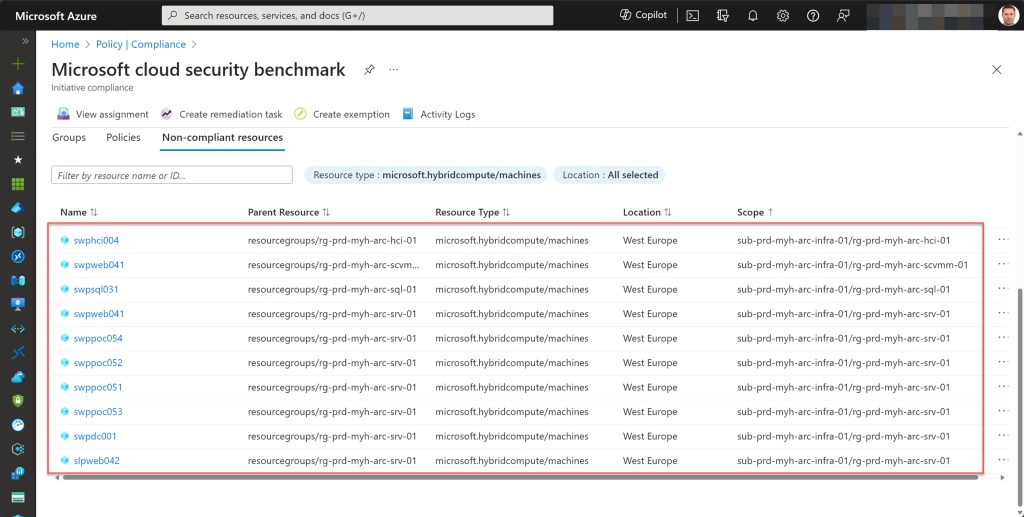
If you have any machines in a non-compliant state, simply click on one of them to investigate which policies are causing the non-compliance. From there, you can begin the remediation process.
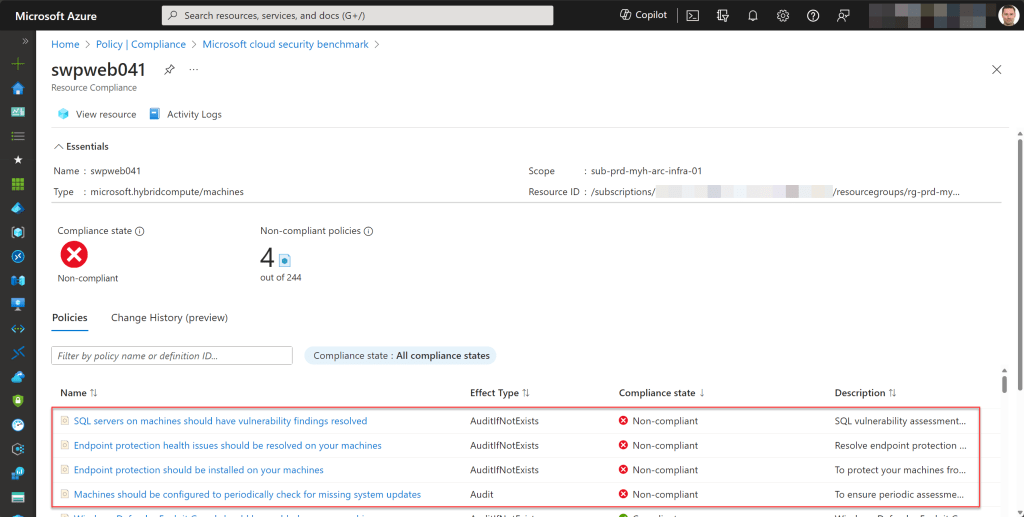
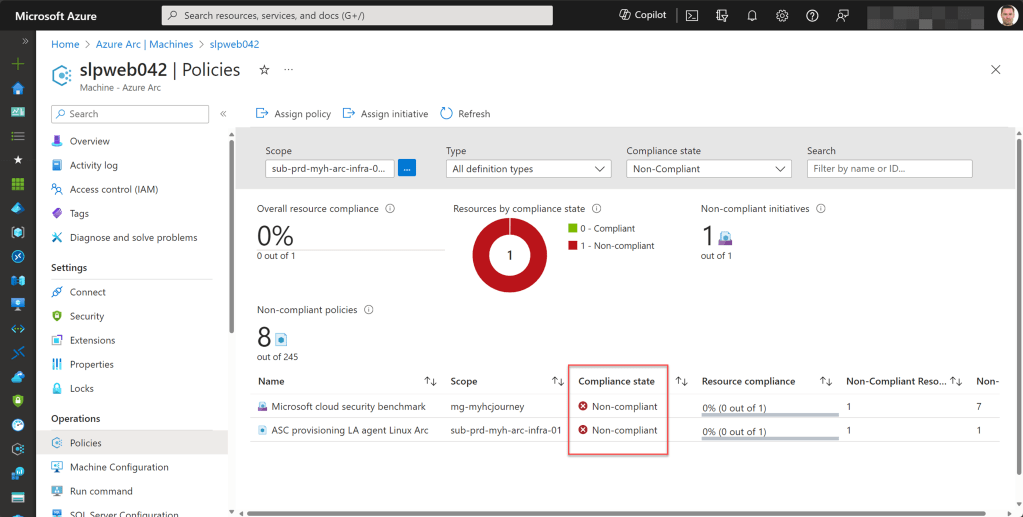
To check the compliance status of a specific Azure Arc-enabled server, navigate to the Azure Arc page, select “Machines,” and choose the machine you’re interested in.
Scroll down to the Operations section and click on “Policies” to see all policies or initiatives applied to this resource and whether it’s compliant or non-compliant. For more details, you can click on a specific policy or initiative.
Azure Arc-related Azure Policy definitions and initiatives
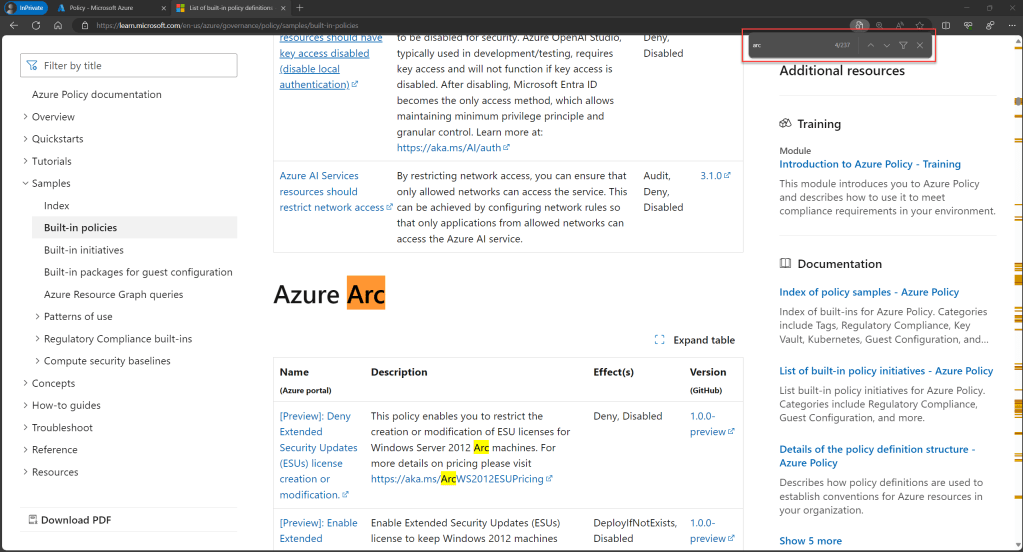
Currently, a wide array of built-in Azure Policy definitions and initiatives are at your disposal, applicable specifically for Azure Arc resources.
You can find a complete list of all built-in policies over here. To quickly locate Azure Arc-related policies, simply use the search function (Ctrl + F) in your browser, such as Edge, and type in “arc“.
You can also use this method to discover and review all the built-in Azure Arc-related initiatives, over here
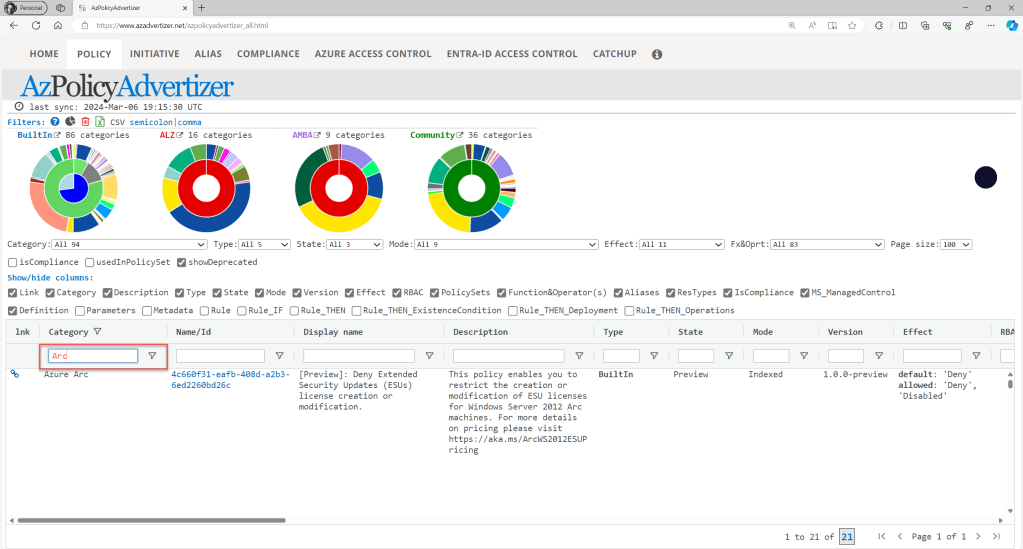
As another option, you can also use the AzPolicyAdvertizer website to browse through all built-in Azure Arc-related definitions and initiatives. Simply navigate to the “POLICY” or “INITIATIVE” tab and filter by the “Arc” category to locate all relevant ones.
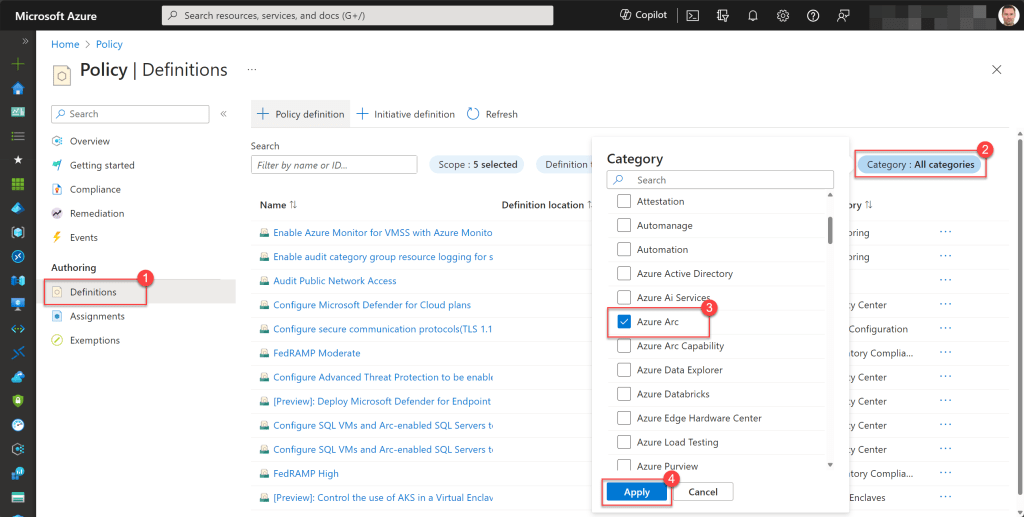
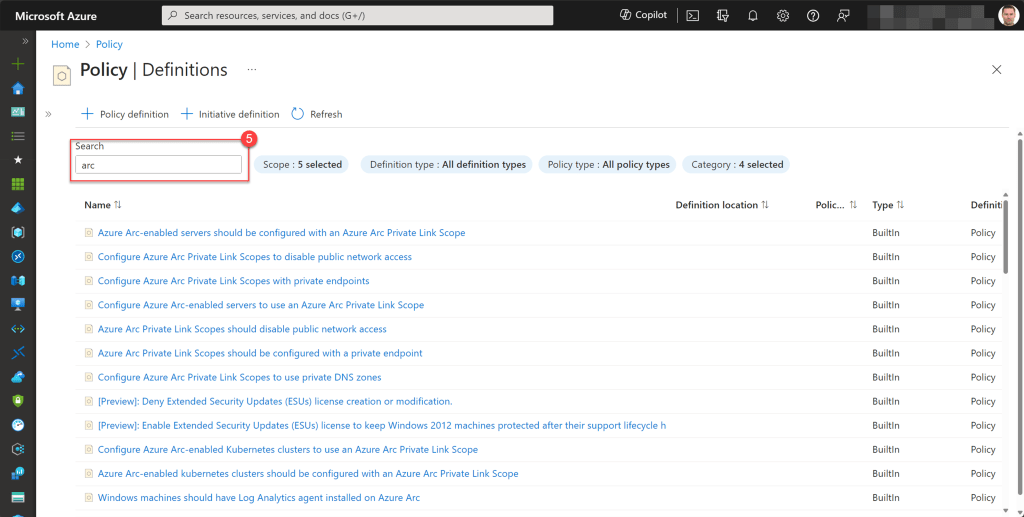
As a third option, you can also explore them by opening the Azure Policy page , clicking on Definitions, and filtering by categories such as “Azure Arc,” “Guest Configuration,” “Monitoring,” “Security Center,” and “Regulatory Compliance*” which include policies, initiatives, or a combination of both that can be applied to Azure Arc resources.
After filtering by your desired categories, just type “arc” into the Search box to show only those applicable to any type of Azure Arc resource.
*Azure Policy’s Regulatory Compliance controls for Azure Arc-enabled servers provides pre-defined initiative definitions managed by Microsoft, covering compliance domains and security controls for standards like NIST SP 800-171 R2, PCI DSS 3.2.1, MCSB, UK OFFICIAL, and UK NHS. Assigning these built-ins to your security controls ensures compliance of your Azure Arc-enabled servers with one or more of these specific standards.
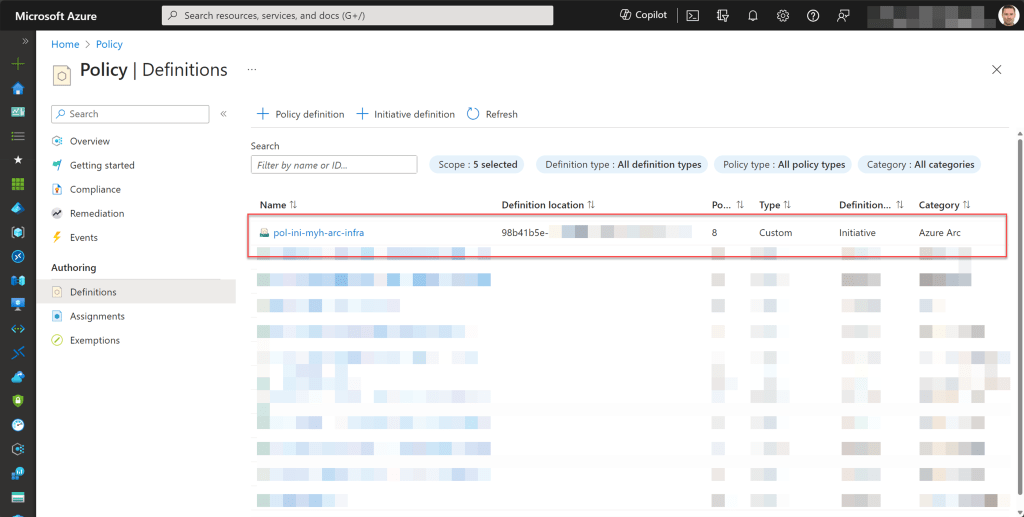
Once you’ve reviewed all these policies and compiled a list of those you wish to assign, my suggestion is to consolidate them into a single initiative or multiple initiatives that are more focused on specific Azure Arc-related resources.
Then, you can assign them to the appropriate management groups, similar to my example in the Azure Management Group structure section, where I divided arc-infra, arc-data, and arc-k8s into separate management groups.

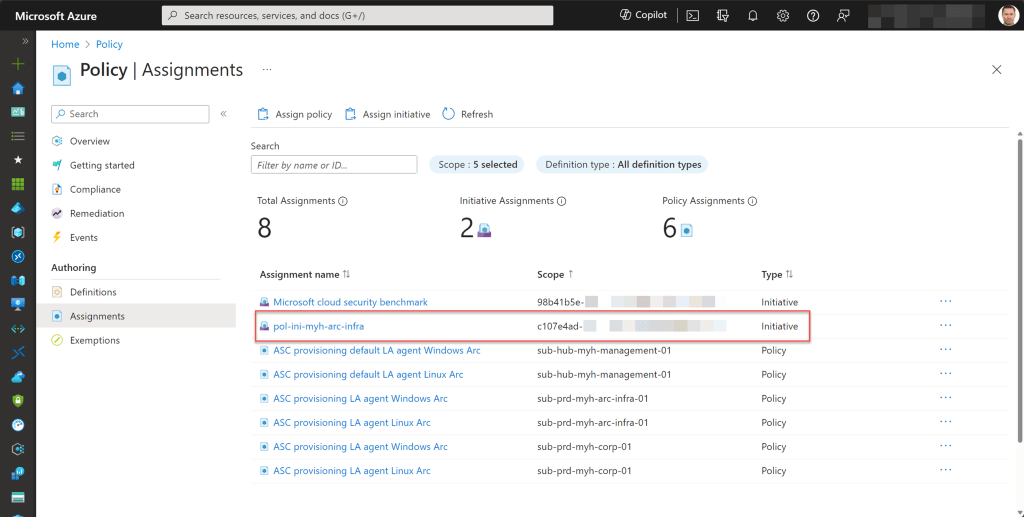
When assigning new initiatives, begin by setting all the definitions in Audit or AuditIfNotExists mode before selecting any other mode. This approach provides a safety net for policy deployment and allows for gradual adoption. Later, when you review everything, you can switch modes for the policies you prefer.
In addition, managing Azure Policy definitions and initiatives directly from the Azure Portal can become complex and challenging. Therefore, I recommend utilizing Azure Policy as Code (APAC) for creating and deploying your initiatives. APAC combines the principles of Infrastructure as Code (IaC) and DevOps, ensuring consistency and seamless integration with your development and deployment processes.
Conclusion
By leveraging the capabilities of Azure Arc and Azure Policy, organizations can efficiently manage and govern resources within their hybrid environments, ensuring compliance, security, and scalability across their entire infrastructure.
Before concluding this blog post, I want to express my gratitude for being part of this online event. I hope you find value in the other blog posts or videos as well. Special thanks to Thomas Thornton and Joe Carlyle, for organizing!
If you have any questions or suggestions regarding this blog post, feel free to contact me via my X handle (@wmatthyssen) or leave a comment below. I’m here to help.
Happy reading 📖 and optimizing 💸!
 Wim Matthyssen
0 comments on “Azure Spring Clean: Unleashing the Power of Azure Policy for Seamless Azure Arc Governance!”