
[September 12, 2020 – Updated post]
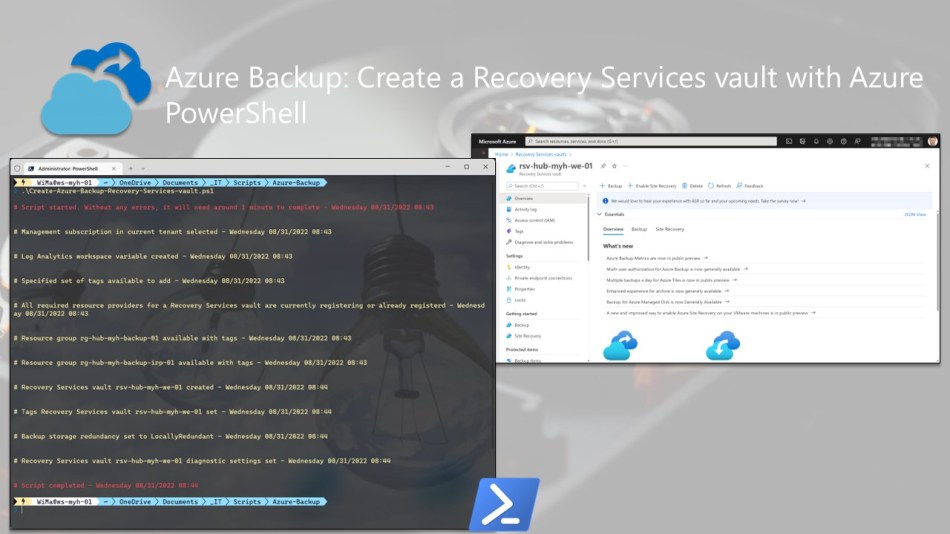
In this blog post, you’ll learn how to create a Recovery Services vault using an Azure PowerShell script.
A Recovery Services vault is an online storage entity utilized to back up workloads to or within Azure, following the Azure Resource Manager model.
You can use it to store backup data for a variety of Azure resources, including IaaS virtual machines (both Windows and Linux), as well as SQL Server databases running within those VMs. Moreover, it’s capable of backing up your file share data in Azure Files. With the use of the Microsoft Azure Recovery Services (MARS) agent, you also have the option to back up and restore files, folders, and the system state of an on-premises server. Additionally, when integrated with System Center Data Protection Manager (SCDPM) or Azure Backup Server (MABS), it allows you to create cloud backups alongside disk backups from your on-premises servers.
Nowadays, creating or managing a Recovery Services vault through the Azure portal is relatively straightforward. However, the process becomes even quicker and more efficient when automation is implemented using a scripting language like Azure PowerShell.
Therefore, I’ve provided an Azure PowerShell script below, which I frequently use to set up an Azure Backup Recovery Services vault in a specific Azure subscription.
This script includes the following steps and configurations:
- Remove the breaking change warning messages.
- Change the current context to use a management subscription holding your central Log Analytics workspace.
- Save the Log Analytics workspace from the management subscription as a variable.
- Change the current context to the specified subscription.
- Store a specified set of tags in a hash table.
- Register required Azure resource provider (Microsoft.RecoveryServices) in your subscription (only necessary if you use Azure Backup for the first time), if not already registered.
- Create a resource group backup if one does not already exist. Also, apply the necessary tags to this resource group.
- Create a resource group backup irp if one does not already exist. Also, apply the necessary tags to this resource group.
- Create the Recovery Services vault if it does not exist.
- Set specified tags on the Recovery Services vault.
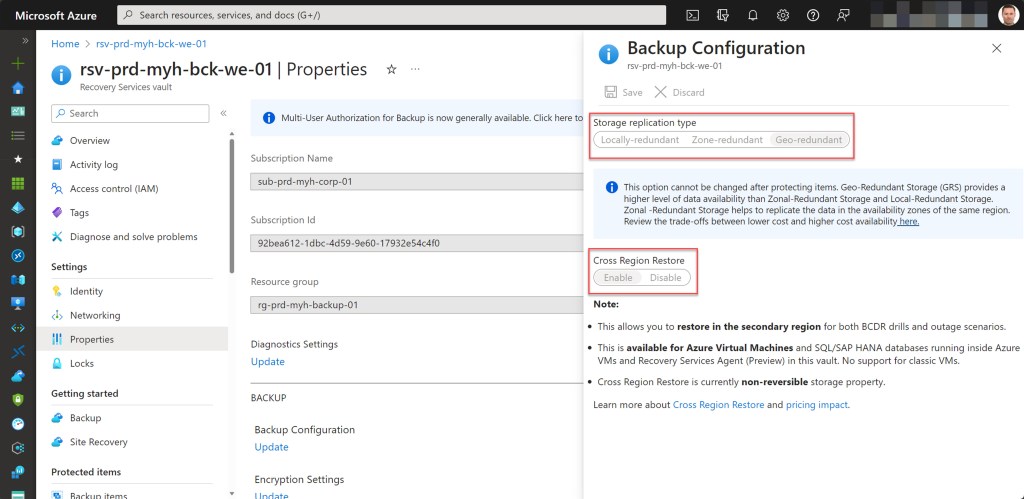
- Specify the type of backup storage redundancy for the Recovery Services vault (which can be modified only if there are no backup items protected in the vault).
- Enable Cross Region Restore (CRR).
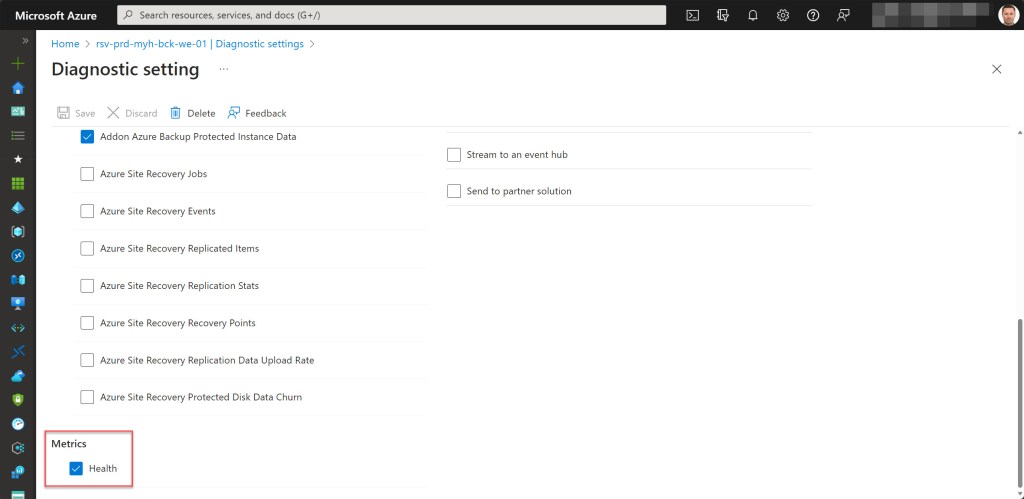
- Set the log and metrics settings for the Recovery Services vault if they don’t exist.
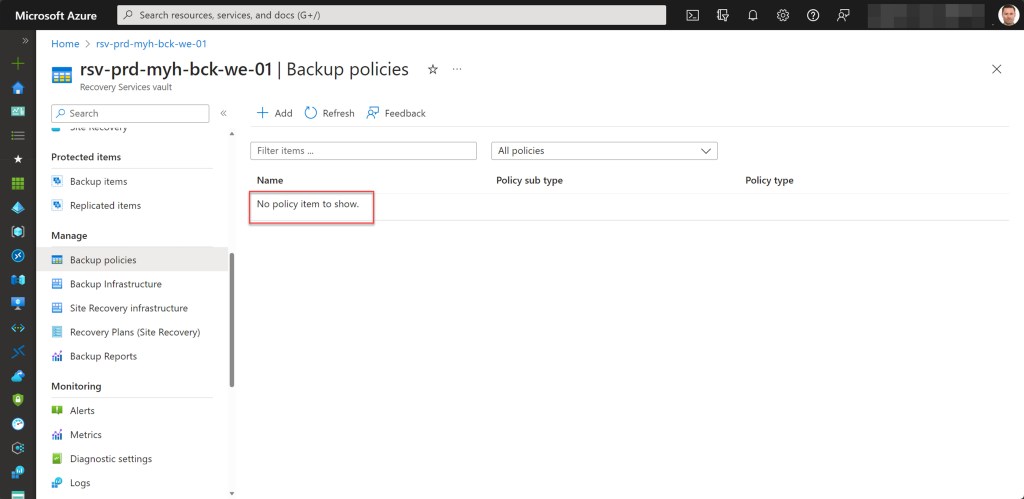
- Remove the default backup protection policies.
To use the script, first make a copy and save it as “Create-an-Azure-Backup-Recovery-Services-vault.ps1” or you can download it directly from GitHub.
Before utilizing the script, adjust all variables according to your requirements (an example is provided below). Once adjusted, run the customized script using Windows Terminal, Visual Studio Code, or Windows PowerShell. Or you can simply run it from Cloud Shell.
You can only change the Storage Replication type (Locally redundant/ Geo-redundant) for a Recovery Services vault when there is no backup data configured or stored in the vault. Once you configure any backup, the option to modify the replication type is disabled.
As a best practice you should use the default Geo-redundant setting when you use Azure Backup as your primary backup location.
Prerequisites
- An Azure subscription, preferably more than one if you plan to follow the Cloud Adoption Framework (CAF) enterprise-scale architecture. This includes a connectivity and/or management subscription, as well as different landing zone subscriptions , like a corporate production subscription.
- An Azure Administrator account with the necessary RBAC roles.
- An existing Log Analytics workspace.
- Version 10.4.1 of the Azure Az PowerShell module is required.
- Change all the variables in the script where needed to fit your needs (you can find an adjusted example in one of the screenshots below).


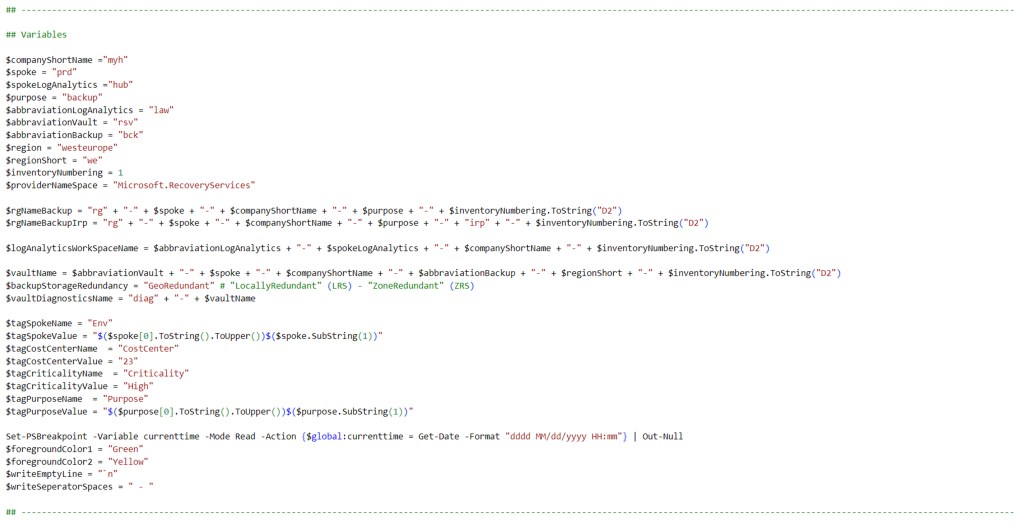

Azure PowerShell script
If you are not running the script from Cloud Shell, don’t forget to sign in with the Connect-AzAccount cmdlet to connect your Azure account.

After adjusting the variables to suit your needs, proceed to run the script with the required parameters:
.\Create-Azure-Backup-Recovery-Services-vault -SubscriptionName <"your Azure subscription name here">

<#
.SYNOPSIS

A script used to create an Azure Backup Recovery Services vault to backup different workloads in an Azure subscription.

.DESCRIPTION

A script used to create an Azure Backup Recovery Services vault in a resource group to backup different workloads in an Azure subscription.
The script will do all of the following:

Remove the breaking change warning messages.
Change the current context to use a management subscription holding your central Log Analytics workspace.
Save the Log Analytics workspace from the management subscription as a variable.
Change the current context to the specified Azure subscription.
Store a specified set of tags in a hash table.
Register required Azure resource provider (Microsoft.RecoveryServices) in your subscription (only necessary if you use Azure Backup for the first time), if not already registered.
Create a resource group backup if one does not already exist. Also, apply the necessary tags to this resource group.
Create a resource group backup irp if one does not already exist. Also, apply the necessary tags to this resource group.
Create the Recovery Services vault if it does not exist.
Set specified tags on the Recovery Services vault.
Specify the type of backup storage redundancy for the Recovery Services vault (which can be modified only if there are no backup items protected in the vault).
Enable Cross Region Restore (CRR).
Set the log and metrics settings for the Recovery Services vault if they don't exist.
Remove the default backup protection policies.

.NOTES

Filename:       Create-Azure-Backup-Recovery-Services-vault.ps1
Created:        11/09/2020
Last modified:  11/10/2023
Author:         Wim Matthyssen
Version:        3.0
PowerShell:     Azure PowerShell and Azure Cloud Shell
Requires:       PowerShell Az (v10.4.1)
Action:         Change variables were needed to fit your needs.
Disclaimer:     This script is provided "as is" with no warranties.

.EXAMPLE

Connect-AzAccount
Get-AzTenant (if not using the default tenant)
Set-AzContext -tenantID "xxxxxxxx-xxxx-xxxx-xxxxxxxxxxxx" (if not using the default tenant)
.\Create-Azure-Backup-Recovery-Services-vault -SubscriptionName <"your Azure subscription name here">

.LINK

https://wmatthyssen.com/2022/08/31/azure-backup-create-a-recovery-services-vault-with-azure-powershell/
#>

## ----------------------------------------------------------------------------------------------------------------------------------------------------------------------------------

## Variables

$purpose = "backup"
$region = #<your region here> The used Azure public region. Example: "westeurope"
$providerNameSpace = "Microsoft.RecoveryServices"

$rgNameBackup = #<your backup resource group name here> The name of the Azure resource group in which your new or existing Recovery Services vault deployed. Example: "rg-prd-myh-avd-backup-01"
$rgNameBackupIrp = #<your backup irp resource group name here> The name of the Azure resource group in which your store your instant restore snapshots . Example: "rg-prd-myh-avd-backup-irp-01"

$logAnalyticsWorkSpaceName = #<your Log Analytics workspace name here> The name of your existing Log Analytics workspace. Example: "law-hub-myh-01"

$vaultName = #<your Recovery Services vault name here> The name of your new Recovery Services vault. Example: "rsv-prd-myh-bck-we-01"
$backupStorageRedundancy = "GeoRedundant" # "LocallyRedundant" (LRS) - "ZoneRedundant" (ZRS)
$vaultDiagnosticsName = "diag" + "-" + $vaultName

$tagSpokeName = #<your environment tag name here> The environment tag name you want to use. Example:"Env"
$tagSpokeValue = #<your environment tag value here> The environment tag value you want to use. Example: "Hub"
$tagCostCenterName  = #<your costCenter tag name here> The costCenter tag name you want to use. Example:"CostCenter"
$tagCostCenterValue = #<your costCenter tag value here> The costCenter tag value you want to use. Example: "23"
$tagCriticalityName = #<your businessCriticality tag name here> The businessCriticality tag name you want to use. Example: "Criticality"
$tagCriticalityValue = #<your businessCriticality tag value here> The businessCriticality tag value you want to use. Example: "High"
$tagPurposeName  = #<your purpose tag name here> The purpose tag name you want to use. Example:"Purpose"
$tagPurposeValue = "$($purpose[0].ToString().ToUpper())$($purpose.SubString(1))"

Set-PSBreakpoint -Variable currenttime -Mode Read -Action {$global:currenttime = Get-Date -Format "dddd MM/dd/yyyy HH:mm"} | Out-Null
$foregroundColor1 = "Green"
$foregroundColor2 = "Yellow"
$writeEmptyLine = "`n"
$writeSeperatorSpaces = " - "

## ---------------------------------------------------------------------------------------------------------------------------------------------------------------------------------------------------

## Remove the breaking change warning messages

Set-Item -Path Env:\SuppressAzurePowerShellBreakingChangeWarnings -Value $true | Out-Null
Update-AzConfig -DisplayBreakingChangeWarning $false | Out-Null
$warningPreference = "SilentlyContinue"

## ---------------------------------------------------------------------------------------------------------------------------------------------------------------------------------------------

## Write script started

Write-Host ($writeEmptyLine + "# Script started. Without errors, it can take up to 2 minutes to complete" + $writeSeperatorSpaces + $currentTime)`
-foregroundcolor $foregroundColor1 $writeEmptyLine

## ---------------------------------------------------------------------------------------------------------------------------------------------------------------------------------------------

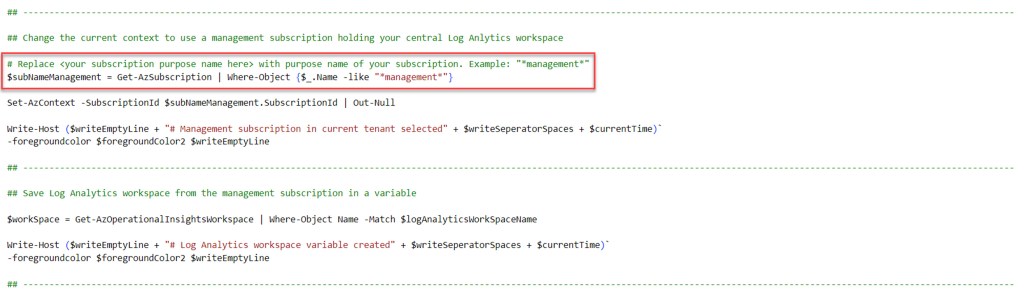
## Change the current context to use a management subscription holding your central Log Anlytics workspace

# Replace <your subscription purpose name here> with purpose name of your subscription. Example: "*management*"
$subNameManagement = Get-AzSubscription | Where-Object {$_.Name -like "*management*"}

Set-AzContext -SubscriptionId $subNameManagement.SubscriptionId | Out-Null

Write-Host ($writeEmptyLine + "# Management subscription in current tenant selected" + $writeSeperatorSpaces + $currentTime)`
-foregroundcolor $foregroundColor2 $writeEmptyLine

## ---------------------------------------------------------------------------------------------------------------------------------------------------------------------------------------------

## Save Log Analytics workspace from the management subscription in a variable

$workSpace = Get-AzOperationalInsightsWorkspace | Where-Object Name -Match $logAnalyticsWorkSpaceName

Write-Host ($writeEmptyLine + "# Log Analytics workspace variable created" + $writeSeperatorSpaces + $currentTime)`
-foregroundcolor $foregroundColor2 $writeEmptyLine

## ---------------------------------------------------------------------------------------------------------------------------------------------------------------------------------------------

## Change the current context to the specified subscription

$subName = Get-AzSubscription | Where-Object {$_.Name -like $subscriptionName}

Set-AzContext -SubscriptionId $subName.SubscriptionId | Out-Null

Write-Host ($writeEmptyLine + "# Specified subscription in current tenant selected" + $writeSeperatorSpaces + $currentTime)`
-foregroundcolor $foregroundColor2 $writeEmptyLine

## ---------------------------------------------------------------------------------------------------------------------------------------------------------------------------------------------

## Register the required Azure resource provider (Microsoft.RecoveryServices) in the current subscription context, if not yet registerd

Register-AzResourceProvider -ProviderNamespace $providerNameSpace | Out-Null

Write-Host ($writeEmptyLine + "# All required resource providers for a Recovery Services vault are currently registering or have already registered" + $writeSeperatorSpaces + $currentTime)`
-foregroundcolor $foregroundColor2 $writeEmptyLine

## ---------------------------------------------------------------------------------------------------------------------------------------------------------------------------------------------

## Store the specified set of tags in a hash table

$tags = @{$tagSpokeName=$tagSpokeValue;$tagCostCenterName=$tagCostCenterValue;$tagCriticalityName=$tagCriticalityValue;$tagPurposeName=$tagPurposeValue}

Write-Host ($writeEmptyLine + "# Specified set of tags available to add" + $writeSeperatorSpaces + $currentTime)`
-foregroundcolor $foregroundColor2 $writeEmptyLine

## ---------------------------------------------------------------------------------------------------------------------------------------------------------------------------------------------------

## Create a resource group backup if one does not already exist. Also, apply the necessary tags to this resource group

try {
    Get-AzResourceGroup -Name $rgNameBackup -ErrorAction Stop | Out-Null
} catch {
    New-AzResourceGroup -Name $rgNameBackup -Location $region -Force | Out-Null
}

# Save variable tags in a new variable to add tags.
$tagsResourceGroup = $tags

# Set tags rg storage.
Set-AzResourceGroup -Name $rgNameBackup -Tag $tagsResourceGroup | Out-Null

Write-Host ($writeEmptyLine + "# Resource group $rgNameBackup available with tags" + $writeSeperatorSpaces + $currentTime)`
-foregroundcolor $foregroundColor2 $writeEmptyLine

## ---------------------------------------------------------------------------------------------------------------------------------------------------------------------------------------------------

## Create a resource group backup irp if one does not already exist. Also, apply the necessary tags to this resource group.

try {
    Get-AzResourceGroup -Name $rgNameBackupIrp -ErrorAction Stop | Out-Null
} catch {
    New-AzResourceGroup -Name $rgNameBackupIrp -Location $region -Force | Out-Null
}

# Save variable tags in a new variable to add tags.
$tagsResourceGroup = $tags

# Set tags rg storage.
Set-AzResourceGroup -Name $rgNameBackupIrp -Tag $tagsResourceGroup | Out-Null

Write-Host ($writeEmptyLine + "# Resource group $rgNameBackupIrp available with tags" + $writeSeperatorSpaces + $currentTime)`
-foregroundcolor $foregroundColor2 $writeEmptyLine

## ---------------------------------------------------------------------------------------------------------------------------------------------------------------------------------------------------

## Create the Recovery Services vault if it does not exist

try {
    Get-AzRecoveryServicesVault -Name $vaultName -ResourceGroupName $rgNameBackup -ErrorAction Stop | Out-Null
} catch {
    New-AzRecoveryServicesVault -Name $vaultName -ResourceGroupName $rgNameBackup -Location $region | Out-Null
}

Write-Host ($writeEmptyLine + "# Recovery Services vault $vaultName created" + $writeSeperatorSpaces + $currentTime)`
-foregroundcolor $foregroundColor2 $writeEmptyLine

## ---------------------------------------------------------------------------------------------------------------------------------------------------------------------------------------------------

## Set specified tags on the Recovery Services vault

$vault = Get-AzRecoveryServicesVault -Name $vaultName -ResourceGroupName $rgNameBackup

# Replace exisiting tags on the Recovery Services vault
Update-AzTag -ResourceId ($vault.Id) -Tag $tags -Operation Replace | Out-Null

Write-Host ($writeEmptyLine + "# Tags Recovery Services vault $vaultName set" + $writeSeperatorSpaces + $currentTime)`
-foregroundcolor $foregroundColor2 $writeEmptyLine

## ---------------------------------------------------------------------------------------------------------------------------------------------------------------------------------------------------

## Specify the type of backup storage redundancy for the Recovery Services vault (which can be modified only if there are no backup items protected in the vault)

Set-AzRecoveryServicesBackupProperty -Vault $vault -BackupStorageRedundancy $backupStorageRedundancy

Write-Host ($writeEmptyLine + "# Backup storage redundancy is set to $backupStorageRedundancy for Recovery Services vault $vaultName" + $writeSeperatorSpaces + $currentTime)`
-foregroundcolor $foregroundColor2 $writeEmptyLine

## ---------------------------------------------------------------------------------------------------------------------------------------------------------------------------------------------------

## Enable Cross Region Restore (CRR)

Set-AzRecoveryServicesBackupProperty -Vault $vault -EnableCrossRegionRestore

Write-Host ($writeEmptyLine + "# Cross Region Restore is enabled for Recovery Services vault $vaultName" + $writeSeperatorSpaces + $currentTime)`
-foregroundcolor $foregroundColor2 $writeEmptyLine

## ---------------------------------------------------------------------------------------------------------------------------------------------------------------------------------------------------

## Set the log and metrics settings for the Recovery Services vault if they don't exist

try {
    Get-AzDiagnosticSetting -Name $vaultDiagnosticsName -ResourceId ($vault.Id) -ErrorAction Stop | Out-Null
} catch {
    $metric = @()
    $metric += New-AzDiagnosticSettingMetricSettingsObject -Enabled $true -Category AllMetrics
    $log = @()
    $log += New-AzDiagnosticSettingLogSettingsObject -Enabled $true -Category AzureBackupReport
    $log += New-AzDiagnosticSettingLogSettingsObject -Enabled $true -Category CoreAzureBackup
    $log += New-AzDiagnosticSettingLogSettingsObject -Enabled $true -Category AddonAzureBackupJobs
    $log += New-AzDiagnosticSettingLogSettingsObject -Enabled $true -Category AddonAzureBackupAlerts
    $log += New-AzDiagnosticSettingLogSettingsObject -Enabled $true -Category AddonAzureBackupPolicy
    $log += New-AzDiagnosticSettingLogSettingsObject -Enabled $true -Category AddonAzureBackupStorage
    $log += New-AzDiagnosticSettingLogSettingsObject -Enabled $true -Category AddonAzureBackupProtectedInstance

    New-AzDiagnosticSetting -Name $vaultDiagnosticsName -ResourceId ($vault.Id) -WorkspaceId ($workSpace.ResourceId) -Log $log -Metric $metric | Out-Null
}

Write-Host ($writeEmptyLine + "# Recovery Services vault $vaultName diagnostic settings set" + $writeSeperatorSpaces + $currentTime)`
-foregroundcolor $foregroundColor2 $writeEmptyLine

## ---------------------------------------------------------------------------------------------------------------------------------------------------------------------------------------------------

## Remove the default backup protection policies

Remove-AzRecoveryServicesBackupProtectionPolicy -Name "DefaultPolicy" -VaultId $vault.ID -Force | Out-Null
Remove-AzRecoveryServicesBackupProtectionPolicy -Name "HourlyLogBackup" -VaultId $vault.ID -Force | Out-Null
Remove-AzRecoveryServicesBackupProtectionPolicy -Name "EnhancedPolicy" -VaultId $vault.ID -Force | Out-Null

Write-Host ($writeEmptyLine + "# Default Backup protection policies removed from vault $vaultName" + $writeSeperatorSpaces + $currentTime)`
-foregroundcolor $foregroundColor2 $writeEmptyLine

## ---------------------------------------------------------------------------------------------------------------------------------------------------------------------------------------------------

## Write script completed

Write-Host ($writeEmptyLine + "# Script completed" + $writeSeperatorSpaces + $currentTime)`
-foregroundcolor $foregroundColor1 $writeEmptyLine

## ---------------------------------------------------------------------------------------------------------------------------------------------------------------------------------------------------




I hope this Azure PowerShell script is useful for you and serves as a solid foundation for initiating Azure Backup within your Azure environment(s).
Should you have any questions or suggestions concerning this script, please don’t hesitate to contact me via my Twitter handle (@wmatthyssen) or leave a comment, and I’ll be more than happy to assist.
 Wim Matthyssen
Pingback: Azure Back to School: Azure Backup for Azure IaaS resources – Wim Matthyssen
Pingback: Festive Tech Calendar 2020: Let’s help to get your Azure Backup implementation under control – Wim Matthyssen