
These days when setting up a greenfield Azure IaaS environment for customers, a best practice is to use the hub-spoke network topology with shared services. In this topology the Hub network is used as central point of connectivity and a place to host services that can be consumed by the different workloads hosted in the spoke Virtual Network(s) (VNets). All spokes are peered with this Hub network, to isolate workloads or services.
Whenever I work remotely on one of these environments, I mostly use a Point-to-Site (P2S) VPN connection to securely connect to the different VNets from my own Windows client device(s), like my Surface Laptop.
A while ago, during the deployment of a new Azure environment for a customer, I stumbled upon a problem where I could not RDP (private IP addresses) to the virtual machines (VMs) in the different spokes. The RDP access to the VMs (two Domain Controllers) in the Hub VNet worked without any issues.
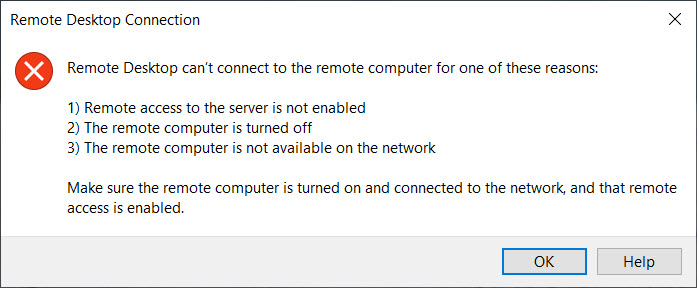
This was caused, because by design, the P2S client only has routes listed for all VMs in the Hub VNet (which hosts the Virtual Network Gateway) and all existing peered spokes, available during the initial VPN client download and installation on that specific Windows client.
However, all later added peered VNets, will not have any routes presented in the original VPN configuration, which makes an RDP (or SSH) connection to it’s connected VMs impossible.
In order for the P2S client to be able to reach all those VMs , a static route for these VNets should be added in the routes.txt file for that specific P2S VPN connection. You can follow the steps below to get this working.
Solution
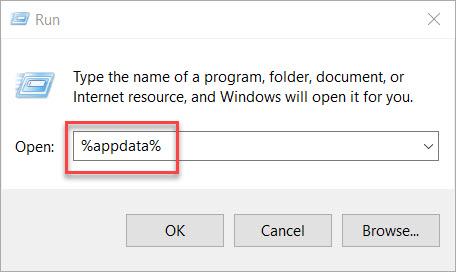
Open Run and type %appdata% to open the Windows AppData Folder.
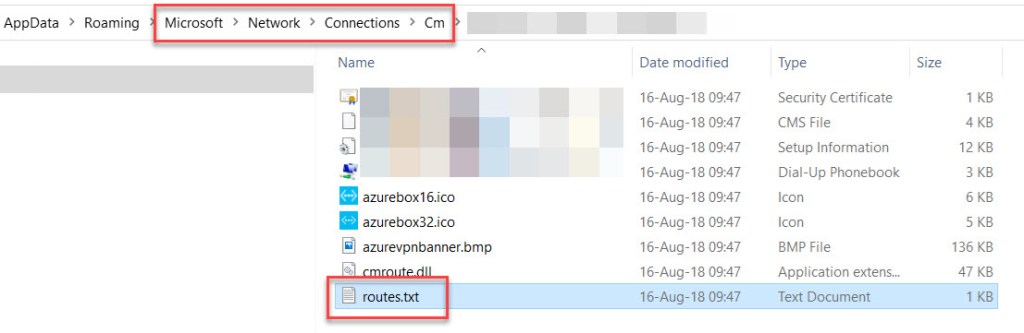
Open Microsoft – Network – Connections – Cm and select the correct connection folder. Next, open the routes.txt file in Notepad (to open just double-click).
In the opened routes.txt file, add the static route(s) for the newly added VNet(s).
For example:
ADD 10.6.0.0 MASK 255.255.240.0 default METRIC default IF default
ADD 10.7.0.0 MASK 255.255.240.0 default METRIC default IF default
ADD 10.8.0.0 MASK 255.255.240.0 default METRIC default IF default
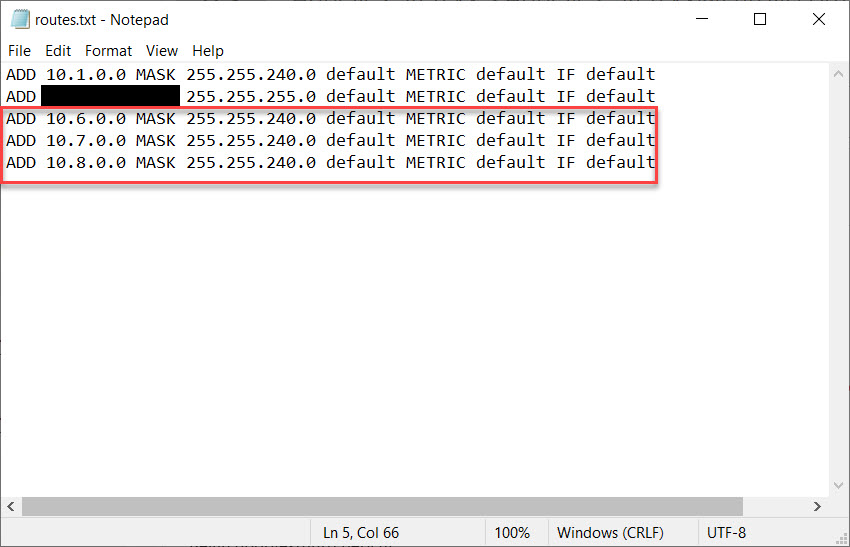
Save the file, and connect again. You should now be able to RDP to all VMs in these new spoke VNets.
Conclusion
Clients using Windows and connecting trough a P2S VPN to an Azure environment based on the Hub-spoke network model, can make an RDP (or SSH) connection to VMs located in the Hub network and all of it’s directly peered spokes VNets.
Just keep in mind that when any changes are made to the network topology, like adding a new peered spoke (VNet), the static routes of that spoke need to be added in the routes.txt file for making RDP/SSH VM connections possible.
Another way is by deleting the current VPN client and downloading it all over again for a clean install (the static routes of the newly added spoke or then already in place), which will take some more of your time.
 Wim Matthyssen
I cannot thank you enough for this article.. I have a misshapen hub-spoke topology with a VNet with a VPN Gateway and a dev environment in one subscription, created a test environment in another subscription and connected it with VNet peering to the dev VNet, and while the VMs could ping and ssh each other, I couldn’t directly ssh or ping the VMs in the test network within the VPN. As I’m not too familiar with this topic I almost also created a VPN-to-VPN connection, then found your article, re-generated a VPN Client in the Azure portal, installed it… and it worked! So thanks a lot again, much obliged!
LikeLike
Thanks @wim Matthyssen .
LikeLike