
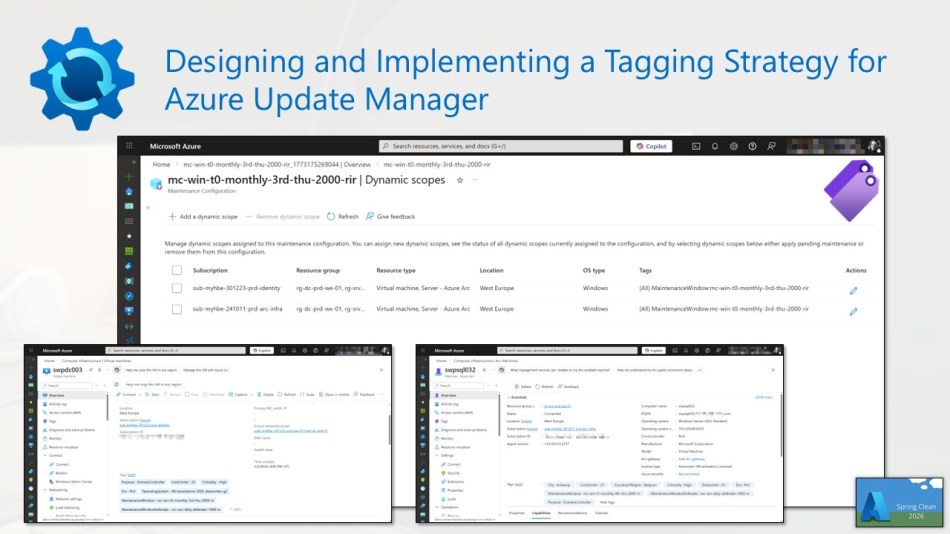
In my blog post contribution for this year’s Azure Spring Clean, we’ll explore how to design and implement a tagging strategy for Azure Update Manager, and how it can help you efficiently organize, target, and automate update deployments across your Azure, hybrid, and multicloud environments.
Spring has sprung, and so has Azure Spring Clean! ☁️🧹
Organized by Joe Carlyle and Thomas Thornton, this beloved community event brings Azure enthusiasts from around the world together to share tips, lessons learned, and best practices for keeping Azure environments secure, well organized, and running at their best.
Stay in the loop by following #AzureSpringClean on X, and visit https://www.azurespringclean.com to to explore a growing library of blog posts and videos packed with actionable advice for smarter Azure management.
But let’s now shift our focus to designing and implementing a tagging strategy for Azure Update Manager. 🏷️
Azure Update Manager (AUM) is Microsoft’s unified solution for managing operating system updates across Azure virtual machines, Azure Arc-enabled servers, and multicloud workloads. It delivers a centralized, policy-driven approach to patch management. But to truly get the most out of it, you need a solid tagging strategy.
A well-designed tagging strategy helps you organize, track, and manage updates across your Azure, hybrid, and multicloud environments. Whether you’re operating a small tenant or a large enterprise platform, tags add the structure, visibility, and consistency needed to keep update management under control.
In this blog post, I’ll show you how to design a practical tagging taxonomy, implement it at scale using Azure Policy, and connect it to AUM to enable targeted and automated patch deployments.
Table of Contents
- Why tagging matters for Azure Update Manager
- Building a tagging structure for Azure Update Manager
- Targeting Machines in Azure Update Manager with tags
- Conclusion
Why tagging matters for Azure Update Manager
Without tags, targeting machines in AUM typically relies on manually selecting resources or applying broad scopes such as subscriptions or resource groups. In a real enterprise environment, this approach quickly becomes difficult to manage and does not scale effectively.
Tags provide a much more flexible and scalable way to organize and target machines. With a well-defined tagging strategy, you can:
- Define dynamic scopes that automatically include newly provisioned machines
- Segment workloads by environment, criticality, operating system, or team without duplicating maintenance configurations
- Align patch schedules with existing change management windows
- Generate meaningful compliance reports filtered by business-relevant dimensions
- Enable a zero-touch patching model, where machines automatically join the correct patch group simply by having the right tags applied at deployment time
Building a tagging structure for Azure Update Manager
Before touching the Azure portal, Azure PowerShell, or Bicep, it’s worth defining your tagging approach upfront. Even a rough sketch on a whiteboard is enough to avoid adding tags after the fact.
Keep in mind that your tagging model should be consistent, policy-enforced, and as lean and readable as possible, while staying aligned with any existing conventions in your environment.
Below is the tag structure I use in most environments configured with AUM. The exact tags may vary by organization, but this approach scales well and ensures reliable targeting for maintenance configurations.
Example tags you can use in AUM maintenance configurations and for machine targeting:
| Tag Name | Tag Value |
|---|---|
| MaintenanceWindow | mc-win-t0-monthly-3rd-thu-2000-rir |
| MaintenanceWindow | mc-lin-t1-monthly-4th-thu-2000-rir |
| MaitenanceWindow | mc-no-updates |
| MaintenanceWindowDefender | mc-win-daily-defender-1000-nr |
💡 Keep in mind that a resource can only have one value per tag name. That is why this setup uses two separate tag names: MaintenanceWindow for the regular monthly patch window and MaintenanceWindowDefender for the daily Microsoft Defender updates. This allows both tags to coexist on the same VM, enabling it to be targeted by two different Maintenance Configurations simultaneously without conflict.
Breakdown of tag blocks:
- mc → Maintenance Configuration
- all / win / lin → OS targeting (
all= all OS,win= Windows,lin= Linux) - t0 / t1 / t2 → Server tier (
t0= Tier 0,t1= Tier 1,t2= Tier 2). This segment can be omitted for resources that are not tiered. - daily / monthly-[week]-[day] → Maintenance schedule (e.g.
monthly-3rd-thu) - 0000 → Start time in 24-hour UTC format (UTC is fixed and does not adjust for DST — maintenance duration is fixed at 3h55m and omitted from the tag value)
- rir / nr → Reboot behavior (
rir= Reboot If Required,nr= No Reboot)
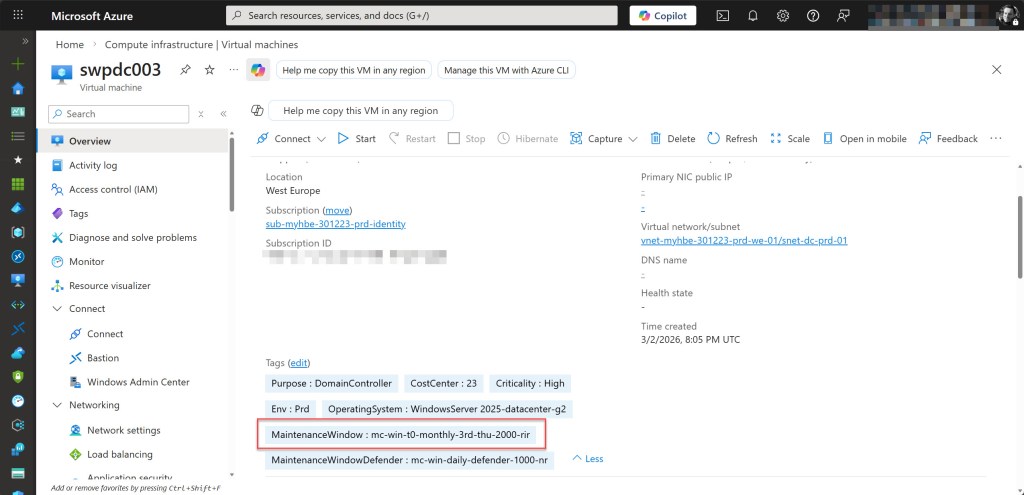
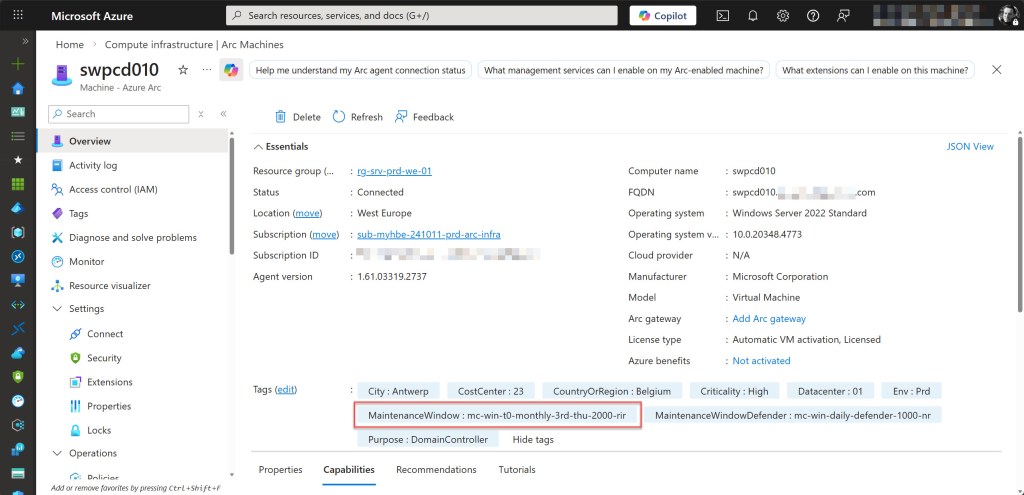
Example 1 – Tier 0 Windows servers:
Tag Name: MaintenanceWindow
Tag Value: mc-win-t0-monthly-3rd-thu-2000-rir
mc→ Maintenance Configurationwin→ Windows OSt0→ Tier 0 critical servermonthly-3rd-thu→ Third Thursday of the month0200→ Start time in 24-hour UTC formatrir→ Reboot If Required
💡 I use mc- as a prefix in all tag values to enable Azure Policy wildcard matching (for example mc-*). This makes it easy to target all maintenance-related tags with a single policy rule.
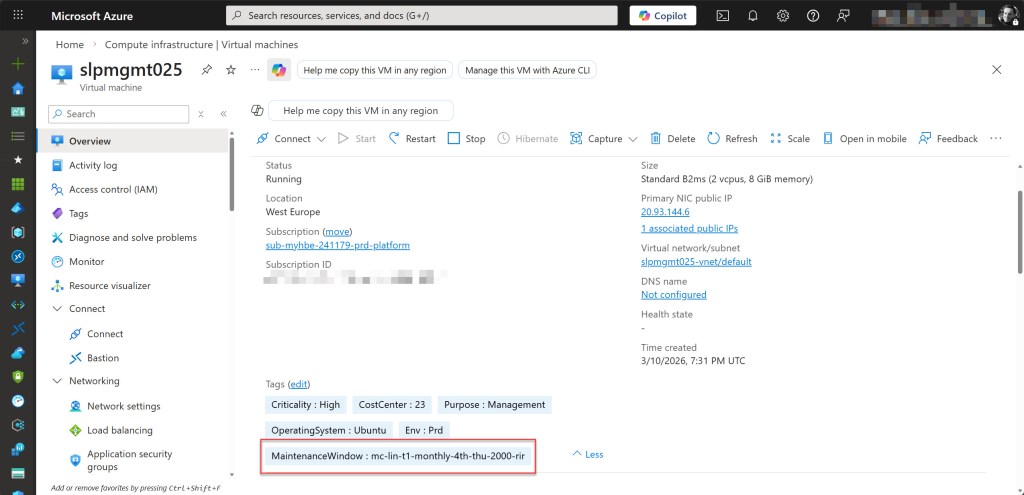
Example 2 – Tier 1 Linux servers
Tag Name: MaintenanceWindow
Tag Value: mc-lin-t1-monthly-4th-thu-2000-rir
mc→ Maintenance Configurationwin→ Linux OSt1→ Tier 1 servermonthly-4th-thu→ Fourth Thursday of the month0200→ Start time in 24-hour UTC formatrir→ Reboot If Required
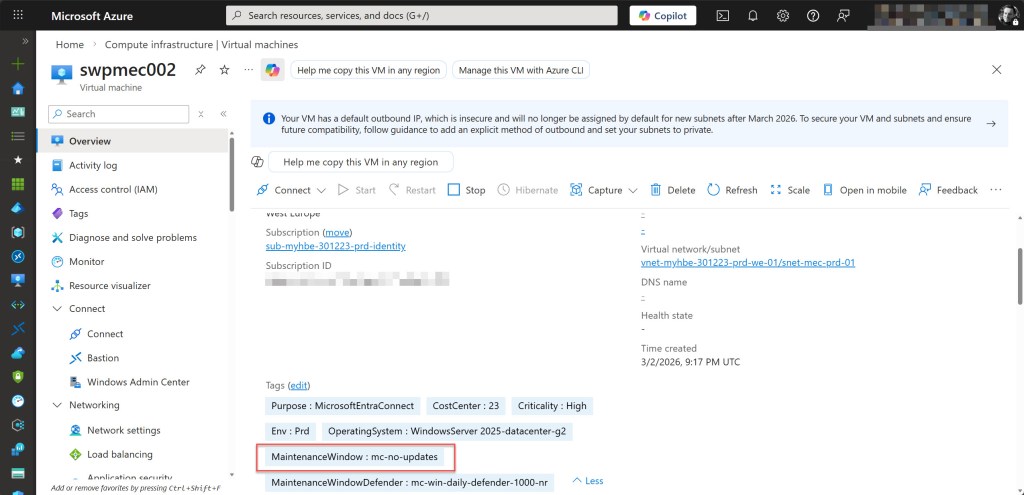
Example 3 – Servers excluded from automated patching
Tag Name: MaintenanceWindow
Tag Value: mc-no-updates
mc→ Maintenance Configurationno-updates→ Indicates the resource is intentionally excluded from automated update deployments with AUM
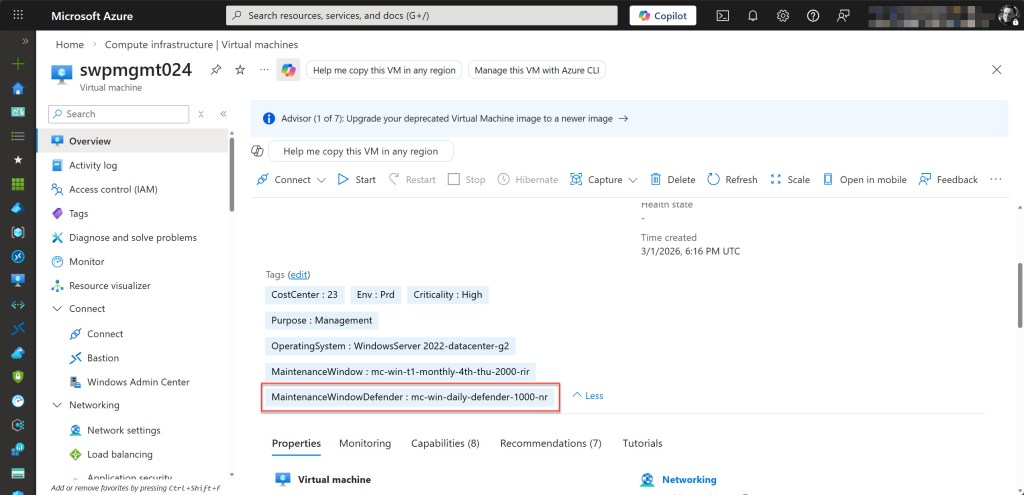
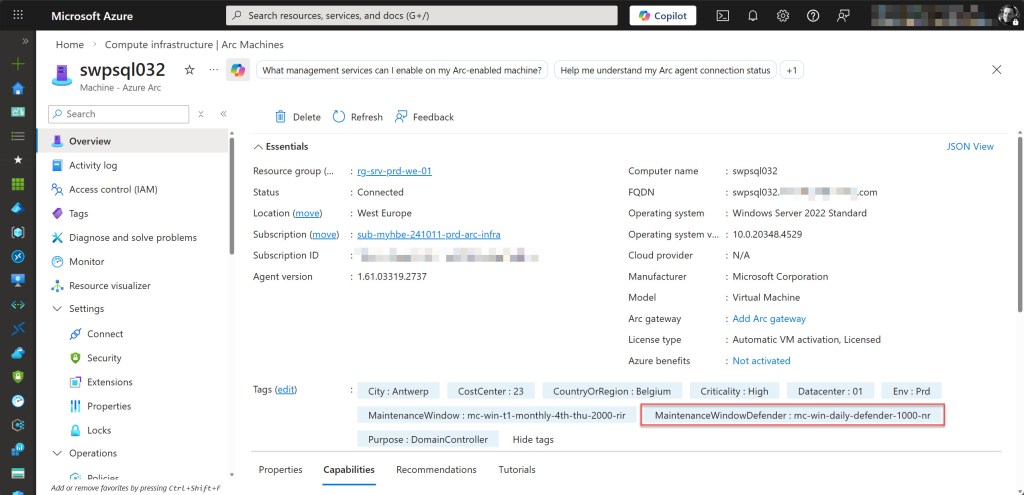
Example 4 – Windows servers (no tier)
Tag Name: MaintenanceWindowDefender
Tag Value: mc-win-daily-defender-1000-nr
mc→ Maintenance Configurationwin→ Windows OS(no tier)→ Standard untiered resourcedaily→ Dailydefender→ Scoped to Microsoft Defender updates1000→ Start time in 24-hour UTC formatnr→ No Reboot
Targeting machines in Azure Update Manager with tags
Once your tagging structure is defined and in place, the real power comes from using those tags to dynamically target machines in AUM. Instead of manually selecting virtual machines when creating a Maintenance Configurations, you can rely on tags to automatically include systems in the correct patch schedule.
AUM uses dynamic scopes to evaluate resources based on attributes such as subscription, resource group, resource type, or tags. When tags are used as the targeting mechanism, Update Manager evaluates them at schedule time and automatically includes any machine that matches the defined criteria.
This means that newly deployed machines can automatically inherit the correct patch schedule as soon as the appropriate tag is applied, eliminating the need for manual updates to maintenance configurations.
When creating a Maintenance Configuration in AUM, you simply define a dynamic scope that targets machines with a specific tag value, covering both Azure VMs and Arc-enabled servers. Update Manager then automatically includes all resources matching that tag, ensuring the correct systems are patched during the defined maintenance window.
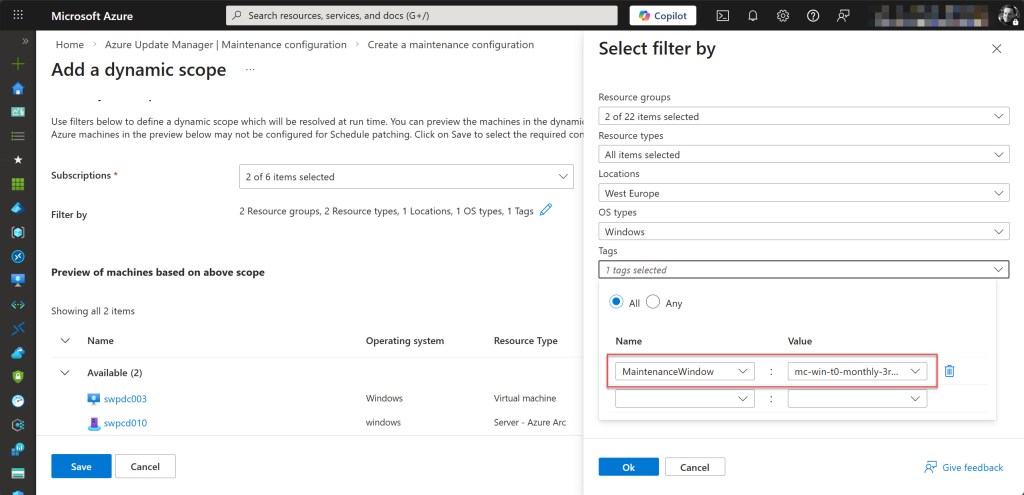
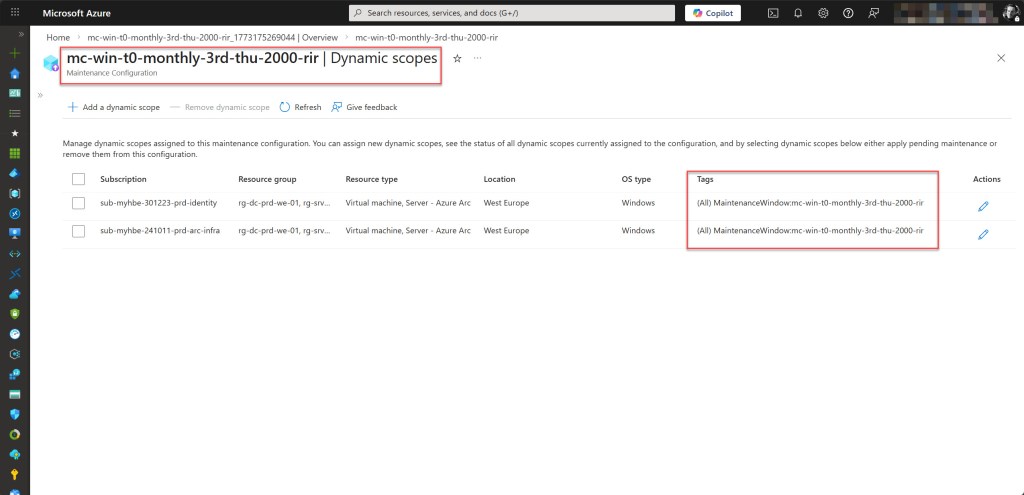
💡 As a best practice, name your Maintenance Configurations after the MaintenanceWindow tag value applied to the target machines. This makes it immediately clear which configuration a machine belongs to, without needing to cross-reference tags and configurations.
Using tags in this way makes the solution highly scalable and significantly reduces operational overhead as your environment grows.
Conclusion
Designing a clear and consistent tagging structure for AUM is a simple step that can significantly improve how you manage patching across your environment. By using well-structured tags and dynamic scopes, you can automatically target machines for the correct Maintenance Configurations without relying on manual resource selection.
This approach makes patch management far more scalable. Newly deployed machines can automatically inherit the appropriate patch schedule as soon as the correct tag is applied, enabling a more automated and predictable update process across Azure VMs and Arc-enabled servers.
The tag convention covered in this blog post, written for the Azure Spring Clean 2026 event, is intentionally lean and readable, yet flexible enough to accommodate different OS types, server tiers, schedules, and reboot behaviors. Adapt it to fit your organization’s existing conventions, document it clearly, and enforce it from day one.
Getting tagging right is one of those investments that pays off quietly. If you have any questions or suggestions regarding this blog post, feel free to reach out to me via my X handle (@wmatthyssen) or leave a comment below. I’m happy to help!
Happy reading 📖 and tagging 🏷️!
 Wim Matthyssen
0 comments on “Designing and Implementing a Tagging Strategy for Azure Update Manager”