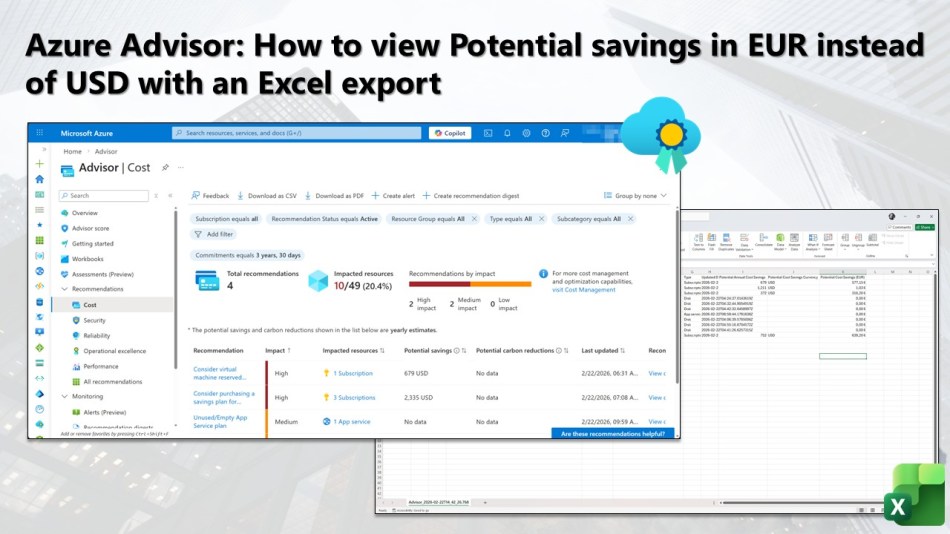
In this blog post, you will learn how to view your Azure Advisor Potential savings in EUR instead of USD using an Excel export.
By default, Azure Advisor displays potential savings recommendations in your billing currency, which may be USD even if your organization operates primarily in EUR. This can make it difficult to quickly assess and communicate cost-saving opportunities to stakeholders who work in euros.
A CSV export from Azure Advisor allows you to take that raw savings data and apply currency conversion, giving you a clear and accurate view of your potential savings in EUR instead of USD.
By combining Azure Advisor’s intelligent recommendations with the flexibility of Excel, you can easily transform and present your cost savings in the currency that matters most to your organization, and this blog post will guide you through the process step by step.
Exporting Azure Advisor Cost recommendations to CSV
To get started, log on to your Azure environment with an account that has the necessary permissions. In the Global Search bar, type “Advisor”, then select Advisor.
Once inside Azure Advisor, navigate to the Cost tab in the left-hand menu. This will display all active cost recommendations for your environment, including potential savings opportunities across your subscriptions.
Then at the top of the Cost recommendations overview, click the Download as CSV button.
Azure Advisor will generate and download a CSV file containing all your current cost recommendations, including the potential savings amounts in your billing currency.
Once the download is complete, navigate to the download location and move the file to a working folder of your choice, for example C:\Temp.
Opening and perparing the CSV export in Microsoft Excel
Once you have moved the CSV file to your working folder, navigate to that location and open the file in Microsoft Excel.
When opening the file, you may see a warning message stating “POSSIBLE DATA LOSS Some features might be lost if you save this workbook in the comma-delimited (.csv) format. To preserve these features, save it in an Excel file format.”
Simply click the X to dismiss the warning, and then save the file in the Excel format by clicking File and then Save As, and finally selecting Excel Workbook (*.xlsx) as the file format, and saving it to your working folder, for example C:\Temp.
Once saved, close the CSV file and open the newly saved .xlsx file instead.
With the file now open, you may notice that the data appears in a single column rather than being properly separated.
To fix this, select the column containing all the data, then navigate to the Data tab in the Excel ribbon and click Text to Columns.
In the wizard that appears, select Delimited and click Next.
On the next screen, check the Comma checkbox as the delimiter and click Next again.
Finally click Finish to apply the changes. The data will now be properly separated into individual columns.
The data, as you can see, will now be displayed in clearly defined columns. You will notice a column containing the potential savings amounts, which will be displayed in your billing currency, in this case USD.
Converting the Potential savings to EUR
To convert the potential savings from USD to EUR, navigate to the first empty column next to the savings amount column and add a header, for example “Potential Cost Savings (EUR)”
In the first data row of that column, enter a conversion formula such as =I2*0.85, replacing I2 with the actual cell reference of your savings amount and 0.85 with the current USD to EUR exchange rate.
💡 You can use a few reliable options for a quick USD to EUR conversion online, such as XE.com or wise.com, to get the most current exchange rate to use in your formula.
Once entered, drag the formula down to apply it to all remaining rows.
Next, select the entire EUR column and format the cells as currency by right-clicking and selecting Format Cells.
Then under the Currency category, select the EUR symbol (€) and then click OK to apply a clean and consistent format to all values.
You will now have a clear overview of your Azure Advisor Potential savings converted to EUR, which you can filter, sort, and share with your stakeholders to support cost optimization decisions within your company.
Conclusion
You can now easily view your Azure Advisor potential savings in EUR instead of USD using Microsoft Excel.
In this blog post, I explain how to export your Azure Advisor cost recommendations to Excel and apply a simple currency conversion formula. This provides a quick and straightforward way to present your potential savings in the currency that matters most to your company.
If you have any questions or suggestions about this blog post or any of the steps described, please feel free to reach out to me on X (@wmatthyssen) or leave a comment. I’ll be happy to assist you.

 Wim Matthyssen
In this blog post, you will learn how to view your Azure Advisor Potential savings in EUR instead of USD using an Excel export.
By default, Azure Advisor displays potential savings recommendations in your billing currency, which may be USD even if your organization operates primarily in EUR. This can make it difficult to quickly assess and communicate cost-saving opportunities to stakeholders who work in euros.
A CSV export from Azure Advisor allows you to take that raw savings data and apply currency conversion, giving you a clear and accurate view of your potential savings in EUR instead of USD.
By combining Azure Advisor’s intelligent recommendations with the flexibility of Excel, you can easily transform and present your cost savings in the currency that matters most to your organization, and this blog post will guide you through the process step by step.
Exporting Azure Advisor Cost recommendations to CSV
To get started, log on to your Azure environment with an account that has the necessary permissions. In the Global Search bar, type “Advisor”, then select Advisor.
Once inside Azure Advisor, navigate to the Cost tab in the left-hand menu. This will display all active cost recommendations for your environment, including potential savings opportunities across your subscriptions.
Then at the top of the Cost recommendations overview, click the Download as CSV button.
Azure Advisor will generate and download a CSV file containing all your current cost recommendations, including the potential savings amounts in your billing currency.
Once the download is complete, navigate to the download location and move the file to a working folder of your choice, for example C:\Temp.
Opening and perparing the CSV export in Microsoft Excel
Once you have moved the CSV file to your working folder, navigate to that location and open the file in Microsoft Excel.
When opening the file, you may see a warning message stating “POSSIBLE DATA LOSS Some features might be lost if you save this workbook in the comma-delimited (.csv) format. To preserve these features, save it in an Excel file format.”
Simply click the X to dismiss the warning, and then save the file in the Excel format by clicking File and then Save As, and finally selecting Excel Workbook (*.xlsx) as the file format, and saving it to your working folder, for example C:\Temp.
Once saved, close the CSV file and open the newly saved .xlsx file instead.
With the file now open, you may notice that the data appears in a single column rather than being properly separated.
To fix this, select the column containing all the data, then navigate to the Data tab in the Excel ribbon and click Text to Columns.
In the wizard that appears, select Delimited and click Next.
On the next screen, check the Comma checkbox as the delimiter and click Next again.
Finally click Finish to apply the changes. The data will now be properly separated into individual columns.
The data, as you can see, will now be displayed in clearly defined columns. You will notice a column containing the potential savings amounts, which will be displayed in your billing currency, in this case USD.
Converting the Potential savings to EUR
To convert the potential savings from USD to EUR, navigate to the first empty column next to the savings amount column and add a header, for example “Potential Cost Savings (EUR)”
In the first data row of that column, enter a conversion formula such as =I2*0.85, replacing I2 with the actual cell reference of your savings amount and 0.85 with the current USD to EUR exchange rate.
💡 You can use a few reliable options for a quick USD to EUR conversion online, such as XE.com or wise.com, to get the most current exchange rate to use in your formula.
Once entered, drag the formula down to apply it to all remaining rows.
Next, select the entire EUR column and format the cells as currency by right-clicking and selecting Format Cells.
Then under the Currency category, select the EUR symbol (€) and then click OK to apply a clean and consistent format to all values.
You will now have a clear overview of your Azure Advisor Potential savings converted to EUR, which you can filter, sort, and share with your stakeholders to support cost optimization decisions within your company.
Conclusion
You can now easily view your Azure Advisor potential savings in EUR instead of USD using Microsoft Excel.
In this blog post, I explain how to export your Azure Advisor cost recommendations to Excel and apply a simple currency conversion formula. This provides a quick and straightforward way to present your potential savings in the currency that matters most to your company.
If you have any questions or suggestions about this blog post or any of the steps described, please feel free to reach out to me on X (@wmatthyssen) or leave a comment. I’ll be happy to assist you.
Share this: