
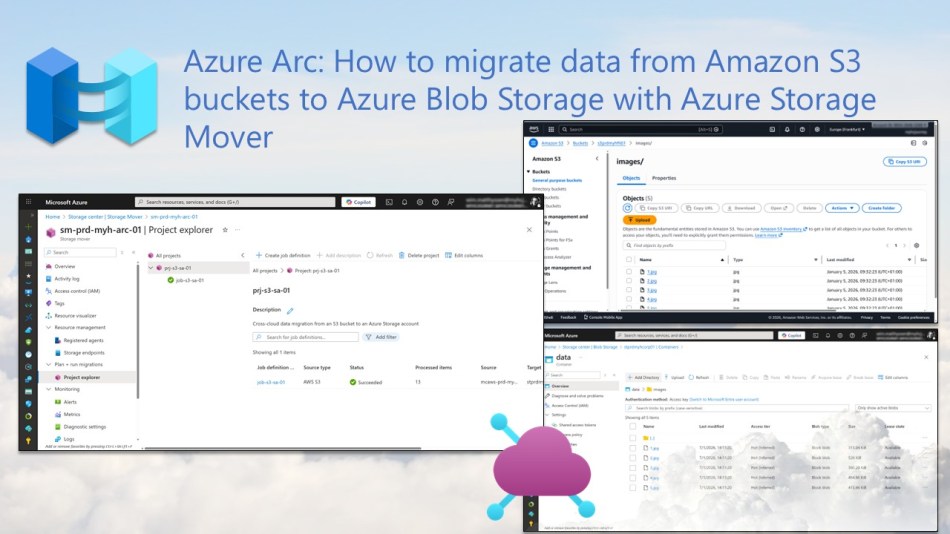
In this blog post, you will learn how to use Azure Arc in combination with Azure Storage Mover to migrate data from Amazon S3 bucket to Azure Blob Storage.
By using an Azure Arc multicloud connector for AWS, you can easily manage your AWS resources, such as S3 buckets (Amazon Simple Storage Service) and EC2 instances (AWS VMs), while handling authentication and benefiting from centralized management, inventory, and additional solutions and features enabled by Azure Arc.
Azure Storage Mover then makes it simple and secure to migrate data from Amazon S3 to Azure Blob Storage, while Azure Arc provides centralized management for resources outside of Azure, including on-premises, multicloud, and edge environments.
By leveraging the power of both services, you can easily perform cloud-to-cloud (or cross-cloud) data migrations from an Amazon S3 bucket to an Azure Storage account, and this blog post will guide you through the process step by step.
Table of Contents
- Prerequisites
- Create an Azure Storage Mover for the cloud-to-cloud data migration
- Configure the Storage Mover for the AWS to Azure cross-cloud data migration
- Running your migration job
- Validate the cross-cloud data migration
- Conclusion
Prerequisites
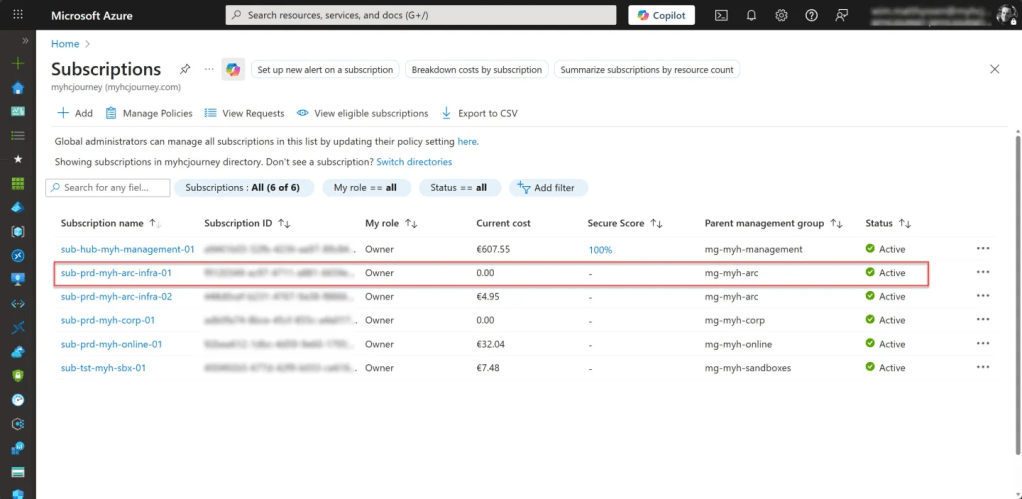
- An Azure subscription, preferably more than one if you plan to follow the Cloud Adoption Framework (CAF) enterprise-scale architecture, including a Connectivity or Management subscription and at least one Arc or Migration subscription.
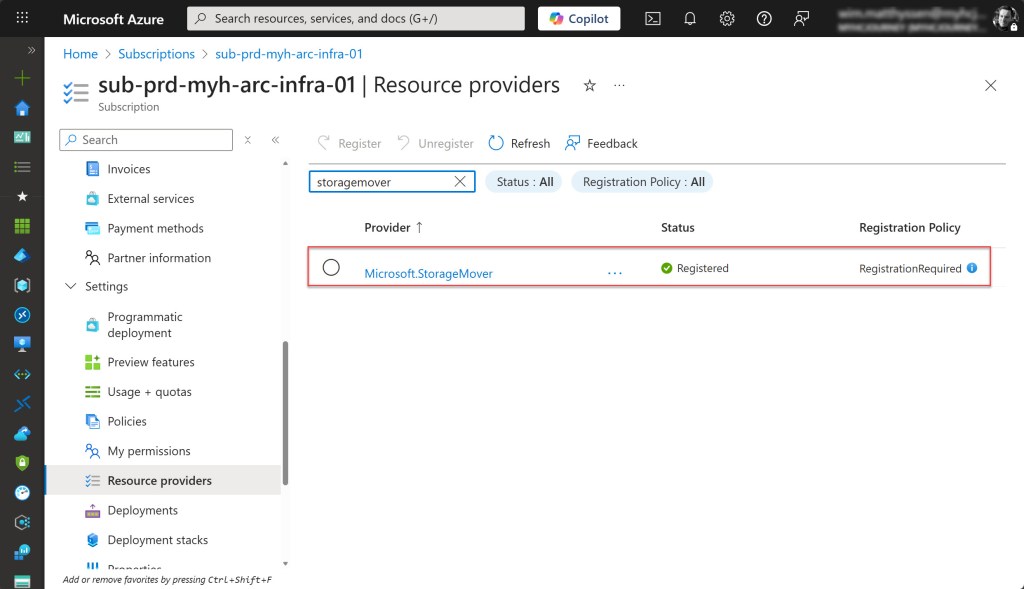
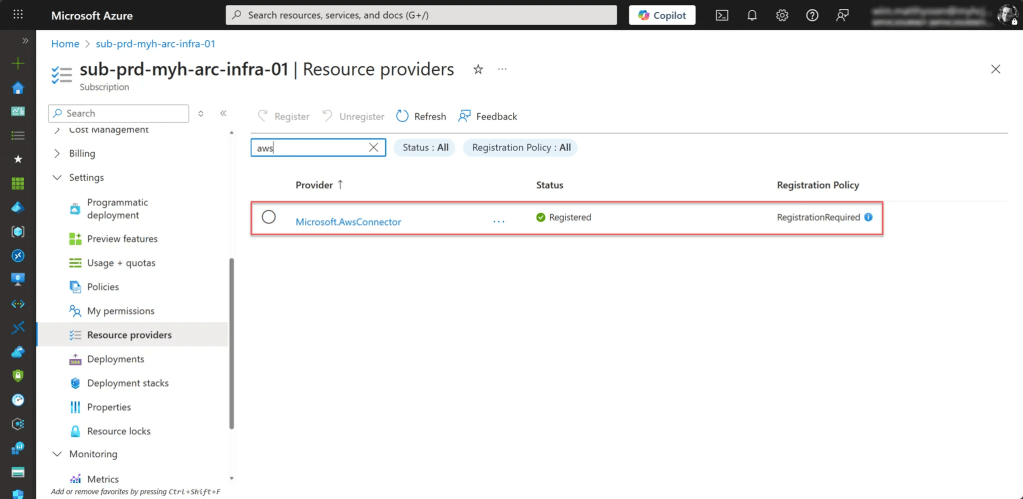
- To use Azure Storage Mover with the AWS multicloud connector, the subscription you are using must have the resource providers Microsoft.StorageMover, Microsoft.HybridCompute, and Microsoft.AwsConnector registered.
- An Azure administrator account with the required permissions, preferably assigned through membership in a security group.
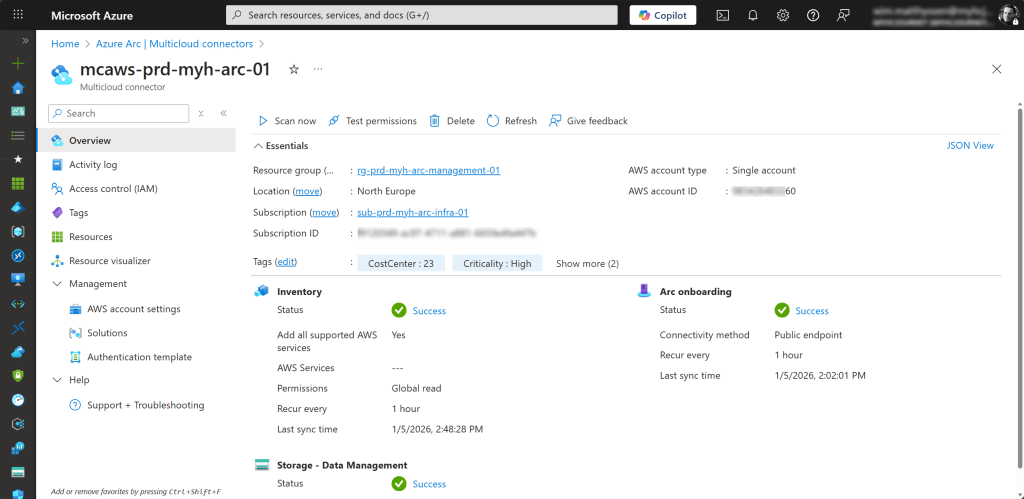
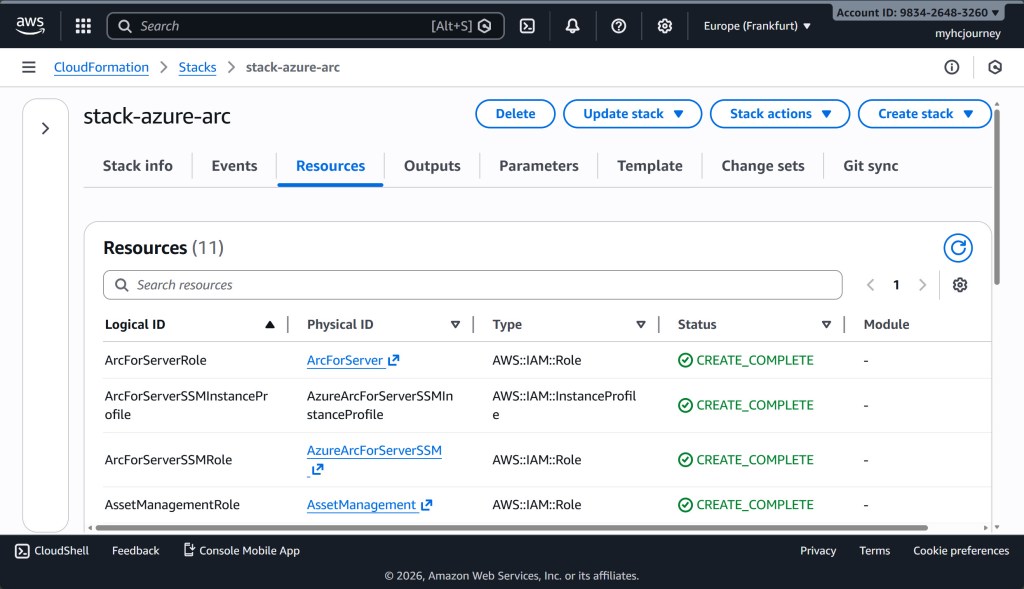
- An already fully configured AWS multicloud connector set up in Azure, with all required solutions, such as Inventory and Storage – Data Management, enabled, and with the associated AWS CloudFormation stack successfully deployed and configured. You can follow this blog post to set it up if required.
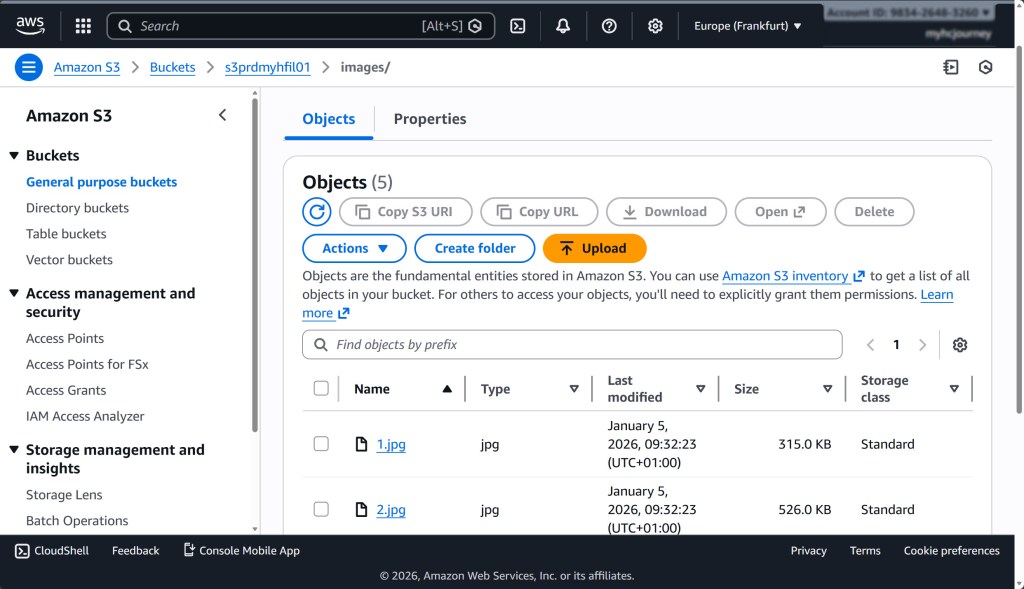
- You need at least one Amazon S3 bucket that is already running, available, and contains some data.
- An AWS account with access to the Amazon S3 bucket from which you want to migrate data.
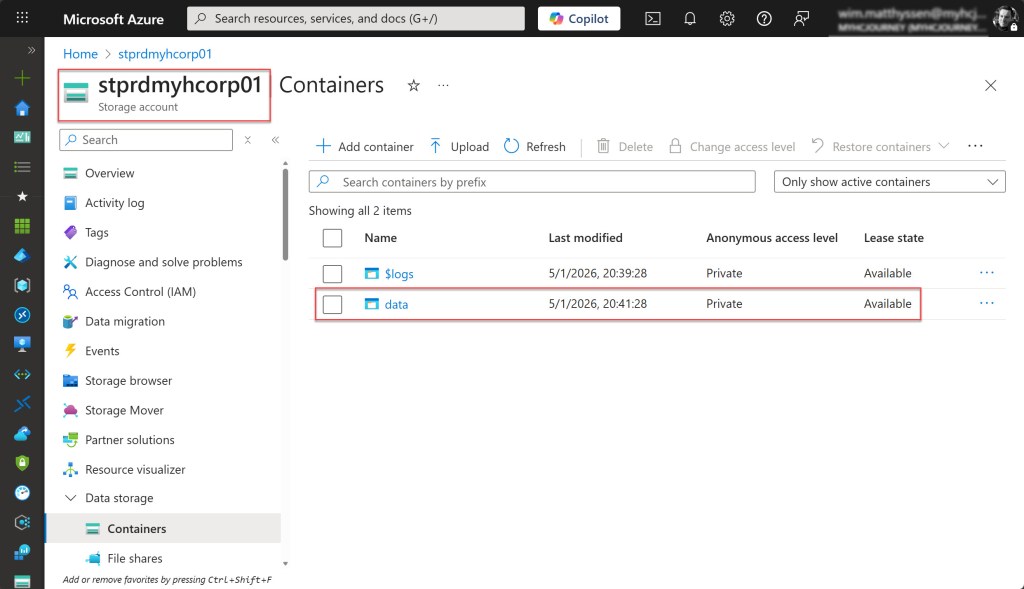
- An Azure Storage account with a container to which you want to move all the data.
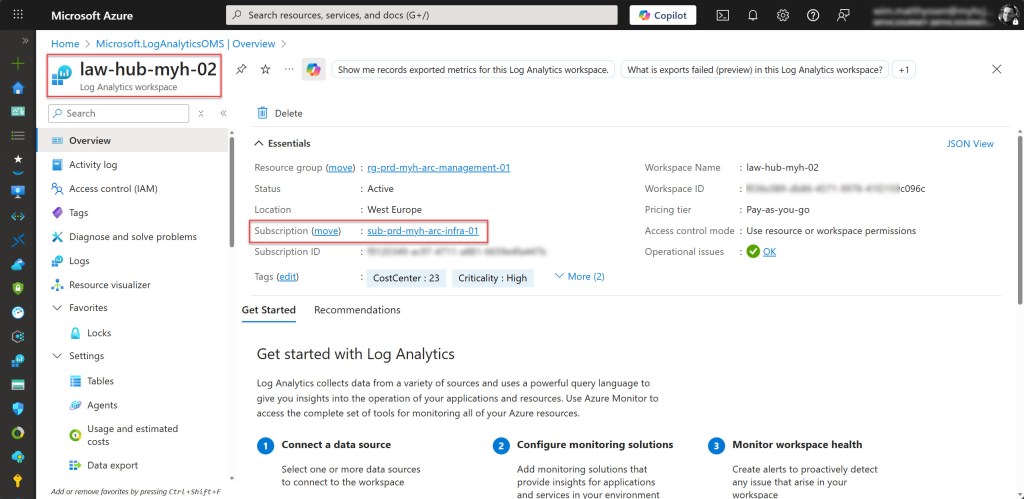
- A Log Analytics workspace in the same subscription where you plan to deploy the Storage Mover and where your AWS Multicloud Connector is already deployed is required only if you want to store monitoring information (copy logs) for your data migrations. It does not need to be in the same region.
Create an Azure Storage Mover for the cloud-to-cloud data migration
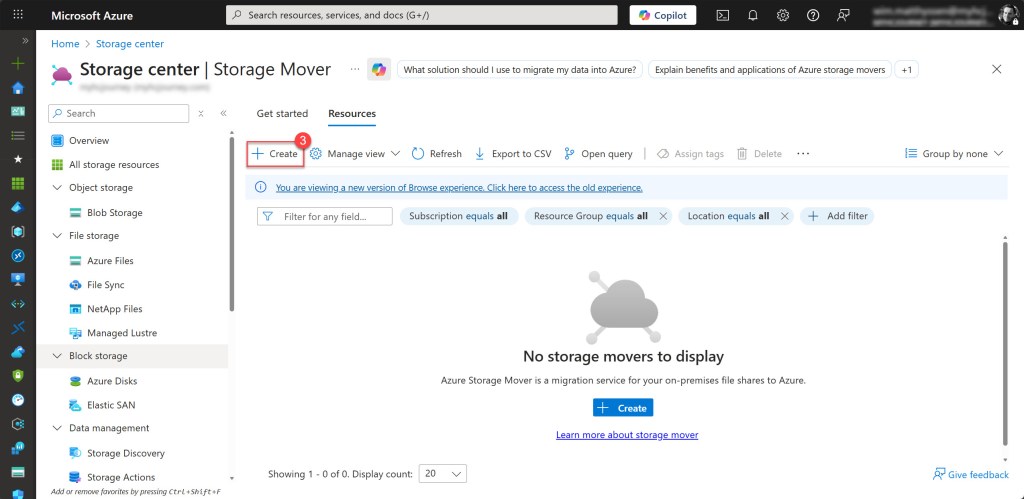
To get started, log on to your Azure environment with an account that has the necessary permissions. In the Global Search bar, type “Storage Mover”, then select Storage movers.

On the Storage center blade, click Create to start creating a new Storage Mover.
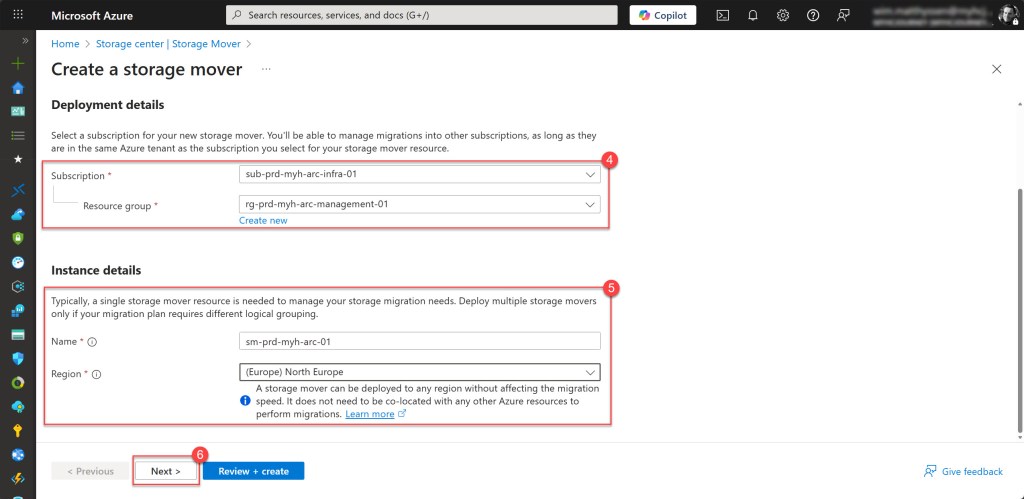
Then fill in the Deployment and Instance details. Specify the Subscription and Resource group; in this example, the Arc subscription is used, where the AWS multicloud connector and the Log Analytics workspace are deployed.
Next, enter a Name following your internal Azure naming convention and select the appropriate Region*. Once all details are filled in, click Next.
*💡 Keep in mind that an Azure Storage Mover can only be deployed in specific regions such as East US, East US 2, West Central US, West US 3, North Europe, and Sweden Central, while the data itself can be migrated to storage accounts in any supported Azure region.
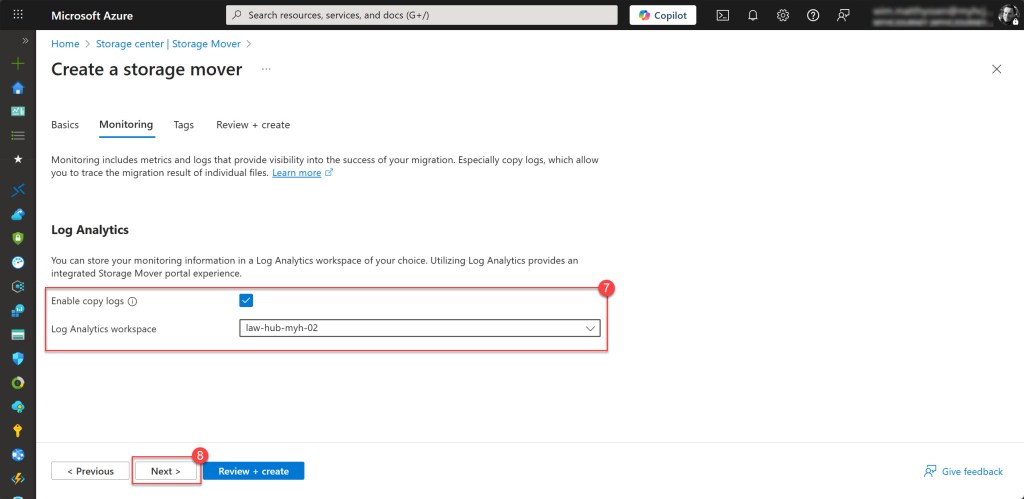
On the next page, specify your Log Analytics workspace if you want to store your copy logs. Then click Next to continue.
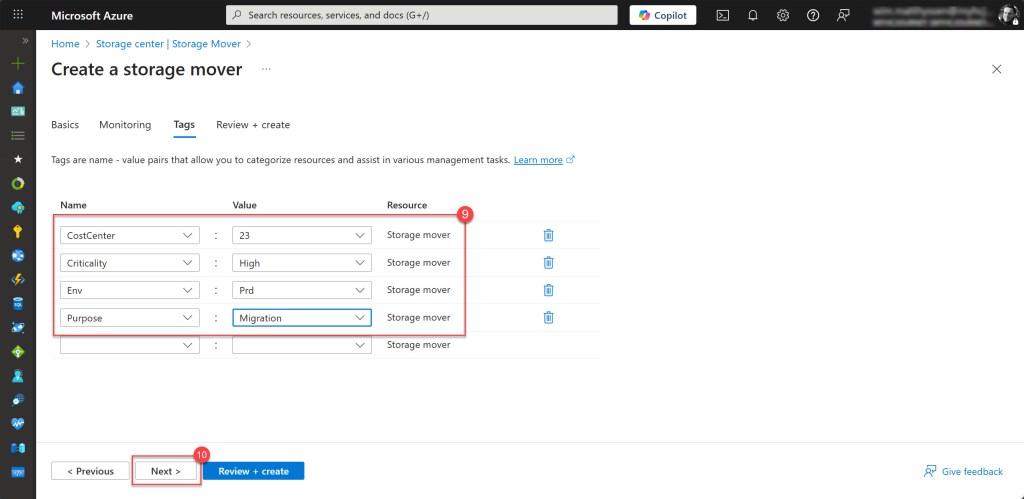
Then specify all your required tags, and when done, click Next.
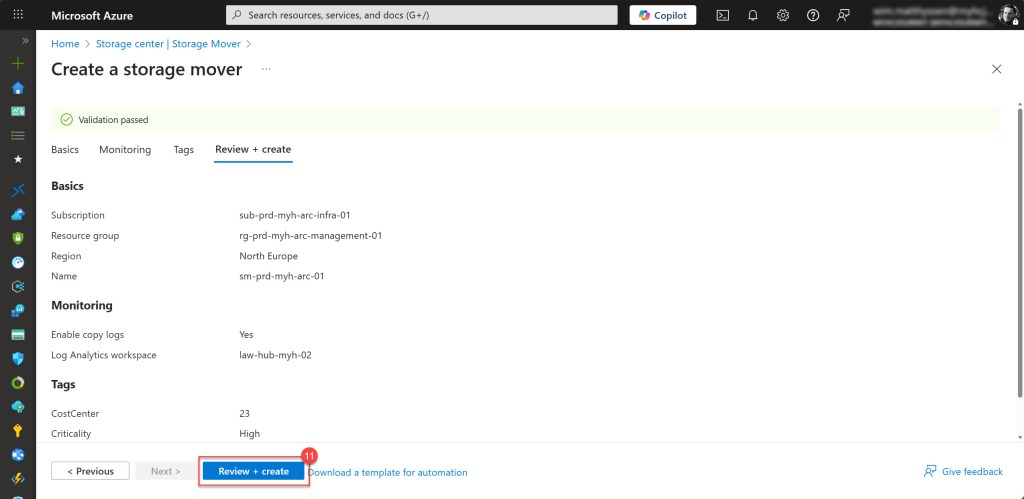
Then review all the filled-in parameters and adjust any missing or incorrect ones. After that, click Review + create to start the deployment.
If all goes well, you will now have a newly deployed Azure Storage Mover.

Configure the Storage Mover for the AWS to Azure cross-cloud data migration
To migrate AWS data to Azure, you need an AWS Multicloud Connector connected to your Azure Storage Mover and a migration project with a job definition, which specifies the source and target endpoints as well as the type of migration to be executed. This setup allows you to securely connect the required AWS services to Azure and move data from the S3 bucket to your Azure Storage account blob container.
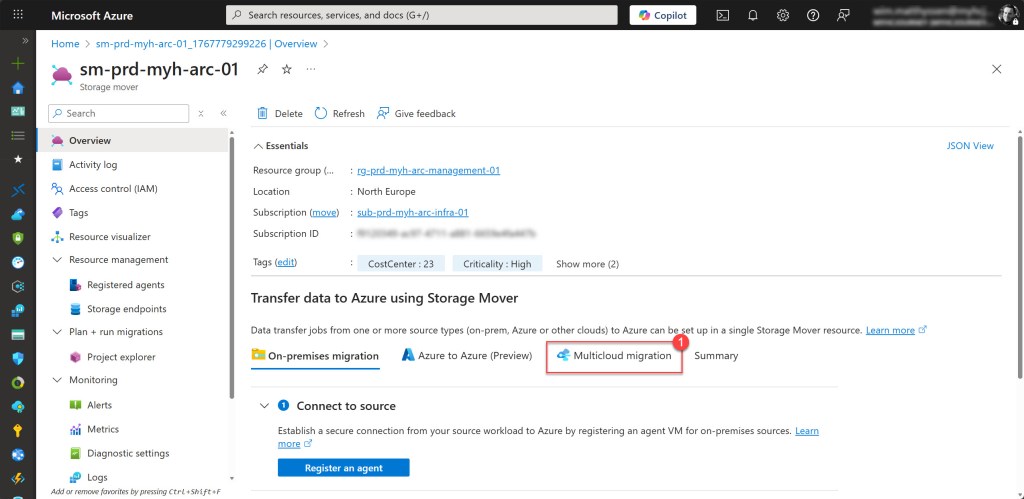
To configure this, go to your newly created Storage Mover and, on the Overview page, select Multicloud migration.
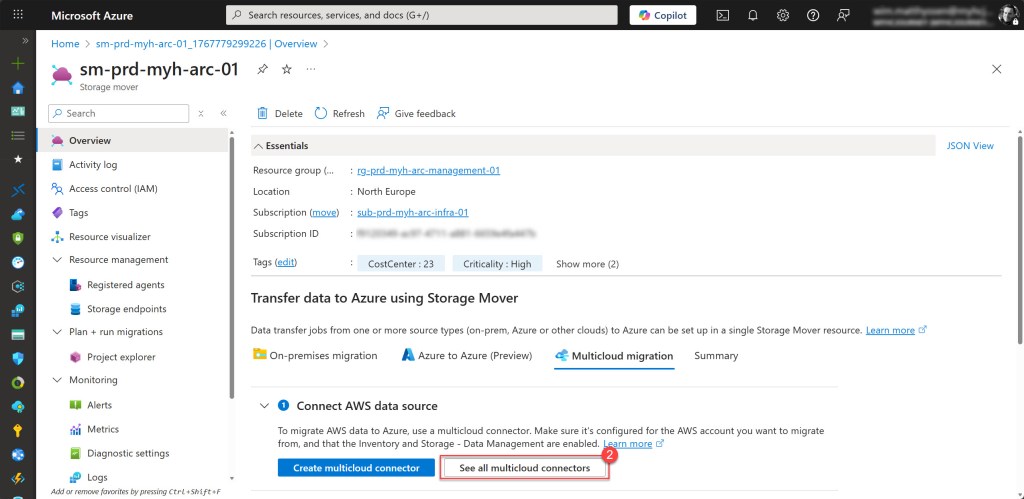
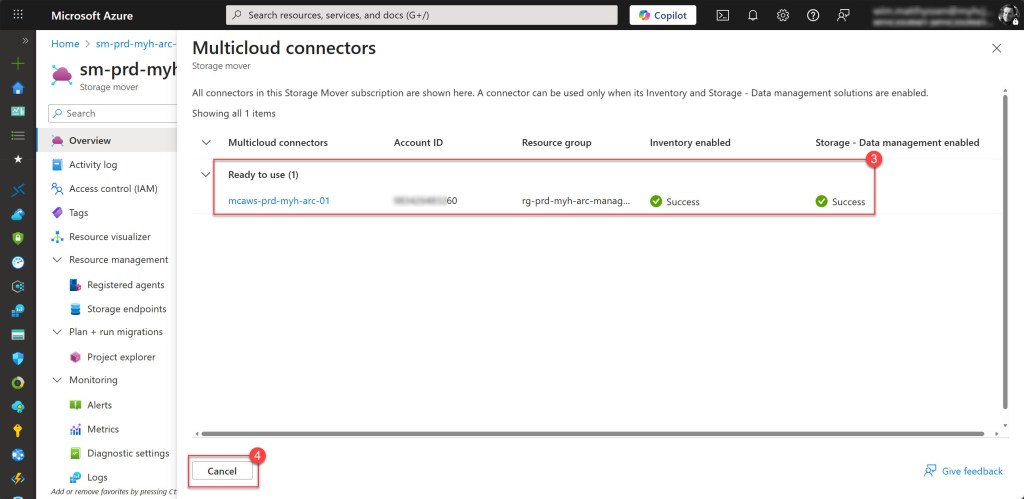
Then select See all multicloud connectors and check if the AWS Multicloud Connector you already created is Ready to use. If it is, click Cancel to return to the previous page.
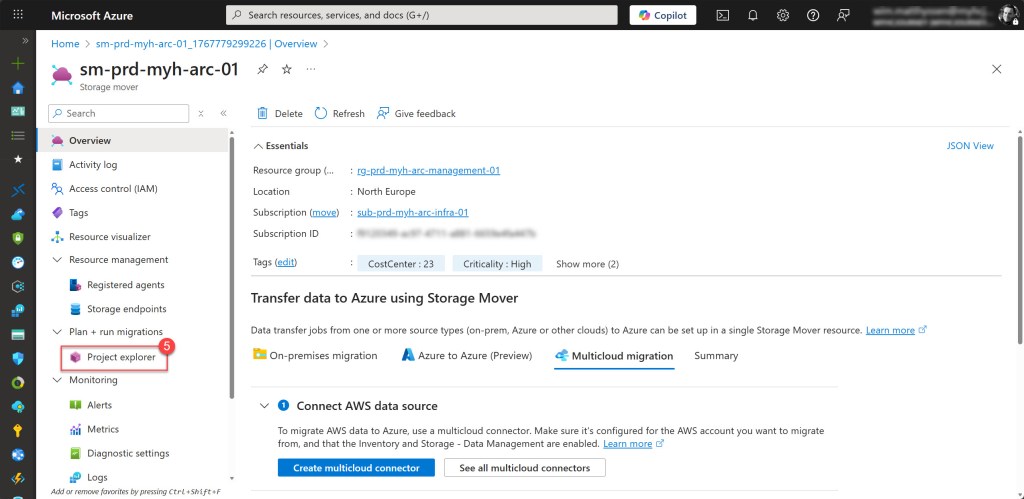
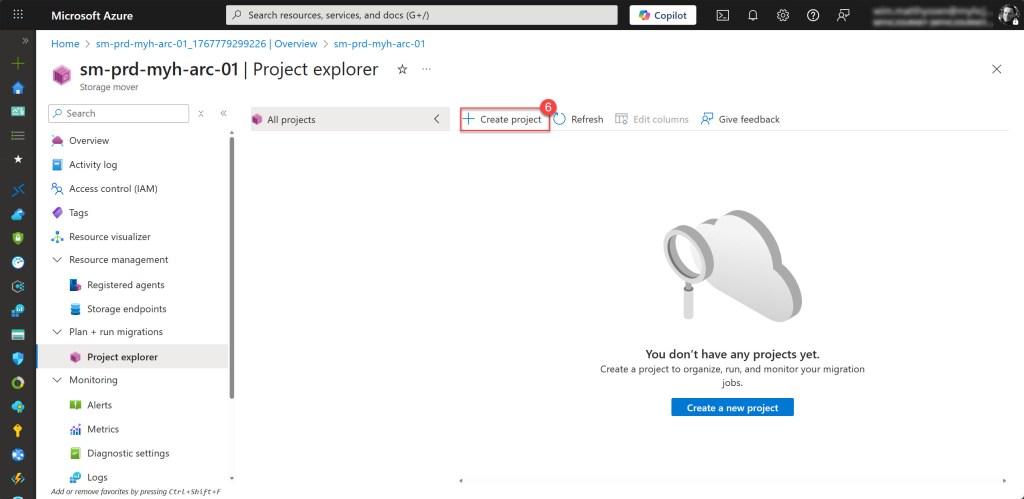
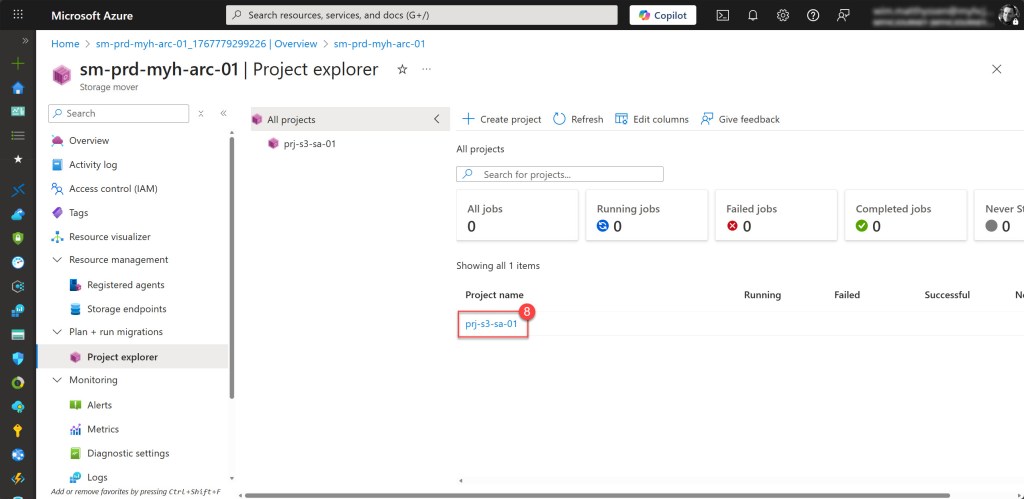
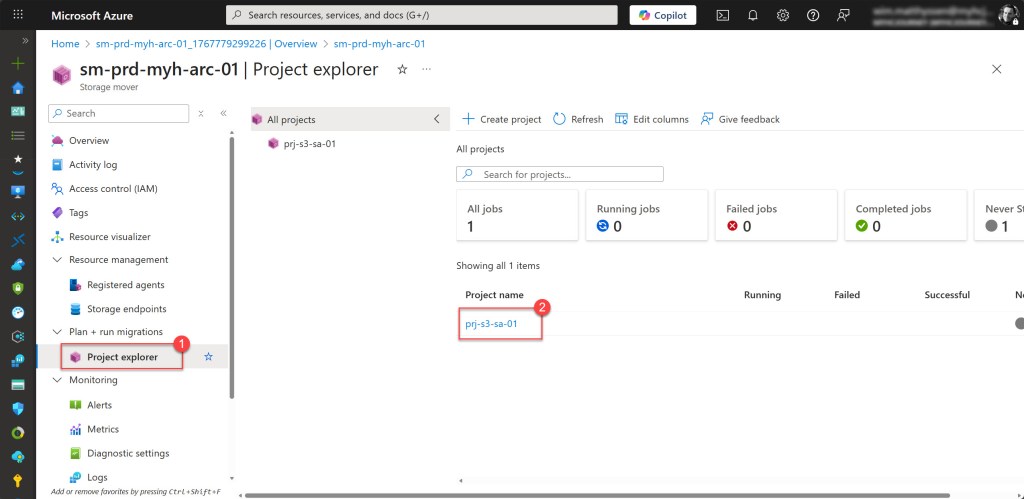
Then, in your Storage Mover instance, select Project explorer and click Create project.
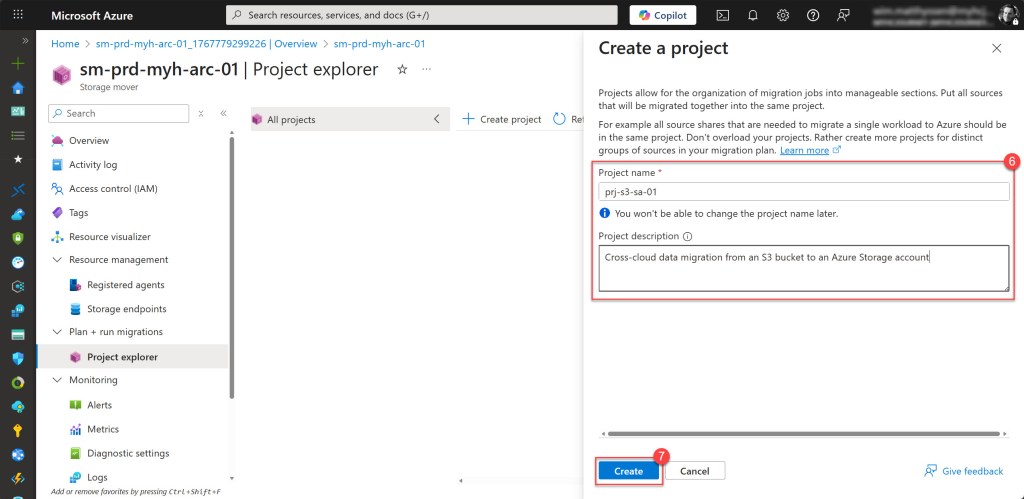
Then fill in all the required values, specifying a meaningful Name and a Project description. Select Create to create the project. It may take a moment for the newly created project to appear in the Project explorer, so wait briefly and click Refresh until it appears.
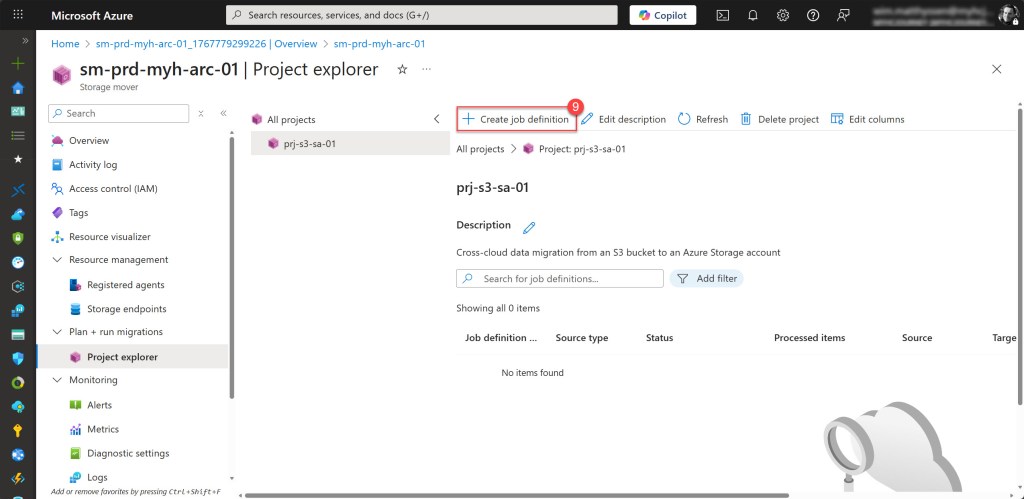
Once the project is created, click on it and then select Create job definition.
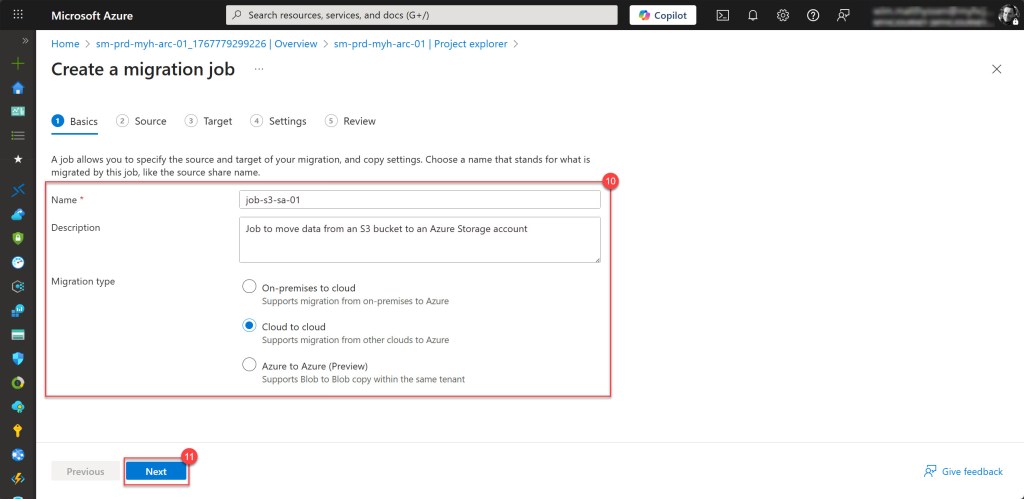
Now fill in all the required values, such as Name and Description, and select Cloud to cloud as the Migration type. Then click Next to continue.
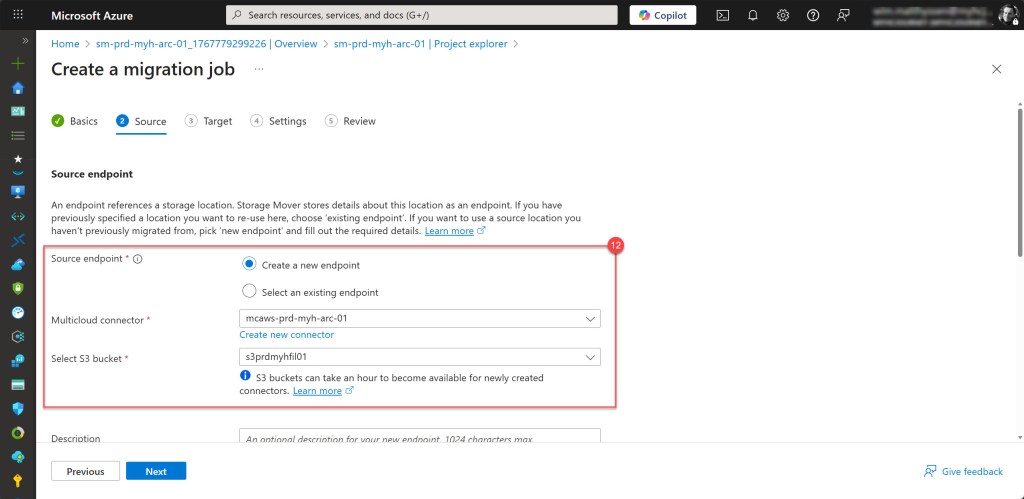
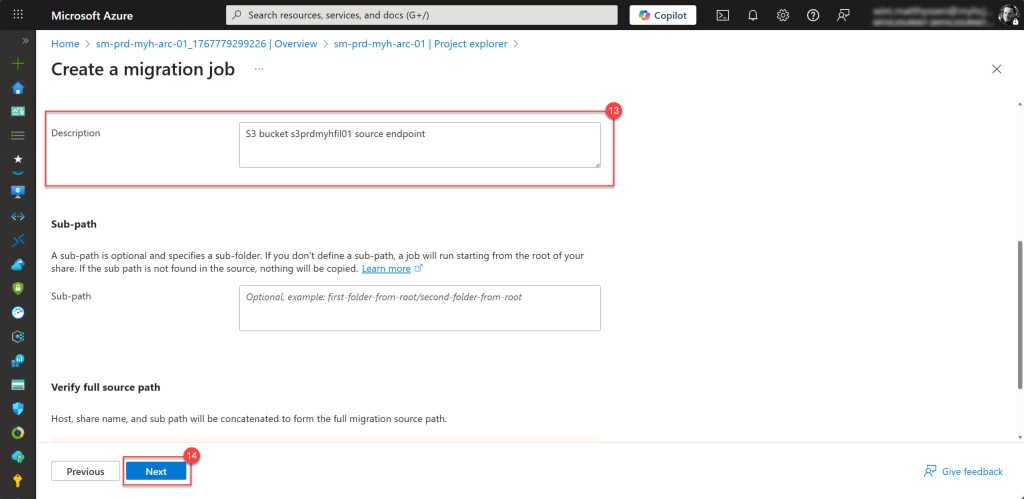
On the Source page, select Create a new endpoint. Next, choose the existing AWS Multicloud Connector and the S3 bucket, and provide a meaningful Description. When done, click Next.
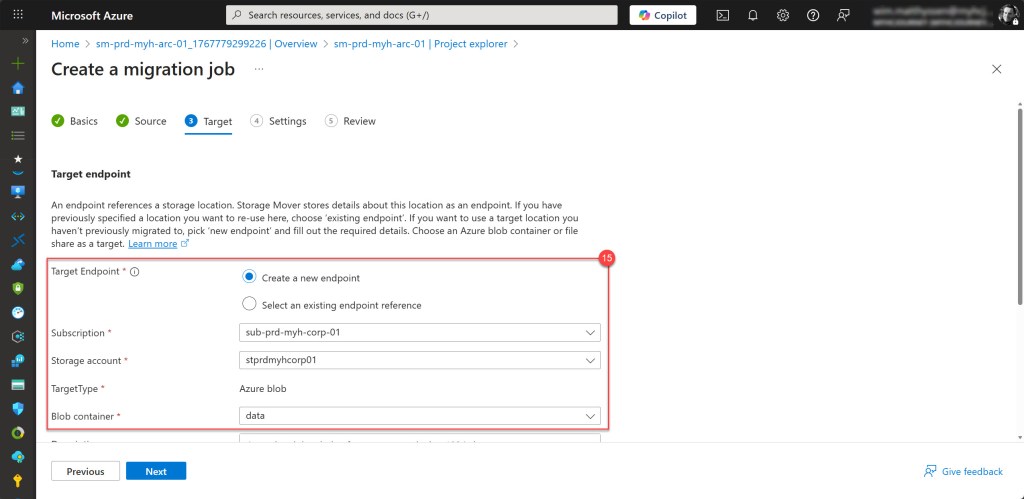
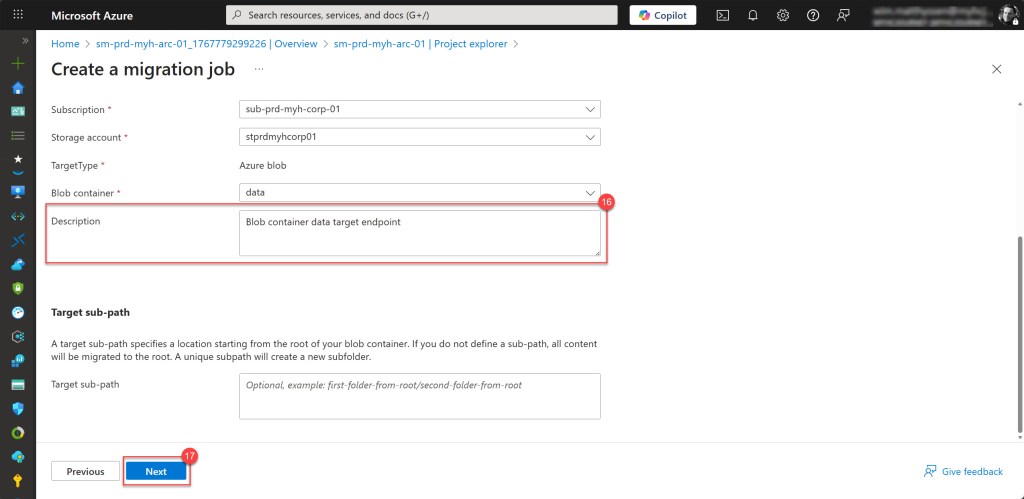
On the Target page, select Create a new endpoint. Next, choose the correct Azure Storage account and Blob container, and provide a meaningful Description. When done, click Next.
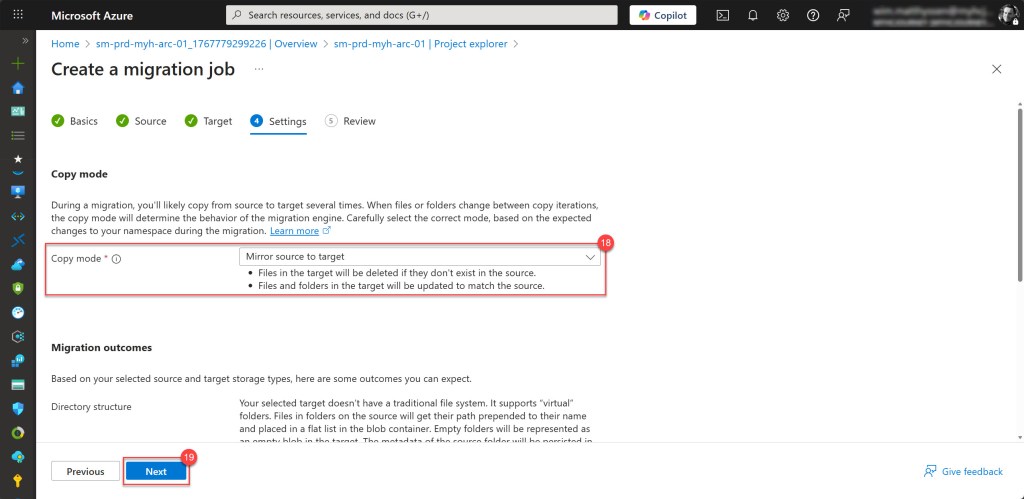
On the Settings page, select Mirror source to target from the Copy mode* drop-down list. Verify that the Migration outcome results are appropriate for your use case, then click Next to review your settings.
*💡When configuring a Storage Mover migration job, you can choose between Mirror source to target, which makes the target an exact replica of the source, and Merge source into target, which updates matching files but keeps existing files in the target that don’t exist in the source.
On the Review page, after confirming that your settings are correct, select Create to deploy the migration job.
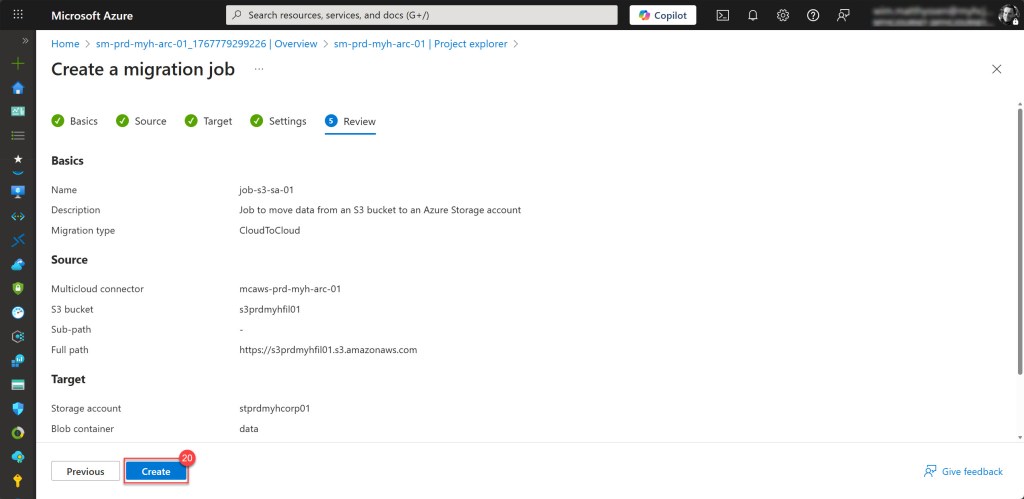
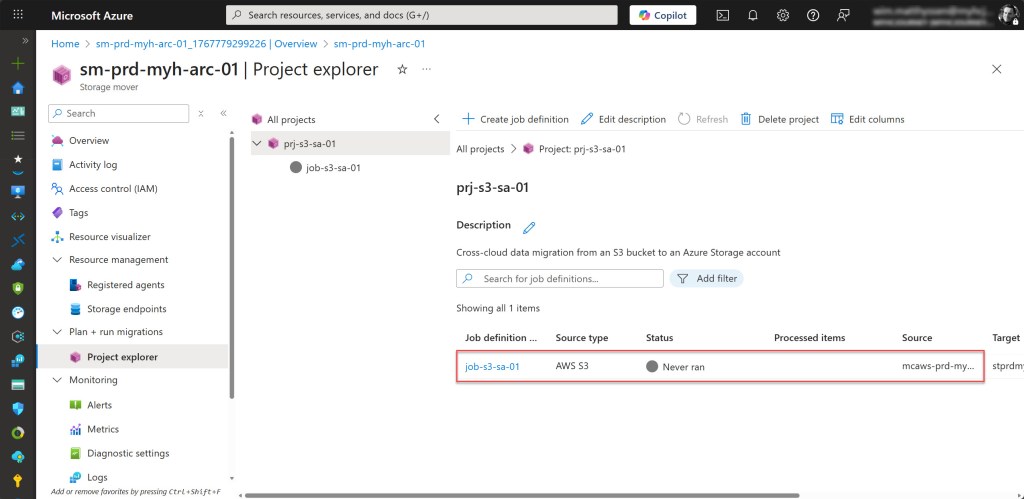
If all goes well, the new job definition will be successfully created.
Running your migration job
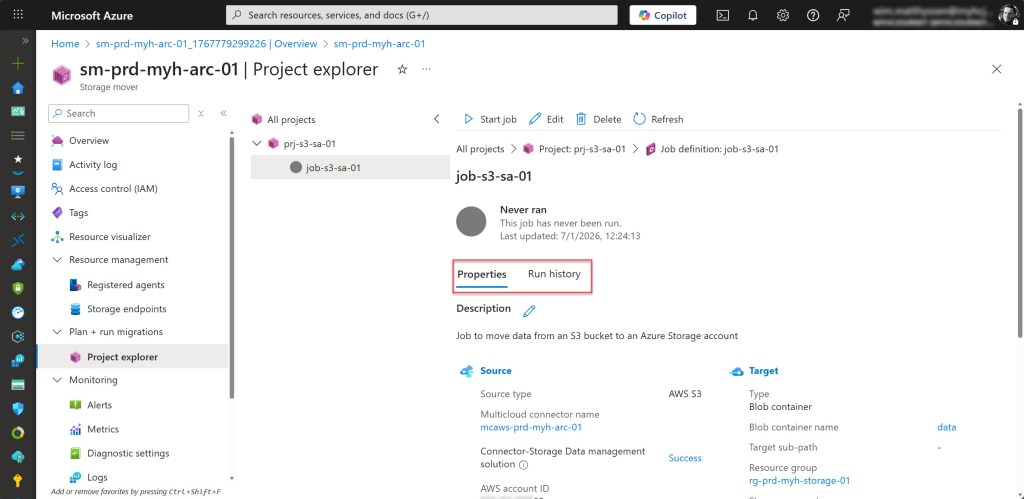
To run the newly created job for the first time, open the Project and select your newly created job definition. When the job opens, you can view its details in the Properties tab or review previous runs under the Run history tab.
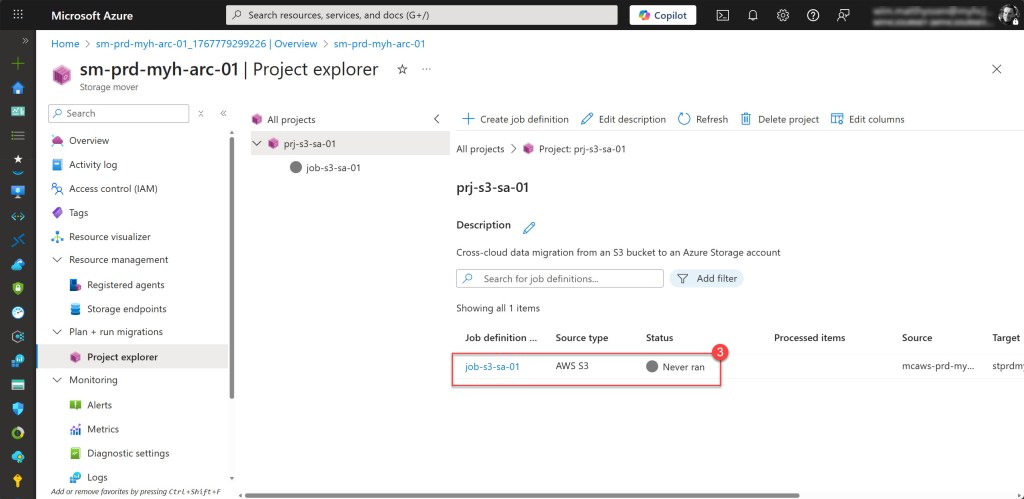
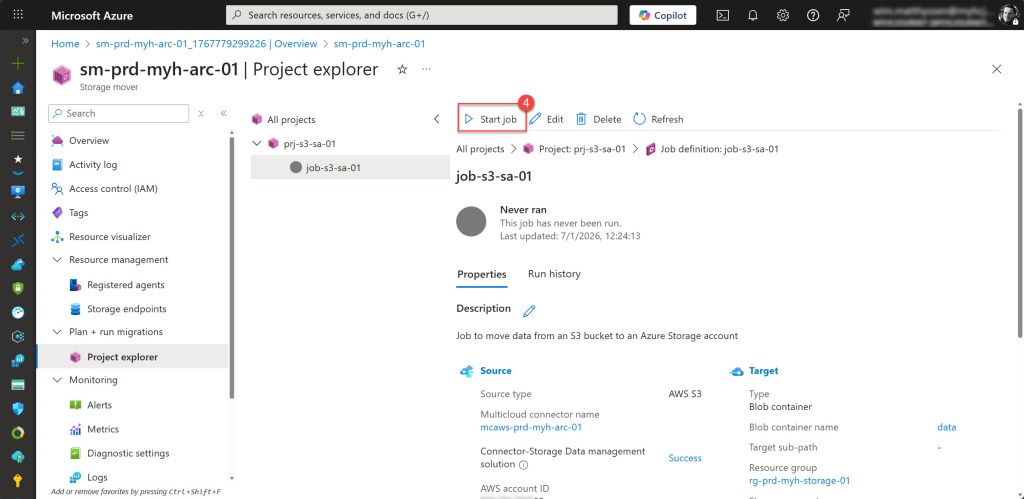
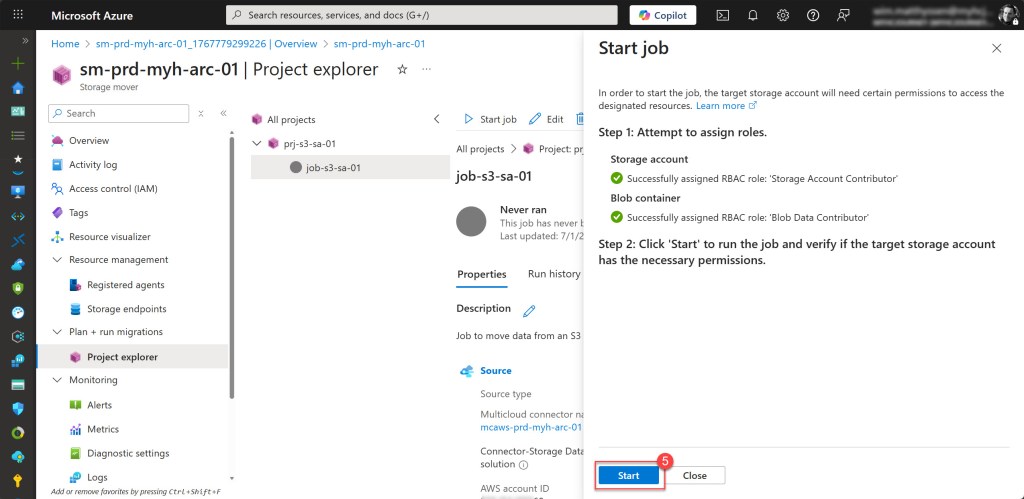
To start the job, select the Start job button to open the Start job pane for the migration job. On this page, the AWS multicloud connector will attempt to assign roles to the storage account and blob container. Once the roles are successfully assigned, select Start to begin the migration job.
You can monitor the job status on the main page, under the Run history tab, or in the Monitoring tab.
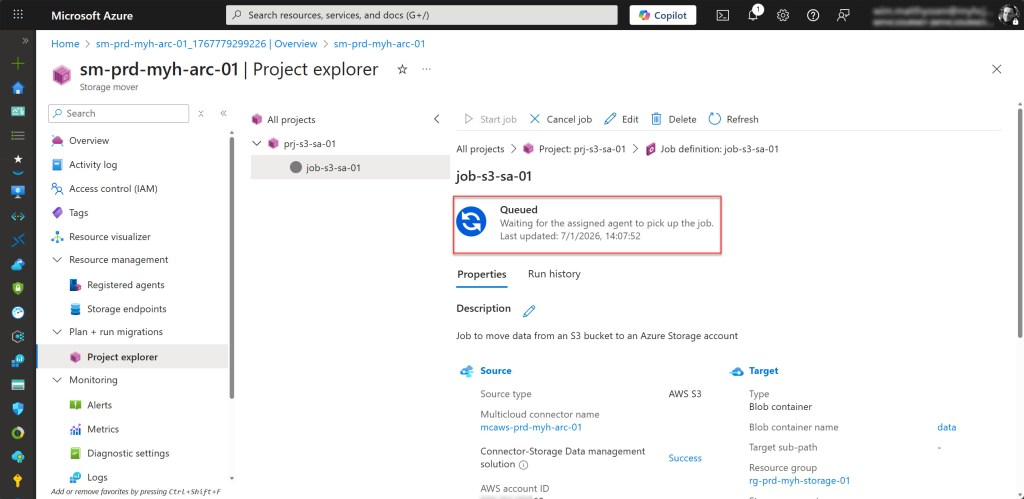
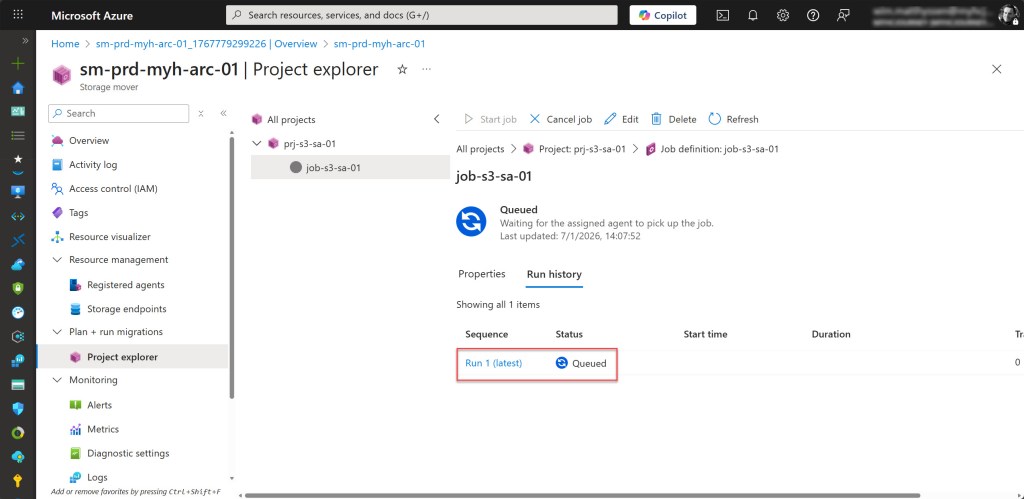
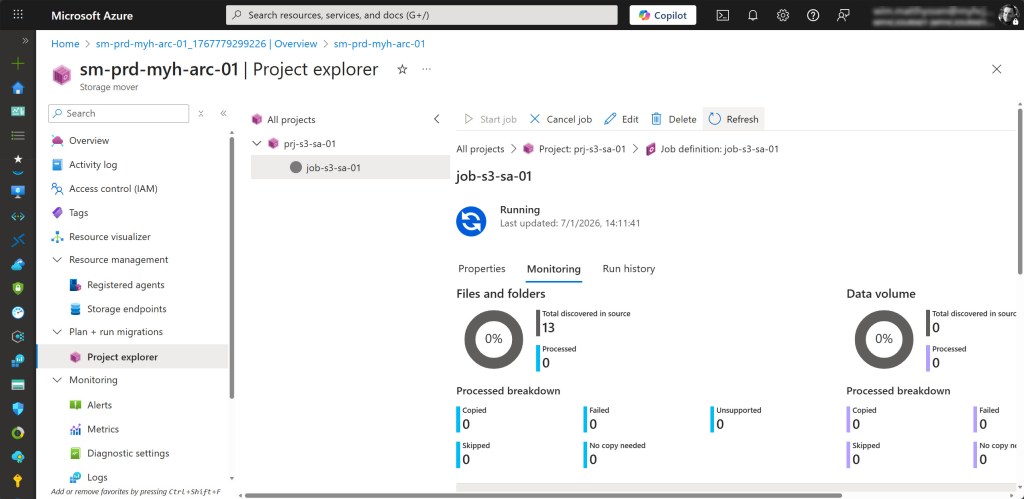
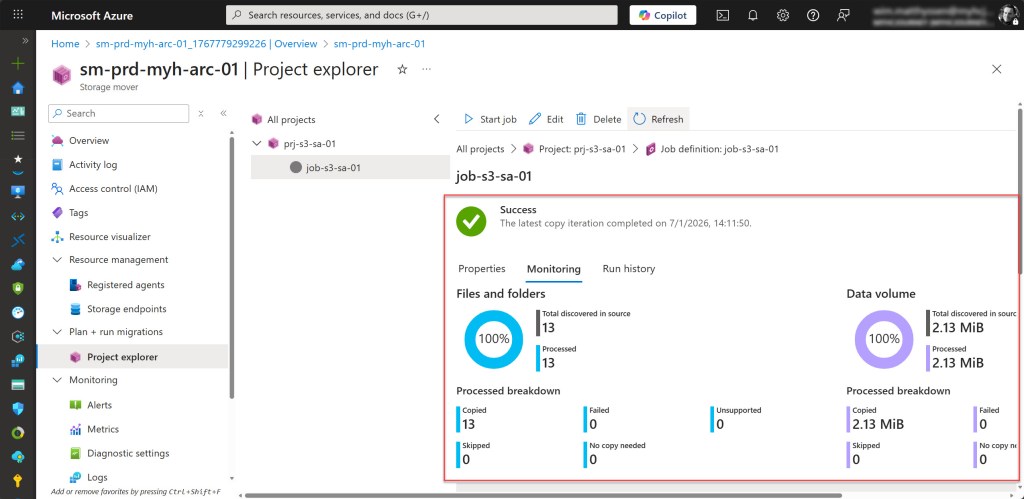
Normally, if all goes well, the status will change to Success, and you can visually verify that all data has been migrated under the Monitoring tab.
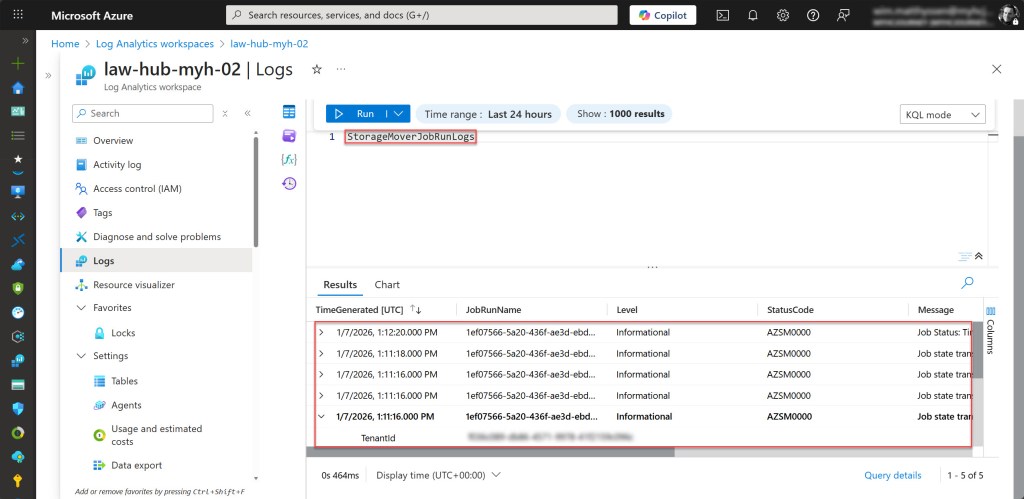
You can also view the logs associated with Storage Mover job runs in the Log Analytics workspace, if you enabled copy logs. These logs can be found in the StorageMoverJobRunLogs table.
Validate the cross-cloud data migration
As a final step, compare the source and destination storage to ensure that all files have been successfully transferred.
Open the source S3 bucket and the Azure Storage account blob container you used as the target, and verify that all files have been successfully migrated.
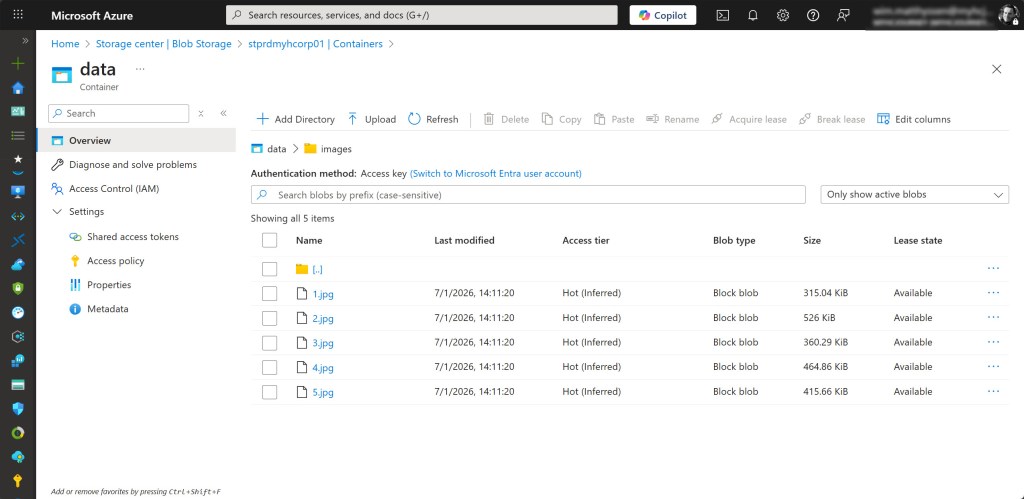
If needed, you can set up and enable incremental sync to keep the AWS S3 bucket and Azure Blob container in sync over time, or delete the AWS S3 bucket once the migration is fully completed and verified.
Conclusion
You can now easily migrate data from an Amazon S3 bucket to an Azure Storage account.
As demonstrated in this blog post, the AWS Multicloud Connector combined with Azure Storage Mover provides a fast and controlled way to perform cross-cloud data migrations.
If you have any questions or suggestions about this blog post or any of the steps described, please feel free to reach out to me on X (@wmatthyssen) or leave a comment. I’ll be happy to assist you.
 Wim Matthyssen
0 comments on “Azure Arc: How to migrate data from Amazon S3 buckets to Azure Blob Storage with Azure Storage Mover”