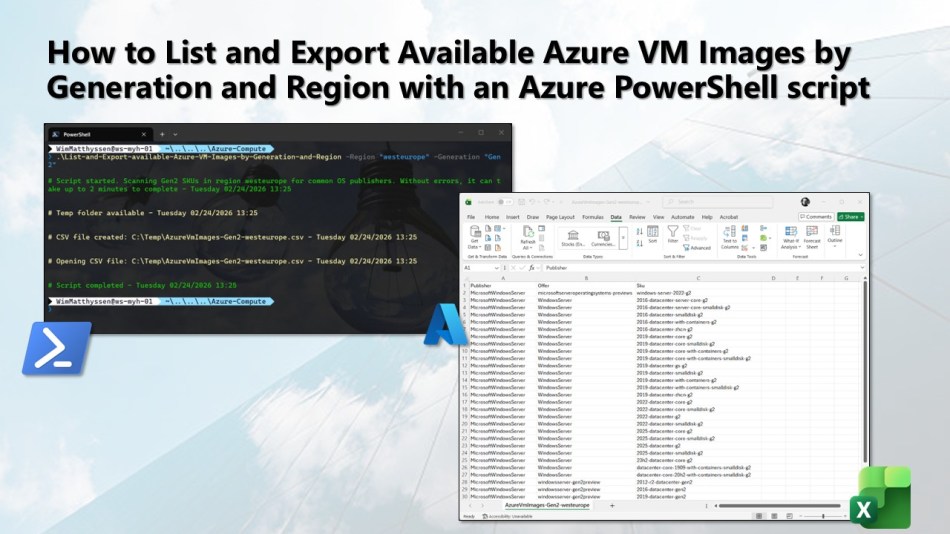
In this blog post, you’ll learn how to use an Azure PowerShell script to list and export available Azure VM images by generation and region to a CSV file for easy review.
As many of you know, Azure VM images form the foundation of every virtual machine deployment. Without validating the correct generation (Gen1 or Gen2) and regional availability, you may encounter deployment errors or unsupported configuration scenarios, especially in enterprise environments operating across multiple Azure regions.
That’s why I’ll show you how to automate this process using an Azure PowerShell script that programmatically retrieves and exports available Azure VM image SKUs by generation and region for a selected set of common OS publishers. This approach saves time and provides a reliable way to validate image availability before deploying virtual machines
At least version 14.6.0 of the Azure Az PowerShell module is required.
Executing actions and utilizing the Azure PowerShell script
To automate the listing and export of available Azure VM image SKUs by generation (Gen1 or Gen2) and region for common OS publishers, the Azure PowerShell script I’ve created performs the following actions:
Remove the breaking change warning messages.
Create C:\Temp folder if not exists.
List available Azure VM image SKUs by generation and region and export to CSV.
Open the CSV file if it was created.
To use the script, start by either copying and saving it as List-and-Export-available-Azure-VM-Images-by-Generation-and-Region.ps1 or downloading it directly from GitHub. You can then run the script using Windows Terminal, Visual Studio Code, or Windows PowerShell. Alternatively, it can be executed directly from Azure Cloud Shell.
Azure PowerShell script
If you are not using Azure Cloud Shell to run the script, remember to sign in using the Connect-AzAccount cmdlet to authenticate with your Azure account.
You can then run the script with the required parameters to initiate the process.
.\List-and-Export-available-Azure-VM-Images-by-Generation-and-Region "<specify region>" -Generation "<specify generation Gen1 or Gen2>"
<#
.SYNOPSIS

A script used to list and export available Azure VM image SKUs by generation (Gen1 or Gen2) and region.

.DESCRIPTION

A script used to list and export available Azure VM image SKUs by generation (Gen1 or Gen2) and region.
The script will do all of the following:

Remove the breaking change warning messages.
Create C:\Temp folder if not exists.
List available Azure VM image SKUs by generation and region and export to CSV.
Open the CSV file if it was created.

.NOTES

Filename:       List-and-Export-available-Azure-VM-Images-by-Generation-and-Region.ps1
Created:        22/12/2025
Last modified:  22/12/2025
Author:         Wim Matthyssen
Version:        1.0
PowerShell:     Azure PowerShell and Azure Cloud Shell
Requires:       PowerShell Az (v14.6.0)
Action:         Change variables were needed to fit your needs.
Disclaimer:     This script is provided "As Is" with no warranties.

.EXAMPLE

Connect-AzAccount
.\List-and-Export-available-Azure-VM-Images-by-Generation-and-Region "<specify region>" -Generation "<specify generation Gen1 or Gen2>"

Example: .\List-and-Export-available-Azure-VM-Images-by-Generation-and-Region -Region "westeurope" -Generation "Gen2"

.LINK

https://wmatthyssen.com/2025/12/22/how-to-list-and-export-available-azure-vm-images-by-generation-and-region-with-an-azure-powershell-script/
#>

## ---------------------------------------------------------------------------------------------------------------------------------------------------------------------------------------------------

## Parameters

param(
    [string]$Region = "westeurope",
    [ValidateSet("Gen2","Gen1")]
    [string]$Generation = "Gen2"
)

## ---------------------------------------------------------------------------------------------------------------------------------------------------------------------------------------------------

## Variables

$region = $Region
$tempFolderName = "Temp"
$tempFolder = "C:\" + $tempFolderName +"\"
$itemType = "Directory"

# Limit to common OS publishers so the query completes in reasonable time
$publishersOfInterest = @(
    "MicrosoftWindowsServer"  # Windows Server
    #"MicrosoftWindowsDesktop",  # Windows client
    #"Canonical",                # Ubuntu
    #"RedHat",                   # RHEL
    #"SUSE",                     # SLES
    #"Oracle",                   # Oracle Linux
    #"OpenLogic"                 # CentOS
)

Set-PSBreakpoint -Variable currenttime -Mode Read -Action {$global:currenttime = Get-Date -Format "dddd MM/dd/yyyy HH:mm"} | Out-Null
$foregroundColor1 = "Green"
$foregroundColor2 = "Yellow"
$foregroundColor3 = "Red"
$writeEmptyLine = "`n"
$writeSeperatorSpaces = " - "

## ---------------------------------------------------------------------------------------------------------------------------------------------------------------------------------------------------

## Remove the breaking change warning messages

Set-Item -Path Env:\SuppressAzurePowerShellBreakingChangeWarnings -Value $true | Out-Null
Update-AzConfig -DisplayBreakingChangeWarning $false | Out-Null
$warningPreference = "SilentlyContinue"

## ---------------------------------------------------------------------------------------------------------------------------------------------------------------------------------------------------

## Write script started

Write-Host ($writeEmptyLine + "# Script started. Scanning $Generation SKUs in region $region for common OS publishers. " +
"Without errors, it can take up to 2 minutes to complete" + $writeSeperatorSpaces + $currentTime)`
-foregroundcolor $foregroundColor1 $writeEmptyLine

## ----------------------------------------------------------------------------------------------------------------------------------------------------------------------------------

## Create C:\Temp folder if not exists

If(!(test-path $tempFolder))
{
New-Item -Path "C:\" -Name $tempFolderName -ItemType $itemType -Force | Out-Null
}

Write-Host ($writeEmptyLine + "# $tempFolderName folder available" + $writeSeperatorSpaces + $currentTime)`
-foregroundcolor $foregroundColor2 $writeEmptyLine

## ----------------------------------------------------------------------------------------------------------------------------------------------------------------------------------

## List available Azure VM image SKUs by generation and region and export to CSV

# For Gen1 SKUs *without* this pattern are treated as Gen1.
$gen2Pattern = '(?i)(^|-)(g2|gen2)($|-)'

$result = foreach ($publisher in $publishersOfInterest) {
    $offers = Get-AzVMImageOffer -Location $region -PublisherName $publisher -ErrorAction SilentlyContinue
    if (-not $offers) { continue }

    foreach ($offer in $offers) {
        $skus = Get-AzVMImageSku -Location $region -PublisherName $publisher -Offer $offer.Offer -ErrorAction SilentlyContinue
        if (-not $skus) { continue }

        foreach ($sku in $skus) {
            $skuName = $sku.Skus
            if (-not $skuName) { continue }

            $isGen2Like = $skuName -match $gen2Pattern

            # Select by requested generation
            if (($Generation -eq "Gen2" -and $isGen2Like) -or
                ($Generation -eq "Gen1" -and -not $isGen2Like)) {
                [PSCustomObject]@{
                    Publisher = $publisher
                    Offer     = $offer.Offer
                    Sku       = $skuName
                }
            }
        }
    }
}

if (-not $result) {
    Write-Host ($writeEmptyLine + "# No $Generation SKUs found in region $region for the selected publishers." + $writeSeperatorSpaces + $currentTime)`
    -foregroundcolor $foregroundColor3 $writeEmptyLine
} else {
    $result |
    Sort-Object Publisher, Offer, Sku |
    Export-Csv -Path ($tempFolder + "AzureVmImages-$Generation-$region.csv") -NoTypeInformation -Encoding UTF8
    Write-Host ($writeEmptyLine + "# CSV file created: $tempFolder" + "AzureVmImages-$Generation-$region.csv" + $writeSeperatorSpaces + $currentTime)`
    -foregroundcolor $foregroundColor2 $writeEmptyLine
}

## ---------------------------------------------------------------------------------------------------------------------------------------------------------------------------------------------------

## Open the CSV file if it was created

$csvPath = ($tempFolder + "AzureVmImages-$Generation-$region.csv")

if (Test-Path $csvPath) {
    Write-Host ($writeEmptyLine + "# Opening CSV file: $csvPath" + $writeSeperatorSpaces + $currentTime)`
    -ForegroundColor $foregroundColor2 $writeEmptyLine

    Invoke-Item $csvPath   # open CSV with default app (Excel)
}

## ---------------------------------------------------------------------------------------------------------------------------------------------------------------------------------------------------

## Write script completed

Write-Host ($writeEmptyLine + "# Script completed" + $writeSeperatorSpaces + $currentTime)`
-foregroundcolor $foregroundColor1 $writeEmptyLine

## ---------------------------------------------------------------------------------------------------------------------------------------------------------------------------------------------------
Adjusting the CSV layout for improved readability in Excel
In the opened CSV. file, you may see a warning message stating “POSSIBLE DATA LOSS Some features might be lost if you save this workbook in the comma-delimited (.csv) format. To preserve these features, save it in an Excel file format.”
First, click the X to dismiss the warning.
Then select the column containing all the data, navigate to the Data tab in the Excel ribbon, and click Text to Columns.
In the wizard that appears, select Delimited and click Next.
On the next screen, select Comma as the delimiter and click Next.
Finally, click Finish to apply the changes. The data will now be displayed in clearly defined columns, making it easier to read and analyze.
Conclusion
I hope the Azure PowerShell script shared in this blog post helps simplify the discovery and usage of Azure VM images by generation and region across your subscriptions.
If you have any questions or suggestions about this blog post or script, feel free to reach out to me on X (@wmatthyssen) or leave a comment. I’ll be happy to help.


 Wim Matthyssen
In this blog post, you’ll learn how to use an Azure PowerShell script to list and export available Azure VM images by generation and region to a CSV file for easy review.
As many of you know, Azure VM images form the foundation of every virtual machine deployment. Without validating the correct generation (Gen1 or Gen2) and regional availability, you may encounter deployment errors or unsupported configuration scenarios, especially in enterprise environments operating across multiple Azure regions.
That’s why I’ll show you how to automate this process using an Azure PowerShell script that programmatically retrieves and exports available Azure VM image SKUs by generation and region for a selected set of common OS publishers. This approach saves time and provides a reliable way to validate image availability before deploying virtual machines
Table of Contents
Prerequisites
Executing actions and utilizing the Azure PowerShell script
To automate the listing and export of available Azure VM image SKUs by generation (Gen1 or Gen2) and region for common OS publishers, the Azure PowerShell script I’ve created performs the following actions:
To use the script, start by either copying and saving it as List-and-Export-available-Azure-VM-Images-by-Generation-and-Region.ps1 or downloading it directly from GitHub. You can then run the script using Windows Terminal, Visual Studio Code, or Windows PowerShell. Alternatively, it can be executed directly from Azure Cloud Shell.
Azure PowerShell script
If you are not using Azure Cloud Shell to run the script, remember to sign in using the Connect-AzAccount cmdlet to authenticate with your Azure account.
You can then run the script with the required parameters to initiate the process.
<# .SYNOPSIS A script used to list and export available Azure VM image SKUs by generation (Gen1 or Gen2) and region. .DESCRIPTION A script used to list and export available Azure VM image SKUs by generation (Gen1 or Gen2) and region. The script will do all of the following: Remove the breaking change warning messages. Create C:\Temp folder if not exists. List available Azure VM image SKUs by generation and region and export to CSV. Open the CSV file if it was created. .NOTES Filename: List-and-Export-available-Azure-VM-Images-by-Generation-and-Region.ps1 Created: 22/12/2025 Last modified: 22/12/2025 Author: Wim Matthyssen Version: 1.0 PowerShell: Azure PowerShell and Azure Cloud Shell Requires: PowerShell Az (v14.6.0) Action: Change variables were needed to fit your needs. Disclaimer: This script is provided "As Is" with no warranties. .EXAMPLE Connect-AzAccount .\List-and-Export-available-Azure-VM-Images-by-Generation-and-Region "<specify region>" -Generation "<specify generation Gen1 or Gen2>" Example: .\List-and-Export-available-Azure-VM-Images-by-Generation-and-Region -Region "westeurope" -Generation "Gen2" .LINK https://wmatthyssen.com/2025/12/22/how-to-list-and-export-available-azure-vm-images-by-generation-and-region-with-an-azure-powershell-script/ #> ## --------------------------------------------------------------------------------------------------------------------------------------------------------------------------------------------------- ## Parameters param( [string]$Region = "westeurope", [ValidateSet("Gen2","Gen1")] [string]$Generation = "Gen2" ) ## --------------------------------------------------------------------------------------------------------------------------------------------------------------------------------------------------- ## Variables $region = $Region $tempFolderName = "Temp" $tempFolder = "C:\" + $tempFolderName +"\" $itemType = "Directory" # Limit to common OS publishers so the query completes in reasonable time $publishersOfInterest = @( "MicrosoftWindowsServer" # Windows Server #"MicrosoftWindowsDesktop", # Windows client #"Canonical", # Ubuntu #"RedHat", # RHEL #"SUSE", # SLES #"Oracle", # Oracle Linux #"OpenLogic" # CentOS ) Set-PSBreakpoint -Variable currenttime -Mode Read -Action {$global:currenttime = Get-Date -Format "dddd MM/dd/yyyy HH:mm"} | Out-Null $foregroundColor1 = "Green" $foregroundColor2 = "Yellow" $foregroundColor3 = "Red" $writeEmptyLine = "`n" $writeSeperatorSpaces = " - " ## --------------------------------------------------------------------------------------------------------------------------------------------------------------------------------------------------- ## Remove the breaking change warning messages Set-Item -Path Env:\SuppressAzurePowerShellBreakingChangeWarnings -Value $true | Out-Null Update-AzConfig -DisplayBreakingChangeWarning $false | Out-Null $warningPreference = "SilentlyContinue" ## --------------------------------------------------------------------------------------------------------------------------------------------------------------------------------------------------- ## Write script started Write-Host ($writeEmptyLine + "# Script started. Scanning $Generation SKUs in region $region for common OS publishers. " + "Without errors, it can take up to 2 minutes to complete" + $writeSeperatorSpaces + $currentTime)` -foregroundcolor $foregroundColor1 $writeEmptyLine ## ---------------------------------------------------------------------------------------------------------------------------------------------------------------------------------- ## Create C:\Temp folder if not exists If(!(test-path $tempFolder)) { New-Item -Path "C:\" -Name $tempFolderName -ItemType $itemType -Force | Out-Null } Write-Host ($writeEmptyLine + "# $tempFolderName folder available" + $writeSeperatorSpaces + $currentTime)` -foregroundcolor $foregroundColor2 $writeEmptyLine ## ---------------------------------------------------------------------------------------------------------------------------------------------------------------------------------- ## List available Azure VM image SKUs by generation and region and export to CSV # For Gen1 SKUs *without* this pattern are treated as Gen1. $gen2Pattern = '(?i)(^|-)(g2|gen2)($|-)' $result = foreach ($publisher in $publishersOfInterest) { $offers = Get-AzVMImageOffer -Location $region -PublisherName $publisher -ErrorAction SilentlyContinue if (-not $offers) { continue } foreach ($offer in $offers) { $skus = Get-AzVMImageSku -Location $region -PublisherName $publisher -Offer $offer.Offer -ErrorAction SilentlyContinue if (-not $skus) { continue } foreach ($sku in $skus) { $skuName = $sku.Skus if (-not $skuName) { continue } $isGen2Like = $skuName -match $gen2Pattern # Select by requested generation if (($Generation -eq "Gen2" -and $isGen2Like) -or ($Generation -eq "Gen1" -and -not $isGen2Like)) { [PSCustomObject]@{ Publisher = $publisher Offer = $offer.Offer Sku = $skuName } } } } } if (-not $result) { Write-Host ($writeEmptyLine + "# No $Generation SKUs found in region $region for the selected publishers." + $writeSeperatorSpaces + $currentTime)` -foregroundcolor $foregroundColor3 $writeEmptyLine } else { $result | Sort-Object Publisher, Offer, Sku | Export-Csv -Path ($tempFolder + "AzureVmImages-$Generation-$region.csv") -NoTypeInformation -Encoding UTF8 Write-Host ($writeEmptyLine + "# CSV file created: $tempFolder" + "AzureVmImages-$Generation-$region.csv" + $writeSeperatorSpaces + $currentTime)` -foregroundcolor $foregroundColor2 $writeEmptyLine } ## --------------------------------------------------------------------------------------------------------------------------------------------------------------------------------------------------- ## Open the CSV file if it was created $csvPath = ($tempFolder + "AzureVmImages-$Generation-$region.csv") if (Test-Path $csvPath) { Write-Host ($writeEmptyLine + "# Opening CSV file: $csvPath" + $writeSeperatorSpaces + $currentTime)` -ForegroundColor $foregroundColor2 $writeEmptyLine Invoke-Item $csvPath # open CSV with default app (Excel) } ## --------------------------------------------------------------------------------------------------------------------------------------------------------------------------------------------------- ## Write script completed Write-Host ($writeEmptyLine + "# Script completed" + $writeSeperatorSpaces + $currentTime)` -foregroundcolor $foregroundColor1 $writeEmptyLine ## ---------------------------------------------------------------------------------------------------------------------------------------------------------------------------------------------------Adjusting the CSV layout for improved readability in Excel
In the opened CSV. file, you may see a warning message stating “POSSIBLE DATA LOSS Some features might be lost if you save this workbook in the comma-delimited (.csv) format. To preserve these features, save it in an Excel file format.”
First, click the X to dismiss the warning.
Then select the column containing all the data, navigate to the Data tab in the Excel ribbon, and click Text to Columns.
In the wizard that appears, select Delimited and click Next.
On the next screen, select Comma as the delimiter and click Next.
Finally, click Finish to apply the changes. The data will now be displayed in clearly defined columns, making it easier to read and analyze.
Conclusion
I hope the Azure PowerShell script shared in this blog post helps simplify the discovery and usage of Azure VM images by generation and region across your subscriptions.
If you have any questions or suggestions about this blog post or script, feel free to reach out to me on X (@wmatthyssen) or leave a comment. I’ll be happy to help.
Share this: