
Azure Back to School s a fantastic community initiative founded by Dwayne Natwick and Derek Smith. As in previous years, throughout September, community members from around the world will be sharing a variety of contentuch as videos, live sessions, and blog posts covering a wide range of Azure topics. This initiative truly captures the spirit of community: sharing knowledge, helping others grow, and building new skills together.
You can explore all the videos and blog posts at https://azurebacktoschool.github.io/.
For the latest updates, follow the hashtag #AzureBacktoSchool on X or LinkedIn.
In my blog post for this year’s Azure Back to School 2025 edition, I’ll dive into troubleshooting the Azure Connected Machine agent when working with Azure Arc. From installation challenges to connectivity and configuration issues, I’ll share practical tips, highlight common pitfalls, and walk through effective approaches to help you diagnose and resolve problems.
Whether you are just starting out with Azure Arc or managing it in production, this guide will help you keep your connected machines running smoothly.
Table of Contents
- Verify the agent installation in the Azure Portal
- Verify the agent installation on a Windows machine
- Verify the agent installation on a Linux machine
- Troubleshoot Azure Connected Machine agent connectivity issues
- Keep your Azure Connected Machine agent up-to-date on a Windows Server
- Customize the extension allowlist for Azure Arc-enabled Windows Servers
- Customize the extension allowlist for Azure Arc-enabled Linux Servers
- Setting up Monitor mode on Azure Arc Connected machines
- Uninstall the Connected Machine agent and clean up related resources on Windows using a PowerShell script
Verify the agent installation in the Azure Portal
After completing the onboarding steps, the first thing you need to do is verify that the agent is running as expected. One place to check this is in the Azure Portal.
First, log in to the Azure Portal using an account with the appropriate Azure role-based access control (RBAC) permissions. At a minimum, the Reader role is required.
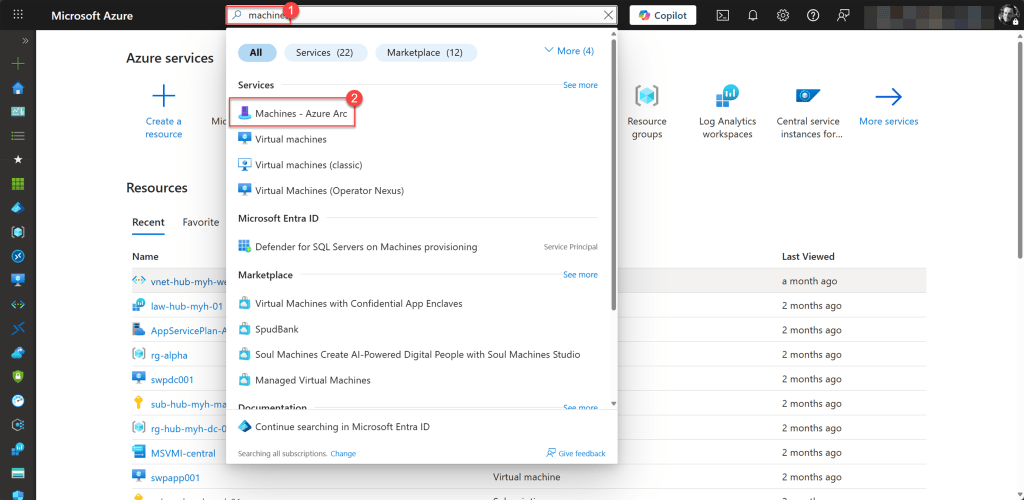
On the Azure Arc Machines page, you can view the status of all your onboarded machines under the Arc Agent Status field.
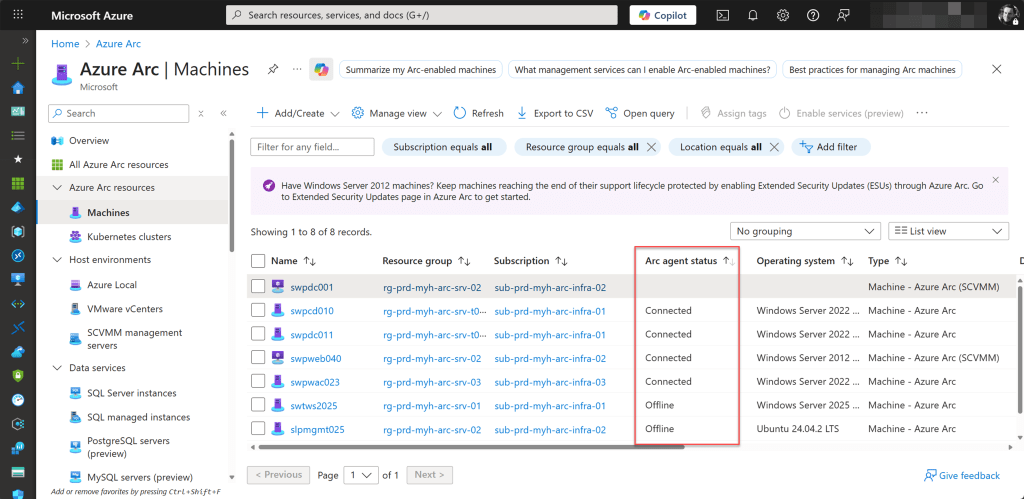
A status of Connected indicates that the Azure Connected Machine agent is running and communicating properly with Azure.
If the agent is not functioning correctly, the status will show Disconnected or Offline.
Disconnected indicates that the agent normally sends heartbeat messages to Azure to confirm connectivity, but Azure has not received these messages for more than 15 minutes.
Offline means that the machine itself is not reachable by Azure. This can occur if the server is powered off, disconnected from the network, or experiencing issues that prevent communication with Azure.
Unlike Disconnected, which refers specifically to the agent’s heartbeat, Offline reflects a complete loss of connectivity or visibility in Azure.
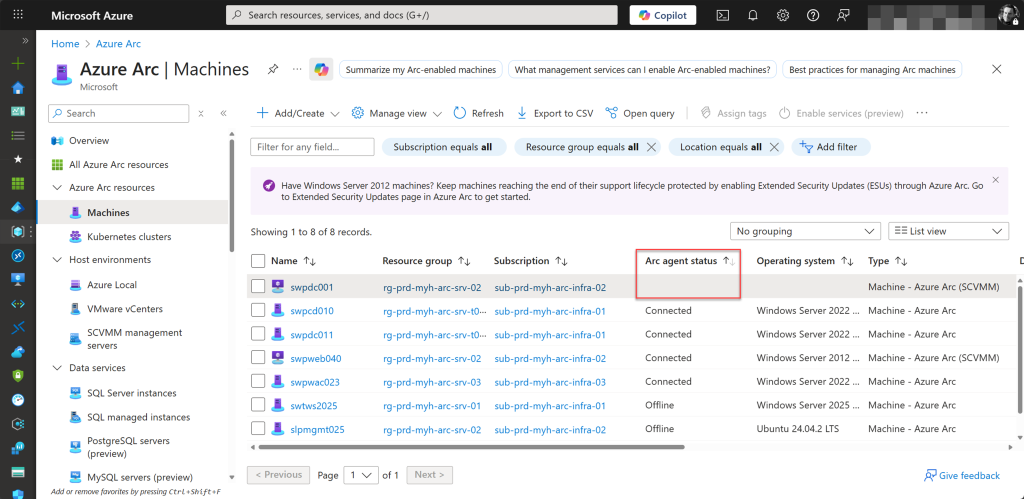
A blank space under the Arc agent status field indicates that the machine was onboarded through a platform like SCVMM or vSphere, where virtual hardware management is enabled but guest management is not.
In this scenario, the machine appears on the Azure Arc Machines page, but no Arc agent status is displayed because the agent is not installed. Only the virtual hardware can currently be managed or modified, while guest-level management is not available.
Verify the agent installation on a Windows machine
In addition to validating the Azure Connected Machine agent’s connection status via the Azure Portal, you can also verify that the agent is installed and functioning correctly on the onboarded machine itself.
To do this, log in to the Windows machine using an account with sufficient administrative rights.
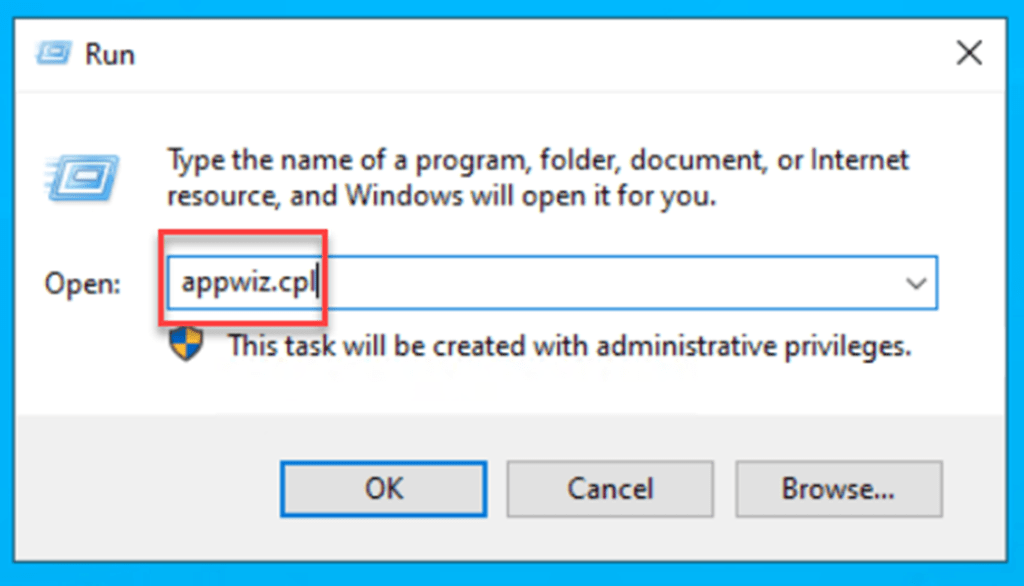
Next, open Run and type in appwiz.cpl to launch Program and Features.
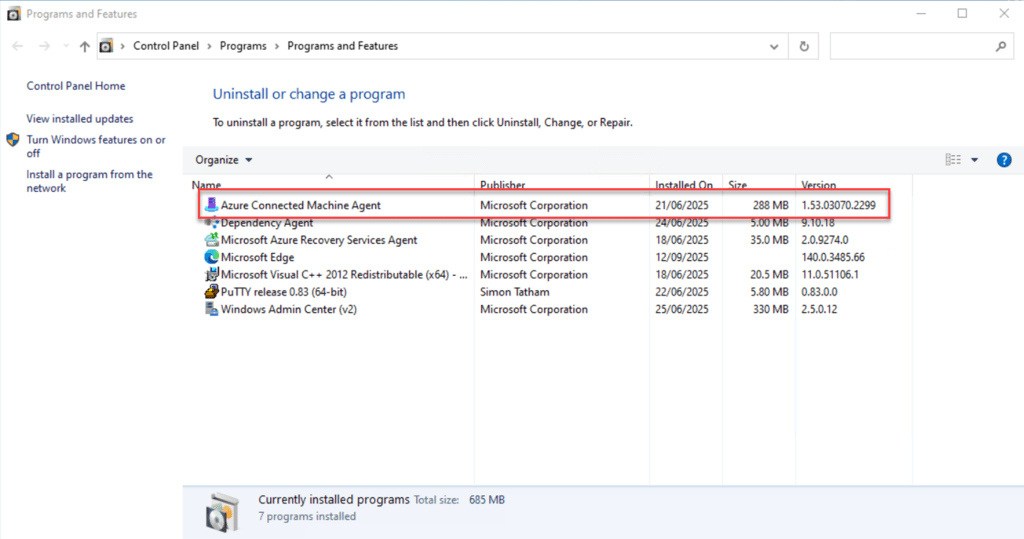
If the machine was successfully onboarded, you will see the Azure Connected Machine Agent listed. This view also shows the current version of the agent that is installed.
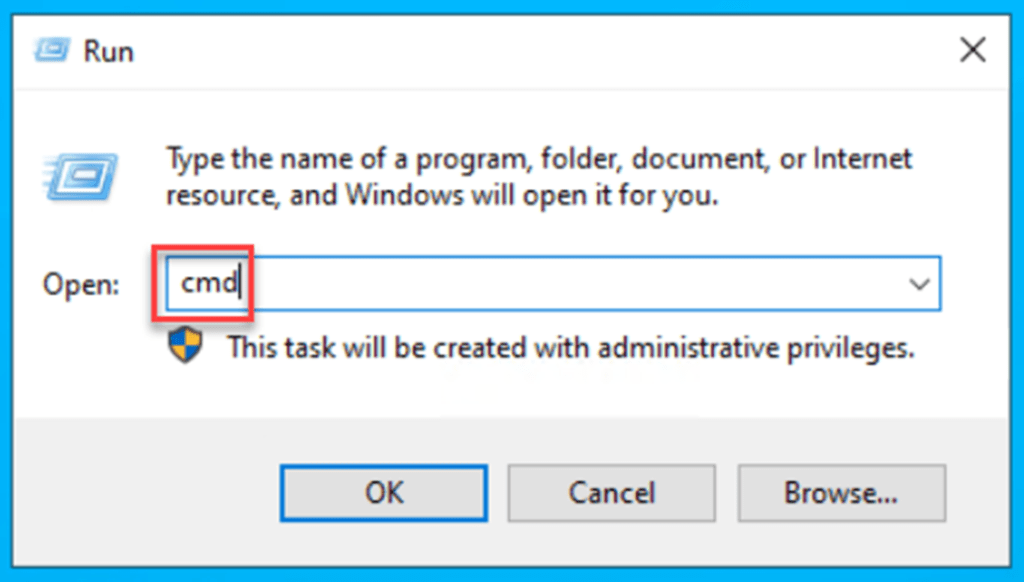
Another way to verify the agent’s version and successful installation is by opening a Command Prompt.
Next, type azcmagent version. This command will show whether the agent is installed and display its current version.
azcmagent version
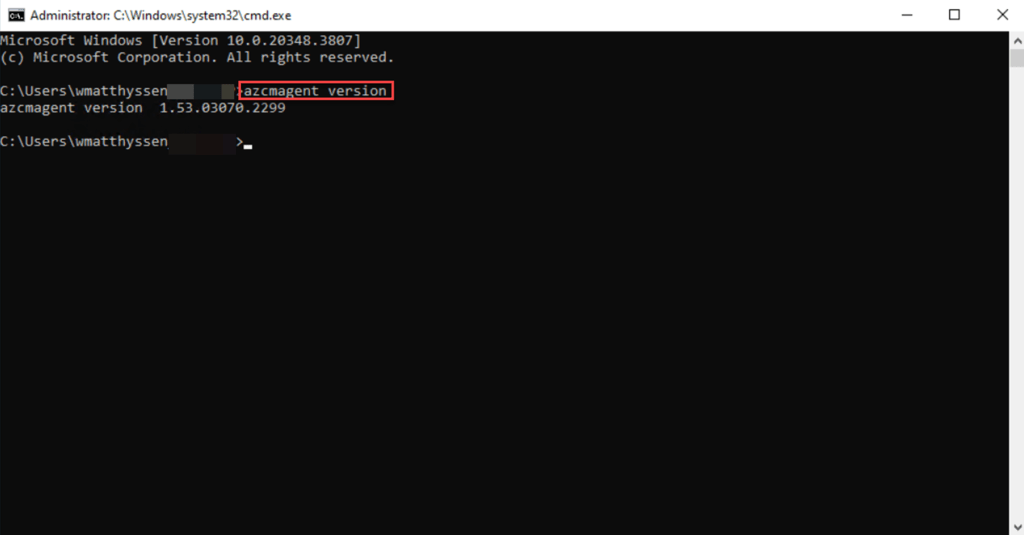
💡This command displays the exact version number of the agent, which is useful not only for verifying that you are running the latest version but also for troubleshooting issues.
In addition to using the azcmagent version command, you can run azcmagent show.
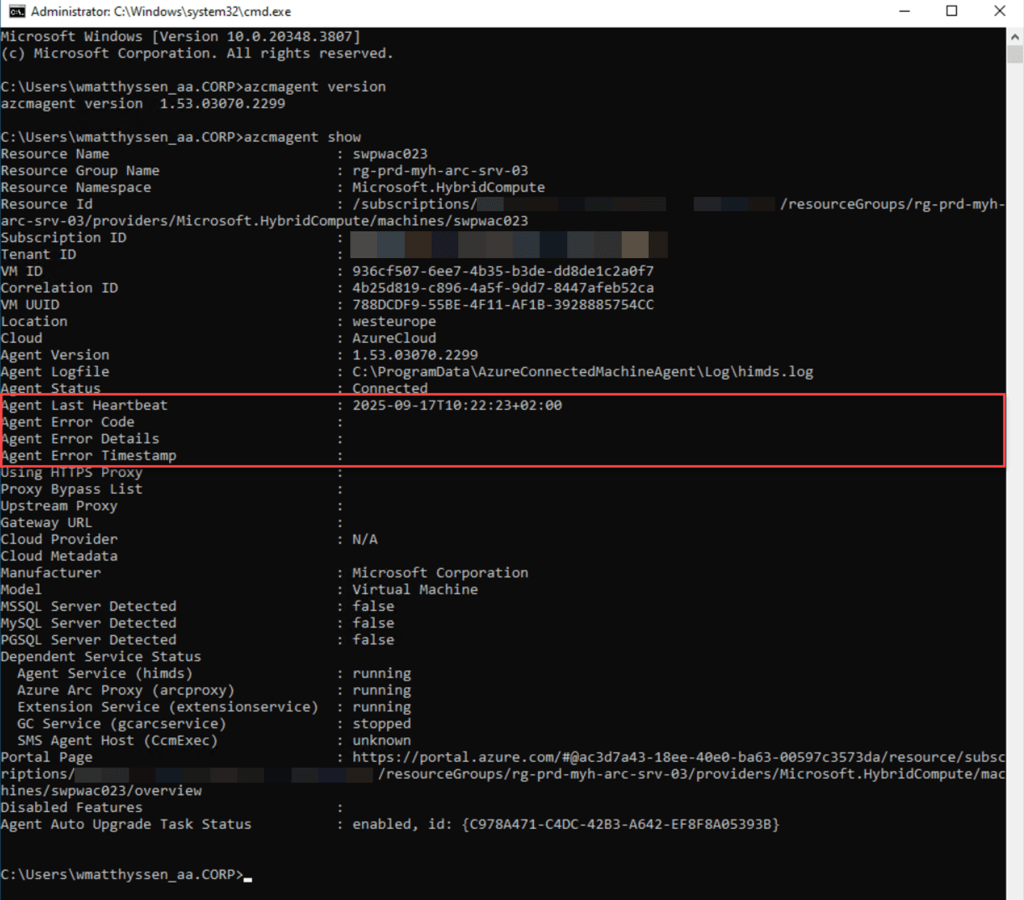
The azcmagent show command provides a range of detailed information about the Azure Connected Machine agent. It displays the agent version, confirming which version is installed. You can also see the connectivity status, which indicates whether the agent is Connected, Disconnected, or Offline.
azcmagent show

Additionally, the command shows configuration details, including the Azure subscription, resource group, and tenant the machine is associated with.
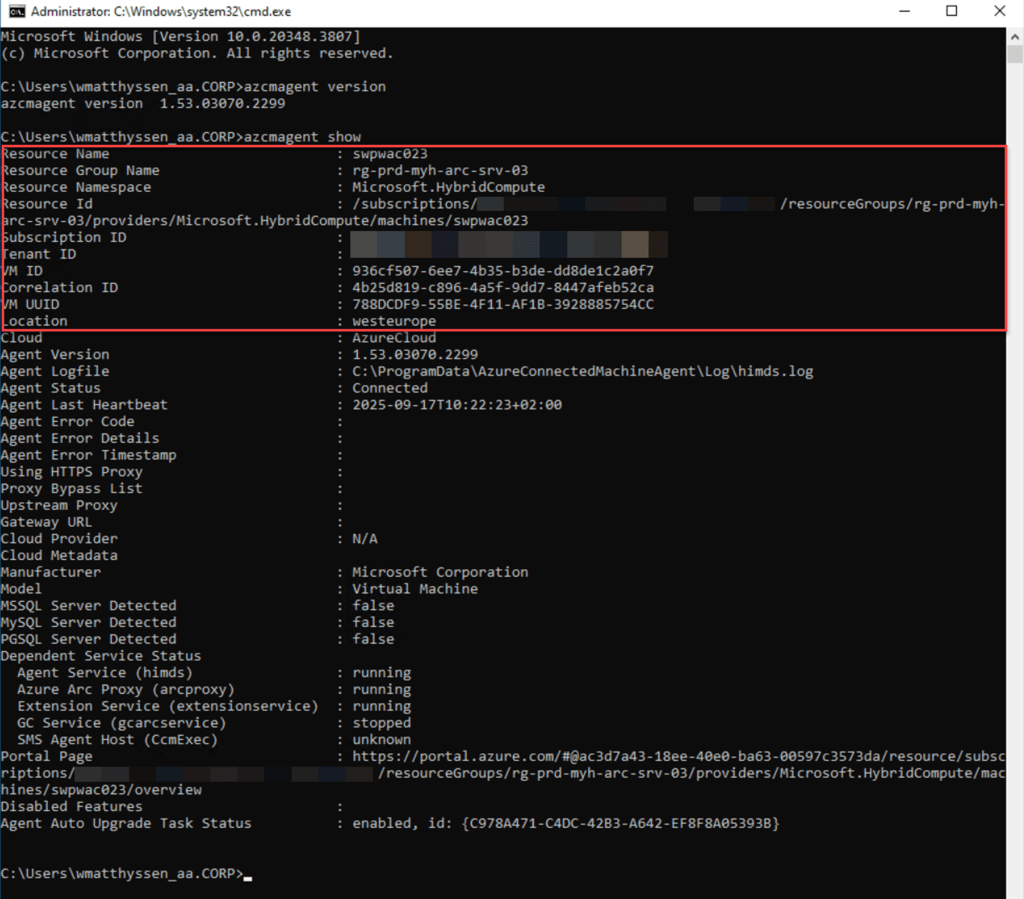
It also displays any installed or enabled extensions and features. Additionally, it provides details about the agent’s heartbeat, last communication time, and any errors, which are useful for troubleshooting connectivity issues.
Verify the agent installation on a Linux machine
Just as you would on an Azure Arc-enabled Windows server, you can also verify the successful installation and operation of the Azure Connected Machine agent on your Arc-enabled Linux servers.
To do this, connect to the Arc-enabled Linux server via SSH (Secure Shell), preferably through a jump server.
I usually use a secured, hardened Windows management server with an SSH client like PuTTY installed, but you can also choose alternatives such as Windows Terminal if you prefer.
To connect, you’ll need the server’s IP address or hostname along with a username and password, or an SSH key.
💡 If you don’t already have PuTTY installed, you can download it from here.
In this example, I’ll be using PuTTY, so start by opening PuTTY on your system.
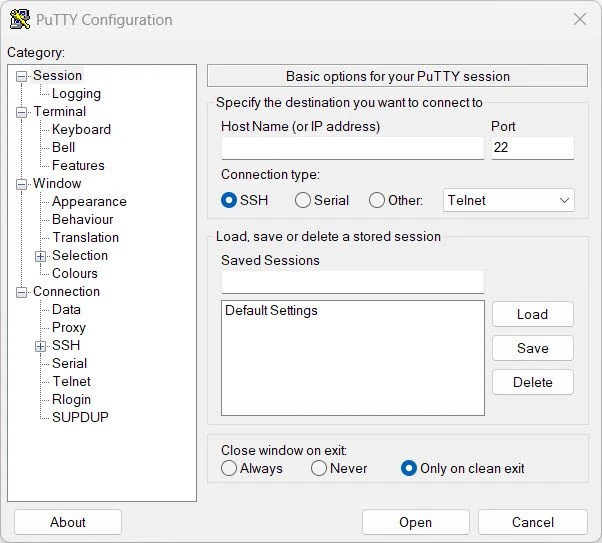
In the Host Name (or IP address) field, enter the server’s IP address or hostname. Make sure the Port is set to 22, which is the default for SSH, and select SSH as the connection type.

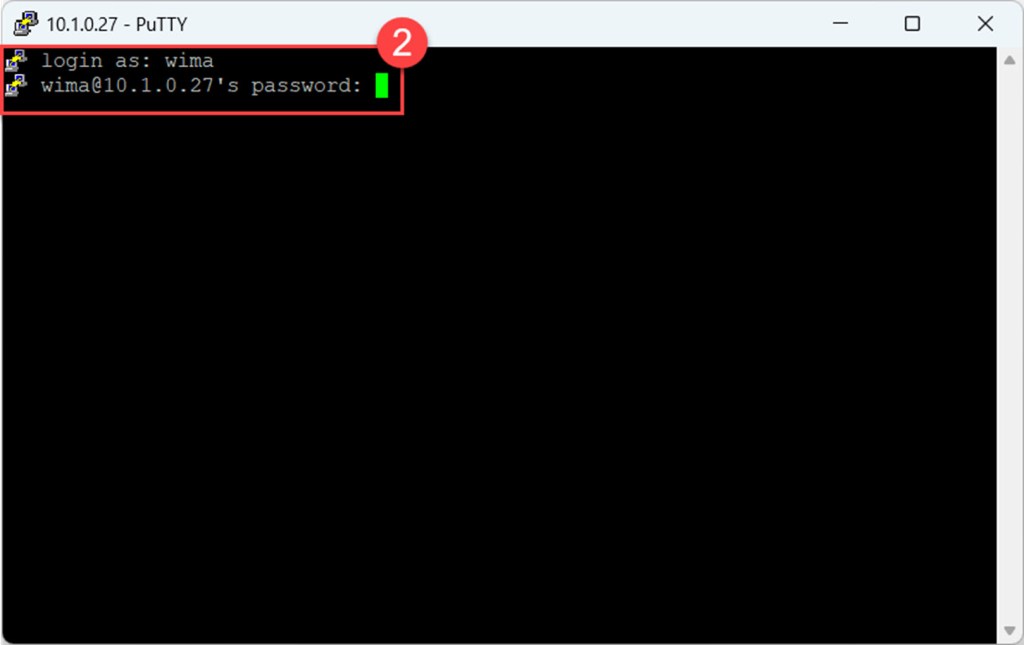
Next, authenticate by entering your username and pressing Enter. Then provide your password, or load your SSH key if one is required.
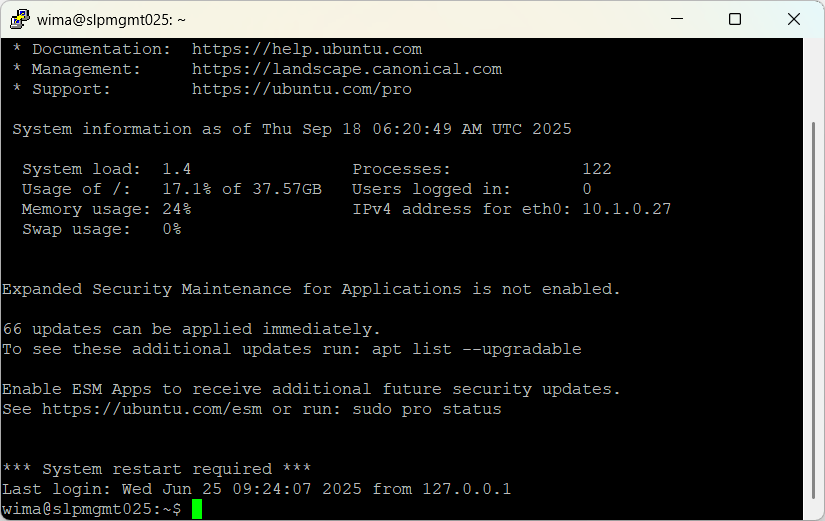
Next, log in as the root user by using the sudo command, followed by su or -i to start a root login shell.
sudo su
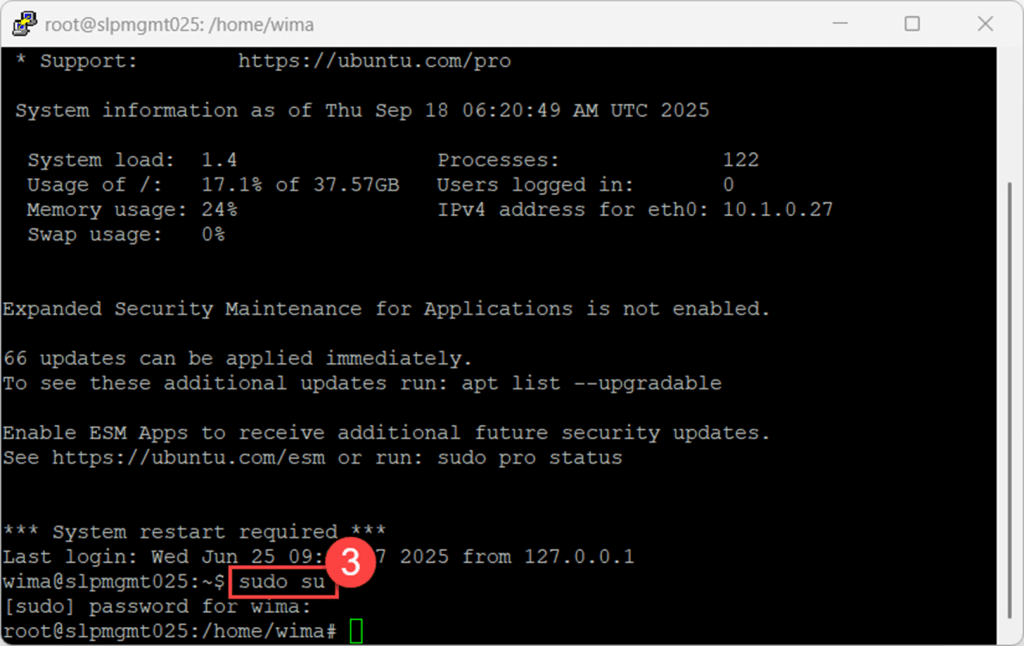
Then, just like on a Arc-enabled Windows server, you can type the azcmagent version command to check whether the agent is installed and see its current version.
azcmagent version
You can also use the azcmagent show command, which provides detailed information about the Azure Connected Machine agent, including the agent version, connectivity status, configuration details, heartbeat, last communication time, and any errors. This information can be very useful for troubleshooting.
azcmagent show

Troubleshoot Azure Connected Machine agent connectivity issues
It’s logical that without proper connectivity, the Azure Connect Machine agent will not function correctly.
The agent relies on a stable network connection to communicate with Azure services, synchronize data, and perform its tasks. Without this connectivity, it cannot authenticate, send or receive updates, or maintain seamless operation, which may lead to errors or disruptions in your workflows.
Ensuring that your machine has a reliable network connection is essential for the agent to function properly. Some time ago, I wrote a blog post about checking the connectivity status of the Azure Connected Machine agent in various ways, which can help you troubleshoot any Arc-related connectivity issues you might encounter.
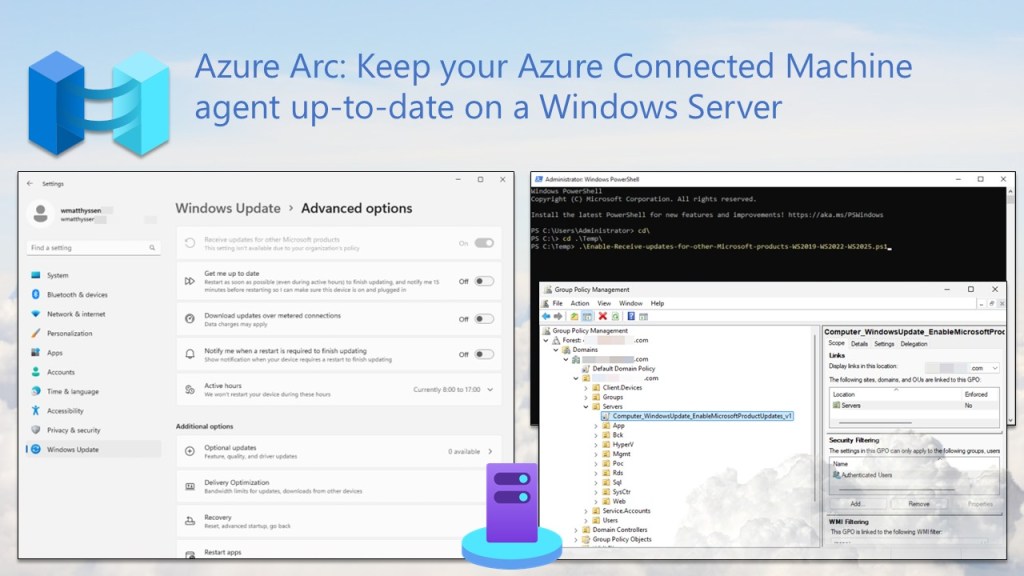
Keep your Azure Connected Machine agent up-to-date on a Windows Server
In addition to troubleshooting and maintaining the Azure Connected Machine agent on onboarded Windows servers, it’s crucial to keep the agent up to date to ensure secure, reliable connectivity.
Regular updates are essential for maintaining a stable, fully supported hybrid environment with Azure Arc. By staying current, your Windows Server machines can take advantage of the latest features, performance improvements, and security enhancements Azure Arc provides.
💡 As of September 2025, the latest Azure Connected Machine agent version is 1.56. For the most current release information, visit the official Microsoft Learn page.
To keep your Azure Connected Machine agent up to date on a Windows Server, you can follow the dedicated blog post I wrote earlier. The steps and methods outlined there, including manual updates, PowerShell, Group Policy, and Azure Update Manager, make it easy to configure and maintain your own hybrid setup.
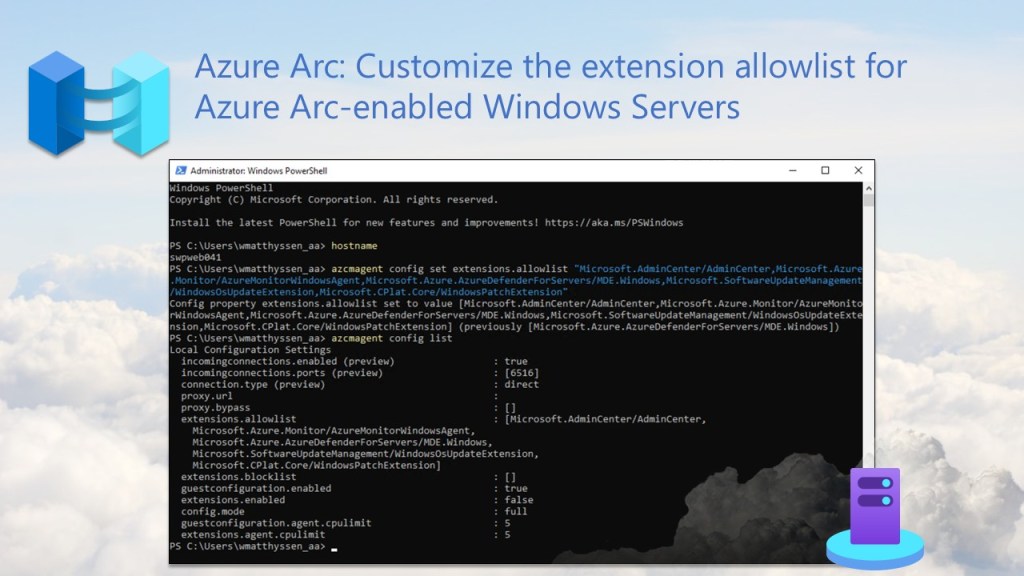
Customize the extension allowlist for Azure Arc-enabled Windows Servers
By default, if you don’t set up an allowlist or blocklist on the Azure Connected Machine agent for an Arc-enabled server, every extension is automatically allowed. That might be convenient, but it’s far from ideal when it comes to security.
💡 The default setting is [ ], wich means “Empty, all extensions allowed”
For stronger protection and easier management, it’s a best practice to configure an allowlist on the Azure Connected Machine agent for any Arc-enabled Windows server.
An allowlist lets you specify exactly which extensions are permitted, helping prevent unauthorized or accidental deployments, whether they’re initiated by well-meaning admins or malicious actors.
In a previous blog post, I cover the steps and various allowlist configurations, and explain how you can customize the Arc onboarding script with an allowlist to help keep your Arc deployments secure and well-managed.
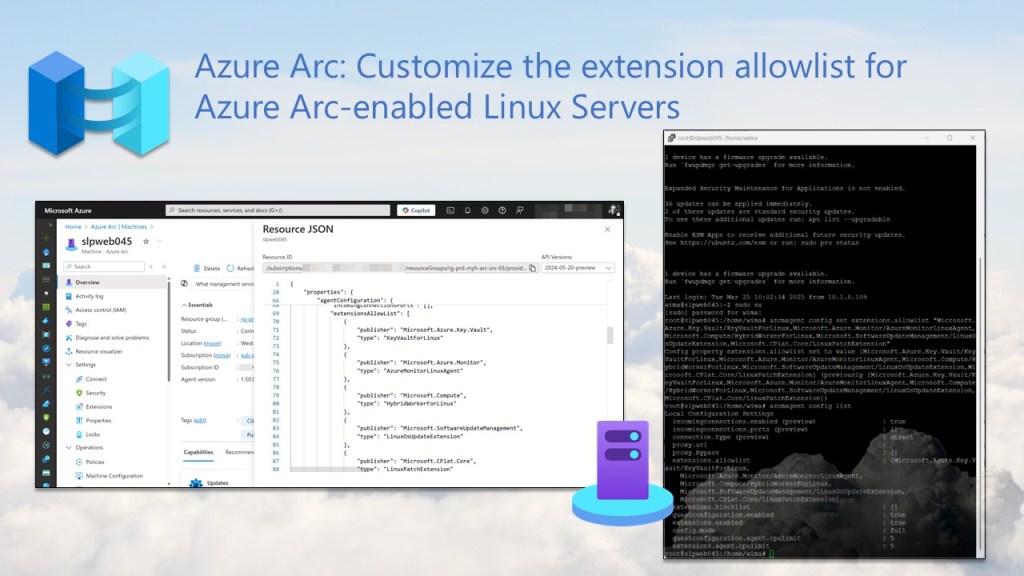
Customize the extension allowlist for Azure Arc-enabled Linux Servers
Just as you can on an Azure Arc-enabled Windows server, you can also customize the extension allowlist on your Azure Arc-enabled Linux servers as a best practice for stronger security and easier management.
By specifying which extensions are allowed, you improve security and reduce the risk of unauthorized or accidental deployments or tasks, whether triggered by legitimate users or potential attackers.
To set this up on your Arc-enabled Linux servers, follow the steps and allowlist configurations outlined in this blog post to keep your Arc deployments secure and well-managed.
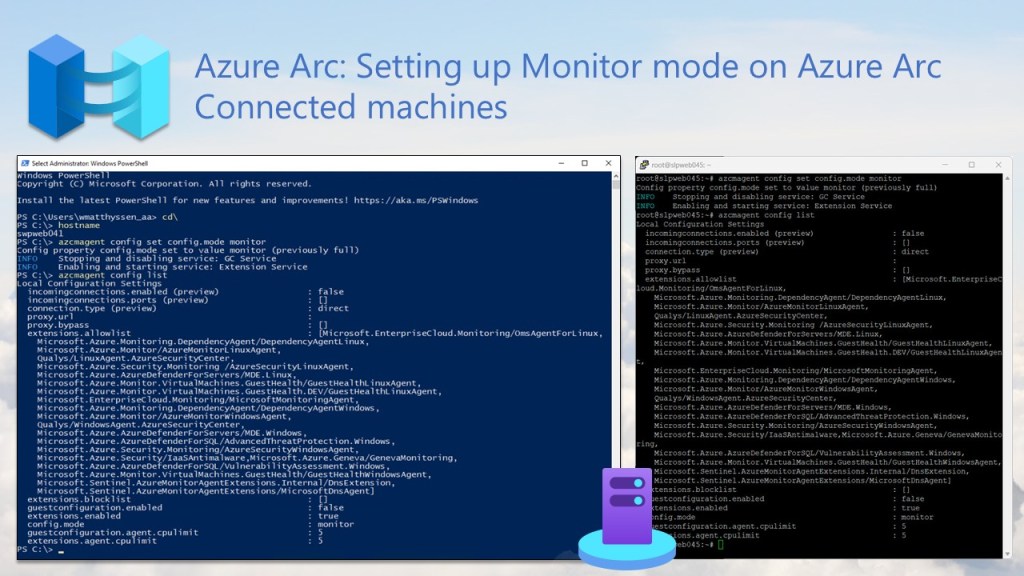
Setting up Monitor mode on Azure Arc Connected machines
If you’re a Hybrid Cloud or IT administrator who uses Azure Arc primarily for monitoring and security, especially to collect logs from connected systems, it’s important to configure the Azure Connected Machine Agent correctly, either before or after deployment, by enabling Monitor mode.
This setup keeps things lightweight and focused on monitoring and security while limiting other management features.
Follow the steps and configurations in my earlier blog post to keep your Arc deployments secure, monitoring-friendly, and well-managed.
Uninstall the Connected Machine agent and clean up related resources on Windows using a PowerShell script
Removing the Azure Arc Connected Machine agent isn’t always as simple as running an uninstall command. Leftover files, registry keys, and other configuration artifacts can cause issues if you plan to reinstall the agent, repurpose the server, or decommission it securely.
When you manually uninstall the agent from a Windows machine using, for example, Programs and Features (appwiz.cpl), it typically removes the agent itself without issues.
However, this method doesn’t clean up all related folders, files, registry keys, and other artifacts. The PowerShell script I created handles this complete cleanup, providing a clear, reliable process that saves time and helps maintain a stable, secure environment.
You can find this in a blog post I wrote some time ago, where I show how to completely remove the Azure Arc Connected Machine agent from a Windows machine using a PowerShell script.

Conclusion
That wraps up this blog post. I’m excited to be part of the Azure Back to School event and hope you find the content both valuable and insightful.
The steps I’ve shared should help you troubleshoot issues with the Azure Connected Machine agent whenever they arise.
If you have questions or suggestions, feel free to reach out on X (@wmatthyssen) or leave a comment. I’ll be glad to help!
Enjoy exploring the content, and happy learning!
 Wim Matthyssen
0 comments on “Azure Back to School 2025 – Azure Arc Under the Hood: Troubleshooting the Azure Connected Machine agent”