
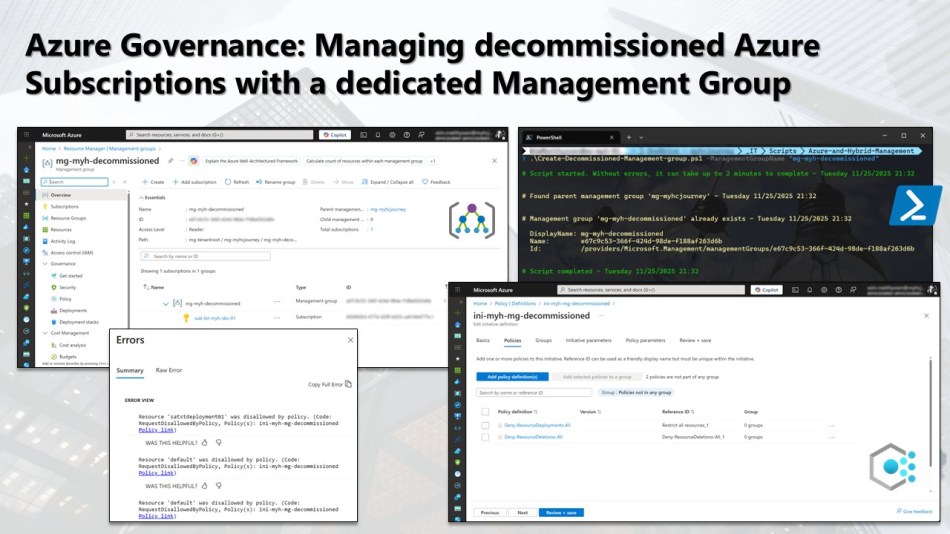
In this blog post, you’ll learn how to use a dedicated Management Group to store any decommissioned Azure subscriptions in your environment.
Managing Azure subscriptions can get messy, especially when some are no longer active but still need to be retained. Instead of deleting them outright, a better approach is to decommission these subscriptions and store them in a dedicated Management Group.
Why? Because this method keeps inactive subscriptions organized, secure, and compliant, while preventing new resource deployments, modification of existing resources, deletion of resources, and unnecessary access.
What does Decommissioning mean?
Decommissioning an Azure subscription is like putting it on hold. You’re not deleting any data or history; instead, you’re freezing the environment so no new activity can occur. This preserves everything for future reference while preventing additions or changes. If needed, you can reactivate the subscription later.
Why Decommission instead of Delete?
There are several important reasons:
- Compliance and Audits: Organizations often need to retain subscription metadata for financial, security, or legal audits.
- Cost Control: By removing access, disabling deployments, and enforcing strict policies, you prevent unnecessary spending while keeping the subscription available for future use.
- Historical Data: Decommissioning ensures you preserve valuable billing history, tags, and automation references.
That’s why, in this blog post, I will explain how to create such a management group and which policies you can use to block new deployments, modifications, and deletions for the subscriptions under this management group.
Table of Contents
- Prerequisites
- Use an Azure PowerShell script to create a decommissioned Management group in your hierarchy
- Create a custom policy to restrict resource creation or modification
- Create a custom policy to restrict the deletion of resources
- Create a new policy initiative for the decommissioned Management group
- Assing the initiative to the decommissioned Management group
- Validate the proper functioning of the policy initiative on the decommissioned Management group
- Conclusion
Prerequisites
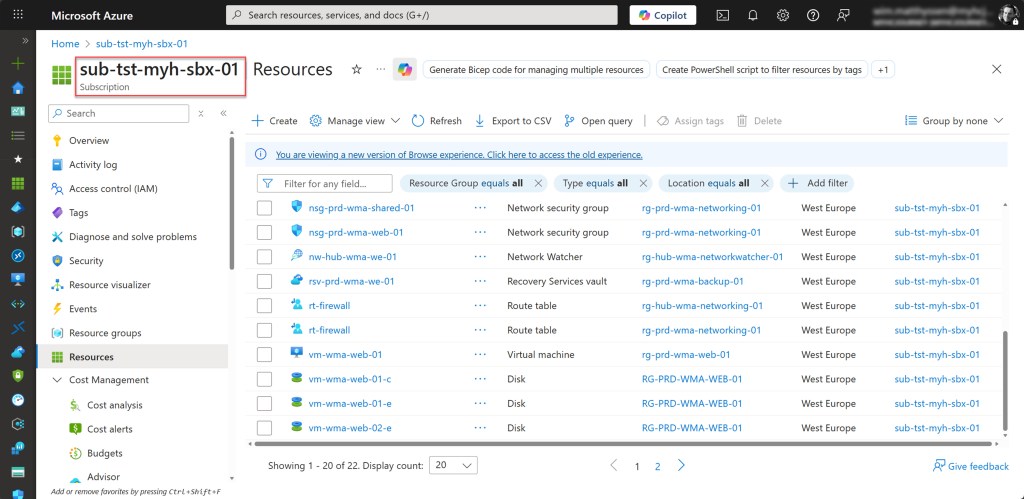
- An existing Azure subscription that you can easily use for testing, preferably a Sandbox subscription with non-critical test resources.
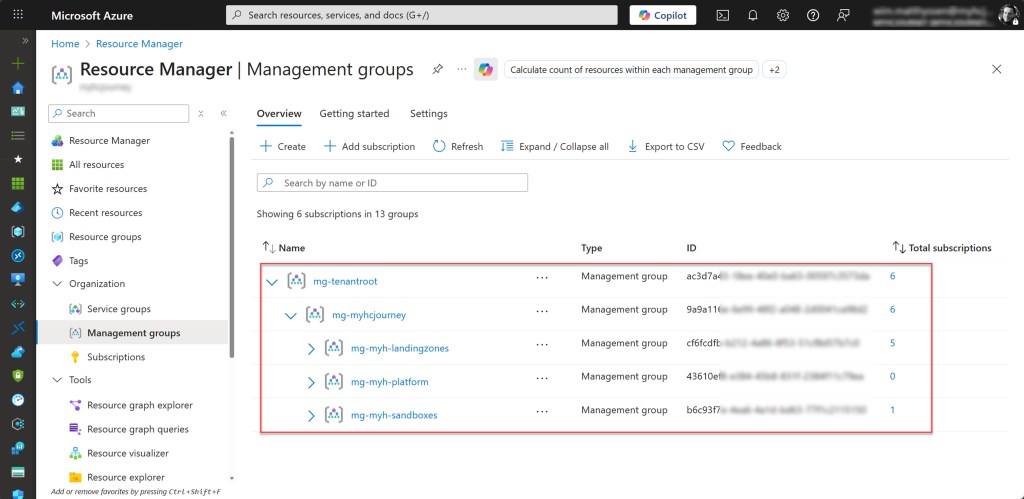
- An existing Management Groups hierarchy.
- An Azure Administrator account with the required RBAC roles to run the script, create policies and initiatives, and assign the initiative at the Management group level.
- At least version 10.4.1 of the Azure Az PowerShell module is required.
Use an Azure PowerShell script to create a decommissioned Management Group in your hierarchy
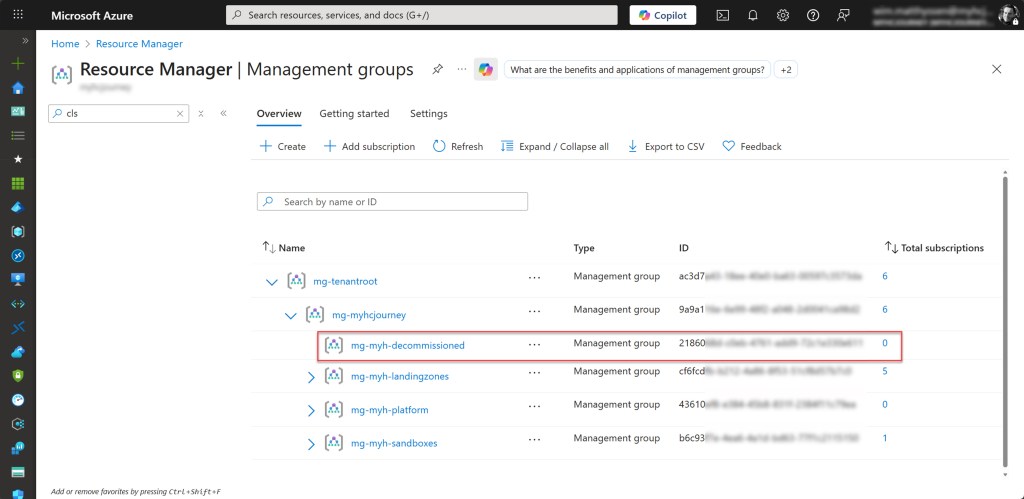
To automate the deployment of the decommissioned child management group within my Azure test environment, I wrote the following Azure PowerShell script, which I also use in customer environments.
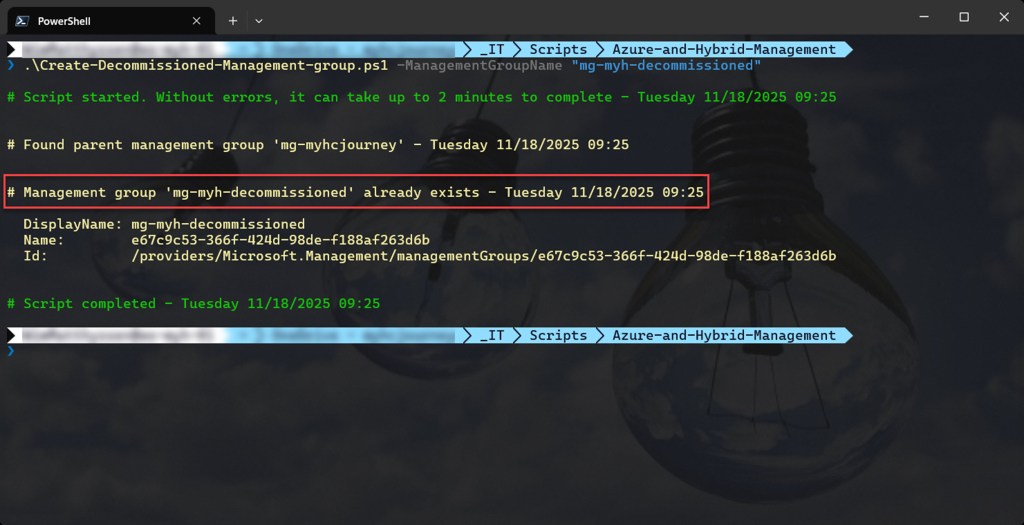
The script creates the management group, or skips this step if it already exists, and places it under the company management group. In my environment, this group is located beneath the Tenant Root Group (Root Management Group). In addition to that, the script will also carry out all of the actions listed below.
- Remove the breaking change warning messages.
- Suppress Azure PowerShell breaking change warning messages to avoid unnecessary output.
- Write script started.
- Permission checks.
- Get parent Management group.
- Create the decommissioned Management Group if it does not exist.
- Write script completed.
You can use the script by saving it as Create-Decommisioned-Management-group.ps1 or downloading it from GitHub.
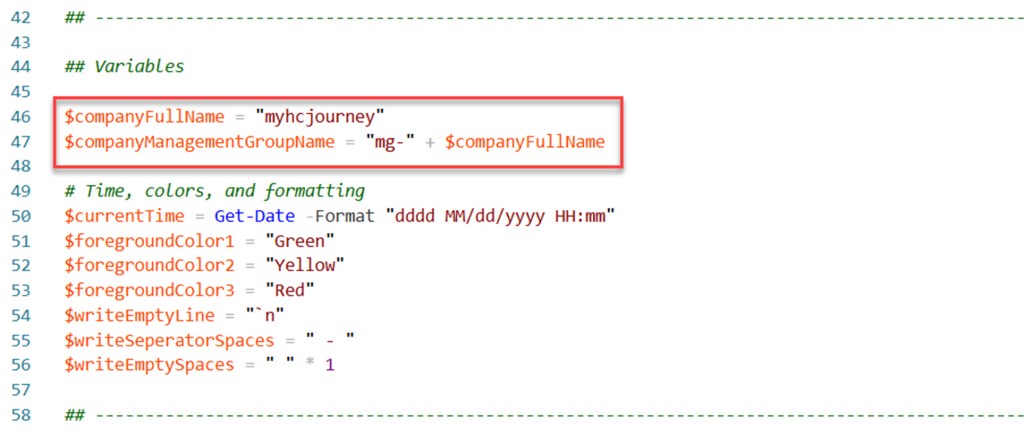
Before running the script, customize all variables to fit your environment. Once updated, you can execute the script using Windows Terminal, Visual Studio Code, Windows PowerShell, or directly from Cloud Shell.
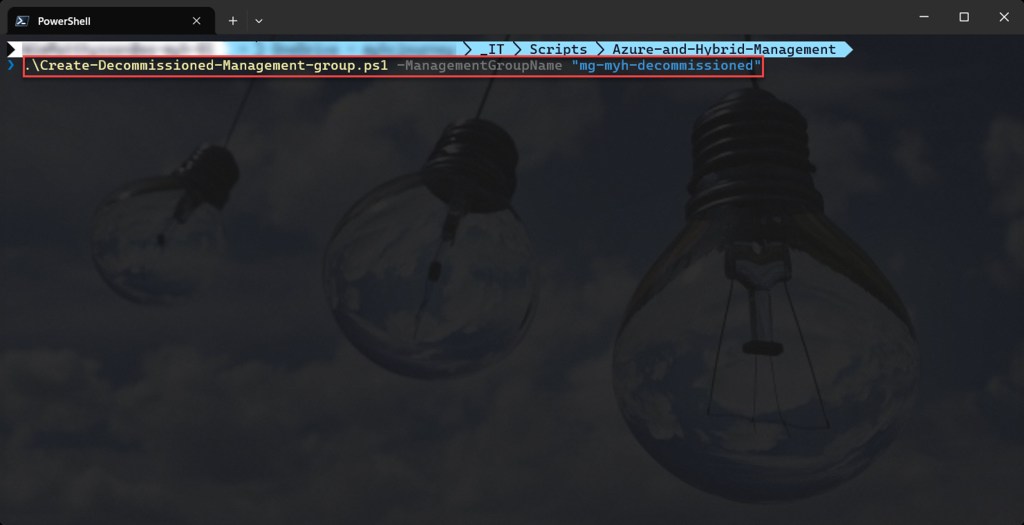
You can then run the script with the required parameters.
.\Create-Decommissioned-Management-group.ps1 -ManagementGroupName <"your Management group name here">
<#
.SYNOPSIS
A script used to create an Azure management group for decommissioning Azure subscriptions, placed under the company management group hierarchy.

.DESCRIPTION
A script used to create an Azure management group for decommissioning Azure subscriptions, placed under the company management group hierarchy.
Suppress Azure PowerShell breaking change warning messages to avoid unnecessary output.
Write script started.
Permission checks.
Get parent Management group.
Create the decommissioned Management Group if it does not exist.
Write script completed.

.NOTES
Filename:       Create-Decommissioned-Management-group.ps1
Created:        11/08/2025
Last modified:  17/11/2025
Author:         Wim Matthyssen
Version:        1.1
PowerShell:     Azure PowerShell and Azure Cloud Shell
Requires:       PowerShell Az (v10.4.1)
Action:         Change variables where needed to fit your needs.
Disclaimer:     This script is provided "As Is" with no warranties.

.EXAMPLE
Connect-AzAccount
Get-AzTenant (if not using the default tenant)
Set-AzContext -tenantID "xxxxxxxx-xxxx-xxxx-xxxxxxxxxxxx" (if not using the default tenant)
.\Create-Decommissioned-Management-group.ps1 -ManagementGroupName <"your Management group name here">

Example: .\Create-Decommissioned-Management-group.ps1 -ManagementGroupName "mg-myh-decommissioned"

.LINK
https://wmatthyssen.com/2025/08/12/azure-governance-managing-decommissioned-azure-subscriptions-with-a-dedicated-management-group/
#>

## ---------------------------------------------------------------------------------------------------------------------------------------------------------------------------------------------------

## Parameters

param(
    [parameter(Mandatory=$true)][ValidateNotNullOrEmpty()][string] $managementGroupName
)

## ---------------------------------------------------------------------------------------------------------------------------------------------------------------------------------------------------

## Variables

$companyFullName = "myhcjourney"
$companyManagementGroupName = "mg-" + $companyFullName

# Time, colors, and formatting
$currentTime = Get-Date -Format "dddd MM/dd/yyyy HH:mm"
$foregroundColor1 = "Green"
$foregroundColor2 = "Yellow"
$foregroundColor3 = "Red"
$writeEmptyLine = "`n"
$writeSeperatorSpaces = " - "
$writeEmptySpaces = " " * 1

## ---------------------------------------------------------------------------------------------------------------------------------------------------------------------------------------------------

## Suppress Azure PowerShell breaking change warning messages to avoid unnecessary output.

Set-Item -Path Env:\SuppressAzurePowerShellBreakingChangeWarnings -Value $true | Out-Null
Update-AzConfig -DisplayBreakingChangeWarning $false | Out-Null
Update-AzConfig -DisplayRegionIdentified $false | Out-Null
$WarningPreference = "SilentlyContinue"

## ---------------------------------------------------------------------------------------------------------------------------------------------------------------------------------------------------

## Write script started.

Write-Host ($writeEmptyLine + "# Script started. Without errors, it can take up to 2 minutes to complete" + $writeSeperatorSpaces + $currentTime) -foregroundcolor $foregroundColor1 $writeEmptyLine

## ---------------------------------------------------------------------------------------------------------------------------------------------------------------------------------------------------

## Permission checks.

try {
    $context = Get-AzContext
    if ($null -eq $context) {
        Write-Host ($writeEmptyLine + "# Error: Not connected to Azure. Please run Connect-AzAccount first." + $writeSeperatorSpaces + $currentTime) `
        -foregroundcolor $foregroundColor3 $writeEmptyLine
        exit 1
    }

    Get-AzManagementGroup -ErrorAction Stop | Out-Null
} catch {
    Write-Host ($writeEmptyLine + "# Error: Insufficient permissions or not connected to Azure: $($_.Exception.Message)" + $writeSeperatorSpaces + $currentTime) `
    -foregroundcolor $foregroundColor3 $writeEmptyLine
    exit 1
}

## ---------------------------------------------------------------------------------------------------------------------------------------------------------------------------------------------------

## Get parent Management group.

try {
    $allManagementGroups = Get-AzManagementGroup
    $companyParentGroup = $allManagementGroups | Where-Object {$_.DisplayName -eq $companyManagementGroupName}

    if ($null -eq $companyParentGroup) {
        Write-Host ($writeEmptyLine + "# Parent management group '$companyManagementGroupName' not found in list:" + $writeSeperatorSpaces + $currentTime) `
        -foregroundcolor $foregroundColor3 $writeEmptyLine
        Write-Host "Existing Management Groups:"
        $allManagementGroups | Select-Object DisplayName, Name | Format-Table
        throw "Parent management group '$companyManagementGroupName' not found"
    }

    # Explicitly fetch parent with -Expand to populate Children
    $companyParentGroup = Get-AzManagementGroup -GroupName $companyParentGroup.Name -Expand -ErrorAction Stop

    Write-Host ($writeEmptyLine + "# Found parent management group '$($companyParentGroup.DisplayName)'" + $writeSeperatorSpaces + $currentTime) -foregroundcolor $foregroundColor2 $writeEmptyLine
} catch {
    Write-Host ($writeEmptyLine + "# Error: $($_.Exception.Message)" + $writeSeperatorSpaces + $currentTime) -foregroundcolor $foregroundColor3 $writeEmptyLine
    exit 1
}

## ---------------------------------------------------------------------------------------------------------------------------------------------------------------------------------------------------

## Create the decommissioned Management Group if it does not exist.

try {
    # Check if group already exists by searching children
    $existing = $null

    if ($null -ne $companyParentGroup.Children -and $companyParentGroup.Children.Count -gt 0) {
        $existing = $companyParentGroup.Children | Where-Object {
            ($_.DisplayName -ne $null) -and
            ($_.DisplayName.Trim().ToLower() -eq $managementGroupName.Trim().ToLower())
        } | Select-Object -First 1
    }

    if ($null -ne $existing) {
        Write-Host ($writeEmptyLine + "# Management group '$managementGroupName' already exists" + $writeSeperatorSpaces + $currentTime) -foregroundcolor $foregroundColor2 $writeEmptyLine
        Write-Host $writeEmptySpaces "DisplayName: $($existing.DisplayName)" -foregroundcolor $foregroundColor2
        Write-Host $writeEmptySpaces "Name:        $($existing.Name)" -foregroundcolor $foregroundColor2
        Write-Host $writeEmptySpaces "Id:          $($existing.Id)" -foregroundcolor $foregroundColor2 $writeEmptyLine
    } else {
        # Group doesn't exist, create it
        $decommissionedManagementGroupGuid = (New-Guid).Guid
        $newGroup = New-AzManagementGroup `
            -GroupName $decommissionedManagementGroupGuid `
            -DisplayName $managementGroupName `
            -ParentId $companyParentGroup.Id `
            -ErrorAction Stop

        Write-Host ($writeEmptyLine + "# Management group '$managementGroupName' created successfully" + $writeSeperatorSpaces + $currentTime) -foregroundcolor $foregroundColor2 $writeEmptyLine
        Write-Host ($writeEmptyLine + "# New management group details:") -foregroundcolor $foregroundColor2 $writeEmptyLine
        Write-Host $writeEmptySpaces "DisplayName: $($newGroup.DisplayName)" -foregroundcolor $foregroundColor2
        Write-Host $writeEmptySpaces "Name:        $($newGroup.Name)" -foregroundcolor $foregroundColor2
        Write-Host $writeEmptySpaces "Id:          $($newGroup.Id)" -foregroundcolor $foregroundColor2 $writeEmptyLine
    }

} catch {
    Write-Host ($writeEmptyLine + "# Critical Error: $($_.Exception.Message)" + $writeSeperatorSpaces + $currentTime) -foregroundcolor $foregroundColor3 $writeEmptyLine
    exit 1
}

## ---------------------------------------------------------------------------------------------------------------------------------------------------------------------------------------------------

## Write script completed.

Write-Host ($writeEmptyLine + "# Script completed" + $writeSeperatorSpaces + $currentTime) -foregroundcolor $foregroundColor1 $writeEmptyLine

## ---------------------------------------------------------------------------------------------------------------------------------------------------------------------------------------------------

Create a custom policy to restrict resource creation or modification
To create the custom policy that restricts the creation of new resources while keeping existing resources unchanged and preventing modifications, we start by duplicating the built-in “Allowed resource types” policy.
To do this, open Policy from the sidebar icon or by typing “Policy” into the global search bar. On the Policy | Definitions page, use the Search bar to look up “Allowed resource types” and select the corresponding built-in policy.

On the Allowed resource types policy page, select Duplicate definition.

Then, for the Definition location, select the top-level company management group (or the equivalent in your environment). In my case, this is mg-myhcjourney.
Also provide a clear Name and Description for the definition, and select the existing General category.

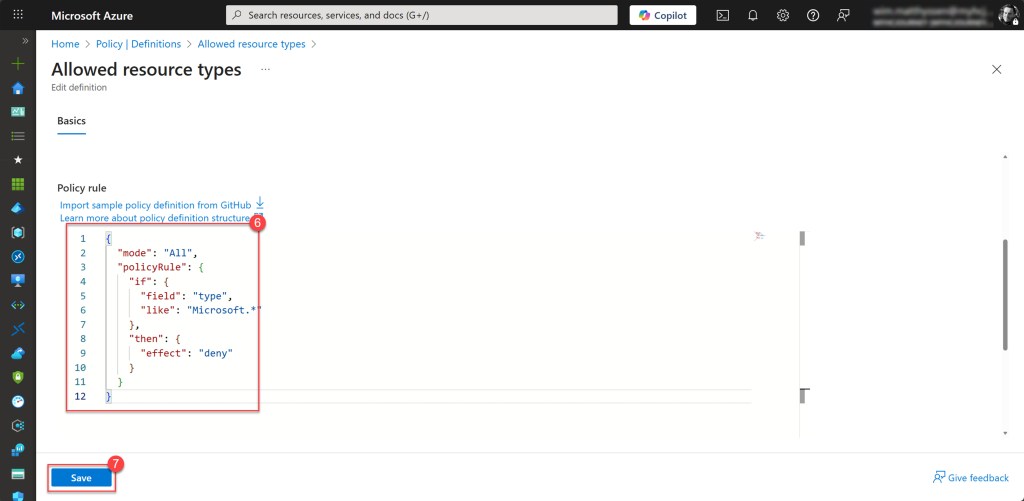
Then scroll down and update the Policy rule so it matches the example below, or simply copy the JSON snippet provided here. When you’re done, click Save to store the policy definition.
{
  "mode": "All",
  "policyRule": {
    "if": {
      "field": "type",
      "like": "Microsoft.*"
    },
    "then": {
      "effect": "deny"
    }
  }
}
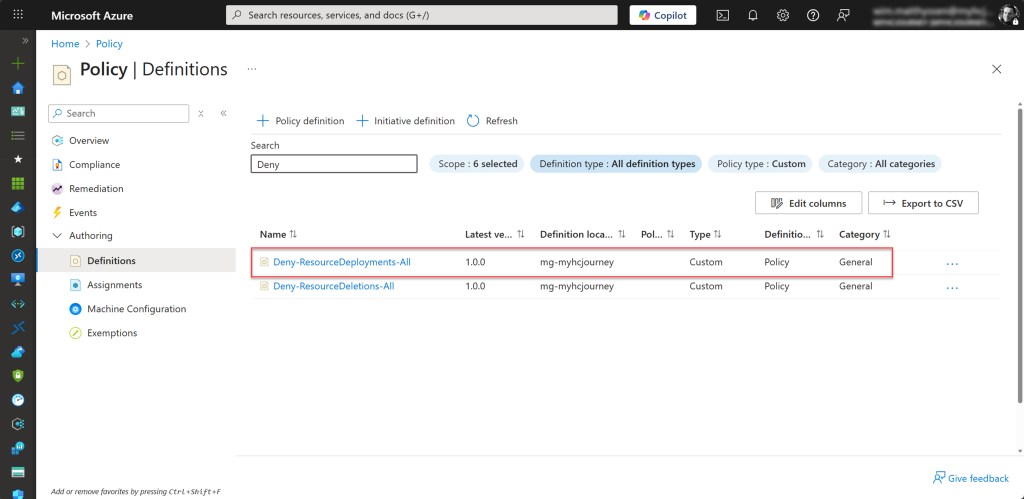
If everything went correctly, the policy definition, in my case Deny-ResourceDeployments-All, should now be created in the selected definition location.
Create a custom policy to restrict the deletion of resources
To create the custom policy that restricts the deletion of resources, we again begin by duplicating the built-in “Allowed resource types” policy, just as we did when creating the previous policy.
To do this, as before, open Policy from the sidebar icon or by typing “Policy” into the global search bar. On the Policy | Definitions page, use the search bar to find “Allowed resource types” and select the corresponding built-in policy.
On the Allowed resource types policy page, select Duplicate definition.
Then, for the Definition location, select the top-level company management group (or the equivalent in your environment). In my case, this is mg-myhcjourney.
Also provide a clear Name and Description for the definition, and select the existing General category.
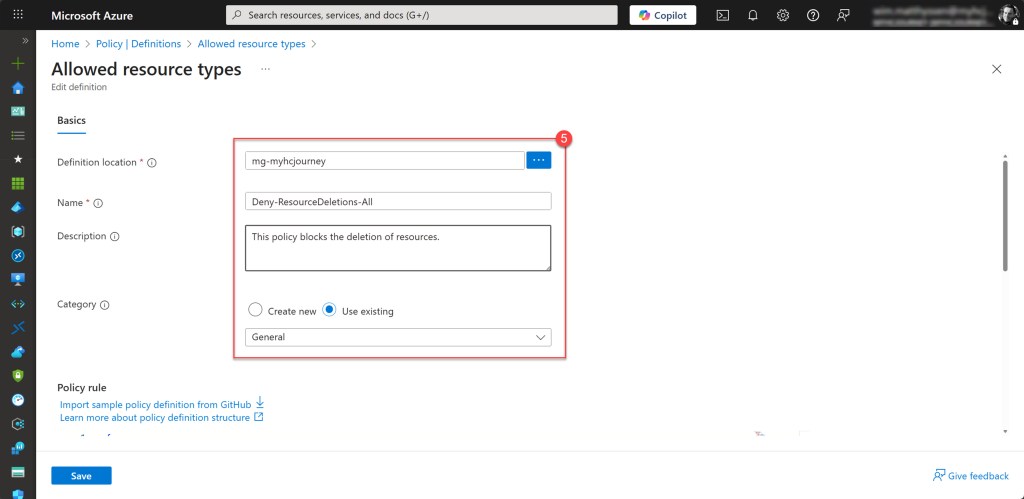
Then scroll down and update the Policy rule so it matches the example below, or simply copy the JSON snippet provided here. When you’re done, click Save to store the policy definition.
{
  "mode": "Indexed",
  "policyRule": {
    "if": {
      "field": "type",
      "like": "*"
    },
    "then": {
      "effect": "denyAction",
      "details": {
        "actionNames": [
          "delete"
        ],
        "cascadeBehaviors": {
          "resourceGroup": "deny"
        }
      }
    }
  }
}
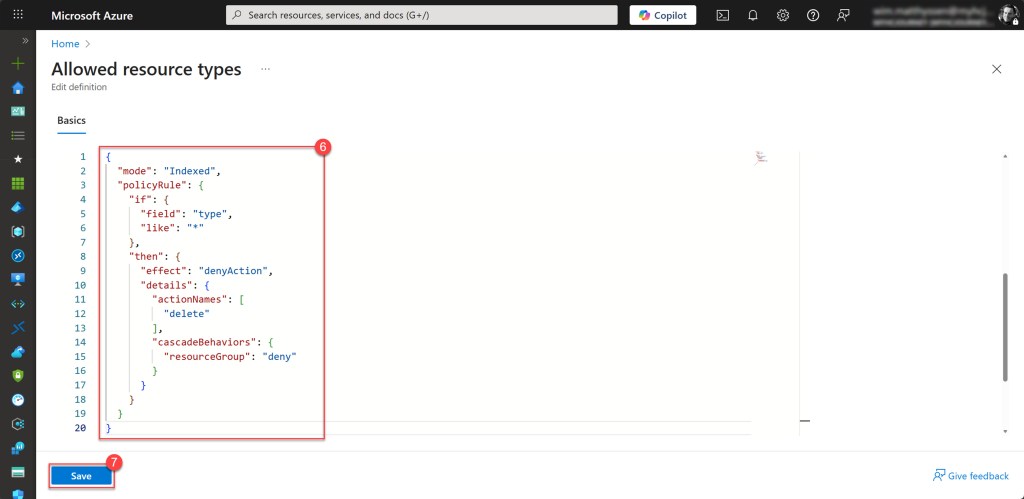
If everything went correctly, the policy definition, in my case Deny-ResourceDeletions-All, should now be created in the selected definition location.

Create a new Policy Initiative for the decommissioned Management group
After creating the custom policy definition, the next step is to create a new policy initiative that includes this policy. You can easily add more built-in or custom policies later, for example a policy that stops all running Azure VMs. This initiative can then be assigned to the decommissioned management group.
To get started, go back to the Policy page, select Definitions, and then click on Initiative definition.
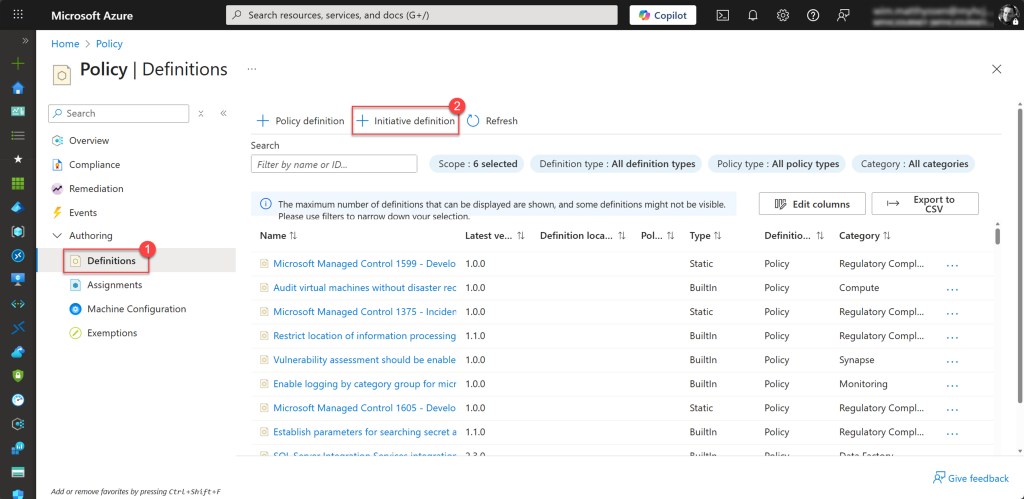
To continue, just like with the custom policy, select the top-level company management group (or the equivalent in your environment) as the definition location. In my case, this is mg-myhcjourney.
Provide a clear Name and Description for the initiative, select the existing General category, and then click Next.

On the Policy tab, click Add policy definition(s), then search for and select the previously created custom policy definitions. Once selected, click Review + create.
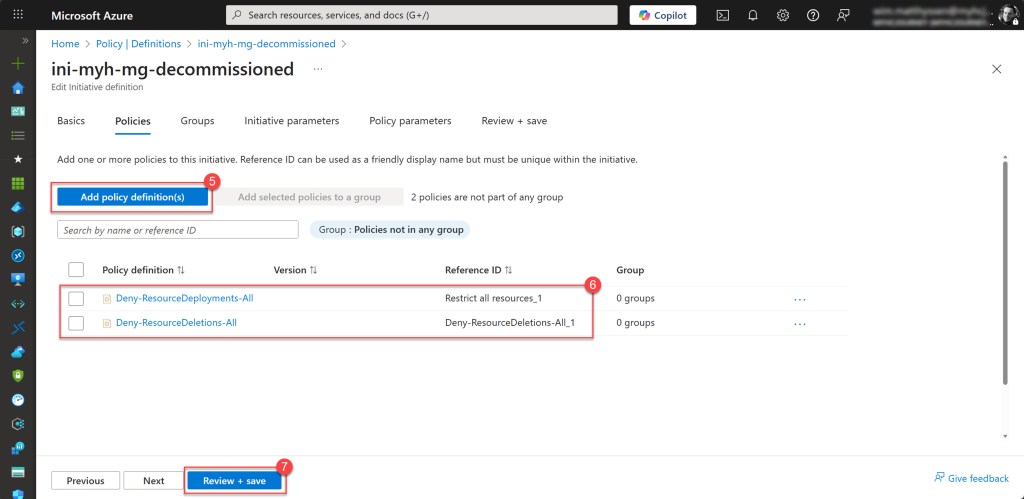
On the final tab, click Create and wait for the notification confirming that the new initiative definition has been saved successfully.


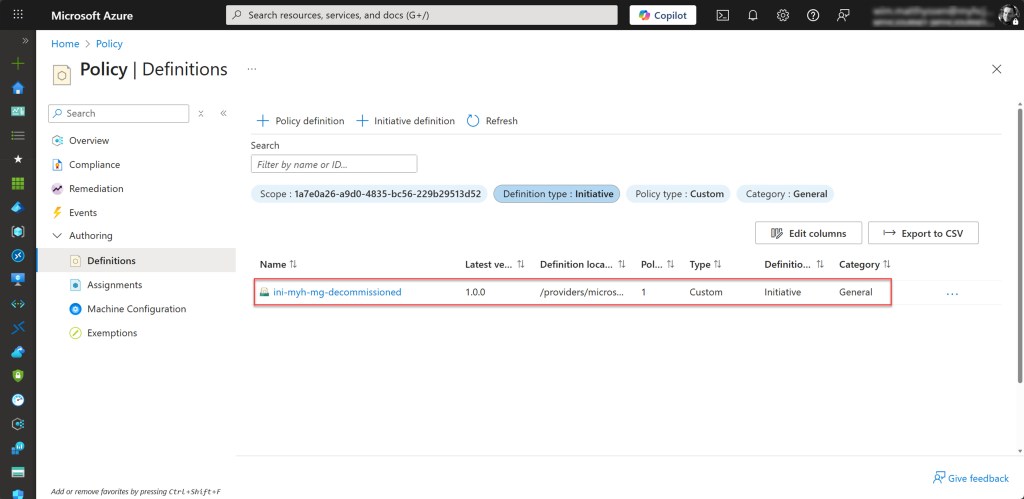
Assing the initiative to the decommissioned Management group
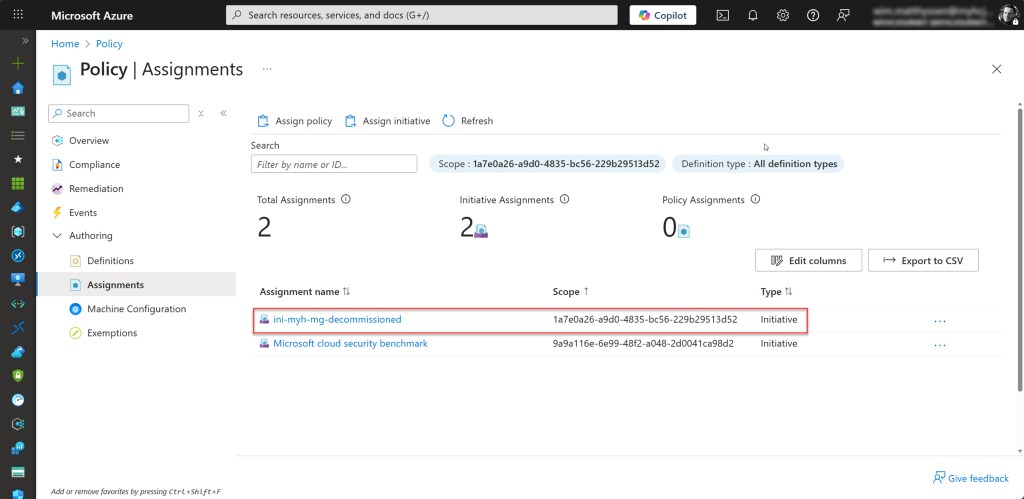
To assign the initiative to a specific scope, in this case the decommissioned management group, open the Policy page, select Assignments, and then click Assign initiative.

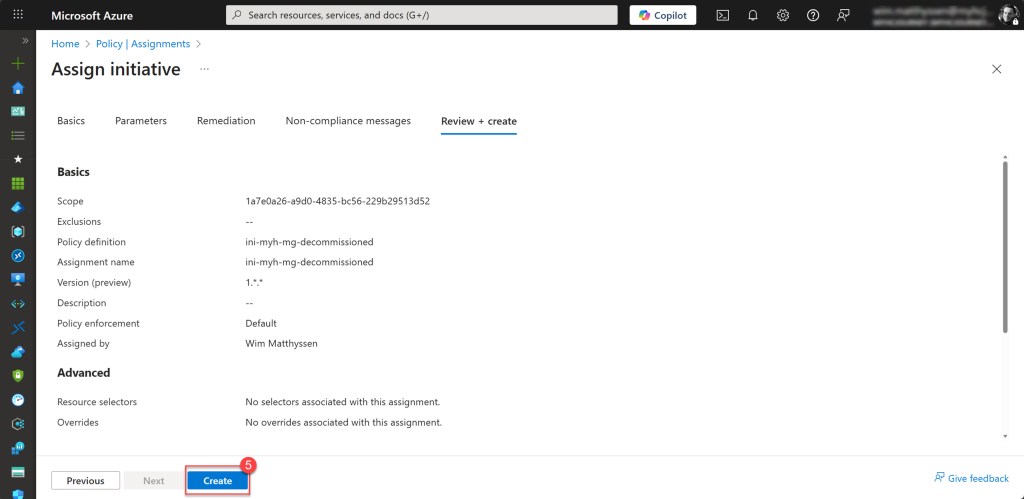
Next, select the decommissioned management group as the scope (the Management Group ID will be displayed when selected). In the Initiative definition field, choose the initiative you just created (in my case, ini-myh-mg-decommissioned).
Specify the Assignment name, which I usually keep the same as the initiative name. Scroll down, leave the remaining settings as they are, and then click Review + create.

Then click Create to assign the initiative to the decommissioned Management group.
Validate the proper functioning of the policy initiative on the decommissioned Management group
To validate that everything is working correctly, simply move a subscription, preferably a Sandbox Azure subscription such as in my case “sub-tst-myh-sbx01”, under the decommissioned Management Group. Once that’s done, the specific initiative will be applied immediately.

Now you can see that all originally deployed resources are still part of the subscription, but when someone tries to deploy a new resource, this is no longer possible.


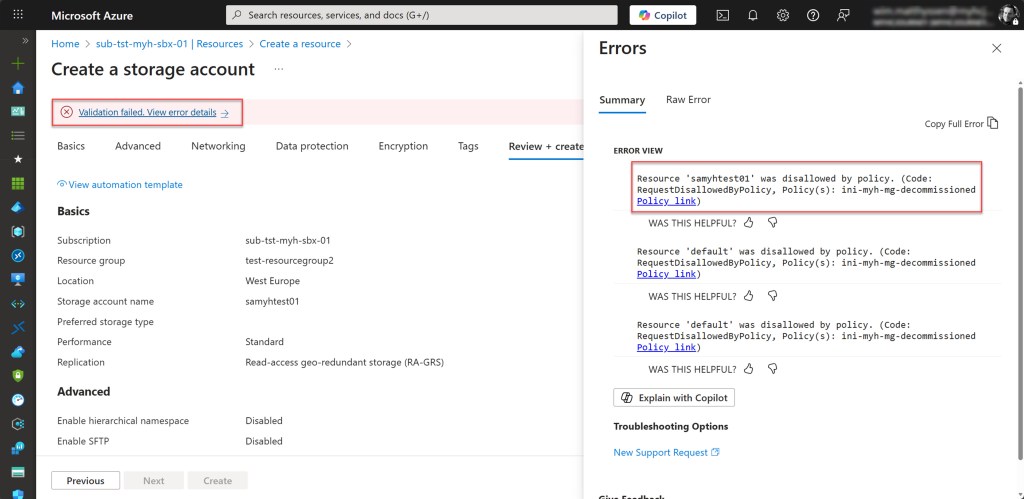
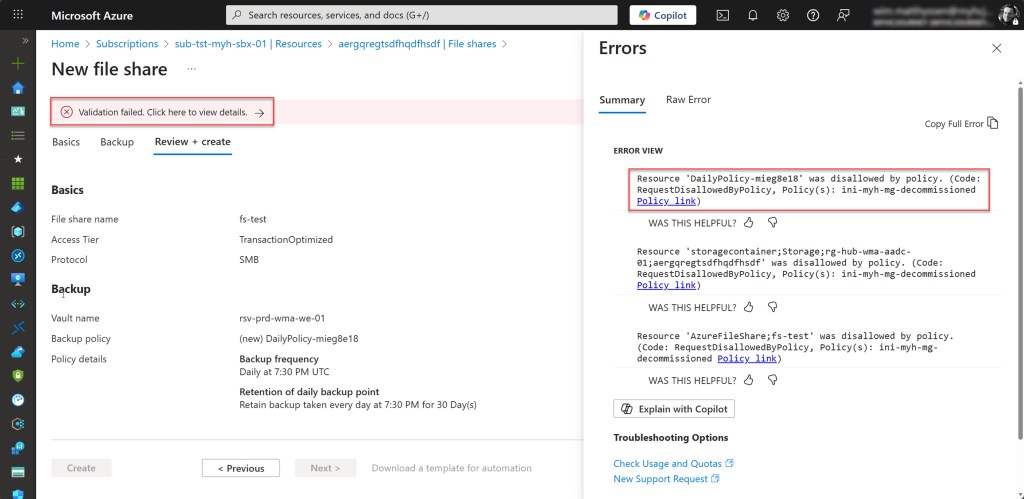
Also, modifying an existing resource is no longer possible.

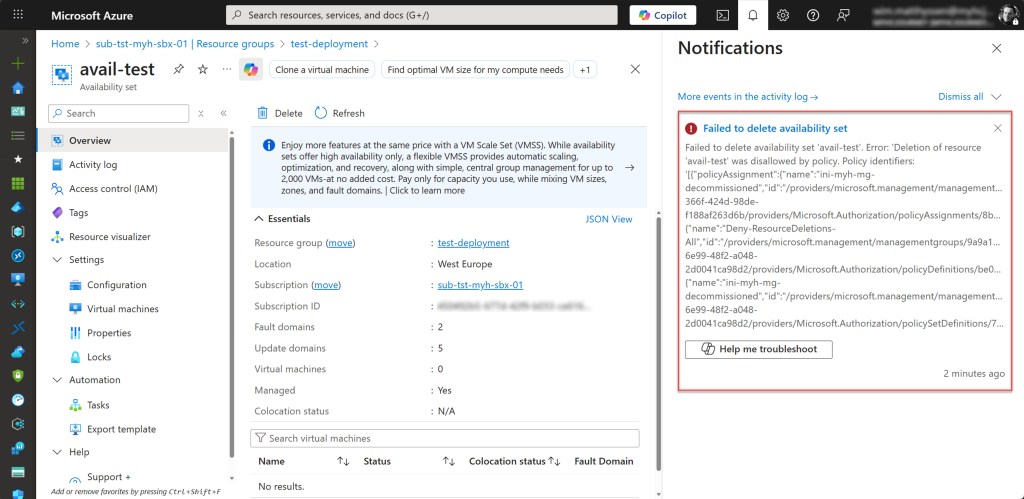
And of course, deleting a resource is also not possible.

Conclusion
In this blog post, I’ve shown how to create a management group for storing your decommissioned Azure subscriptions and apply policies that block new deployments, modifications, and deletions on these subscriptions.
I hope you find these steps helpful whenever you need to decommission an Azure subscription in your environment. If you have any questions or suggestions, feel free to reach out on X (@wmatthyssen) or leave a comment below.
 Wim Matthyssen
0 comments on “Azure Governance: Managing decommissioned Azure Subscriptions with a dedicated Management Group”