

In this blog post, I’ll walk you through troubleshooting connectivity issues with the Azure Connected Machine agent and highlight some of the most common causes along with their fixes.
If you’re already running Azure Arc in your environment, you know the agent relies on a stable network connection to work correctly. Without dependable access, it can’t communicate with Azure services, sync data, or perform its tasks.
When that connection fails the agent may be unable to authenticate, send or receive updates, or keep your workloads operating smoothly. This is why maintaining a consistent and reliable network connection is essential to the agent’s performance and to your overall operations.
So that’s why in this blog post I will show you how to check network settings, verify agent status, and address the most frequent problems that interrupt communication with Azure.
Table of Contents
- Prerequisites
- Verify the agent connection status in the Azure Portal
- Verify agent connectivity on a Windows machine
- Verify agent connectivity on a Linux machine
- Conclusion
Prerequisites
- A server (physical or virtual) running Windows Server 2019, 2022, or 2025 that is onboarded in Azure Arc.
- A server (physical or virtual) running a supported Linux distribution that is onboarded in Azure Arc.
- An Azure administrator account with at least the Reader role on the resource group or subscription is required to view Arc-connected machines. If changes need to be made, the account should also have the Azure Connected Machine Resource Administrator role, preferably assigned through membership in a security group.
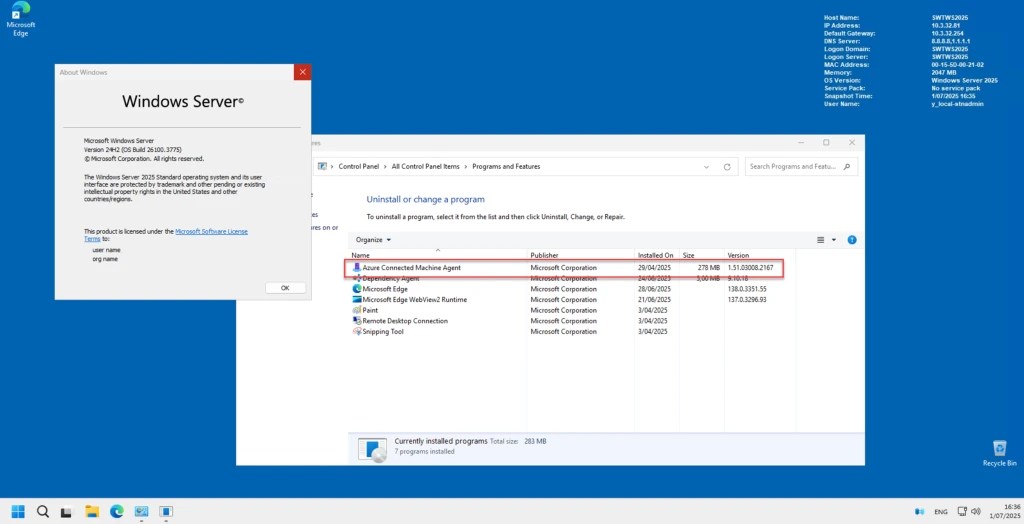


Verify the agent connection status in the Azure Portal
After completing the onboarding steps, the first thing you need to do is verify that the agent is running as expected. One place to check this is in the Azure Portal.
First, log in to the Azure Portal using an account with the appropriate Azure role-based access control (RBAC) permissions. At a minimum, the Reader role is required.
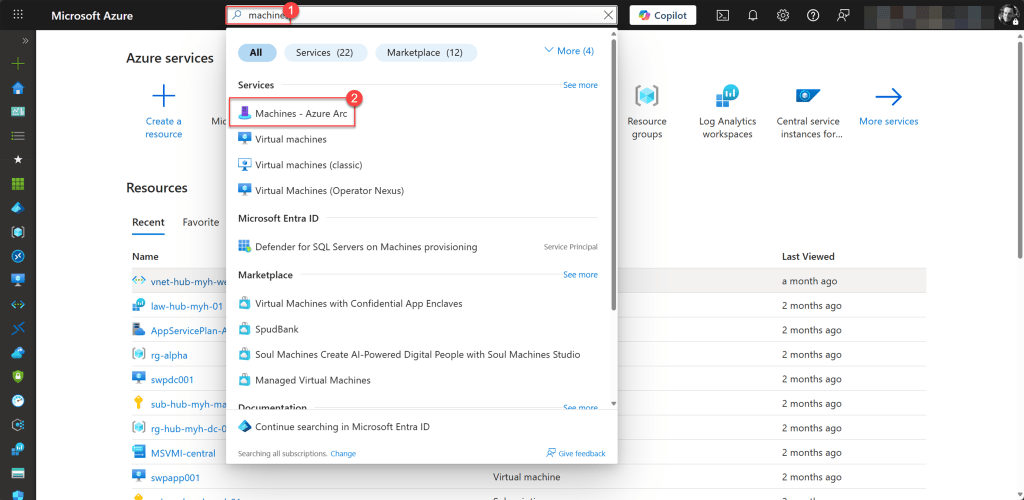
On the Azure Arc Machines page, you can view the status of all your onboarded machines under the Arc Agent Status field.
The Arc agent can have any of the following statuses:
- Connected
- Disconnected
- Offline
- Blank
A status of Connected indicates that the Azure Connected Machine agent is running and communicating properly with Azure.

If the agent is not functioning correctly, the status will show Disconnected or Offline.
Disconnected indicates that the agent, which normally sends heartbeat messages to Azure to confirm connectivity, has not been heard from for more than 15 minutes. This status appears when Azure stops receiving these regular heartbeats, signaling a temporary loss of communication between the machine and Azure Arc.
Common causes include the agent being stopped or unhealthy, issues with related services such as the Azure Hybrid Instance Metadata Service, network or firewall problems, authentication errors, or the machine being unreachable. Once the underlying issue is resolved, the agent typically reconnects, and the status returns to Connected within a few minutes.

💡On Windows, the Azure Connected Machine agent uses these services: Azure Hybrid Instance Metadata Service (himds.exe), ExtensionService (gc_extension_service.exe), and ArcProxy (arcproxy.exe). On Linux, it runs the following services: Hybrid Instance Metadata Service (himdsd.service), Extension Agent (gc_linux_service), and Azure Arc Proxy Service (arcproxy).
Offline means that the machine itself is not reachable by Azure. This can occur if the server is powered off, disconnected from the network, or experiencing issues that prevent communication with Azure.

Unlike Disconnected, which refers specifically to the agent’s heartbeat, Offline reflects a complete loss of connectivity or visibility in Azure.
This can happen if the machine is no longer running, has been deleted or decommissioned, the Azure Connected Machine agent has been removed while the resource remains in Azure, there is a major network or DNS outage, issue, or misconfiguration, firewall rules have changed, or the machine’s network interface (NIC) is malfunctioning or disabled.


To resolve this status, start the machine if it is stopped. If the machine has already been decommissioned, remove the corresponding resource from Azure to keep the environment clean.
Verify that the NIC is functioning properly and ensure that the Internet connection and any Azure Arc communication channels are working as expected. If you discover a network, hardware, firewall, or DNS issue, address it to restore connectivity.
As a final possible status, a blank Arc agent status field can appear. This indicates the machine was onboarded through a platform such as SCVMM or vSphere, where virtual hardware management is enabled but guest management is not.

In this scenario, the machine appears on the Azure Arc Machines page, but no Arc agent status is displayed because the agent is not installed. Only the virtual hardware can currently be managed or modified, while guest-level management is not available.
If you connect to the VMware vCenter or SCVMM management server resource, you can verify this. Simply navigate to Host Environments, open the relevant hosted environment resource, and locate the machine.
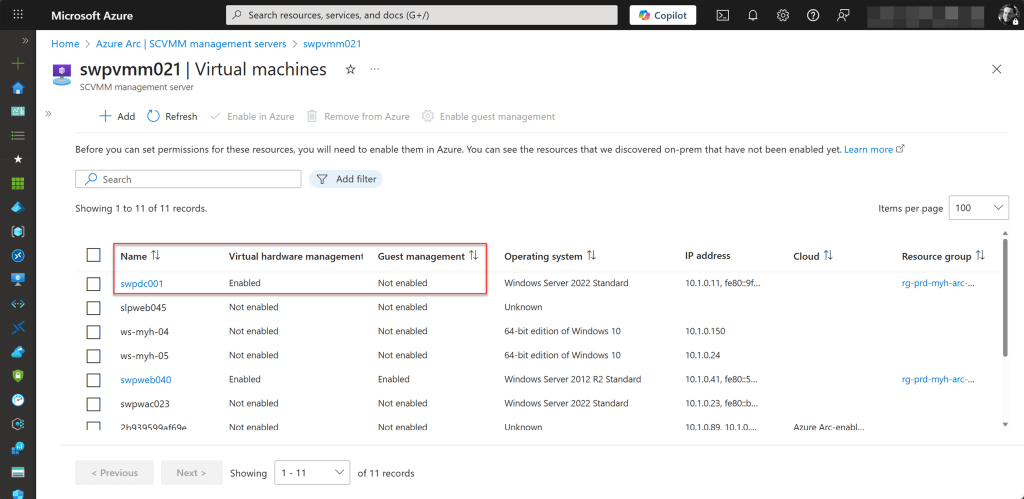
To resolve this, Enable guest management on the machine. This automatically installs the latest Azure Connected Machine agent on the machine itself.

Verify agent connectivity on a Windows machine
In addition to checking the agent’s connection status in the Azure portal, you can verify directly on the onboarded machine that the Azure Connected Machine agent is installed, running, and has the required connectivity by using several commands.
The first option is to log in to the Windows machine with an account that has administrative rights, open the Run dialog, type cmd, and press Enter to open a Command Prompt.

Next, type azcmagent show.
The azcmagent show command provides detailed information about the Azure Connected Machine agent. It displays the agent version, confirming which version is installed, but most importantly, when checking or troubleshooting connectivity issues, you can see the connectivity status, which indicates whether the agent is Connected, Disconnected, or Offline.
azcmagent show

Furthermore, it provides details about the agent’s heartbeat, last communication time, and any errors, which are useful for troubleshooting connectivity issues.

In addition to using the azcmagent show command, you can run the more powerful azcmagent check command to perform network connectivity checks for your Azure Arc endpoints.
azcmagent check
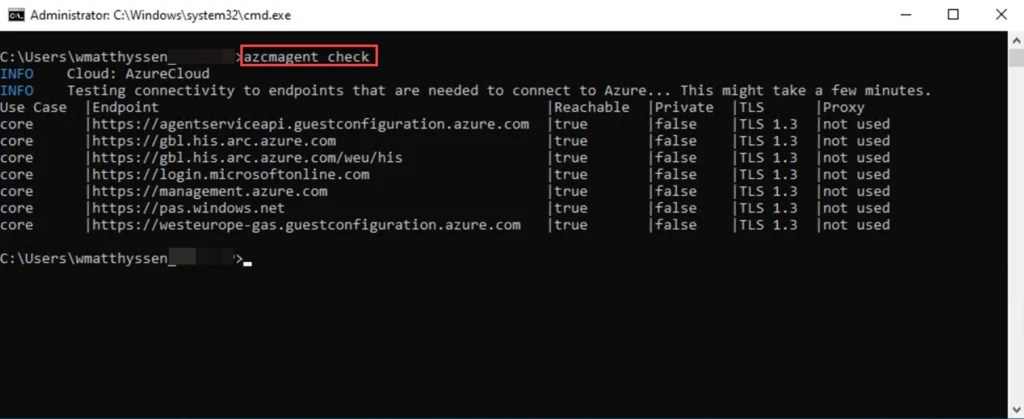
This command does more than simply display the agent’s status. It lets you confirm that your server can successfully connect to all required Azure services, identify any potential network issues, and ensure that your Arc-enabled environment is fully operational.
You can also quickly verify whether your Arc communication is routed directly over SSL, through an Azure Private Link (Private tab), or via a proxy (Proxy tab).

If there is a problem, you can directly identify which required endpoint or endpoints cannot be reached, which can help you troubleshoot the connectivity issue and pinpoint its source.


Verify agent connectivity on a Linux machine
Just as you would on an Azure Arc-enabled Windows server, you can also verify the connectivity and any related issues of the Azure Connected Machine agent on your Arc-enabled Linux servers.
To do this, connect to the Arc-enabled Linux server via SSH (Secure Shell), preferably through a jump server.
I usually use a secured, hardened Windows management server with an SSH client like PuTTY installed, but you can also choose alternatives such as Windows Terminal if you prefer.
To connect, you’ll need the server’s IP address or hostname along with a username and password, or an SSH key.
💡 If you don’t already have PuTTY installed, you can download it from here.
In this example, I’ll be using PuTTY, so start by opening PuTTY on your system.

In the Host Name (or IP address) field, enter the server’s IP address or hostname. Make sure the Port is set to 22, which is the default for SSH, and select SSH as the connection type.

Next, authenticate by entering your username and pressing Enter. Then provide your password, or load your SSH key if one is required.

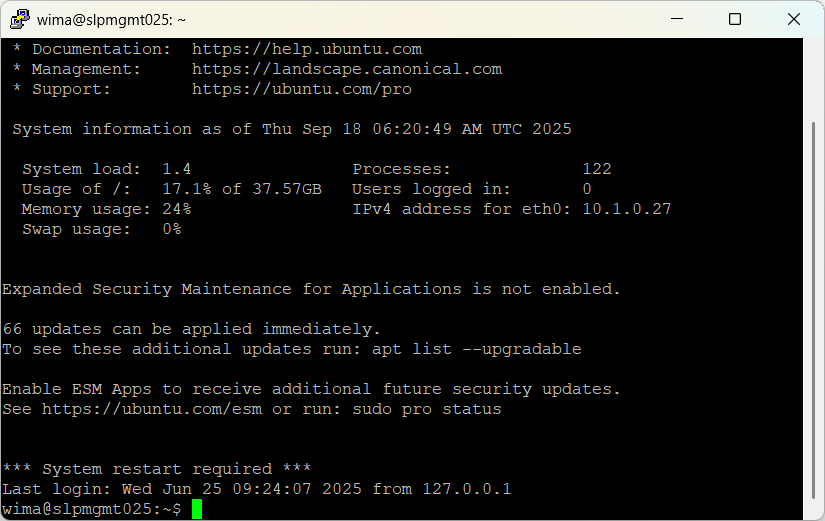
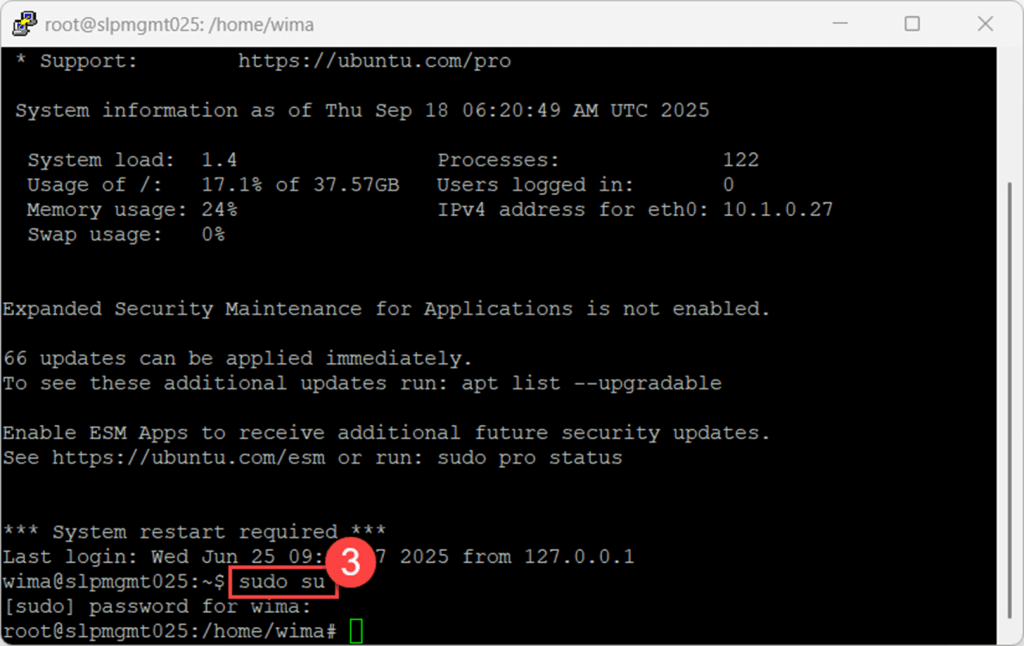
Next, log in as the root user by using the sudo command, followed by su or -i to start a root login shell.
sudo su
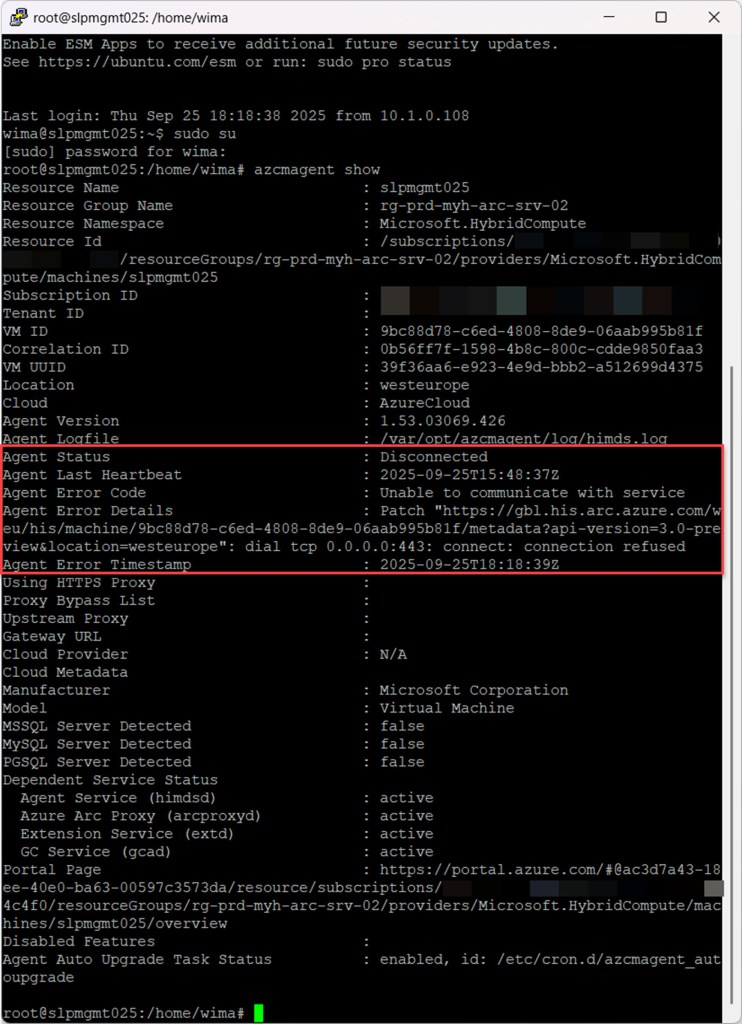
Then, just like on a Arc-enabled Windows server, you can type the azcmagent show command, which provides detailed information about the Azure Connected Machine agent, including the agent version, connectivity status, configuration details, heartbeat, last communication time, and any errors. This information is very useful for troubleshooting connectivity issues.
azcmagent show
But just as with the Windows Azure Arc-enabled server, you can also use the azcmagent check command to see if all required endpoints are reachable.
azcmagent check

You can also see when not all endpoints are reachable, which helps you pinpoint the cause and resolve the connectivity issue.

Conclusion
In this blog post, I showed you how to troubleshoot connectivity issues with the Azure Connected Machine agent, as well as various ways to identify and resolve them.
I hope these troubleshooting steps prove useful whenever you lose connectivity on one of your onboarded Azure Arc-enabled Windows or Linux servers, and help you resolve the problem quickly. If you have any questions or suggestions, feel free to reach out on X (@wmatthyssen) or leave a comment below.
 Wim Matthyssen
Pingback: Azure Back to School 2025 – Azure Arc Under the Hood: Troubleshooting the Azure Connected Machine agent – Wim Matthyssen