In this blog post, I’ll walk you through installing OpenSSH on Windows Server 2019, 2022, or 2025 using a PowerShell script.
Chances are you’re already familiar with OpenSSH (Open Secure Shell), the open-source implementation of the SSH protocol. It’s the standard for secure remote access, encrypted communication, and file transfers, and has long been a go-to for Linux administrators. Today, it’s also a powerful tool for Windows administrators for cross-platform remote management.
Starting with Windows Server 2019, OpenSSH became available as an optional feature. In Windows Server 2025, it is even pre-installed by default, though not enabled out of the box.
To automate the installation of OpenSSH on Windows Server 2019 or Windows Server 2022, or to enable it on a Windows Server 2025, I’ve written a PowerShell script. In this blog post, I’ll explain how to use it and walk you through the process.
A server (either physical or virtual) running Windows Server 2019, 2022, or 2025.
An account that is a member of the built-in Administrators group, which is required to log in to the server and run the script.
PowerShell script
First, let me explain what this PowerShell script does:
Check if PowerShell is running as Administrator, otherwise exit the script.
Check if the OS is Windows Server 2025 and set a flag to control script execution.
Install OpenSSH Server if OS is Windows Server 2019 or Windows Server 2022.
Install OpenSSH Client if OS is Windows Server 2019 or Windows Server 2022.
Start and enable the SSH service.
Allow OpenSSH through the Windows Firewall.
To use the script, start by saving a copy as “Install-OpenSSH-on-a-Windows-Server-2019-2022-2025.ps1” or download it directly from GitHub. Adjust the variables to suit your specific needs, and then run the script using Windows PowerShell (as Administrator) on the server.
💡 I usually save the script locally in the C:\Temp folder on the server and run it from there.
<#
.SYNOPSIS

A script used to install and configure OpenSHH on a Windows Server 2019, 2022, or 2025.

.DESCRIPTION

A script used to install and configure OpenSHH on a Windows Server 2019, 2022, or 2025.
This script will do all of the following:

Check if PowerShell is running as Administrator, otherwise exit the script.
Check if the OS is Windows Server 2025 and set a flag to control script execution.
Install OpenSSH Server if OS is Windows Server 2019 or Windows Server 2022.
Install OpenSSH Client if OS is Windows Server 2019 or Windows Server 2022.
Start and enable the SSH service.
Allow OpenSSH through the Windows Firewall.

.NOTES

Filename:       Install-OpenSSH-on-a-Windows-Server-2019-2022-2025.ps1
Created:        02/04/2025
Last modified:  02/04/2025
Author:         Wim Matthyssen
Version:        1.0
PowerShell:     Windows PowerShell (v5.1 or above)
OS:             Windows Server 2019, Windows Server 2022, or Windows Server 2025
Action:         Update variables if needed to fit your environment.
Disclaimer:     This script is provided "As Is" with no warranties.

.EXAMPLE

.\Install-OpenSSH-on-a-Windows-Server-2019-2022-2025.ps1

.LINK

https://wmatthyssen.com/2025/04/10/how-to-install-openssh-on-a-windows-server-2019-2022-2025-using-a-powershell-script/
#>

## ---------------------------------------------------------------------------------------------------------------------------------------------------------------------------------------------------

## Variables

# Dynamic variables - Please change the values if needed to fit your environment.
$firewallRuleName = "OpenSSH-Server-In"  # Variable for the firewall rule name

Set-PSBreakpoint -Variable currenttime -Mode Read -Action {$global:currenttime = Get-Date -Format "dddd MM/dd/yyyy HH:mm"} | Out-Null
$foregroundColor1 = "Green"
$foregroundColor2 = "Yellow"
$foregroundColor3 = "Red"
$writeEmptyLine = "`n"
$writeSeperatorSpaces = " - "

## ---------------------------------------------------------------------------------------------------------------------------------------------------------------------------------------------------

## Write script started.

Write-Host ($writeEmptyLine + "# Script started. Without errors, it can take up to 2 minutes to complete" + $writeSeperatorSpaces + $currentTime)`
-foregroundcolor $foregroundColor1 $writeEmptyLine

## ---------------------------------------------------------------------------------------------------------------------------------------------------------------------------------------------------

## Check if PowerShell is running as Administrator, otherwise exit the script.

$currentPrincipal = New-Object Security.Principal.WindowsPrincipal([Security.Principal.WindowsIdentity]::GetCurrent())
$isAdministrator = $currentPrincipal.IsInRole([Security.Principal.WindowsBuiltInRole]::Administrator)

if ($isAdministrator -eq $false)
{
    Write-Host ($writeEmptyLine + "# Please run PowerShell as Administrator" + $writeSeperatorSpaces + $currentTime)`
    -foregroundcolor $foregroundColor3 $writeEmptyLine
    exit
}

## ---------------------------------------------------------------------------------------------------------------------------------------------------------------------------------------------------

## Check if the OS is Windows Server 2025 and set a flag to control script execution.

try {
    $osInfo = Get-CimInstance -ClassName Win32_OperatingSystem
    if ($osInfo.Caption -like "*Windows Server 2025*") {
        Write-Host ($writeEmptyLine + "# OS is Windows Server 2025. Continuing script execution" + $writeSeperatorSpaces + $global:currenttime)`
        -foregroundcolor $foregroundColor2 $writeEmptyLine
        $isWindowsServer2025 = $true
    } else {
        # OS is not Windows Server 2025, continue with the script
        Write-Host ($writeEmptyLine + "# OS is not Windows Server 2025. Continuing script execution" + $writeSeperatorSpaces + $global:currenttime)`
        -foregroundcolor $foregroundColor2 $writeEmptyLine
        $isWindowsServer2025 = $false
    }
} catch {
    Write-Host ($writeEmptyLine + "# Failed to retrieve OS information: $($_.Exception.Message)" + $writeSeperatorSpaces + $global:currenttime)`
    -foregroundcolor $foregroundColor3 $writeEmptyLine
    exit
}

## ---------------------------------------------------------------------------------------------------------------------------------------------------------------------------------------------------

## Install OpenSSH Server if OS is Windows Server 2019 or Windows Server 2022.

if (-not $isWindowsServer2025) {
    try {
        Add-WindowsCapability -Online -Name OpenSSH.Server~~~~0.0.1.0 -ErrorAction Stop | Out-Null
        Write-Host ($writeEmptyLine + "# OpenSSH Server installed" + $writeSeperatorSpaces + $global:currenttime)`
        -foregroundcolor $foregroundColor2 $writeEmptyLine
    } catch {
        Write-Host ($writeEmptyLine + "# Failed to install OpenSSH Server: $($_.Exception.Message)" + $writeSeperatorSpaces + $global:currenttime)`
        -foregroundcolor $foregroundColor3 $writeEmptyLine
        exit
    }
}

## ---------------------------------------------------------------------------------------------------------------------------------------------------------------------------------------------------

## Install OpenSSH Client if OS is Windows Server 2019 or Windows Server 2022.

if (-not $isWindowsServer2025) {
    try {
        Add-WindowsCapability -Online -Name OpenSSH.Client~~~~0.0.1.0 -ErrorAction Stop | Out-Null
        Write-Host ($writeEmptyLine + "# OpenSSH Client installed" + $writeSeperatorSpaces + $global:currenttime)`
        -foregroundcolor $foregroundColor2 $writeEmptyLine
    } catch {
        Write-Host ($writeEmptyLine + "# Failed to install OpenSSH Client: $($_.Exception.Message)" + $writeSeperatorSpaces + $global:currenttime)`
        -foregroundcolor $foregroundColor3 $writeEmptyLine
        exit
    }
}

## ---------------------------------------------------------------------------------------------------------------------------------------------------------------------------------------------------

## Start and enable the SSH service.

try {
    # Start the SSH service
    Start-Service sshd
    # Set the SSH service to start automatically with Windows
    Set-Service -Name sshd -StartupType Automatic
    Write-Host ($writeEmptyLine + "# SSH service started and set to automatic" + $writeSeperatorSpaces + $global:currenttime)`
    -foregroundcolor $foregroundColor2 $writeEmptyLine
} catch {
    Write-Host ($writeEmptyLine + "# Failed to start or configure SSH service: $($_.Exception.Message)" + $writeSeperatorSpaces + $global:currenttime)`
    -foregroundcolor $foregroundColor3 $writeEmptyLine
    exit
}

## ---------------------------------------------------------------------------------------------------------------------------------------------------------------------------------------------------

## Allow OpenSSH through the Windows Firewall.

try {
    # Check if the firewall rule already exists
    $firewallRule = Get-NetFirewallRule -Name $firewallRuleName -ErrorAction SilentlyContinue

    if ($null -eq $firewallRule) {
        # Rule does not exist, create it
        New-NetFirewallRule -Name $firewallRuleName -DisplayName "OpenSSH Server (sshd)" -Enabled True -Direction Inbound -Protocol TCP -Action Allow -LocalPort 22 | Out-Null
        Write-Host ($writeEmptyLine + "# Windows Firewall rule created and configured for OpenSSH" + $writeSeperatorSpaces + $global:currenttime)`
        -foregroundcolor $foregroundColor2 $writeEmptyLine
    } else {
        # Rule already exists
        Write-Host ($writeEmptyLine + "# Windows Firewall rule already exists and is configured for OpenSSH" + $writeSeperatorSpaces + $global:currenttime)`
        -foregroundcolor $foregroundColor2 $writeEmptyLine
    }
} catch {
    Write-Host ($writeEmptyLine + "# Failed to configure Windows Firewall for OpenSSH: $($_.Exception.Message)" + $writeSeperatorSpaces + $global:currenttime)`
    -foregroundcolor $foregroundColor3 $writeEmptyLine
    exit
}

## ---------------------------------------------------------------------------------------------------------------------------------------------------------------------------------------------

## Write script completed.

Write-Host ($writeEmptyLine + "# Script completed" + $writeSeperatorSpaces + $currentTime)`
-foregroundcolor $foregroundColor1 $writeEmptyLine

## ---------------------------------------------------------------------------------------------------------------------------------------------------------------------------------------------------
Using the script on supported Windows Server OSes
Windows Server 2019
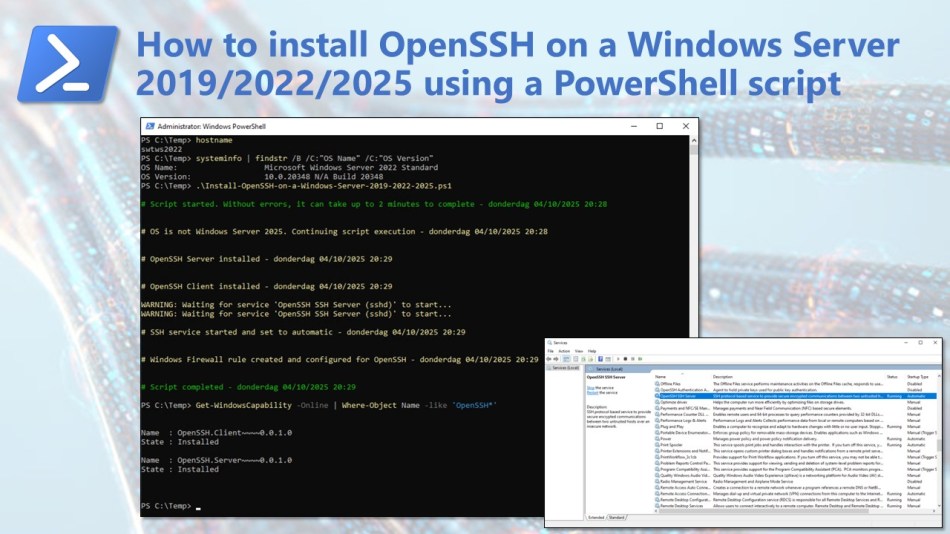
After running the script, you can check if OpenSSH was successfully installed by running the following command in PowerShell:
Get-WindowsCapability -Online | Where-Object Name -like 'OpenSSH*'
You can also check the Services panel (press Win + R, type services.msc, and hit Enter) to see if the OpenSSH SSH Server service is running and has its Startup Type set to Automatic.
Windows Server 2022
After running the script, you can check if OpenSSH was successfully installed by running the following command in PowerShell:
Get-WindowsCapability -Online | Where-Object Name -like 'OpenSSH*'
You can also check the Services panel (press Win + R, type services.msc, and hit Enter) to see if the OpenSSH SSH Server service is running and has its Startup Type set to Automatic.
Windows Server 2025
After running the script, you can verify that OpenSSH was successfully installed by opening Server Manager and checking that Remote SSH Access is marked as Enabled, or by running the PowerShell command mentioned earlier in the Windows Server 2019 or 2022 section.
Connecting to an OpenSSH Server on Windows Server
To connect to an OpenSSH server running on a Windows Server that is part of a domain, you can use any SSH client, such as PowerShell, Windows Terminal, PuTTY, or KiTTY.
If you’re using Windows Terminal or PowerShell, use the following command format:
ssh domain\username@servername
Select Yes if you’re connecting for the first time. This adds the server to the list of known SSH hosts on your Windows client.
The service will then prompt you for your password. As a security precaution, your password characters won’t be displayed as you type.
Once connected, you should see the standard Windows command shell prompt, where you can run commands to manage the server, install new features, troubleshoot issues, or perform other operational tasks.
When connecting to an OpenSSH server running on a standalone Windows Server (i.e., not joined to a domain), the simplest approach is to use a client like PuTTY or KiTTY.
Simply connect using the server’s IP address and a local user account. To allow SSH access, the user must be in the local OpenSSH Users group, or alternatively, be a member of the local Administrators group, which also grants the necessary access.
💡 For domain-joined Windows servers with OpenSSH, you can log in using a domain user account. Make sure the user is in the OpenSSH Users group. Most people use a domain admin account, as it’s already part of the local Administrators group and has the required access.
💡 The first time you connect, PuTTY will prompt you to verify the server’s host key. Click Accept if you trust the connection.
Next, PuTTY will prompt you to enter the username and password for the server. Simply log in with the correct credentials. Once connected, you’ll be able to interact with the server directly through the PuTTY terminal window.
Conclusion
In this blog post, I showed how you can use a PowerShell script to install OpenSSH on Windows Server 2019, 2022, or 2025.
I hope the script comes in handy when setting up OpenSSH on any of your servers. If you have any questions or suggestions, feel free to reach out on X (@wmatthyssen) or leave a comment below.

 Wim Matthyssen
In this blog post, I’ll walk you through installing OpenSSH on Windows Server 2019, 2022, or 2025 using a PowerShell script.
Chances are you’re already familiar with OpenSSH (Open Secure Shell), the open-source implementation of the SSH protocol. It’s the standard for secure remote access, encrypted communication, and file transfers, and has long been a go-to for Linux administrators. Today, it’s also a powerful tool for Windows administrators for cross-platform remote management.
Starting with Windows Server 2019, OpenSSH became available as an optional feature. In Windows Server 2025, it is even pre-installed by default, though not enabled out of the box.
To automate the installation of OpenSSH on Windows Server 2019 or Windows Server 2022, or to enable it on a Windows Server 2025, I’ve written a PowerShell script. In this blog post, I’ll explain how to use it and walk you through the process.
Table of Contents
Prerequisites
PowerShell script
First, let me explain what this PowerShell script does:
To use the script, start by saving a copy as “Install-OpenSSH-on-a-Windows-Server-2019-2022-2025.ps1” or download it directly from GitHub. Adjust the variables to suit your specific needs, and then run the script using Windows PowerShell (as Administrator) on the server.
💡 I usually save the script locally in the C:\Temp folder on the server and run it from there.
<# .SYNOPSIS A script used to install and configure OpenSHH on a Windows Server 2019, 2022, or 2025. .DESCRIPTION A script used to install and configure OpenSHH on a Windows Server 2019, 2022, or 2025. This script will do all of the following: Check if PowerShell is running as Administrator, otherwise exit the script. Check if the OS is Windows Server 2025 and set a flag to control script execution. Install OpenSSH Server if OS is Windows Server 2019 or Windows Server 2022. Install OpenSSH Client if OS is Windows Server 2019 or Windows Server 2022. Start and enable the SSH service. Allow OpenSSH through the Windows Firewall. .NOTES Filename: Install-OpenSSH-on-a-Windows-Server-2019-2022-2025.ps1 Created: 02/04/2025 Last modified: 02/04/2025 Author: Wim Matthyssen Version: 1.0 PowerShell: Windows PowerShell (v5.1 or above) OS: Windows Server 2019, Windows Server 2022, or Windows Server 2025 Action: Update variables if needed to fit your environment. Disclaimer: This script is provided "As Is" with no warranties. .EXAMPLE .\Install-OpenSSH-on-a-Windows-Server-2019-2022-2025.ps1 .LINK https://wmatthyssen.com/2025/04/10/how-to-install-openssh-on-a-windows-server-2019-2022-2025-using-a-powershell-script/ #> ## --------------------------------------------------------------------------------------------------------------------------------------------------------------------------------------------------- ## Variables # Dynamic variables - Please change the values if needed to fit your environment. $firewallRuleName = "OpenSSH-Server-In" # Variable for the firewall rule name Set-PSBreakpoint -Variable currenttime -Mode Read -Action {$global:currenttime = Get-Date -Format "dddd MM/dd/yyyy HH:mm"} | Out-Null $foregroundColor1 = "Green" $foregroundColor2 = "Yellow" $foregroundColor3 = "Red" $writeEmptyLine = "`n" $writeSeperatorSpaces = " - " ## --------------------------------------------------------------------------------------------------------------------------------------------------------------------------------------------------- ## Write script started. Write-Host ($writeEmptyLine + "# Script started. Without errors, it can take up to 2 minutes to complete" + $writeSeperatorSpaces + $currentTime)` -foregroundcolor $foregroundColor1 $writeEmptyLine ## --------------------------------------------------------------------------------------------------------------------------------------------------------------------------------------------------- ## Check if PowerShell is running as Administrator, otherwise exit the script. $currentPrincipal = New-Object Security.Principal.WindowsPrincipal([Security.Principal.WindowsIdentity]::GetCurrent()) $isAdministrator = $currentPrincipal.IsInRole([Security.Principal.WindowsBuiltInRole]::Administrator) if ($isAdministrator -eq $false) { Write-Host ($writeEmptyLine + "# Please run PowerShell as Administrator" + $writeSeperatorSpaces + $currentTime)` -foregroundcolor $foregroundColor3 $writeEmptyLine exit } ## --------------------------------------------------------------------------------------------------------------------------------------------------------------------------------------------------- ## Check if the OS is Windows Server 2025 and set a flag to control script execution. try { $osInfo = Get-CimInstance -ClassName Win32_OperatingSystem if ($osInfo.Caption -like "*Windows Server 2025*") { Write-Host ($writeEmptyLine + "# OS is Windows Server 2025. Continuing script execution" + $writeSeperatorSpaces + $global:currenttime)` -foregroundcolor $foregroundColor2 $writeEmptyLine $isWindowsServer2025 = $true } else { # OS is not Windows Server 2025, continue with the script Write-Host ($writeEmptyLine + "# OS is not Windows Server 2025. Continuing script execution" + $writeSeperatorSpaces + $global:currenttime)` -foregroundcolor $foregroundColor2 $writeEmptyLine $isWindowsServer2025 = $false } } catch { Write-Host ($writeEmptyLine + "# Failed to retrieve OS information: $($_.Exception.Message)" + $writeSeperatorSpaces + $global:currenttime)` -foregroundcolor $foregroundColor3 $writeEmptyLine exit } ## --------------------------------------------------------------------------------------------------------------------------------------------------------------------------------------------------- ## Install OpenSSH Server if OS is Windows Server 2019 or Windows Server 2022. if (-not $isWindowsServer2025) { try { Add-WindowsCapability -Online -Name OpenSSH.Server~~~~0.0.1.0 -ErrorAction Stop | Out-Null Write-Host ($writeEmptyLine + "# OpenSSH Server installed" + $writeSeperatorSpaces + $global:currenttime)` -foregroundcolor $foregroundColor2 $writeEmptyLine } catch { Write-Host ($writeEmptyLine + "# Failed to install OpenSSH Server: $($_.Exception.Message)" + $writeSeperatorSpaces + $global:currenttime)` -foregroundcolor $foregroundColor3 $writeEmptyLine exit } } ## --------------------------------------------------------------------------------------------------------------------------------------------------------------------------------------------------- ## Install OpenSSH Client if OS is Windows Server 2019 or Windows Server 2022. if (-not $isWindowsServer2025) { try { Add-WindowsCapability -Online -Name OpenSSH.Client~~~~0.0.1.0 -ErrorAction Stop | Out-Null Write-Host ($writeEmptyLine + "# OpenSSH Client installed" + $writeSeperatorSpaces + $global:currenttime)` -foregroundcolor $foregroundColor2 $writeEmptyLine } catch { Write-Host ($writeEmptyLine + "# Failed to install OpenSSH Client: $($_.Exception.Message)" + $writeSeperatorSpaces + $global:currenttime)` -foregroundcolor $foregroundColor3 $writeEmptyLine exit } } ## --------------------------------------------------------------------------------------------------------------------------------------------------------------------------------------------------- ## Start and enable the SSH service. try { # Start the SSH service Start-Service sshd # Set the SSH service to start automatically with Windows Set-Service -Name sshd -StartupType Automatic Write-Host ($writeEmptyLine + "# SSH service started and set to automatic" + $writeSeperatorSpaces + $global:currenttime)` -foregroundcolor $foregroundColor2 $writeEmptyLine } catch { Write-Host ($writeEmptyLine + "# Failed to start or configure SSH service: $($_.Exception.Message)" + $writeSeperatorSpaces + $global:currenttime)` -foregroundcolor $foregroundColor3 $writeEmptyLine exit } ## --------------------------------------------------------------------------------------------------------------------------------------------------------------------------------------------------- ## Allow OpenSSH through the Windows Firewall. try { # Check if the firewall rule already exists $firewallRule = Get-NetFirewallRule -Name $firewallRuleName -ErrorAction SilentlyContinue if ($null -eq $firewallRule) { # Rule does not exist, create it New-NetFirewallRule -Name $firewallRuleName -DisplayName "OpenSSH Server (sshd)" -Enabled True -Direction Inbound -Protocol TCP -Action Allow -LocalPort 22 | Out-Null Write-Host ($writeEmptyLine + "# Windows Firewall rule created and configured for OpenSSH" + $writeSeperatorSpaces + $global:currenttime)` -foregroundcolor $foregroundColor2 $writeEmptyLine } else { # Rule already exists Write-Host ($writeEmptyLine + "# Windows Firewall rule already exists and is configured for OpenSSH" + $writeSeperatorSpaces + $global:currenttime)` -foregroundcolor $foregroundColor2 $writeEmptyLine } } catch { Write-Host ($writeEmptyLine + "# Failed to configure Windows Firewall for OpenSSH: $($_.Exception.Message)" + $writeSeperatorSpaces + $global:currenttime)` -foregroundcolor $foregroundColor3 $writeEmptyLine exit } ## --------------------------------------------------------------------------------------------------------------------------------------------------------------------------------------------- ## Write script completed. Write-Host ($writeEmptyLine + "# Script completed" + $writeSeperatorSpaces + $currentTime)` -foregroundcolor $foregroundColor1 $writeEmptyLine ## ---------------------------------------------------------------------------------------------------------------------------------------------------------------------------------------------------Using the script on supported Windows Server OSes
Windows Server 2019
After running the script, you can check if OpenSSH was successfully installed by running the following command in PowerShell:
You can also check the Services panel (press Win + R, type services.msc, and hit Enter) to see if the OpenSSH SSH Server service is running and has its Startup Type set to Automatic.
Windows Server 2022
After running the script, you can check if OpenSSH was successfully installed by running the following command in PowerShell:
You can also check the Services panel (press Win + R, type services.msc, and hit Enter) to see if the OpenSSH SSH Server service is running and has its Startup Type set to Automatic.
Windows Server 2025
After running the script, you can verify that OpenSSH was successfully installed by opening Server Manager and checking that Remote SSH Access is marked as Enabled, or by running the PowerShell command mentioned earlier in the Windows Server 2019 or 2022 section.
Connecting to an OpenSSH Server on Windows Server
To connect to an OpenSSH server running on a Windows Server that is part of a domain, you can use any SSH client, such as PowerShell, Windows Terminal, PuTTY, or KiTTY.
If you’re using Windows Terminal or PowerShell, use the following command format:
Select Yes if you’re connecting for the first time. This adds the server to the list of known SSH hosts on your Windows client.
The service will then prompt you for your password. As a security precaution, your password characters won’t be displayed as you type.
Once connected, you should see the standard Windows command shell prompt, where you can run commands to manage the server, install new features, troubleshoot issues, or perform other operational tasks.
When connecting to an OpenSSH server running on a standalone Windows Server (i.e., not joined to a domain), the simplest approach is to use a client like PuTTY or KiTTY.
Simply connect using the server’s IP address and a local user account. To allow SSH access, the user must be in the local OpenSSH Users group, or alternatively, be a member of the local Administrators group, which also grants the necessary access.
💡 For domain-joined Windows servers with OpenSSH, you can log in using a domain user account. Make sure the user is in the OpenSSH Users group. Most people use a domain admin account, as it’s already part of the local Administrators group and has the required access.
💡 The first time you connect, PuTTY will prompt you to verify the server’s host key. Click Accept if you trust the connection.
Next, PuTTY will prompt you to enter the username and password for the server. Simply log in with the correct credentials. Once connected, you’ll be able to interact with the server directly through the PuTTY terminal window.
Conclusion
In this blog post, I showed how you can use a PowerShell script to install OpenSSH on Windows Server 2019, 2022, or 2025.
I hope the script comes in handy when setting up OpenSSH on any of your servers. If you have any questions or suggestions, feel free to reach out on X (@wmatthyssen) or leave a comment below.
Share this: