
In this blog post, you’ll learn how to quickly enable built-in recommended alert rules through the Azure Portal for your Azure virtual machines (VMs), AKS clusters, and Log Analytics workspaces.
Monitoring and configuring necessary alerts to proactively address potential issues related to the health or performance of your resources before they impact your environment and before users even notice them is crucial for maintaining the security and reliability of your Azure environment.
However, for many companies, especially smaller ones with limited IT or cloud teams, setting up and fine-tuning Azure Monitor alerts can be challenging. Often, there isn’t enough time to properly configure them or ensure they are working correctly across all critical and non-critical business resources.
This is where the recommended alert rules come in handy. They offer a set of predefined metric alerts that you can quickly enable for your Azure VMs, Kubernetes clusters, and Log Analytics workspaces. These out-of-the-box alert rules help maintain the health and performance of your resources with minimal effort.
In this blog post, I’ll guide you through the process of easily configuring these alerts for any of these resources in your environment.
Table of Contents
- Configure recommended alert rules for an Azure VM
- Configure recommended alert rules for an AKS cluster
- Configure recommend alert rules for a Log Analytics workspace
- Conclusion
Prerequisites
- An Azure subscription or multiple subscriptions
- An Azure Administrator account with the necessary RBAC roles or permissions is needed to configure the alerts for the specific resources, following the least privilege principle (e.g., the Monitoring Contributor built-in role).
- An existing Azure VM, AKS cluster, and Log Analytics workspace
- An existing Azure Monitor action group*


*If you’d like to create an Azure Monitor action group using Azure PowerShell, you can refer to this blog post I wrote previously.
Configure recommended alert rules for an Azure VM
To configure the recommended alert rules for a specific Azure VM in your environment, open the Azure Portal and use the global search bar, or another method within the Azure Portal, to locate and select the VM.


From the VM menu, select “Alerts” under the Monitoring section, and then choose “Set up recommended alerts.”

A new side window will open, displaying a list of recommended alerts. Select the ones you want to enable.
You can also adjust the threshold values, rename the alert rule, and modify the severity and threshold type if needed.
In my lab environment or when configuring these alerts for a customer, I usually keep all settings at their default values unless the customer has specific preferences.
One helpful feature is that, as you enable the various alert rules, you’ll see an estimated monthly cost displayed at the bottom of the screen.


In the same side window, you’ll also need to choose your notification method. I usually prefer to use an existing action group, but you can also specify a shared mailbox used by the helpdesk or IT team, for example.


Then click “Save” to finalize your alert configuration.

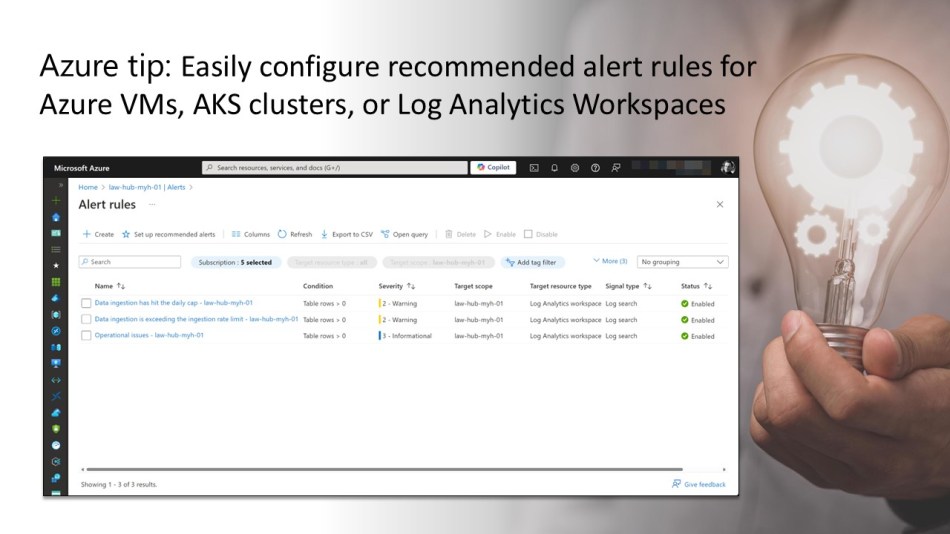
Once the alert rule is created, you can verify its creation and settings by clicking on “Alert rules.” From there, you can select any of the rules to view their details and adjust the thresholds if needed.


Configure recommended alert rules for an AKS cluster
To configure the recommended alert rules for a specific AKS cluster in your environment, open the Azure Portal and use the global search bar or another navigation method to locate and select the AKS cluster, just as you would for an Azure VM.


Next, from the Kubernetes service menu, select “Alerts” under the Monitoring section, and then click “Set up recommended alerts.”

A new side window will open, showing a list of recommended alerts. Choose the alerts you want to enable. Depending on your AKS cluster deployment, some alerts may already be created.
You can also rename the alert rules and adjust the severity and threshold type for certain alerts if necessary.
In my lab environment or when configuring these alerts for a customer, I usually keep all settings at their default values unless the customer specifies otherwise.

In the same side window, you’ll also need to select your notification method. I generally prefer using an existing action group, but you can also specify a shared mailbox used by the helpdesk or IT team, for example.


Then click “Save” to complete your alert configuration.

After creating the alert rule, you can verify it and review its settings by clicking on “Alert rules.” From there, select any rule to view its details and adjust the thresholds if necessary.


Configure recommend alert rules for a Log Analytics workspace
To configure the recommended alert rules for a specific Log Analytics workspace in your environment, open the Azure Portal and use the global search bar or another navigation method to locate and select the workspace, just as you would for an Azure VM.


Next, from the Log Analytics workspace menu, select “Alerts” under the Monitoring section, and then click on “Set up recommended alerts.”

A new side window will open, displaying a list of recommended alerts. Choose the ones you want to enable. You can also rename the alert rules and adjust the severity and threshold type for specific alerts if needed.
In my lab environment or when configuring these alerts for a customer, I usually keep all settings at their default values unless the customer has specific preferences.
A helpful feature is that as you enable the various alert rules, an estimated monthly cost is displayed at the bottom of the screen.


In the same side window, you’ll also need to choose your notification method. I typically prefer using an existing action group, but you can also specify a shared mailbox used by the helpdesk or IT team, for example.


Finally, click “Save” to complete your alert configuration.

After creating the alert rule, you can verify it and review its settings by clicking on “Alert rules.” From there, you can select any rule to view its details and adjust the thresholds if needed.

Conclusion
Proactively monitoring and configuring alerts for potential issues is key to maintaining the security and reliability of your Azure environment, ensuring problems are addressed before they impact your system or users.
I hope the steps outlined in this blog post for configuring recommended alert rules for your Azure VMs, AKS clusters, or Log Analytics workspaces help you improve monitoring of these resources in your environment.
If you have any questions or suggestions about this blog post, feel free to reach out to me on X (@wmatthyssen) or leave a comment. I’ll be happy to assist!
 Wim Matthyssen
0 comments on “Azure Tip: Easily configure recommended alert rules for Azure VMs, AKS Resources, or Log Analytics Workspaces”