
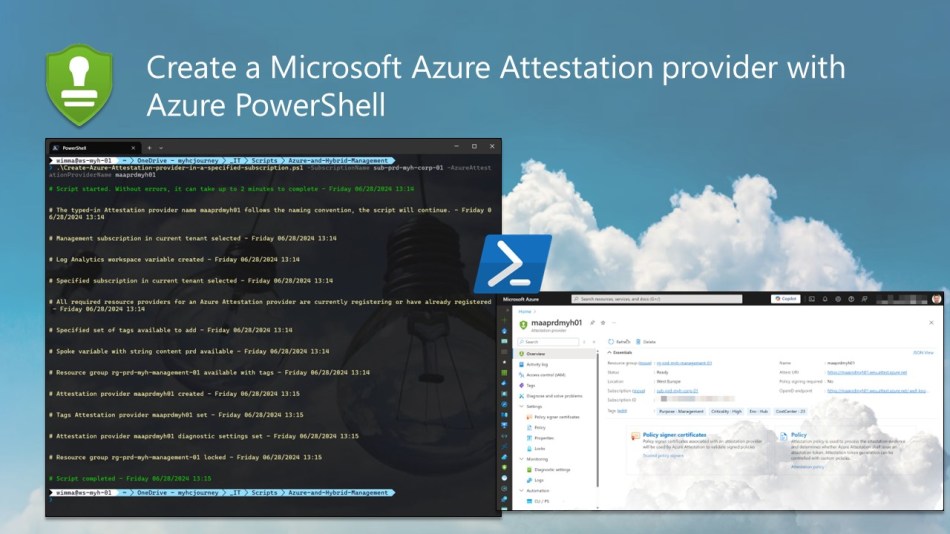
This blog post will show you how to use an Azure PowerShell script to create a Microsoft Azure Attestation provider in a specific subscription.
Microsoft Azure Attestation (MAA) is a cloud service that offers a unified platform for remotely verifying the trustworthiness of a platform and the integrity of the software running on it. This service is crucial for scenarios requiring high security and trust.
Azure Attestation receives evidence from the platform, validates it against security standards, evaluates it against configurable policies, and generates an attestation token for claims-based applications.
The service supports attestation of trusted platform modules (TPMs) and trusted execution environments (TEEs) such as Intel® Software Guard Extensions (SGX) and virtualization-based security (VBS) enclaves. It is utilized in scenarios such as Azure Confidential Computing and Microsoft Cloud for Sovereignty, among other use cases.
To automate the deployment of an Azure Attestation provider, you can follow the instructions in this blog post and use the accompanying Azure PowerShell script.
If you’re interested in learning more about Microsoft Azure Attestation, you can explore the Azure Automation documentation on Microsoft Learn by visiting the following link: Microsoft Azure Attestation documentation.
Table of Contents
Prerequisites
- An Azure subscription, preferably more than one, especially if you intend to align with the Cloud Adoption Framework (CAF) enterprise-scale architecture. This includes a connectivity and/or management subscription, along with (secure) landing zone subscriptions, depending on your specific needs and workloads.
- An Azure Administrator account with the required RBAC roles.
- An existing Log Analytics workspace.
- At least Azure Az PowerShell module version 7.4.2 is required.
- After copying or downloading the script, make sure to adjust all relevant variables to match your Azure environment. An example is provided below.

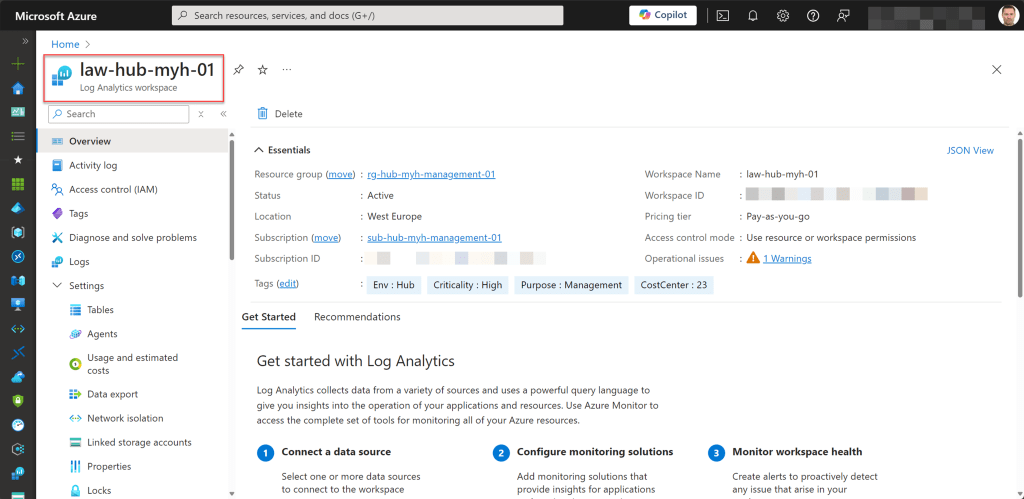
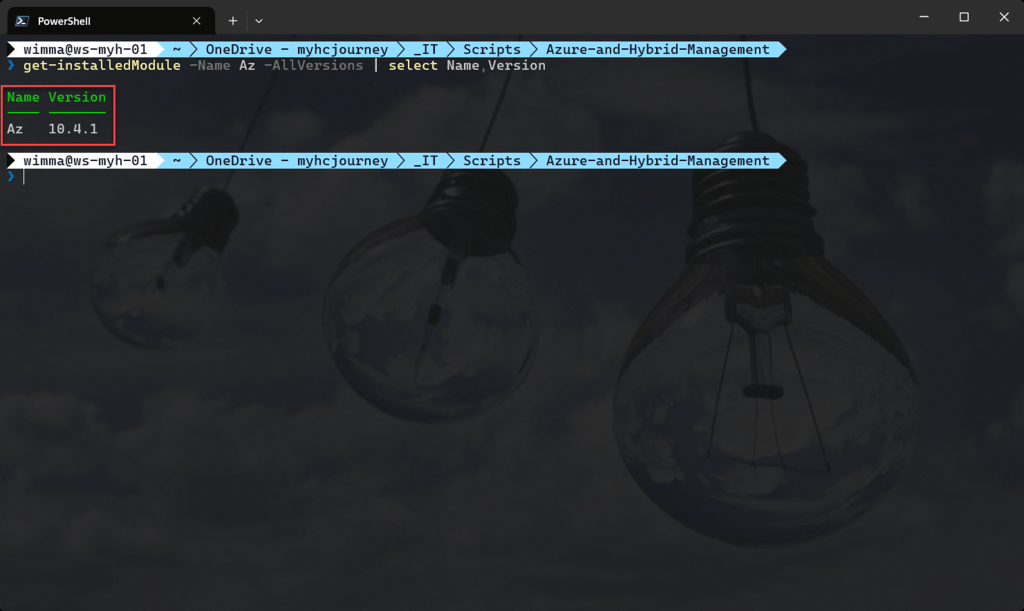


Executing actions and utilizing the Azure PowerShell script
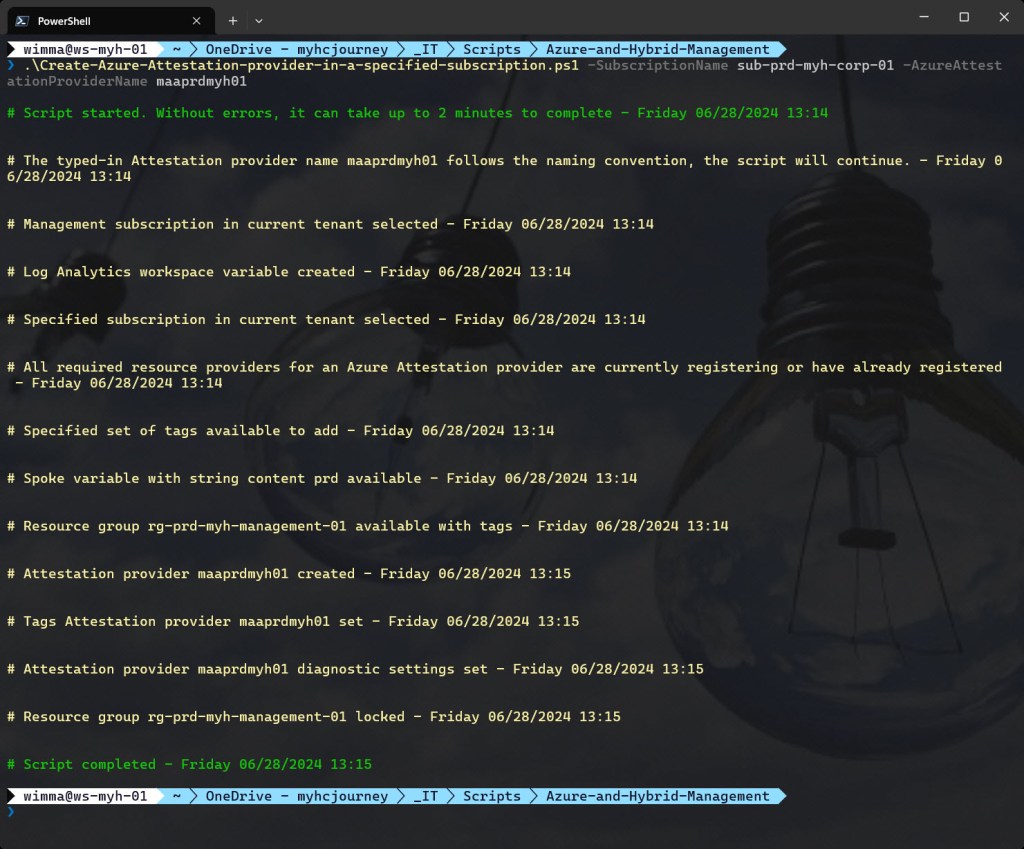
To automate the deployment of an Azure Attestation provider in a specified Azure subscription, I have created the following Azure PowerShell script, which performs the following tasks:
- Remove the breaking change warning messages.
- Check if the Attestation provider name follows the naming convention; if not, exit the script.
- Change the current context to use a management subscription holding your central Log Analytics workspace.
- Save Log Analytics workspace from the management subscription in a variable.
- Change the current context to the specified Azure subscription.
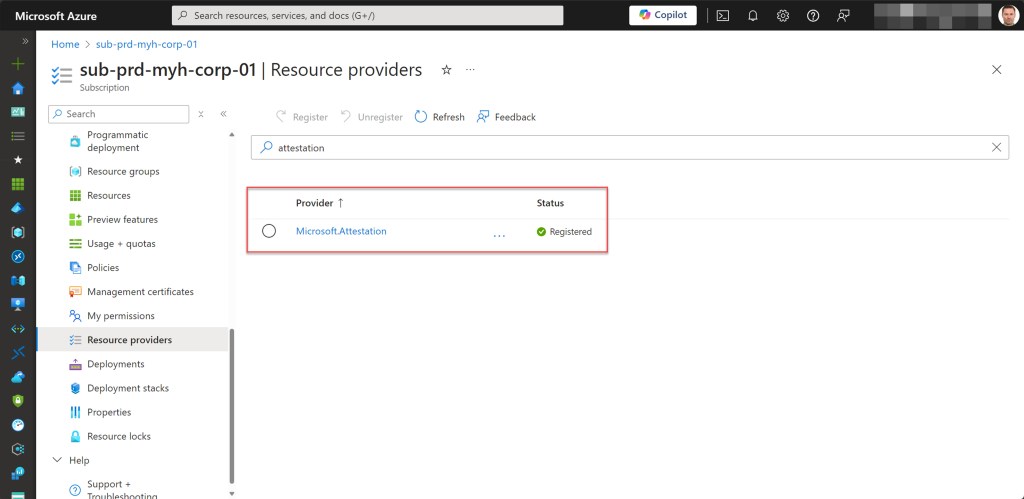
- Register the required Azure resource provider (Microsoft.Attestation) in the current subscription context, if not yet registered.
- Store the specified set of tags in a hash table.
- Extract spoke name from Attestion provider name and store in a variable ($spoke) for subsequent use.
- Create a resource group management if one does not already exist. Also, apply the necessary tags to this resource group.
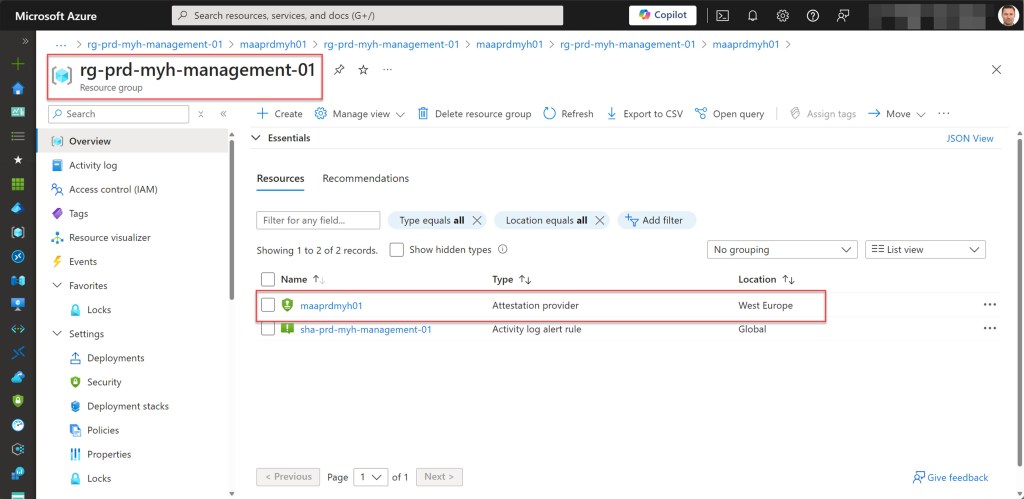
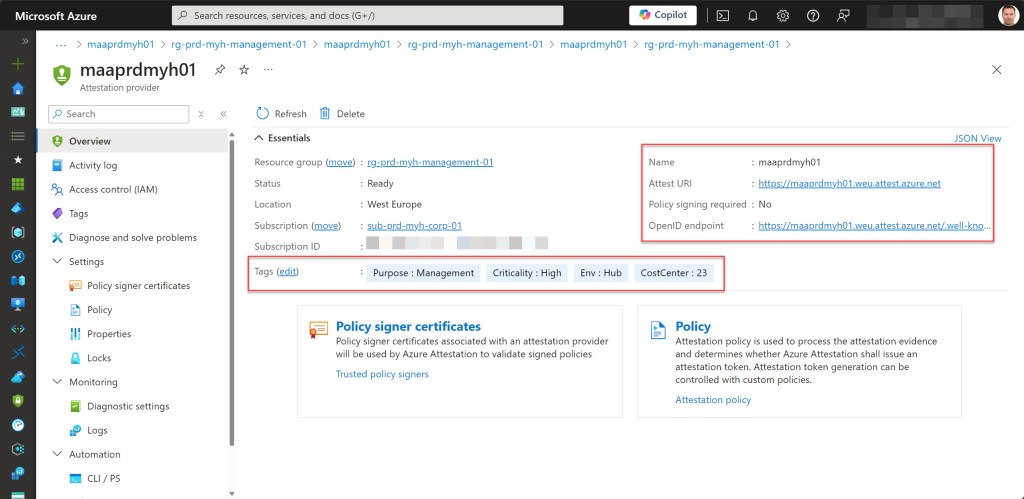
- Create the Azure Attestation provider if it does not exist.
- Set specified tags on the Azure Attestation provider.
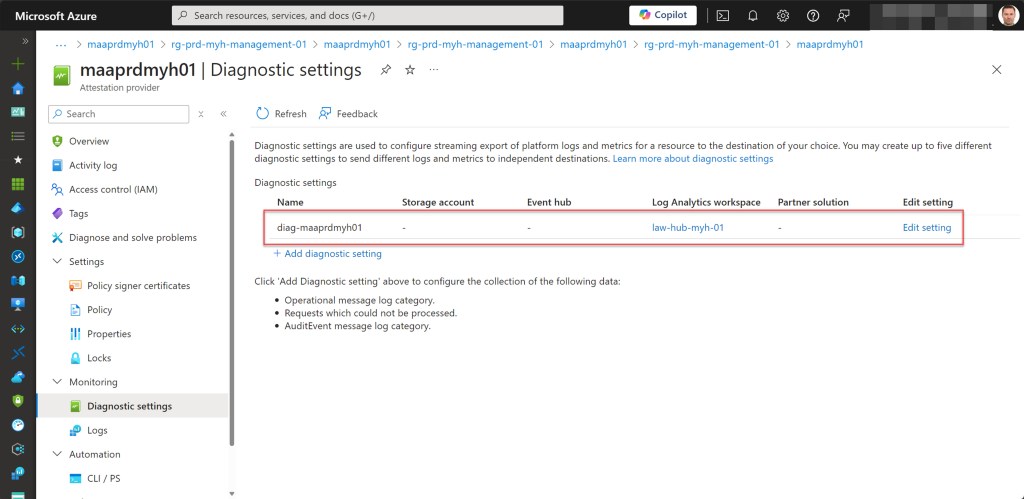
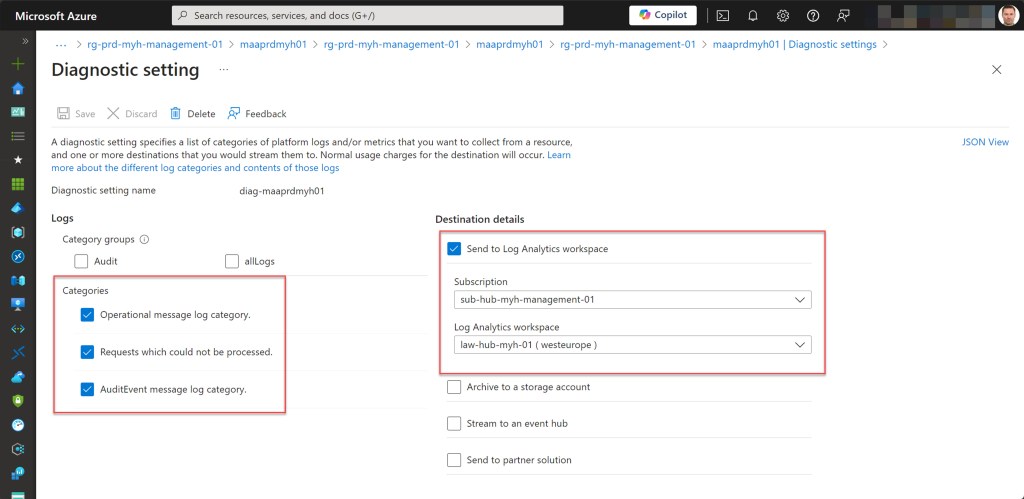
- Set the log settings for the Azure Attestation provider if they don’t exist.
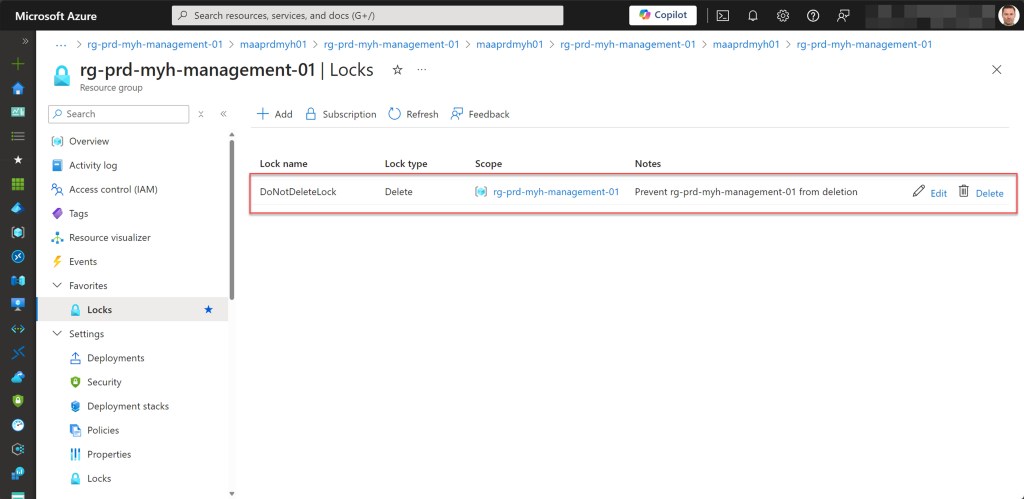
- Lock the management resource group with a CanNotDelete lock.
To use the script, start by either copying and saving it as “Create-Azure-Attestation-provider-in-a-specified-subscription.ps1” or downloading it directly from GitHub. Then, run the customized script using Windows Terminal, Visual Studio Code, or Windows PowerShell. Alternatively, you can execute it directly from Cloud Shell.
Azure PowerShell script
If you are not using Cloud Shell to run the script, remember to sign in with the Connect-AzAccount cmdlet to link your Azure account. If you have multiple Azure tenants, ensure you select the correct one before running the script by using the Set-AzContext -TenantId cmdlet.
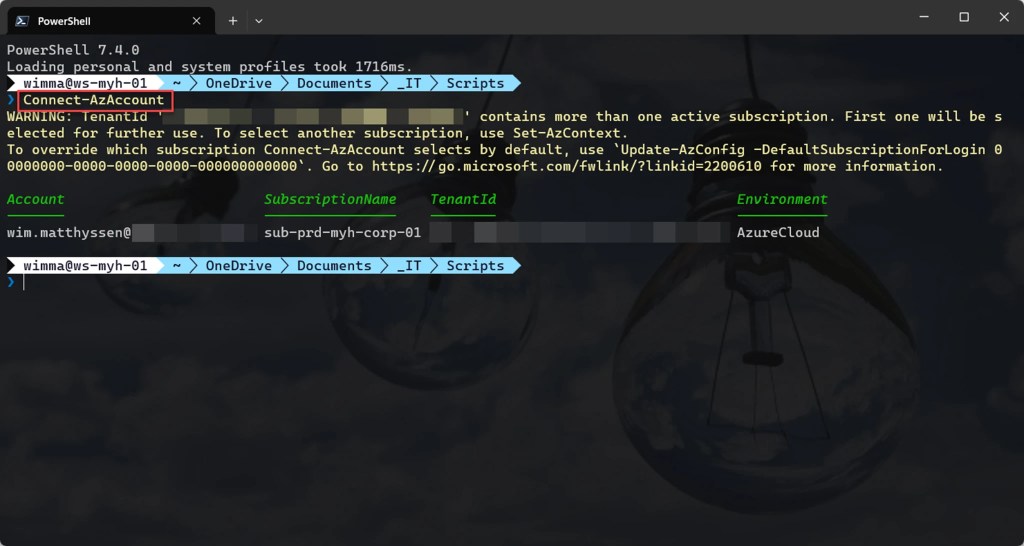
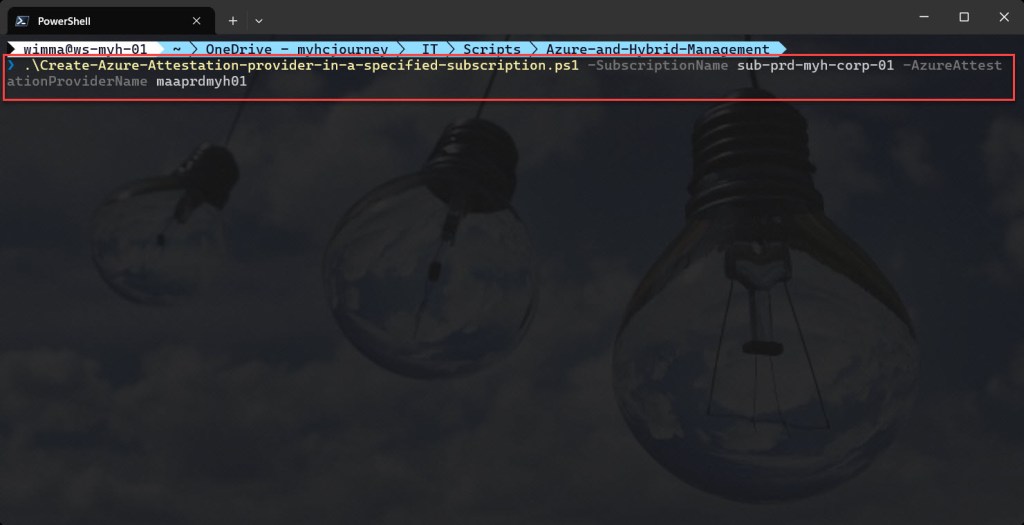
You can then run the script with the required parameters.
.\Create-Azure-Attestation-provider-in-a-specified-subscription.ps1 -SubscriptionName <"your Azure subscription name here"> -AzureAttestationProviderName <"your Azure Attestation provider name here">
<#
.SYNOPSIS

A script used to create a Microsoft Azure Attestion provider in a specified Azure subscription.

.DESCRIPTION

A script used to create a Microsoft Azure Attestion provider in a specified Azure subscription.
The script will do all of the following:

Remove the breaking change warning messages.
Check if the Attestation provider name follows the naming convention; if not, exit the script.
Change the current context to use a management subscription holding your central Log Anlytics workspace.
Save Log Analytics workspace from the management subscription in a variable.
Change the current context to the specified subscription.
Register the required Azure resource provider (Microsoft.Attestation) in the current subscription context, if not yet registered.
Store the specified set of tags in a hash table.
Extract spoke name from Attestion provider name and store in a variable ($spoke) for subsequent use.
Create a resource group management if one does not already exist. Also, apply the necessary tags to this resource group.
Create the Azure Attestation provider if it does not exist.
Set specified tags on the Azure Attestation provider.
Set the log settings for the Azure Attestation provider if they don't exist.
Lock the management resource group with a CanNotDelete lock.

.NOTES

Filename:       Create-Azure-Attestation-provider-in-a-specified-subscription.ps1
Created:        15/05/2024
Last modified:  15/05/2024
Author:         Wim Matthyssen
Version:        1.0
PowerShell:     Azure PowerShell and Azure Cloud Shell
Requires:       PowerShell Az (v10.4.1)
Action:         Change variables were needed to fit your needs.
Disclaimer:     This script is provided "As Is" with no warranties.

.EXAMPLE

Connect-AzAccount
Get-AzTenant (if not using the default tenant)
Set-AzContext -tenantID "xxxxxxxx-xxxx-xxxx-xxxxxxxxxxxx" (if not using the default tenant)
.\Create-Azure-Attestation-provider-in-a-specified-subscription.ps1 -SubscriptionName <"your Azure subscription name here"> -AzureAttestationProviderName <"your Azure Attestation provider name here">

-> .\Create-Azure-Attestation-provider-in-a-specified-subscription.ps1 -SubscriptionName sub-prd-myh-corp-01 -AzureAttestationProviderName maaprdmyh01

.LINK

https://wmatthyssen.com/2024/05/15/create-a-microsoft-azure-attestation-provider-with-azure-powershell/
#>

## ---------------------------------------------------------------------------------------------------------------------------------------------------------------------------------------------------

## Parameters

param(
    # $subscriptionName -> Name of the Azure Subscription
    [parameter(Mandatory =$true)][ValidateNotNullOrEmpty()] [string] $subscriptionName,
    # $azureAttestationProviderName -> Name of the Azure Attestation provider
    [parameter(Mandatory =$true)][ValidateNotNullOrEmpty()] [string] $azureAttestationProviderName
)

## ---------------------------------------------------------------------------------------------------------------------------------------------------------------------------------------------------

## Variables

$region = #<your region here> The region which the new Automation account will be created. Example: "westeurope"
$inventoryNumbering = 1
$providerNameSpace = "Microsoft.Attestation"

$logAnalyticsWorkSpaceName = #<your central Log Analytics workspace name here> The name for your central Log Analytics workspace. Example: "law-hub-myh-01"

$attestationProviderName = $azureAttestationProviderName.ToLower()
$attestationDiagnosticsName = "diag" + "-" + $attestationProviderName

$tagSpokeName = #<your environment tag name here> The environment tag name you want to use. Example: "Env"
$tagSpokeValue = "$($spoke[0].ToString().ToUpper())$($spoke.SubString(1))"
$tagCostCenterName  = #<your costCenter tag name here> The costCenter tag name you want to use. Example: "CostCenter"
$tagCostCenterValue = #<your costCenter tag value here> The costCenter tag value you want to use. Example: "23"
$tagCriticalityName = #<your businessCriticality tag name here> The businessCriticality tag name you want to use. Example: "Criticality"
$tagCriticalityValue = #<your businessCriticality tag value here> The businessCriticality tag value you want to use. Example: "High"
$tagPurposeName  = #<your purpose tag name here> The purpose tag name you want to use. Example: "Purpose"
$tagPurposeValue = "$($purpose[0].ToString().ToUpper())$($purpose.SubString(1))"

Set-PSBreakpoint -Variable currenttime -Mode Read -Action {$global:currenttime = Get-Date -Format "dddd MM/dd/yyyy HH:mm"} | Out-Null
$foregroundColor1 = "Green"
$foregroundColor2 = "Yellow"
$foregroundColor3 = "Red"
$writeEmptyLine = "`n"
$writeSeperatorSpaces = " - "

## ---------------------------------------------------------------------------------------------------------------------------------------------------------------------------------------------------

## Remove the breaking change warning messages

Set-Item -Path Env:\SuppressAzurePowerShellBreakingChangeWarnings -Value $true | Out-Null
Update-AzConfig -DisplayBreakingChangeWarning $false | Out-Null
$warningPreference = "SilentlyContinue"

## ---------------------------------------------------------------------------------------------------------------------------------------------------------------------------------------------------

## Write script started

Write-Host ($writeEmptyLine + "# Script started. Without errors, it can take up to 2 minutes to complete" + $writeSeperatorSpaces + $currentTime)`
-foregroundcolor $foregroundColor1 $writeEmptyLine

## ---------------------------------------------------------------------------------------------------------------------------------------------------------------------------------------------------

## Check if the Attestation provider name follows the naming convention; if not, exit the script

# Define the regular expression pattern
$pattern = "^maa(hub|prd|dev|acc|tst)[a-zA-Z]{3}\d{2}$"

# Check if the variable matches the pattern
if ($attestationProviderName -match $pattern) {
    Write-Host ($writeEmptyLine + "# The typed-in Attestation provider name $attestationProviderName follows the naming convention, the script will continue." + $writeSeperatorSpaces + $currentTime)`
-foregroundcolor $foregroundColor2 $writeEmptyLine
} else {
    Write-Host ($writeEmptyLine + "# The typed-in Attestation provider name $attestationProviderName does not follow the naming convention, the script will exit." + $writeSeperatorSpaces + $currentTime)`
-foregroundcolor $foregroundColor3 $writeEmptyLine
Write-Host ($writeEmptyLine + "# Please rerun the script with a name following the naming convention." + $writeSeperatorSpaces + $currentTime)`
-foregroundcolor $foregroundColor3 $writeEmptyLine
Start-Sleep -s 3
exit
}

## ---------------------------------------------------------------------------------------------------------------------------------------------------------------------------------------------------

## Change the current context to use a management subscription holding your central Log Anlytics workspace

# Replace <your subscription purpose name here> with purpose name of your subscription. Example: "*management*"
$subNameManagement = Get-AzSubscription | Where-Object {$_.Name -like "*management*"}

Set-AzContext -SubscriptionId $subNameManagement.SubscriptionId | Out-Null

Write-Host ($writeEmptyLine + "# Management subscription in current tenant selected" + $writeSeperatorSpaces + $currentTime)`
-foregroundcolor $foregroundColor2 $writeEmptyLine

## ---------------------------------------------------------------------------------------------------------------------------------------------------------------------------------------------------

## Save Log Analytics workspace from the management subscription in a variable

$workSpace = Get-AzOperationalInsightsWorkspace | Where-Object Name -Match $logAnalyticsWorkSpaceName

Write-Host ($writeEmptyLine + "# Log Analytics workspace variable created" + $writeSeperatorSpaces + $currentTime)`
-foregroundcolor $foregroundColor2 $writeEmptyLine

## ---------------------------------------------------------------------------------------------------------------------------------------------------------------------------------------------------

## Change the current context to the specified subscription

$subName = Get-AzSubscription | Where-Object {$_.Name -like $subscriptionName}

Set-AzContext -SubscriptionId $subName.SubscriptionId | Out-Null

Write-Host ($writeEmptyLine + "# Specified subscription in current tenant selected" + $writeSeperatorSpaces + $currentTime)`
-foregroundcolor $foregroundColor2 $writeEmptyLine

## ---------------------------------------------------------------------------------------------------------------------------------------------------------------------------------------------------

## Register the required Azure resource provider (Microsoft.Attestation) in the current subscription context, if not yet registered

Register-AzResourceProvider -ProviderNamespace $providerNameSpace | Out-Null

Write-Host ($writeEmptyLine + "# All required resource providers for an Azure Attestation provider are currently registering or have already registered" + $writeSeperatorSpaces + $currentTime)`
-foregroundcolor $foregroundColor2 $writeEmptyLine

## ---------------------------------------------------------------------------------------------------------------------------------------------------------------------------------------------------

## Store the specified set of tags in a hash table

$tags = @{$tagSpokeName=$tagSpokeValue;$tagCostCenterName=$tagCostCenterValue;$tagCriticalityName=$tagCriticalityValue;$tagPurposeName=$tagPurposeValue}

Write-Host ($writeEmptyLine + "# Specified set of tags available to add" + $writeSeperatorSpaces + $currentTime)`
-foregroundcolor $foregroundColor2 $writeEmptyLine

## ---------------------------------------------------------------------------------------------------------------------------------------------------------------------------------------------------

## Extract spoke name from Attestion provider name and store in a variable ($spoke) for subsequent use

# Position to start stripping (0-based index)
$startPosition = 3

# Number of characters to extract
$numCharactersToExtract = 3

# Extract the substring and save in variable
$spoke = $attestationProviderName.Substring($startPosition, $numCharactersToExtract)

Write-Host ($writeEmptyLine + "# Spoke variable with string content $spoke available" + $writeSeperatorSpaces + $currentTime)`
-foregroundcolor $foregroundColor2 $writeEmptyLine

## ---------------------------------------------------------------------------------------------------------------------------------------------------------------------------------------------------

## Create a resource group management if one does not already exist. Also, apply the necessary tags to this resource group

$rgNameManagement = "rg" + "-" + $spoke + "-" + $companyShortName + "-" + "management" + "-" + $inventoryNumbering.ToString("D2")

try {
    Get-AzResourceGroup -Name $rgNameManagement -ErrorAction Stop | Out-Null
} catch {
    New-AzResourceGroup -Name $rgNameManagement -Location $region -Force | Out-Null
}

# Save variable tags in a new variable to add tags.
$tagsResourceGroup = $tags

# Set tags rg storage.
Set-AzResourceGroup -Name $rgNameManagement -Tag $tagsResourceGroup | Out-Null

Write-Host ($writeEmptyLine + "# Resource group $rgNameManagement available with tags" + $writeSeperatorSpaces + $currentTime)`
-foregroundcolor $foregroundColor2 $writeEmptyLine

## ---------------------------------------------------------------------------------------------------------------------------------------------------------------------------------------------------

## Create the Azure Attestation provider if it does not exist

try {
    Get-AzAttestationProvider -Name $attestationProviderName -ResourceGroupName $rgNameManagement -ErrorAction Stop | Out-Null
} catch {
    New-AzAttestationProvider -Name $attestationProviderName -ResourceGroupName $rgNameManagement -Location $region | Out-Null
}

Write-Host ($writeEmptyLine + "# Attestation provider $attestationProviderName created" + $writeSeperatorSpaces + $currentTime)`
-foregroundcolor $foregroundColor2 $writeEmptyLine

## ---------------------------------------------------------------------------------------------------------------------------------------------------------------------------------------------------

## Set specified tags on the Azure Attestation provider

Update-AzAttestationProvider -Name $attestationProviderName -ResourceGroupName $rgNameManagement -Tag $tags | Out-Null

Write-Host ($writeEmptyLine + "# Tags Attestation provider $attestationProviderName set" + $writeSeperatorSpaces + $currentTime)`
-foregroundcolor $foregroundColor2 $writeEmptyLine

## ---------------------------------------------------------------------------------------------------------------------------------------------------------------------------------------------------

## Set the log settings for the Azure Attestation provider if they don't exist

# Wait 15 seconds to let the Attestion provided be created if necessary
Start-Sleep -Duration (New-TimeSpan -Seconds 15)

$attestationProvider = Get-AzResource -Name $attestationProviderName -ResourceGroupName $rgNameManagement

try {
    Get-AzDiagnosticSetting -Name $attestationDiagnosticsName -ResourceId ($attestationProvider.ResourceId) -ErrorAction Stop | Out-Null
} catch {
    $log = @()
    $log += New-AzDiagnosticSettingLogSettingsObject -Enabled $true -Category Operational
    $log += New-AzDiagnosticSettingLogSettingsObject -Enabled $true -Category NotProcessed
    $log += New-AzDiagnosticSettingLogSettingsObject -Enabled $true -Category AuditEvent

    New-AzDiagnosticSetting -Name $attestationDiagnosticsName -ResourceId ($attestationProvider.ResourceId) -WorkspaceId ($workSpace.ResourceId) -Log $log -Metric $metric | Out-Null
}

Write-Host ($writeEmptyLine + "# Attestation provider $attestationProviderName diagnostic settings set" + $writeSeperatorSpaces + $currentTime)`
-foregroundcolor $foregroundColor2 $writeEmptyLine

## ---------------------------------------------------------------------------------------------------------------------------------------------------------------------------------------------------

## Lock the management resource group with a CanNotDelete lock

$lock = Get-AzResourceLock -ResourceGroupName $rgNameManagement

if ($null -eq $lock){
    New-AzResourceLock -LockName DoNotDeleteLock -LockLevel CanNotDelete -ResourceGroupName $rgNameManagement -LockNotes "Prevent $rgNameManagement from deletion" -Force | Out-Null
    }

Write-Host ($writeEmptyLine + "# Resource group $rgNameManagement locked" + $writeSeperatorSpaces + $currentTime)`
-foregroundcolor $foregroundColor2 $writeEmptyLine

## ---------------------------------------------------------------------------------------------------------------------------------------------------------------------------------------------------

## Write script completed

Write-Host ($writeEmptyLine + "# Script completed" + $writeSeperatorSpaces + $currentTime)`
-foregroundcolor $foregroundColor1 $writeEmptyLine

## ---------------------------------------------------------------------------------------------------------------------------------------------------------------------------------------------------
Conclusion
Microsoft Azure Attestation plays a pivotal role in verifying platform trustworthiness and software integrity remotely, which is crucial for environments demanding stringent security and trust assurances.
By integrating Azure Attestation into your workflows, you can confidently validate platform evidence, enforce policy compliance, and empower claims-based applications with attestation tokens, ensuring a secure and reliable computing environment.
I hope the Azure PowerShell script shared in this blog post will help you simplify the creation of a Microsoft Azure Attestation provider in your environment.
If you have any questions or suggestions regarding this blog post or script, feel free to reach out to me on X (@wmatthyssen) or leave a comment. I’ll be happy to assist you.
 Wim Matthyssen
0 comments on “Create a Microsoft Azure Attestation provider with Azure PowerShell”