
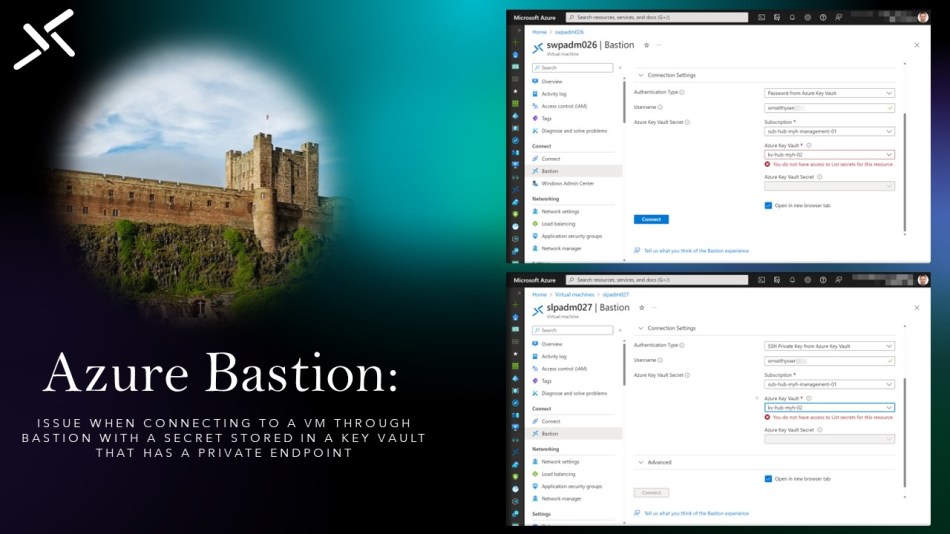
This blog post guides you through resolving the “You do not have access to List secrets for this resource” error while connecting to an Azure VM via Azure Bastion and using a Secret (password or SSH Private Key) stored in a Key Vault that has a private endpoint.
Azure Private Link Service allows you to connect to Azure Services (for example, Azure Key Vault and Azure Storage) as well as Azure-hosted customer and partner services through a Private Endpoint within your virtual network (VNet).

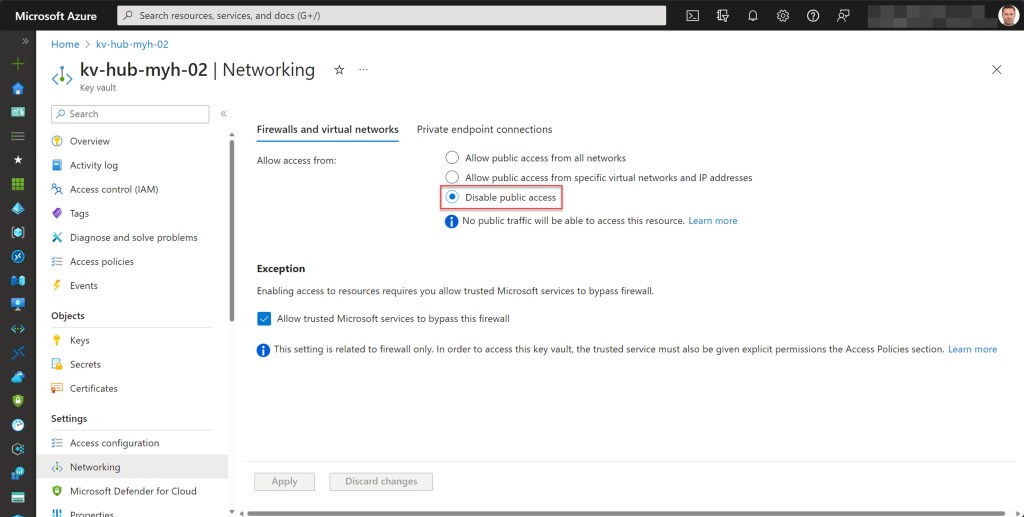
On the other hand, Azure Key Vault is a cloud service that offers secure storage and access to secrets like passwords for your Azure IaaS Windows VMs or SSH Private Keys for your Azure IaaS Linux VMs.

However, when you use both services in combination with Azure Bastion, it’s important to note that Azure Bastion currently lacks support for private links and that it is also not included in the trusted Microsoft services listed to bypass the Azure Key Vault firewall.
As a result, if you set up a key vault with a private endpoint, the Azure Bastion host won’t be able to list the secrets stored in this key vault by default.
When attempting to choose a secret from that Key Vault in the Azure Bastion connection blade from the VM, you’ll encounter the “You do not have access to List secrets for this resource” error.
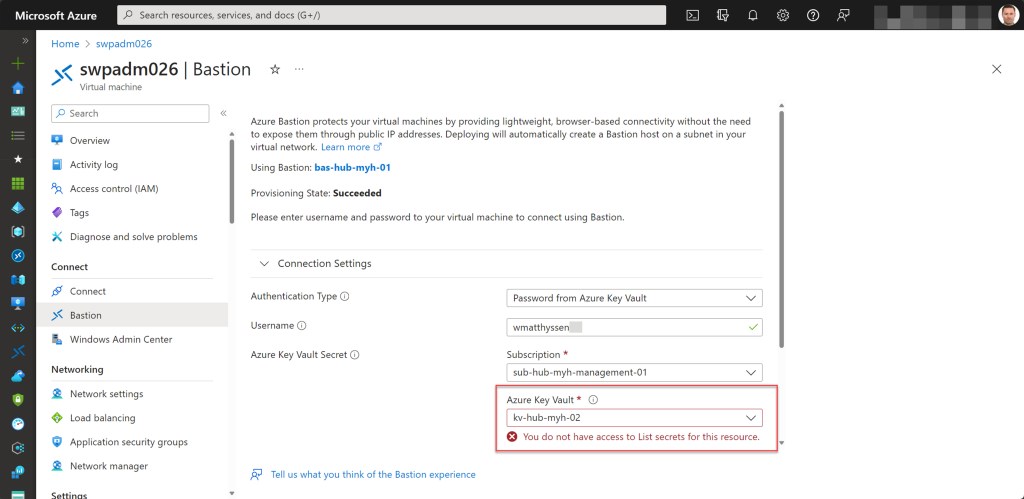
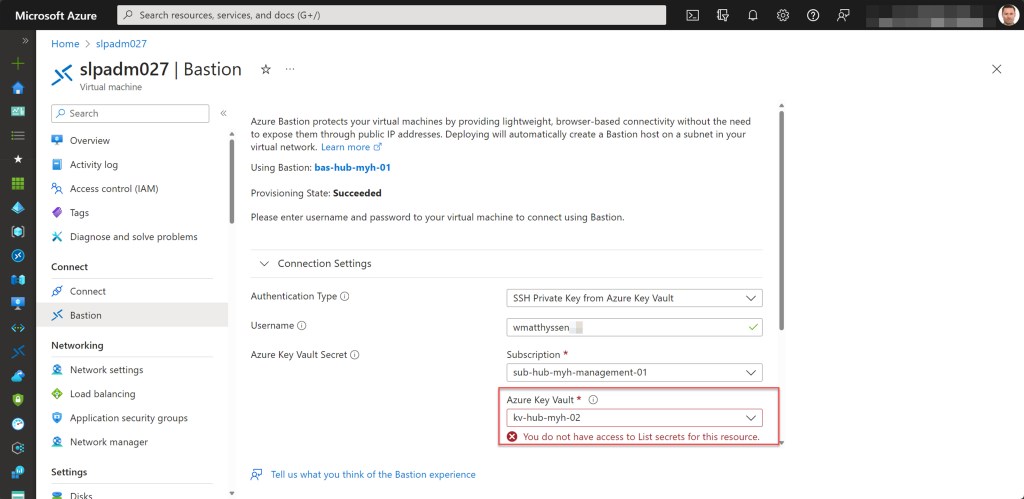
Luckily, there’s a workaround for this error that enables you to utilize any of the secrets stored in that Key Vault through Azure Bastion.
Begin by opening a new browser page and determining your public IP address by visiting a website such as https://www.whatismyip.com/
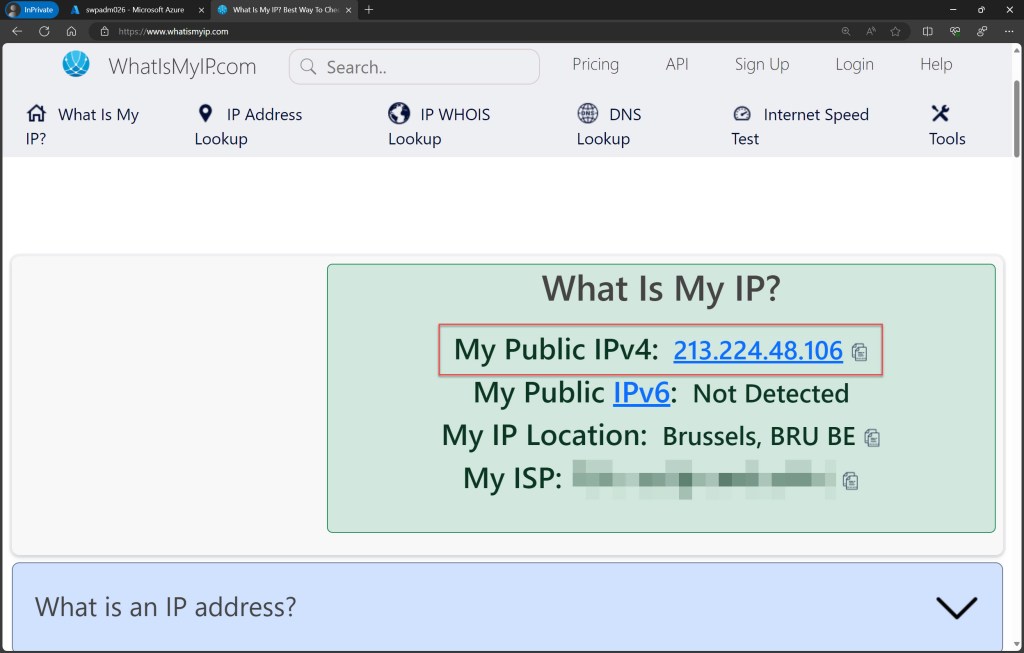
Once you have your public IP address, go to the Azure Key Vault blade for the Key Vault containing your secrets.
Navigate to the Settings section, access the Firewall and virtual networks tab, and choose “Allow public access from specific virtual networks and IP addresses.”
Then, scroll down to the Firewall section, where you can add your current public IP address. Afterward, click “Apply” to apply these new settings.


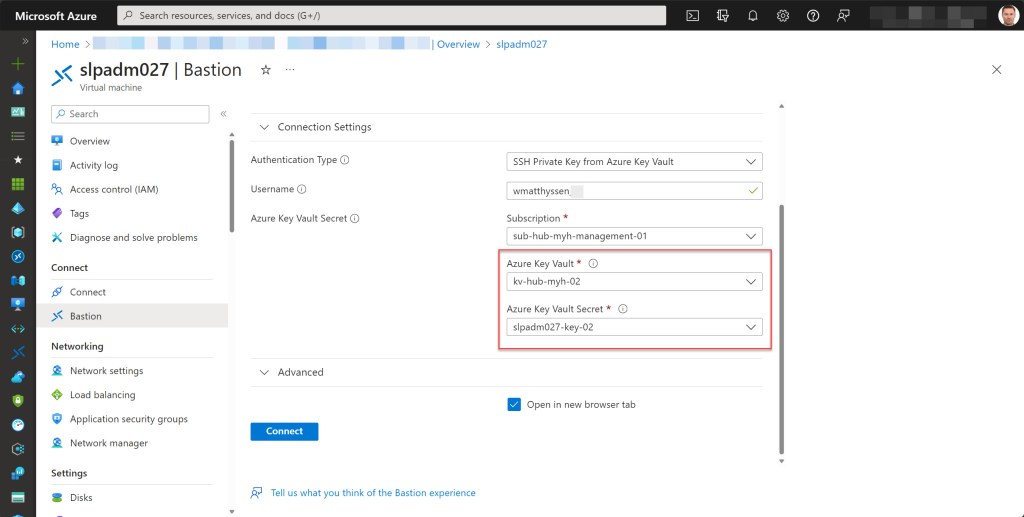
When you then return to the VM blade and connect through Azure Bastion, you should now have the option to select the password or SSH Private key stored in this Key Vault within the Bastion connection blade.
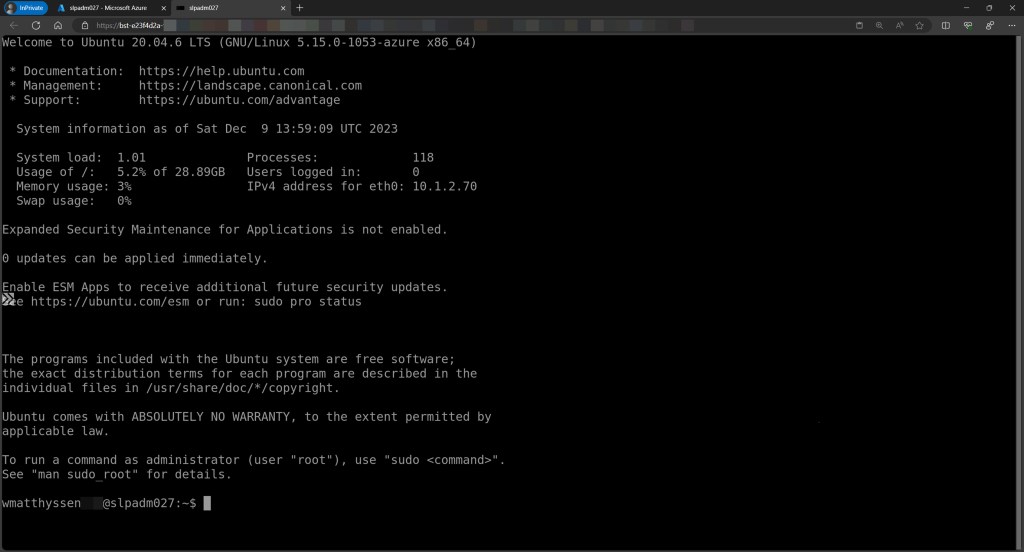
This should enable you to successfully log in to your Azure IaaS Windows or Linux VM.


Conclusion
By default, Azure Bastion encounters an issue when attempting to utilize secrets stored in a Key Vault with a private endpoint, resulting in the “You do not have access to List secrets for this resource” error when connecting to an Azure VM with your Azure Bastion host.
To address this error and default behavior, you can follow the steps outlined in this blog post.
If you have any questions or suggestions related to this blog post, feel free to reach out to me via my X handle (@wmatthyssen) or leave a comment. I’ll be more than happy to assist you.
 Wim Matthyssen
0 comments on “Azure Bastion: Issue when connecting to a VM through Bastion with a secret stored in a Key Vault that has a private endpoint”