
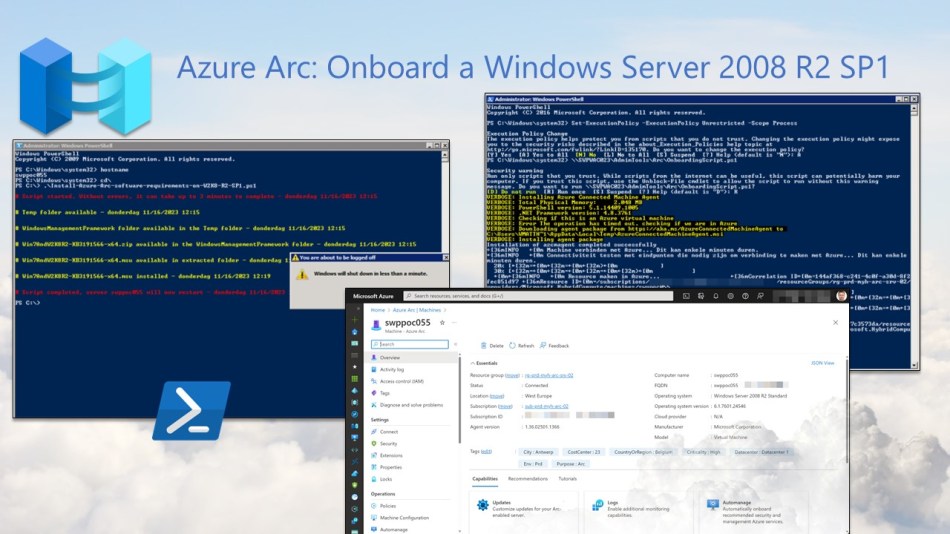
This blog post will guide you through the process of onboarding a Windows Server 2008 R2 SP1 server into Azure Arc.
Even though Windows Server 2008 R2 SP1 has reached the end of its support lifecycle, companies can still benefit from onboarding their remaining servers still running on this OS, likely due to some kind of legacy application running on top of it, into Azure Arc.
Bringing them into Azure Arc enables centralized management through a unified interface, streamlining governance and compliance on these servers with features like Change Tracking, Inventory and Tags.
You can onboard these servers using the onboarding script, but before that, certain software requirements must be in place. This blog post explains all the necessary details for successfully onboarding these servers into Arc.
Table of Contents
- Windows Updates
- Install Windows Management Framework 5.1
- Run the Azure Arc onboarding script
- Conclusion
Windows Updates
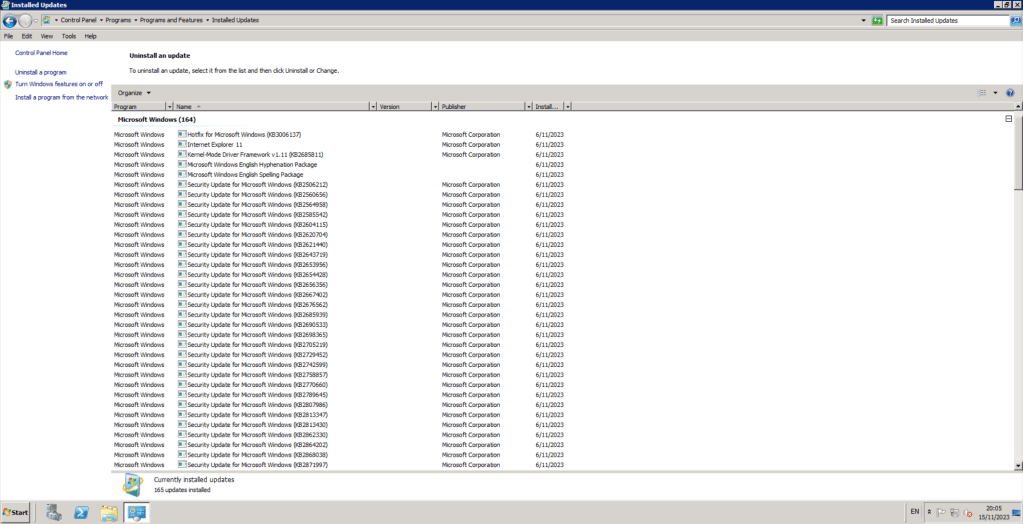
Ensure that you have installed all Windows Updates* up to January 13, 2015, and, if applicable, extended support updates until the end on January 14, 2020.
*If you encounter the “Code 800272EFE” error while updating Windows on a server rebuilt from the February 23, 2011, DVD ISO, check out my previous blog post for a solution.
Install Windows Management Framework 5.1
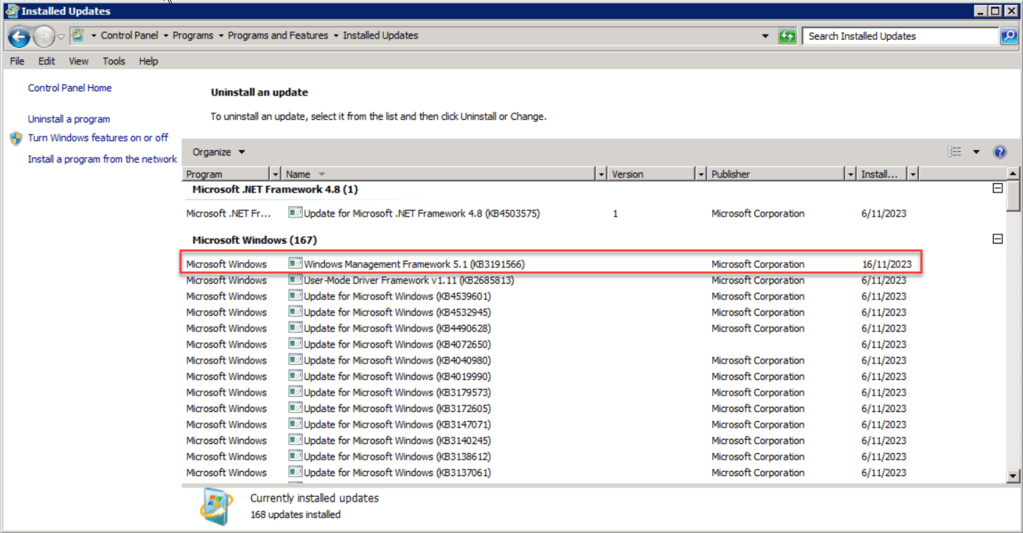
For successful onboarding of your Windows Server 2008 R2 SP1 server(s) into Azure Arc, it requires running PowerShell 4.0 or later. To meet this requirement, it’s best to use the latest version by deploying the Windows Management Framework 5.1. (WMF 5.1)
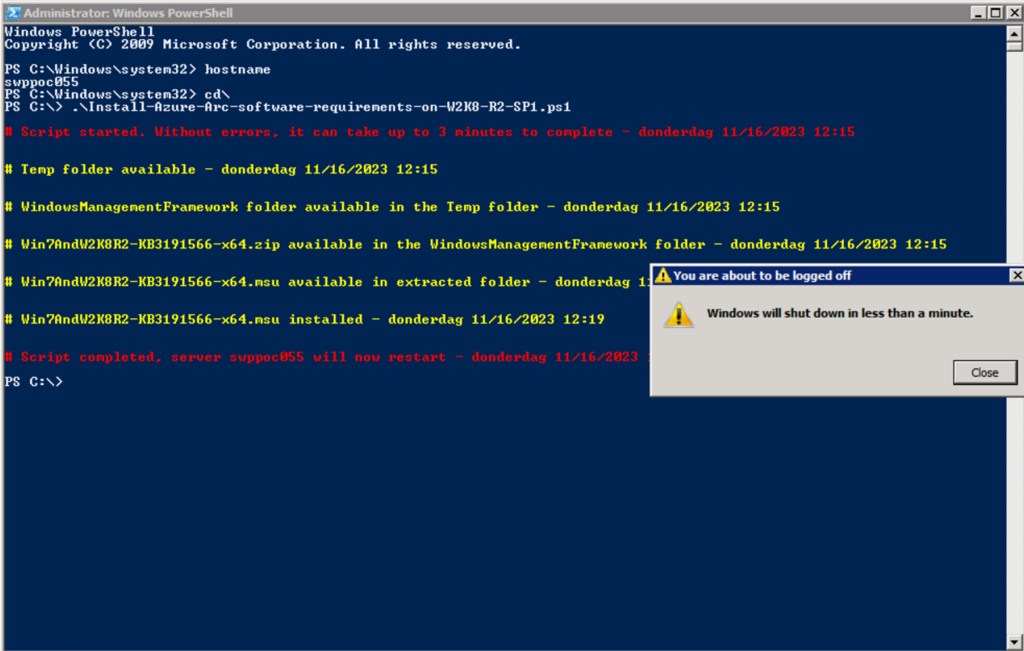
To easily download and install WMF 5.1 directly from a W2K8 R2 SP1 server, you can run the below PowerShell script, which includes the following steps and configurations:
- Check if PowerShell is running as an administrator; otherwise, exit the script.
- Remove the breaking change warning messages.
- Create C:\Temp folder if it does not exist.
- Create WindowsManagementFramework folder in C:\Temp if it does not exist.
- Download the WMF 5.1 zip file.
- Extract and cleanup the Win7AndW2K8R2-KB3191566-x64.zip zip file.
- Install MSU Win7AndW2K8R2-KB3191566-x64.msu.
- Reboot the server after 3 seconds.
Begin by creating a copy and saving it as “Install-Azure-Arc-software-requirements-on-W2K8-R2-SP1“, or you can directly download it from GitHub.
As a best practice, it’s advisable to adjust the script and execute it from a management server or your administrator’s workstation.
Also, be aware that the server will reboot at the end of the script.
<#
.SYNOPSIS

A script used to install all the software requirements required to onboard a Windows Server 2008 R2 SP1 server into Azure Arc.

.DESCRIPTION

A script used to install all the software requirements required to onboard a Windows Server 2008 R2 SP1 server into Azure Arc.
This script will do all of the following:

Check if PowerShell is running as an administrator; otherwise, exit the script.
Remove the breaking change warning messages.
Create C:\Temp folder if it does not exist.
Create WindowsManagementFramework folder in C:\Temp if it does not exist.
Download the WMF 5.1 zip file.
Extract and cleanup the Win7AndW2K8R2-KB3191566-x64.zip zip file.
Install MSU Win7AndW2K8R2-KB3191566-x64.msu.
Reboot the server after 3 seconds.

.NOTES

Filename:       Install-Azure-Arc-software-requirements-on-W2K8-R2-SP1.ps1
Created:        15/11/2023
Last modified:  15/11/2023
Author:         Wim Matthyssen
Version:        1.0
PowerShell:     2.0
Action:         Change variables were needed to fit your needs.
Disclaimer:     This script is provided "as is" with no warranties.

.EXAMPLE

.\Install-Azure-Arc-software-requirements-on-W2K8-R2-SP1.ps1

.LINK

https://wmatthyssen.com/2023/11/16/azure-arc-onboard-a-windows-server-2008-r2-sp1/
#>

## ----------------------------------------------------------------------------------------------------------------------------------------------------------------------------------

## Variables

$tempFolderName = "Temp"
$tempFolderPath = "C:\" + $tempFolderName +"\"
$itemType = "Directory"
$wmfFolderName = "WindowsManagementFramework"
$tempWmfFolderPath = $tempFolderPath + $wmfFolderName +"\"
$wmfUrl = "https://download.microsoft.com/download/6/F/5/6F5FF66C-6775-42B0-86C4-47D41F2DA187/Win7AndW2K8R2-KB3191566-x64.zip"
$wmfZip = $tempWmfFolderPath + "Win7AndW2K8R2-KB3191566-x64.zip"

$global:currenttime= Set-PSBreakpoint -Variable currenttime -Mode Read -Action {$global:currenttime= Get-Date -UFormat "%A %m/%d/%Y %R"}
$foregroundColor1 = "Red"
$foregroundColor2 = "Yellow"
$writeEmptyLine = "`n"
$writeSeperatorSpaces = " - "

# ---------------------------------------------------------------------------------------------------------------------------------------------------------------------------------------------

## Check if PowerShell is running as an administrator; otherwise, exit the script

$currentPrincipal = New-Object Security.Principal.WindowsPrincipal([Security.Principal.WindowsIdentity]::GetCurrent())
$isAdministrator = $currentPrincipal.IsInRole([Security.Principal.WindowsBuiltInRole]::Administrator)

if ($isAdministrator -eq $false)
{
    Write-Host ($writeEmptyLine + "# Please run PowerShell as Administrator" + $writeSeperatorSpaces + $currentTime)`
    -foregroundcolor $foregroundColor1 $writeEmptyLine
    exit
}

# ---------------------------------------------------------------------------------------------------------------------------------------------------------------------------------------------

## Remove the breaking change warning messages

Set-Item -Path Env:\SuppressAzurePowerShellBreakingChangeWarnings -Value $true | Out-Null
$warningPreference = "SilentlyContinue"

## ---------------------------------------------------------------------------------------------------------------------------------------------------------------------------------------------

## Write script started

Write-Host ($writeEmptyLine + "# Script started. Without errors, it can take up to 4 minutes to complete" + $writeSeperatorSpaces + $currentTime)`
-foregroundcolor $foregroundColor1 $writeEmptyLine

## ---------------------------------------------------------------------------------------------------------------------------------------------------------------------------------------------

## Create C:\Temp folder if it does not exist

If(!(test-path $tempFolderPath))
{
New-Item -Path "C:\" -Name $tempFolderName -ItemType $itemType -Force | Out-Null
}

Write-Host ($writeEmptyLine + "# $tempFolderName folder available" + $writeSeperatorSpaces + $currentTime)`
-foregroundcolor $foregroundColor2 $writeEmptyLine

## ---------------------------------------------------------------------------------------------------------------------------------------------------------------------------------------------

## Create WindowsManagementFramework folder in C:\Temp if it does not exist

If(!(test-path $tempWmfFolderPath))
{
New-Item -Path $tempFolderPath -Name $wmfFolderName -ItemType $itemType | Out-Null
}

Write-Host ($writeEmptyLine + "# $wmfFolderName folder available in the $tempFolderName folder" + $writeSeperatorSpaces + $currentTime)`
-foregroundcolor $foregroundColor2 $writeEmptyLine

## ---------------------------------------------------------------------------------------------------------------------------------------------------------------------------------------------

## Download the WMF 5.1 zip file

# Create a new WebClient object
$webClient = New-Object System.Net.WebClient

# Download the zip file
$webClient.DownloadFile($wmfUrl, $wmfZip)

# Dispose of the WebClient object to release resources
$webClient.Dispose()

Write-Host ($writeEmptyLine + "# Win7AndW2K8R2-KB3191566-x64.zip available in the $wmfFolderName folder" + $writeSeperatorSpaces + $currentTime)`
-foregroundcolor $foregroundColor2 $writeEmptyLine

## ---------------------------------------------------------------------------------------------------------------------------------------------------------------------------------------------

## Extract and cleanup the Win7AndW2K8R2-KB3191566-x64.zip zip file

# Create a Shell Application object
$shell = New-Object -ComObject Shell.Application

# Create a folder object for the destination folder
$destinationFolder = $shell.Namespace($tempWmfFolderPath)

# Create a folder object for the zip file
$zipFile = $shell.Namespace($wmfZip)

# Copy the contents of the zip file to the destination folder
$destinationFolder.CopyHere($zipFile.Items())

Write-Host ($writeEmptyLine + "# Win7AndW2K8R2-KB3191566-x64.msu available in extracted folder" + $writeSeperatorSpaces + $currentTime)`
-foregroundcolor $foregroundColor2 $writeEmptyLine

## ---------------------------------------------------------------------------------------------------------------------------------------------------------------------------------------------

## Install MSU Win7AndW2K8R2-KB3191566-x64.msu

# Specify the path to the MSU file
$msuFilePath = $tempWmfFolderPath + "Win7AndW2K8R2-KB3191566-x64.msu"

# Use wusa.exe to install the MSU file
Start-Process -FilePath "wusa.exe" -ArgumentList "$msuFilePath /quiet /norestart" -Wait

Write-Host ($writeEmptyLine + "# Win7AndW2K8R2-KB3191566-x64.msu installed" + $writeSeperatorSpaces + $currentTime)`
-foregroundcolor $foregroundColor2 $writeEmptyLine

## ---------------------------------------------------------------------------------------------------------------------------------------------------------------------------------------------

## Reboot the server after 3 seconds

# Get the hostname
$hostname = [System.Net.Dns]::GetHostName()

Write-Host ($writeEmptyLine + "# Script completed, server $hostname will now restart" + $writeSeperatorSpaces + $currentTime)`
-foregroundcolor $foregroundColor1 $writeEmptyLine

# Restart the server without a confirmation prompt
Start-Process -FilePath "shutdown.exe" -ArgumentList "/r /t 3" -Wait

## ---------------------------------------------------------------------------------------------------------------------------------------------------------------------------------------------

Run the Azure Arc onboarding script
Having installed all the necessary software requirements, the next step is to onboard your W2K8 R2 SP1 server(s) into Azure Arc.
To proceed, log in to the server using an account with administrator privileges and either copy the onboarding script, onboardingscript.ps1, to a local folder such as the Temp folder or run the script directly from a shared folder accessible from the server.
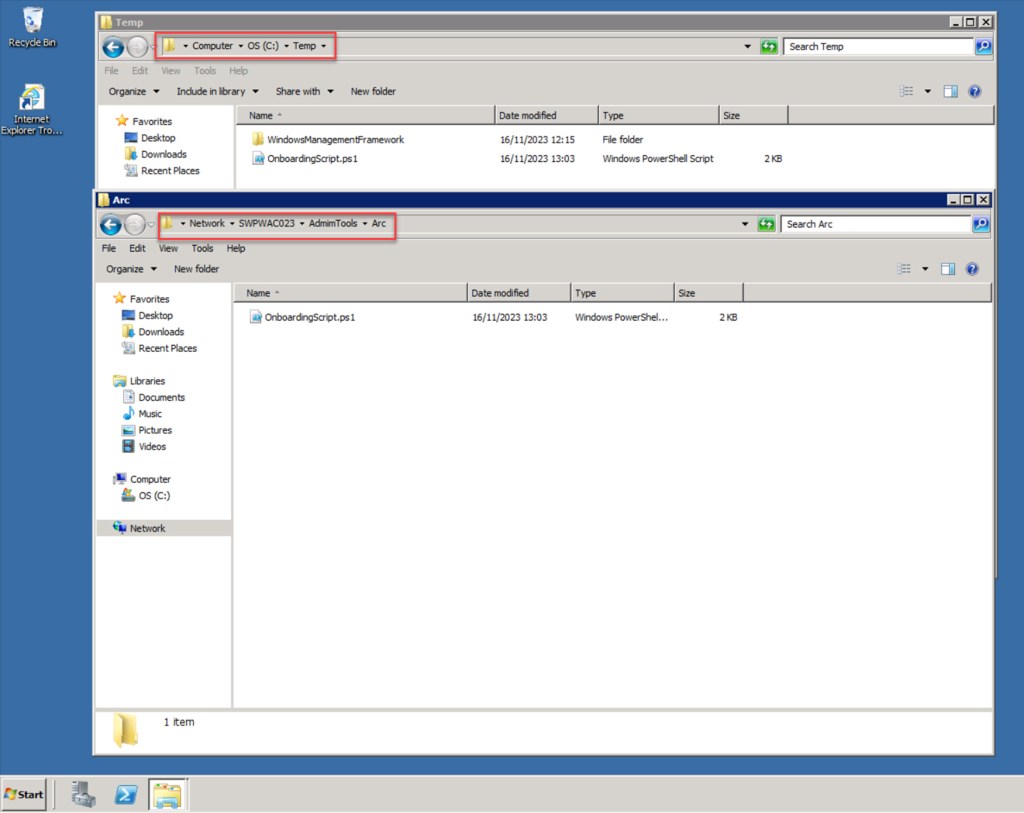
Next, open an elevated PowerShell command prompt and set the execution policy to Unrestricted for the Process scope (which only affects the current PowerShell session) using the following PowerShell cmdlet:
Set-ExecutionPolicy -ExecutionPolicy Unrestricted -Scope Process
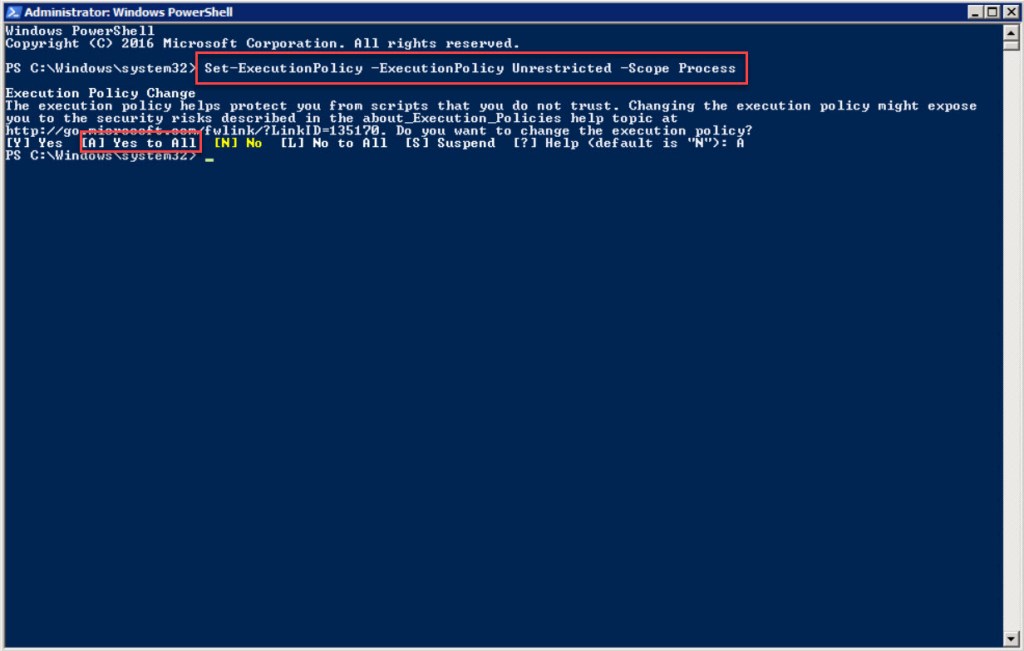
Then run the OnboardingScript.ps1 script.
Once the script successfully completes, your server should be successfully onboarded into Azure Arc.

Once the script successfully completes, your server should be successfully onboarded into Azure Arc.


Conclusion
To successfully onboard your Windows Server 2008 R2 SP1 servers into Azure Arc, it’s essential to have specific software requirements in place. This blog post outlines all the necessary steps for a successful onboarding process.
Should you have any questions or suggestions related to this blog post or Azure Arc, please don’t hesitate to contact me via my X handle (@wmatthyssen) or leave a comment. I’m more than happy to assist.
 Wim Matthyssen
0 comments on “Azure Arc: Onboard a Windows Server 2008 R2 SP1”