

In this blog post, you’ll learn how to use an Azure PowerShell script to provision an Extended Security License (ESU) through the Azure Arc WS2012 ESU ARM APIs.
Currently, you can only provision and manage Windows Server 2012 and Windows Server 2012 R2 ESU lifecycle operations programmatically using Azure Arc WS2012 ESU ARM APIs. This means that currently, an API command is necessary to provision a license.
To simplify and automate this process, I have created the following Azure PowerShell script, which includes the following steps and configurations:
- Remove the breaking change warning messages.
- Change the current context to the specified subscription if it exists; otherwise, exit the script.
- Define the regular expression pattern for the expected format of the $esuLicenseName variable.
- Create the edition variable.
- Create the type variable.
- Check the minimum virtual or physical core requirements; if they are not valid, exit the script.
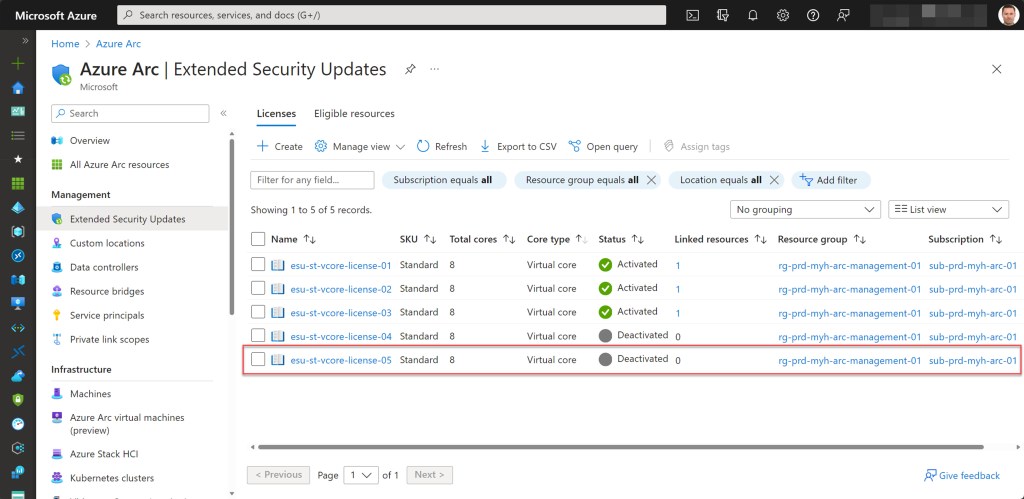
- Provision the ESU license.
To use the script, start by making a copy and saving it as “Provision-ESU-license-using-Azure-Arc-WS2012-ESU-ARM-APIs.ps1” or download it directly from GitHub.
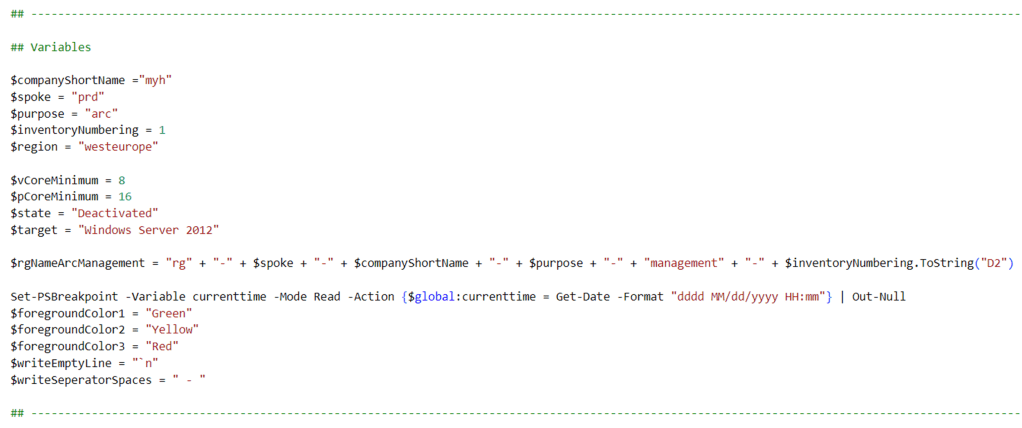
Before using the script, customize all variables according to your specific requirements (an example is provided below). Once customized, execute the script using Windows Terminal, Visual Studio Code, or Windows PowerShell. Alternatively, you can run it directly from Cloud Shell.
Table of Contents
Prerequisites
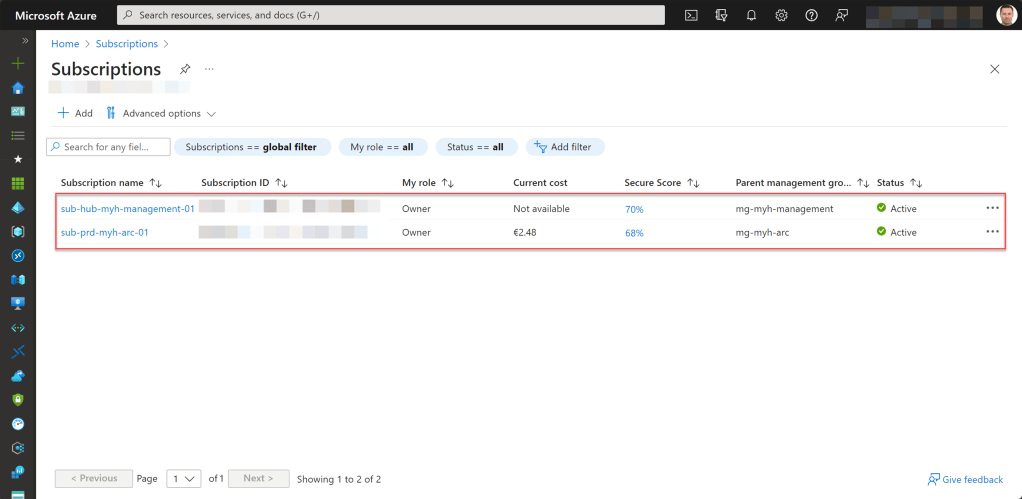
- An Azure subscription, preferably more than one if you plan to follow the Cloud Adoption Framework (CAF) enterprise-scale architecture. This includes a connectivity and/or management subscription, as well as an ARC subscription (landing zone), to deploy your Arc-related resources.
- An existing resource group on the Arc subscription to store your Azure Arc WS20212 or WS2012R2 ESU licenses.
- An Azure Administrator account with the necessary RBAC roles, specifically the Contributor role, to carry out essential tasks such as creating and assigning ESUs.
- Some machines, whether physical or virtual, running Windows Server 2012 (W2K12) or Windows Server 2012 R2 (W2K12R2) within your hybrid environment and have already been onboarded into Azure Arc.
- Change all the variables in the script where needed to fit your needs (you can find an adjusted example in one of the screenshots below).



Azure PowerShell script
If you are not running the script from Cloud Shell, remember to sign in with the Connect-AzAccount cmdlet to link your Azure account.

You can then run the script with the required parameters:
.\Provision-ESU-license-using-Azure-Arc-WS2012-ESU-ARM-APIs -SubscriptionName <"your Azure subscription name here"> -EsuLicenseName <"your ESU license name here"> -ProcessorCores <"your numer of required processor cores here"

<#
.SYNOPSIS

A script used to provision an ESU license by using the Azure Arc WS2012 ESU ARM APIs.

.DESCRIPTION

A script used to provision an ESU license by using the Azure Arc WS2012 ESU ARM APIs.
This script will do all of the following:

Remove the breaking change warning messages.
Change the current context to the specified subscription if it exists; otherwise, exit the script.
Define the regular expression pattern for the expected format of the $esuLicenseName variable.
Create the edition variable.
Create the type variable.
Check the minimum virtual or physical core requirements; if they are not valid, exit the script.
Provision the ESU license.

.NOTES

Filename:       Provision-ESU-license-using-Azure-Arc-WS2012-ESU-ARM-APIs.ps1
Created:        25/10/2023
Last modified:  25/10/2023
Author:         Wim Matthyssen
Version:        1.0
PowerShell:     Azure PowerShell and Azure Cloud Shell
Requires:       PowerShell Az (v10.4.1)
Action:         Change variables were needed to fit your needs.
Disclaimer:     This script is provided "as is" with no warranties.

.EXAMPLE

Connect-AzAccount
Get-AzTenant (if not using the default tenant)
Set-AzContext -tenantID "<xxxxxxxx-xxxx-xxxx-xxxxxxxxxxxx>" (if not using the default tenant)
Set-AzContext -Subscription "<SubscriptionName>" (if not using the default subscription)
.\Provision-ESU-license-using-Azure-Arc-WS2012-ESU-ARM-APIs -SubscriptionName <"your Azure subscription name here"> -EsuLicenseName <"your ESU license name here"> -ProcessorCores <"your numer of required processor cores here"

.LINK

https://wmatthyssen.com/2023/10/26/azure-arc-provision-an-extended-security-license-with-an-azure-powershell-script/
#>

## -----------------------------------------------------------------------------------------------------------------------------------------------------------------------------------------------------------------------------------

## Parameters

param(
    # $subscriptionName -> Name of the Azure Subscription
    [parameter(Mandatory =$true)][ValidateNotNullOrEmpty()] [string] $subscriptionName,
    # $esuLicenseName -> Name of the ESU license
    [parameter(Mandatory =$true)][ValidateNotNullOrEmpty()] [string] $esuLicenseName,
    # $processorCores -> Number of processors cores
    [parameter(Mandatory =$true)][ValidateNotNullOrEmpty()] [string] $processorCores
)

## -----------------------------------------------------------------------------------------------------------------------------------------------------------------------------------------------------------------------------------

## Variables

$region = #<your region here> The used Azure public region. Example: "westeurope"

$vCoreMinimum = 8
$pCoreMinimum = 16
$state = "Deactivated"
$target = "Windows Server 2012"

$rgNameArcManagement = #<your Azure Arc management resource group name here> The name of the Azure resource group in which your Azure Arc managment resources are deployed. Example: "rg-prd-myh-arc-management-01"

Set-PSBreakpoint -Variable currenttime -Mode Read -Action {$global:currenttime = Get-Date -Format "dddd MM/dd/yyyy HH:mm"} | Out-Null
$foregroundColor1 = "Green"
$foregroundColor2 = "Yellow"
$foregroundColor3 = "Red"
$writeEmptyLine = "`n"
$writeSeperatorSpaces = " - "

## -----------------------------------------------------------------------------------------------------------------------------------------------------------------------------------------------------------------------------------

## Remove the breaking change warning messages

Set-Item -Path Env:\SuppressAzurePowerShellBreakingChangeWarnings -Value $true | Out-Null
Update-AzConfig -DisplayBreakingChangeWarning $false | Out-Null
$warningPreference = "SilentlyContinue"

## -----------------------------------------------------------------------------------------------------------------------------------------------------------------------------------------------------------------------------------

## Write script started

Write-Host ($writeEmptyLine + "# Script started. Without errors, it can take up to 1 minute to complete" + $writeSeperatorSpaces + $currentTime)`
-foregroundcolor $foregroundColor1 $writeEmptyLine

## -----------------------------------------------------------------------------------------------------------------------------------------------------------------------------------------------------------------------------------

## Change the current context to the specified subscription if it exists; otherwise, exit the script

$subName = Get-AzSubscription | Where-Object {$_.Name -like $subscriptionName} -ErrorAction SilentlyContinue

if ($subName) {
    Set-AzContext -SubscriptionId $subName.SubscriptionId | Out-Null
    Write-Host ($writeEmptyLine + "# Specified subscription $subscriptionName in current tenant selected" + $writeSeperatorSpaces + $currentTime)`
    -foregroundcolor $foregroundColor2 $writeEmptyLine
    } else {
    Write-Host ($writeEmptyLine + "# Error: Subscription $subscriptionName not found in the current tenant" + $writeSeperatorSpaces + $currentTime)`
    -foregroundcolor $foregroundColor3 $writeEmptyLine
    exit 1  # Exit the script with a non-zero exit code to indicate failure
}

## -----------------------------------------------------------------------------------------------------------------------------------------------------------------------------------------------------------------------------------

## Define the regular expression pattern for the expected format of the $esuLicenseName variable

$pattern = "^esu-(st|dc)-(vcore|pcore)-license-\d{2}$"

# Check if the input parameter matches the expected format
if ( $esuLicenseName -match $pattern) {
    Write-Host ($writeEmptyLine + "# Input parameter is in the correct format for $esuLicenseName" + $writeSeperatorSpaces + $currentTime)`
    -foregroundcolor $foregroundColor2 $writeEmptyLine
} else {
    Write-Host ($writeEmptyLine + "# Error: Input parameter is not in the correct format for $esuLicenseName" + $writeSeperatorSpaces + $currentTime)`
    -foregroundcolor $foregroundColor3 $writeEmptyLine
    exit 1  # Exit the script with a non-zero exit code to indicate failure
}

## -----------------------------------------------------------------------------------------------------------------------------------------------------------------------------------------------------------------------------------

## Create the edition variable

# Check if $esuLicenseName has a specific value
if ($esuLicenseName -match "-st-") {
    # If the specific part "-st-" is found in the parameter $esuLicenseName, create an Azure PowerShell variable
    $edition = "Standard"
} else {
    # If the specific part "-st-" is not found in the parameter $esuLicenseName, create an Azure PowerShell variable
    $edition = "Datacenter"
}

Write-Host ($writeEmptyLine + "# Edition variable available" + $writeSeperatorSpaces + $currentTime)`
-foregroundcolor $foregroundColor2 $writeEmptyLine

## -----------------------------------------------------------------------------------------------------------------------------------------------------------------------------------------------------------------------------------

## Create the type variable

# Check if $esuLicenseName has a specific value
if ($esuLicenseName -match "-vcore-") {
    # If the specific part "-vcore-" is found in the parameter $esuLicenseName, create an Azure PowerShell variable
    $type = "vCore"
} else {
    # If the specific part "-vcore-" is not found in the parameter $esuLicenseName, create an Azure PowerShell variable
    $type = "pCore"
}

Write-Host ($writeEmptyLine + "# Type variable available" + $writeSeperatorSpaces + $currentTime)`
-foregroundcolor $foregroundColor2 $writeEmptyLine

## -----------------------------------------------------------------------------------------------------------------------------------------------------------------------------------------------------------------------------------

## Check the minimum virtual or physical core requirements; if they are not valid, exit the script

# Validate core count based on core type
if ($type -eq "vCore" -and $processorCores -ge $vCoreMinimum) {
    Write-Host ($writeEmptyLine + "# The minimum input value for cores for the vCore core type is valid" + $writeSeperatorSpaces + $currentTime)`
    -foregroundcolor $foregroundColor2 $writeEmptyLine
}
elseif ($type -eq "pCore" -and $processorCores -ge $pCoreMinimum) {
    Write-Host ($writeEmptyLine + "# The minimum input value for cores for the pCore core type is valid" + $writeSeperatorSpaces + $currentTime)`
    -foregroundcolor $foregroundColor2 $writeEmptyLine
}
else {
    Write-Host ($writeEmptyLine + "# Error: The minimum input value for $type cores must be at least $($vCoreMinimum) for vCore or $($pCoreMinimum) for pCore" + $writeSeperatorSpaces + $currentTime)`
    -foregroundcolor $foregroundColor3 $writeEmptyLine
    exit 1  # Exit the script with a non-zero exit code to indicate failure
}

## -----------------------------------------------------------------------------------------------------------------------------------------------------------------------------------------------------------------------------------

## Provision the ESU license

# Construct the URI for the Azure resource to be deleted
$URI = "https://management.azure.com/subscriptions/" + $subName.SubscriptionId + "/resourceGroups/" + $rgNameArcManagement + "/providers/Microsoft.HybridCompute/licenses/" + $esuLicenseName + "?api-version=2023-06-20-preview"

# Get the Azure access token and store it in a variable
$accessToken = (Get-AzAccessToken -ResourceUrl https://management.azure.com).Token

# Prepare headers for the API request
$headers = [ordered]@{"Content-Type"="application/json"; "Authorization"="Bearer $accessToken"}

# Specify the HTTP method for the request (in this case, PUT)
$method = "PUT"

# Define the JSON body for the request (replace $region with the actual region value in the variables section)

$jsonObject = @{
    location = $region
    properties = @{
        licenseDetails = @{
            state = $state
            target = $target
            Edition = $edition
            Type = $type
            Processors = [int]$processorCores
        }
    }
}

$jsonBody = $jsonObject | ConvertTo-Json

# Set the security protocol to TLS 1.2
[Net.ServicePointManager]::SecurityProtocol = [Net.SecurityProtocolType]::Tls12

# Send the HTTP request to the specified URI with the provided method, headers, and body
$response = Invoke-WebRequest -URI $URI -Method $method -Headers $headers -Body $jsonBody

Write-Host ($writeEmptyLine + "# ESU license $esuLicenseName provisioned" + $writeSeperatorSpaces + $currentTime)`
-foregroundcolor $foregroundColor2 $writeEmptyLine

## -----------------------------------------------------------------------------------------------------------------------------------------------------------------------------------------------------------------------------------

## Write script completed

Write-Host ($writeEmptyLine + "# Script completed" + $writeSeperatorSpaces + $currentTime)`
-foregroundcolor $foregroundColor1 $writeEmptyLine

## -----------------------------------------------------------------------------------------------------------------------------------------------------------------------------------------------------------------------------------

Conclusion
Currently, the only method to programmatically manage Windows Server 2012/2012 R2 ESU lifecycle operations is through the Azure Arc WS2012 ESU ARM APIs.
So, I hope that the Azure PowerShell script shared in this blog post will be useful for you, simplifying the ESU license provisioning process within your Azure environment.
If you have any questions or suggestions about this script, please don’t hesitate to contact me via my Twitter handle (@wmatthyssen) or simply leave a comment, and I’ll be more than happy to assist.
 Wim Matthyssen
Pingback: Azure PowerShell script: Create a management group tree hierarchy – Wim Matthyssen
Pingback: Festive Tech Calendar 2023: Exploring Azure Arc – Unleashing Extended Security Updates! – Wim Matthyssen
Pingback: Azure Arc: Validate ESU enrollment – Wim Matthyssen