

This blog post will demonstrate how to use an Azure PowerShell script to integrate a static website running on an Azure storage account with Azure Content Delivery Network (CDN) within a specific subscription.
In one of my previous blog posts I already demonstrated how you can use an Azure PowerShell script to create an Azure storage account to host a static website within a specific subscription.
To improve the performance of your static website, you can integrate it with an Azure CDN* for content caching. By doing so, you can also configure a custom domain endpoint, provision personalized TLS/SSL certificates, and set up custom rewrite rules.
*Please be aware that configuring Azure CDN results in additional charges. You can find the CDN pricing details here.
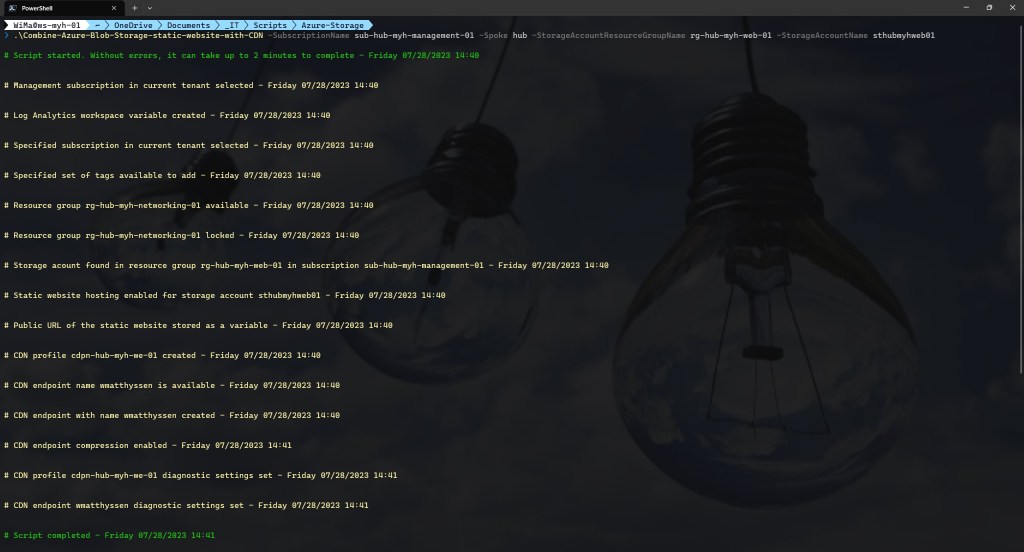
To automate the deployment process of integrating an existing static website with an Azure CDN, I wrote the following Azure PowerShell script. This script includes the following steps and configurations:
- Remove the breaking change warning messages.
- Change the current context to use a management subscription holding your central Log Analytics workspace.
- Save the Log Analytics workspace from the management subscription as a variable.
- Change the current context to the specified subscription.
- Store a specified set of tags in a hash table.
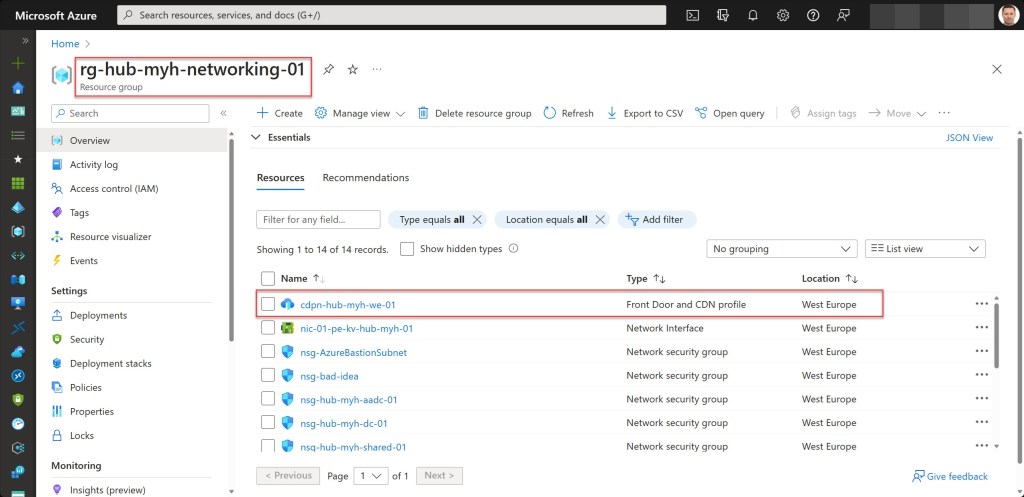
- Create a resource group for the networking resources if one does not already exist. Also, apply the necessary tags to this resource group.
- Lock the networking resource group with a CanNotDelete lock.
- Check if the storage account exists; otherwise, exit the script.
- Check if static website hosting is enabled on the storage account; otherwise, exit the script.
- Get the public URL of the static website from the storage account and store it as a variable for later use.
- Create an Azure CDN profile if it does not already exist.
- Check AzureCDN endpoint name availability.
- Create a CDN endpoint if it does not already exist.
- Configure CDN endpoint compression.
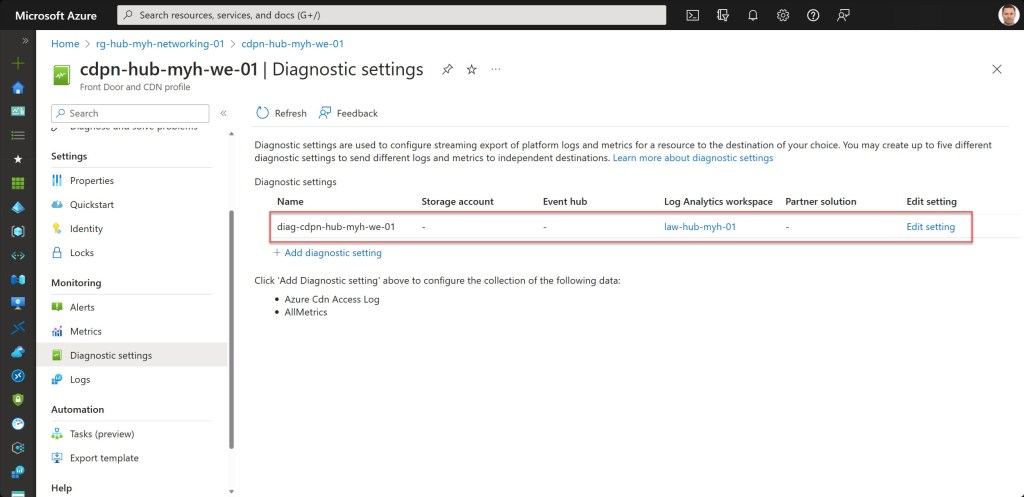
- Set the log and metrics settings for the CDN profile if they don’t exist.
- Set the log and metrics settings for the CDN endpoint if they don’t exist.
To use the script, copy and save it as Combine-Azure-Blob-Storage-static-website-with-CDN.ps1 or download it from GitHub. Then, before using the script, adjust all variables to your needs, and then run the customized script from Windows Terminal, Visual Studio Code, or Windows PowerShell. Or you can simply run it from Cloud Shell.
Prerequisites
- An Azure subscription (preferably more than one if you want to follow the Enterprise-Scale architecture).
- An Azure Administrator account with the necessary RBAC roles.
- An existing Log Analytics workspace.
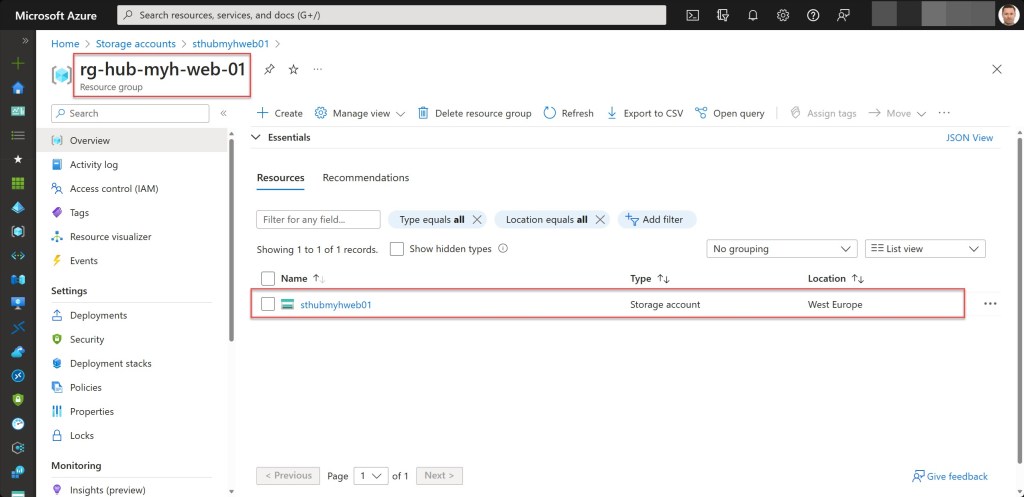
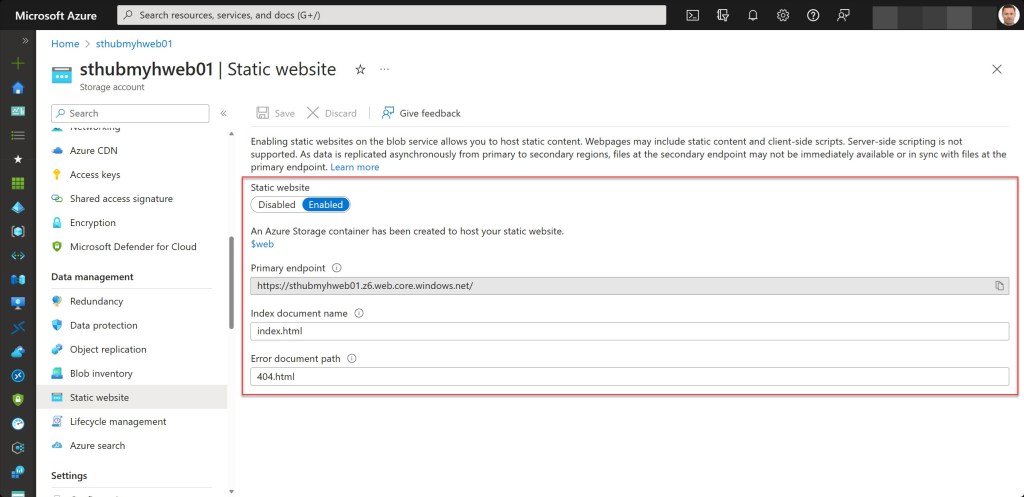
- An existing storage account with the static website feature enabled.
- Version 10.0.0 of the Azure Az PowerShell module is required.
- Change all the variables in the script where needed to fit your needs (you can find an adjusted example in one of the screenshots below).



Azure PowerShell script
If you are not running the script from Cloud Shell, don’t forget to sign in with the Connect-AzAccount cmdlet to connect your Azure account.

You can then run the script with the required parameters:
.\Combine-Azure-Blob-Storage-static-website-with-CDN -SubscriptionName <"your Azure subscription name here"> -Spoke <"your spoke name here"> -StorageAccountResourceGroupName <"your storage account resource group name here"> -StorageAccountName <"your storage account name here">

<#
.SYNOPSIS

A script used to integrate a static website hosted on an Azure storage account with Azure CDN.

.DESCRIPTION

A script used to integrate a static website hosted on an Azure storage account with Azure CDN.
This script will do all of the following:

Remove the breaking change warning messages.
Change the current context to use a management subscription holding your central Log Analytics workspace.
Save the Log Analytics workspace from the management subscription as a variable.
Change the current context to the specified subscription.
Store a specified set of tags in a hash table.
Create a resource group for the networking resources if one does not already exist. Also, apply the necessary tags to this resource group.
Lock the networking resource group with a CanNotDelete lock.
Check if the storage account exists; otherwise, exit the script.
Check if static website hosting is enabled on the storage account; otherwise, exit the script.
Get the public URL of the static website from the storage account and store it as a variable for later use.
Create an Azure CDN profile if it does not already exist.
Check AzureCDN endpoint name availability.
Create a CDN endpoint if it does not already exist.
Configure CDN endpoint compression.
Set the log and metrics settings for the CDN profile if they don't exist.
Set the log and metrics settings for the CDN endpoint if they don't exist.

.NOTES

Filename:       Combine-Azure-Blob-Storage-static-website-with-CDN.ps1
Created:        18/07/2023
Last modified:  18/07/2023
Author:         Wim Matthyssen
Version:        1.0
PowerShell:     Azure PowerShell and Azure Cloud Shell
Requires:       PowerShell Az (v10.0.0)
Action:         Change variables were needed to fit your needs.
Disclaimer:     This script is provided "as is" with no warranties.

.EXAMPLE

Connect-AzAccount
Get-AzTenant (if not using the default tenant)
Set-AzContext -tenantID "xxxxxxxx-xxxx-xxxx-xxxxxxxxxxxx" (if not using the default tenant)
.\Combine-Azure-Blob-Storage-static-website-with-CDN -SubscriptionName <"your Azure subscription name here"> -Spoke <"your spoke name here"> -StorageAccountResourceGroupName <"your storage account resource group name here"> -StorageAccountName <"your storage account name here">

-> .\Combine-Azure-Blob-Storage-static-website-with-CDN -SubscriptionName sub-hub-myh-management-01 -Spoke hub -StorageAccountResourceGroupName rg-hub-myh-web-01 -StorageAccountName sthubmyhweb01

.LINK

https://wmatthyssen.com/2023/07/19/combine-a-static-website-hosted-on-an-azure-storage-account-with-azure-cdn-by-using-an-azure-powershell-script/
#>

## ---------------------------------------------------------------------------------------------------------------------------------------------------------------------------------------------

## Parameters

param(
    # $subscriptionName -> Name of the Azure Subscription
    [parameter(Mandatory = $true)][ValidateNotNullOrEmpty()] [string] $subscriptionName,
    # $spoke -> Name of the spoke
    [parameter(Mandatory = $true)][ValidateNotNullOrEmpty()] [string] $spoke,
    # $storageAccountResourceGroupName -> Name of the resource group of the storage account
    [parameter(Mandatory =$true)][ValidateNotNullOrEmpty()] [string] $storageAccountResourceGroupName,
    # $storageAccountName -> Name of the storage account
    [parameter(Mandatory =$true)][ValidateNotNullOrEmpty()] [string] $storageAccountName
    )

## ---------------------------------------------------------------------------------------------------------------------------------------------------------------------------------------------

## Variables

$region = #<your region here> The used Azure public region. Example: "westeurope"
$purpose = "Web"
$storageAccountObject = $null

$rgNameNetworking = #<your networking resource group name here> The name of the Azure resource group in which your networking resources will be deployed. Example: "rg-hub-myh-networking-01"

$logAnalyticsWorkSpaceName = #<your Log Analytics workspace name here> The name of your existing Log Analytics workspace. Example: "law-hub-myh-01"

$cdnProfileName = #<your CDN profile name here> The name of your CDN profile. Example: "cdpn-hub-myh-we-01"
$cdnSku = "Standard_Microsoft" #"Standard_Verizon "Premium_Verizon" "Custom_Verizon" "Standard_Akamai" "Standard_ChinaCdn"
$cdnLocation = $region #"Global"
$cdnDiagnosticsName = "diag" + "-" + $cdnProfileName

$cdnEndPointName = #<your CDN endpoint name here> The name of your CDN endpoint, which must be globally unique. Example: "staticwebsitedemo"
$cdnEndPointDiagnosticsName = "diag" + "-" + "cdne" + "-" + $spoke.ToLower() + "-" + $cdnEndPointName
$cdnEndpointToCompress = "text/html" #"text/plain" "text/css" "text/javascript" "application/x-javascript" "application/javascript" "application/json" "application/xml"

$tagSpokeName = #<your environment tag name here> The environment tag name you want to use. Example:"Env"
$tagSpokeValue = #<your environment tag value here> The environment tag value you want to use. Example: "Hub"
$tagCostCenterName  = #<your costCenter tag name here> The costCenter tag name you want to use. Example:"CostCenter"
$tagCostCenterValue = #<your costCenter tag value here> The costCenter tag value you want to use. Example: "23"
$tagCriticalityName = #<your businessCriticality tag name here> The businessCriticality tag name you want to use. Example: "Criticality"
$tagCriticalityValue = #<your businessCriticality tag value here> The businessCriticality tag value you want to use. Example: "High"
$tagPurposeName  = #<your purpose tag name here> The purpose tag name you want to use. Example:"Purpose"

Set-PSBreakpoint -Variable currenttime -Mode Read -Action {$global:currenttime = Get-Date -Format "dddd MM/dd/yyyy HH:mm"} | Out-Null
$foregroundColor1 = "Green"
$foregroundColor2 = "Yellow"
$foregroundColor3 = "Red"
$writeEmptyLine = "`n"
$writeSeperatorSpaces = " - "

## ---------------------------------------------------------------------------------------------------------------------------------------------------------------------------------------------

## Remove the breaking change warning messages

Set-Item -Path Env:\SuppressAzurePowerShellBreakingChangeWarnings -Value $true | Out-Null
Update-AzConfig -DisplayBreakingChangeWarning $false | Out-Null

## ---------------------------------------------------------------------------------------------------------------------------------------------------------------------------------------------

## Write script started

Write-Host ($writeEmptyLine + "# Script started. Without errors, it can take up to 2 minutes to complete" + $writeSeperatorSpaces + $currentTime)`
-foregroundcolor $foregroundColor1 $writeEmptyLine

## ---------------------------------------------------------------------------------------------------------------------------------------------------------------------------------------------

## Change the current context to use a management subscription holding your central Log Anlytics workspace

# Replace <your subscription purpose name here> with purpose name of your subscription. Example: "*management*"
$subNameManagement = Get-AzSubscription | Where-Object {$_.Name -like "*management*"}

Set-AzContext -SubscriptionId $subNameManagement.SubscriptionId | Out-Null

Write-Host ($writeEmptyLine + "# Management subscription in current tenant selected" + $writeSeperatorSpaces + $currentTime)`
-foregroundcolor $foregroundColor2 $writeEmptyLine

## ---------------------------------------------------------------------------------------------------------------------------------------------------------------------------------------------

## Save Log Analytics workspace from the management subscription in a variable

$workSpace = Get-AzOperationalInsightsWorkspace | Where-Object Name -Match $logAnalyticsWorkSpaceName

Write-Host ($writeEmptyLine + "# Log Analytics workspace variable created" + $writeSeperatorSpaces + $currentTime)`
-foregroundcolor $foregroundColor2 $writeEmptyLine

## ---------------------------------------------------------------------------------------------------------------------------------------------------------------------------------------------

## Change the current context to the specified subscription

$subName = Get-AzSubscription | Where-Object {$_.Name -like $subscriptionName}

Set-AzContext -SubscriptionId $subName.SubscriptionId | Out-Null

Write-Host ($writeEmptyLine + "# Specified subscription in current tenant selected" + $writeSeperatorSpaces + $currentTime)`
-foregroundcolor $foregroundColor2 $writeEmptyLine

## ---------------------------------------------------------------------------------------------------------------------------------------------------------------------------------------------

## Store the specified set of tags in a hash table

$tags = @{$tagSpokeName=$tagSpokeValue;$tagCostCenterName=$tagCostCenterValue;$tagCriticalityName=$tagCriticalityValue;$tagPurposeName=$purpose}

Write-Host ($writeEmptyLine + "# Specified set of tags available to add" + $writeSeperatorSpaces + $currentTime)`
-foregroundcolor $foregroundColor2 $writeEmptyLine

## ---------------------------------------------------------------------------------------------------------------------------------------------------------------------------------------------

## Create a resource group for the networking resources if one does not already exist. Also, apply the necessary tags to this resource group

try {
    Get-AzResourceGroup -Name $rgNameNetworking -ErrorAction Stop | Out-Null
} catch {
    New-AzResourceGroup -Name $rgNameNetworking -Location $region -Force | Out-Null

    # Save variable tags in a new variable to add tags to the resource group
    $tagsResourceGroup = $tags

    # Set tags for the networking resource group
    Set-AzResourceGroup -Name $rgNameNetworking -Tag $tagsResourceGroup | Out-Null

    # Update the value of the purpose tag
    $networkingResourceGroup = Get-AzResourceGroup -Name $rgNameNetworking
    $mergeTag = @{$tagPurposeName="Networking";}
    Update-AzTag -ResourceId ($networkingResourceGroup.ResourceId) -Tag $mergeTag -Operation Merge | Out-Null
}

Write-Host ($writeEmptyLine + "# Resource group $rgNameNetworking available" + $writeSeperatorSpaces + $currentTime)`
-foregroundcolor $foregroundColor2 $writeEmptyLine

## ---------------------------------------------------------------------------------------------------------------------------------------------------------------------------------------------

## Lock the networking resource group with a CanNotDelete lock

$lock = Get-AzResourceLock -ResourceGroupName $rgNameNetworking

if ($null -eq $lock){
    New-AzResourceLock -LockName DoNotDeleteLock -LockLevel CanNotDelete -ResourceGroupName $rgNameNetworking -LockNotes "Prevent $rgNameNetworking from deletion" -Force | Out-Null
    }

Write-Host ($writeEmptyLine + "# Resource group $rgNameNetworking locked" + $writeSeperatorSpaces + $currentTime)`
-foregroundcolor $foregroundColor2 $writeEmptyLine

## ---------------------------------------------------------------------------------------------------------------------------------------------------------------------------------------------

## Check if the storage account exists; otherwise, exit the script

$storageAccountObject = Get-AzStorageAccount -ResourceGroupName $storageAccountResourceGroupName -Name $storageAccountName -ErrorAction SilentlyContinue

if ($null -ne ($storageAccountObject)) {
            Write-Host ($writeEmptyLine + "# Storage acount found in resource group $storageAccountResourceGroupName in subscription $subscriptionName" + $writeSeperatorSpaces + $currentTime)`
            -foregroundcolor $foregroundColor2 $writeEmptyLine
}

if (-not $storageAccountObject) {
    Write-Host ($writeEmptyLine + "# Storage account not found in resource group $storageAccountResourceGroupName in subscription $subscriptionName" + $writeSeperatorSpaces + $currentTime)`
    -foregroundcolor $foregroundColor3 $writeEmptyLine
    Start-Sleep -s 3
    Write-Host -NoNewLine ("# Press any key to exit the script ..." + $writeEmptyLine)`
    -foregroundcolor $foregroundColor1 $writeEmptyLine;
    $Host.UI.RawUI.ReadKey("NoEcho,IncludeKeyDown") | Out-Null;
    return
}

## ---------------------------------------------------------------------------------------------------------------------------------------------------------------------------------------------

## Check if static website hosting is enabled on the storage account; otherwise, exit the script

# Azure CLI command to query the static website hosting feature status for the storage account
$staticWebsiteCheck = az storage blob service-properties show --account-name $storageAccountName --query 'staticWebsite.enabled' --only-show-errors

if (($staticWebsiteCheck) -eq $true) {
        Write-Host ($writeEmptyLine + "# Static website hosting enabled for storage account $storageAccountName" + $writeSeperatorSpaces + $currentTime)`
        -foregroundcolor $foregroundColor2 $writeEmptyLine
} else {
    Write-Host ($writeEmptyLine + "# Static website hosting not enabled for storage account $storageAccountName" + $writeSeperatorSpaces + $currentTime)`
    -foregroundcolor $foregroundColor3 $writeEmptyLine
    Start-Sleep -s 3
    Write-Host -NoNewLine ("# Press any key to exit the script ..." + $writeEmptyLine)`
    -foregroundcolor $foregroundColor1 $writeEmptyLine;
    $Host.UI.RawUI.ReadKey("NoEcho,IncludeKeyDown") | Out-Null;
    return
}

## ---------------------------------------------------------------------------------------------------------------------------------------------------------------------------------------------

##  Get the public URL of the static website from the storage account and store it as a varialbe for later use

# Get the public URL of the static website
$publicUrl = (Get-AzStorageAccount -ResourceGroupName ($storageAccountObject.ResourceGroupName) -Name $storageAccountName).PrimaryEndpoints.Web

# Remove "https://" and trailing slashes from the public URL
$publicUrl = $publicUrl -replace "https://", "" -replace "/", ""

Write-Host ($writeEmptyLine + "# Public URL of the static website stored as a variable" + $writeSeperatorSpaces + $currentTime)`
-foregroundcolor $foregroundColor2 $writeEmptyLine

## ---------------------------------------------------------------------------------------------------------------------------------------------------------------------------------------------

# Create an Azure CDN profile if it does not already exist

try {
    Get-AzCdnProfile -ResourceGroupName $rgNameNetworking -Name $cdnProfileName -ErrorAction Stop | Out-Null
} catch {
    New-AzCdnProfile -ResourceGroupName $rgNameNetworking -Name $cdnProfileName -SkuName $cdnSku -Location $cdnLocation | Out-Null
}

# Save variable tags in a new variable to add tags
$tagsCdn = $tags

# Set tags CDN profile
Update-AzCdnProfile -ResourceGroupName $rgNameNetworking -Name $cdnProfileName -Tag $tagsCdn | Out-Null

Write-Host ($writeEmptyLine + "# CDN profile $cdnProfileName created" + $writeSeperatorSpaces + $currentTime)`
-foregroundcolor $foregroundColor2 $writeEmptyLine

## ---------------------------------------------------------------------------------------------------------------------------------------------------------------------------------------------

## Check AzureCDN endpoint name availability

$cdnEndPointAvailablity = Test-AzCdnNameAvailability -Name $cdnEndPointName -Type Microsoft.Cdn/Profiles/Endpoints

If(($cdnEndPointAvailablity.NameAvailable) -eq "True"){
    Write-Host ($writeEmptyLine + "# CDN endpoint name $cdnEndPointName is available" + $writeSeperatorSpaces + $currentTime)`
    -foregroundcolor $foregroundColor2 $writeEmptyLine
} else {
    Write-Host ($writeEmptyLine + "# CDN endpoint name $cdnEndPointName is not globally unique" + $writeSeperatorSpaces + $currentTime)`
    -foregroundcolor $foregroundColor3 $writeEmptyLine
    Start-Sleep -s 3
    Write-Host -NoNewLine ("# Press any key to exit the script ..." + $writeEmptyLine)`
    -foregroundcolor $foregroundColor1 $writeEmptyLine;
    $Host.UI.RawUI.ReadKey("NoEcho,IncludeKeyDown") | Out-Null;
    return
}

## ---------------------------------------------------------------------------------------------------------------------------------------------------------------------------------------------

## Create a CDN endpoint if it does not already exist

# Define the origin for the CDN endpoint
$origin = @{
	Name = $storageAccountName
	HostName = $publicUrl
}

try {
    Get-AzCdnEndpoint -Name $cdnEndPointName -ProfileName $cdnProfileName -ResourceGroupName $rgNameNetworking -ErrorAction Stop | Out-Null
} catch {
    New-AzCdnEndpoint -Name $cdnEndPointName -ProfileName $cdnProfileName -ResourceGroupName $rgNameNetworking -Location $cdnLocation `
    -Origin $origin -OriginHostHeader $publicUrl -IsHttpsAllowed | Out-Null
}

Write-Host ($writeEmptyLine + "# CDN endpoint with name $cdnEndPointName created" + $writeSeperatorSpaces + $currentTime)`
-foregroundcolor $foregroundColor2 $writeEmptyLine

## ---------------------------------------------------------------------------------------------------------------------------------------------------------------------------------------------

## Configure CDN endpoint compression

Get-AzCdnEndpoint -Name $cdnEndPointName -ProfileName $cdnProfileName -ResourceGroupName $rgNameNetworking `
| Update-AzCdnEndpoint -IsCompressionEnabled -ContentTypesToCompress $cdnEndpointToCompress | Out-Null

Write-Host ($writeEmptyLine + "# CDN endpoint compression enabled" + $writeSeperatorSpaces + $currentTime)`
-foregroundcolor $foregroundColor2 $writeEmptyLine

## ---------------------------------------------------------------------------------------------------------------------------------------------------------------------------------------------

## Set the log and metrics settings for the CDN profile if they don't exist

$cdnProfile = Get-AzCdnProfile -Name $cdnProfileName -ResourceGroupName $rgNameNetworking

$log = @()
$metric = @()

# Get diagnostic settings categories for the given CDN profile
$categories = Get-AzDiagnosticSettingCategory -ResourceId ($cdnProfile.Id)

# Create diagnostic setting for all supported categories
$categories | ForEach-Object {
    if ($_.CategoryType -eq "Metrics") {
        $metric += New-AzDiagnosticSettingMetricSettingsObject -Enabled $true -Category $_.Name
    } else {
        $log += New-AzDiagnosticSettingLogSettingsObject -Enabled $true -Category $_.Name
    }
}

try {
    Get-AzDiagnosticSetting -Name $cdnDiagnosticsName -ResourceId ($cdnProfile.Id) -ErrorAction Stop | Out-Null
} catch {
    New-AzDiagnosticSetting -Name $cdnDiagnosticsName -ResourceId ($cdnProfile.Id) -WorkspaceId ($workSpace.ResourceId) -Log $log -Metric $metric | Out-Null
}

Write-Host ($writeEmptyLine + "# CDN profile $cdnProfileName diagnostic settings set" + $writeSeperatorSpaces + $currentTime)`
-foregroundcolor $foregroundColor2 $writeEmptyLine

## ---------------------------------------------------------------------------------------------------------------------------------------------------------------------------------------------

## Set the log and metrics settings for the CDN endpoint if they don't exist

$cdnEndpoint = Get-AzCdnEndpoint -Name $cdnEndPointName -ProfileName $cdnProfileName -ResourceGroupName $rgNameNetworking

$log = @()
$metric = @()

# Get diagnostic settings categories for the given CDN profile
$categories = Get-AzDiagnosticSettingCategory -ResourceId ($cdnEndpoint.Id)

# Create diagnostic setting for all supported categories
$categories | ForEach-Object {
    if ($_.CategoryType -eq "Metrics") {
        $metric += New-AzDiagnosticSettingMetricSettingsObject -Enabled $true -Category $_.Name
    } else {
        $log += New-AzDiagnosticSettingLogSettingsObject -Enabled $true -Category $_.Name
    }
}

try {
    Get-AzDiagnosticSetting -Name $cdnEndPointDiagnosticsName -ResourceId ($cdnEndpoint.Id) -ErrorAction Stop | Out-Null
} catch {
    New-AzDiagnosticSetting -Name $cdnEndPointDiagnosticsName -ResourceId ($cdnEndpoint.Id) -WorkspaceId ($workSpace.ResourceId) -Log $log -Metric $metric | Out-Null
}

Write-Host ($writeEmptyLine + "# CDN endpoint $cdnEndPointName diagnostic settings set" + $writeSeperatorSpaces + $currentTime)`
-foregroundcolor $foregroundColor2 $writeEmptyLine

## ---------------------------------------------------------------------------------------------------------------------------------------------------------------------------------------------

## Write script completed

Write-Host ($writeEmptyLine + "# Script completed" + $writeSeperatorSpaces + $currentTime)`
-foregroundcolor $foregroundColor1 $writeEmptyLine

## ---------------------------------------------------------------------------------------------------------------------------------------------------------------------------------------------




View static website
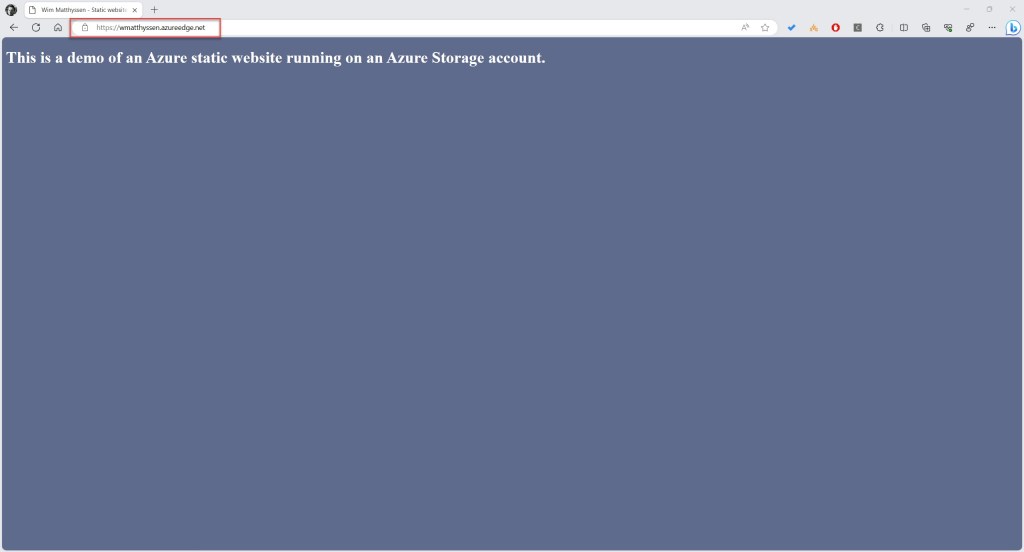
Users can view the site content from a browser by accessing the CDN endpoint hostname of the website. You can find this URL through various methods, such as using Azure CLI, or PowerShell.
To find the URL via the Azure Portal, head over to your storage account, and from the CDN page, click on the hostname. Then, via CDN overview, locate the endpoint hostname. Your site’s URL will be displayed here.

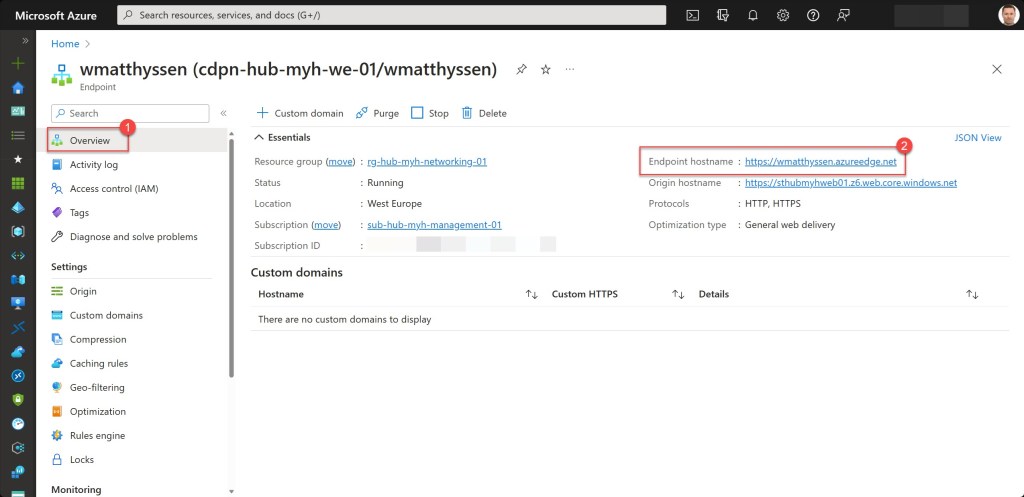
You can then copy the link and paste it into your browser.
Conclusion
Azure Storage static website hosting is an excellent choice when you don’t need a dedicated web server for content rendering. By utilizing this feature, you can serve web pages and assets directly from your Azure Storage account, simplifying deployment and eliminating web server management overhead.
Integrating your static website with an Azure CDN enhances its performance and allows you to configure a custom domain endpoint, provision personalized TLS/SSL certificates, and set up custom rewrite rules.
I hope the Azure PowerShell script is useful for you and provides you with a good starting point for hosting a static website on an Azure storage account and integrating it with an Azure CDN in your Azure environment.
Should you have any questions or suggestions regarding the script, feel free to reach out to me through my Twitter handle (@wmatthyssen) or simply leave a comment, and I’ll be more than happy to assist.
 Wim Matthyssen
0 comments on “Combine a static website hosted on an Azure storage account with Azure CDN by using an Azure PowerShell script”